

Single Sign-On (SSO) lets your team authenticate to Applivery using your organization's existing identity provider, eliminating the need for separate credentials. Applivery supports multiple SSO methods to fit different organizational setups and identity infrastructure.
Supported SSO methods
Google Authentication is enabled by default on all Applivery accounts and requires no additional configuration.
Where each sign-in method applies
You choose the sign-in methods separately for each access point. Once in the Applivery Dashboard, go to your Workspace Settings from the top dropdown menu and open Login providers.
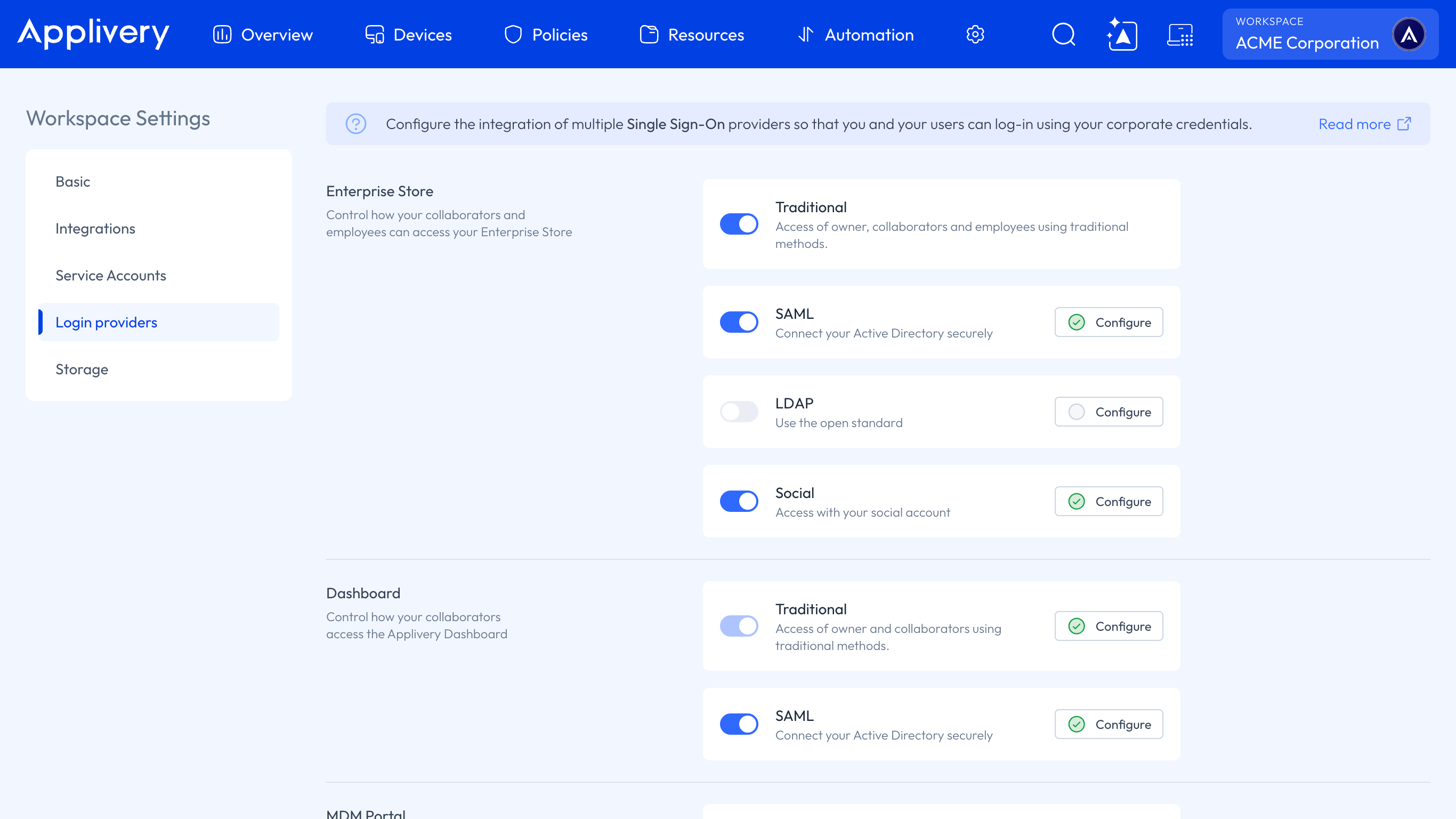
Access point | Who it's for | Available methods |
|---|---|---|
Enterprise Store | Collaborators and employees | Traditional, SAML, LDAP, Social |
Dashboard | Collaborators | Traditional, SAML |
MDM Portal | Access to your enrolled Devices | SAML, LDAP |
Google Workspace is a separate integration. You can learn more about it by following this link.
SSO user data variables
When SSO is configured, the identity provider shares user data that you can reference using template variables. These are useful for automating form fields and populating values during device enrollment or account creation workflows.
Variable | Description |
|---|---|
| User's first name |
| User's last name |
| User's username |
| Full email address |
| Username portion of the email address |
Variables can be combined to build dynamic values. For example, {{sso.firstname}}.{{sso.lastname}} generates a value like daniel.garcia — useful for automated account creation in macOS Device Management scenarios.
Configure SSO and SCIM for your identity provider of choice, with step-by-step setup guides and role mapping instructions.
No articles match your current filters.