

The passcode is the single control that everything else on an Apple Device depends on. Data Protection encrypts the Device's storage, but that encryption is only meaningful if there's a passcode protecting it — without one, the data is effectively unprotected no matter what else you configure. You can verify both conditions on a Device in Security Info.
The Passcode configuration is where you define what that passcode has to look like: how long, how complex, how often it changes, and what happens when someone gets it wrong too many times.
Prerequisites
The Apple Device is enrolled in Applivery.
The Policy is correctly assigned to the target Device(s).
Supervision is not required. Apple lists this payload as Requires supervision: N/A, so it applies to supervised and unsupervised Devices alike.
Configuration
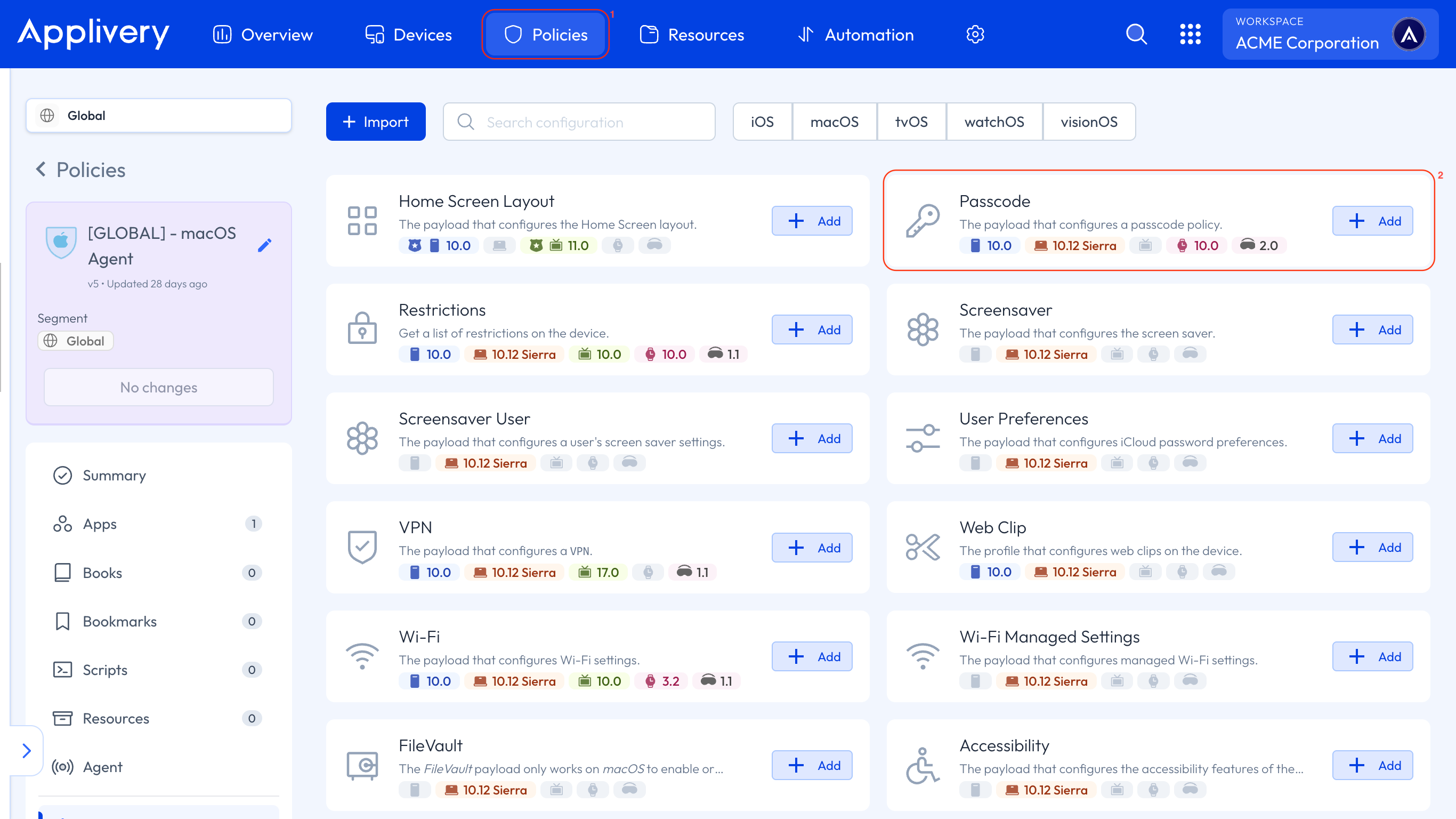
Once in the Applivery Dashboard, go to any of your Policies 1. From the left side menu, select + Add configuration and choose Passcode 2.
What you can set
Requiring a passcode
Force PIN is the setting that makes a passcode mandatory. It's off by default, which is worth pausing on: without it, none of the other settings force the user to have a passcode at all — they only describe what the passcode must look like if the user sets one.
If you take one thing from this article, take this: turn Force PIN on first, then configure the rest.
Length and complexity
Setting | What it does | Range |
|---|---|---|
Minimum length | Minimum overall length of the passcode. | 0–16 · default |
Allow simple | When off, blocks repeated characters and sequences such as | Default: allowed |
Require alphanumeric | Requires letters, not just digits. | Default: off |
Minimum complex characters | Minimum number of characters that are neither letters nor digits — | 0–4 · default |
Two details that trip people up:
Minimum length maxes out at 16. If a security requirement asks for more, it isn't achievable through this payload.
Minimum length and minimum complex characters are independent. Requiring 2 complex characters doesn't imply any total length — set both.
For the common requirement of "a 6-digit PIN that isn't trivial": Minimum length 6 + Allow simple off, leaving Require alphanumeric off.
Rotation and reuse
Setting | What it does | Range |
|---|---|---|
Maximum PIN age in days | Days the passcode can stay unchanged. When the limit is reached, the system forces a change before unlocking. | 1–730 |
PIN history | The new passcode must be different from the last N used. | 1–50 |
For a 12-month rotation, set 365. Pair it with PIN history, or users will alternate between two passcodes indefinitely.
Idle locking
Setting | What it does | Range |
|---|---|---|
Auto-Lock | Maximum idle minutes before the Device locks and asks for the passcode. | 0–15 (macOS: up to 60) |
Maximum grace period | Minutes during which the Device can be unlocked again without re-entering the passcode. | Default |
Auto-Lock is expressed in whole minutes. There's no sub-minute granularity, so a requirement like "lock after 90 seconds" isn't representable — you have to choose 1 minute (stricter) or 2 (looser). Setting the value also removes the Never option from the user's Settings.
Auto-Lock is a ceiling, not a fixed value: the user can pick a shorter time, but never a longer one. It's covered in more depth in Auto-Lock.
Failed attempts
Setting | What it does | Range |
|---|---|---|
Maximum failed attempts | Failed passcode entries allowed before the Device erases or locks. | 2–11 · default |
On iOS, iPadOS, visionOS and watchOS, exceeding this limit securely erases all data and settings from the Device. It doesn't lock it — it wipes it. Only macOS locks instead.
This is not a setting to tighten casually. A low value on a Device used by someone who mistypes their PIN a few times means real data loss, and there's no undo.
After six failed attempts, the Device imposes an increasing time delay between entries. That means values of 6 or lower behave differently from higher ones: there's no delay before the erase or lock; it happens as soon as the limit is passed.
macOS-only settings
Setting | What it does |
|---|---|
Change at next auth | Forces a password reset the next time the user authenticates. In a device profile, it affects all users, and admin authentications may fail until the admin password is also reset. |
Minutes until failed login reset | Minutes before the login resets after the maximum failed attempts. Requires the failed-attempts limit to be set. |
Custom regex | A regular expression the password must match, plus a localized description of the rule. macOS 14+. |
Use Custom regex only when the standard settings genuinely can't express your requirement. A mistake produces either an unsatisfiable passcode policy or a description that doesn't match what's actually enforced, and the user is the one who discovers it, at the worst moment. The expression uses ICU syntax and is limited to 2048 characters.
What the Passcode configuration cannot do
Three things are commonly asked for, and none of them live here:
Requiring biometrics. Apple has no key that forces a user to enrol Face ID or Touch ID. You can restrict biometrics, never mandate them. The verifiable control is the passcode itself.
Setting a specific passcode. The configuration defines minimums. Users choose their own passcode and can change it to any other compliant one.
Blocking passcode changes. That's a Restrictions setting, and unlike the Passcode payload, it does require a supervised Device.
Personal Devices (User Enrollment)
On BYOD Devices enrolled through User Enrollment, Apple accepts the payload but ignores most of its settings. Instead, its presence forces a fixed set of rules:
Setting | What Apple applies |
|---|---|
Force PIN | Always on |
Minimum length | Always 6 |
Allow simple | Always off |
Auto-Lock | Value ignored — only the Never option disappears from Settings |
Minimum complex characters | Ignored |
Everything else — expiration, history, failed attempts — is not applied. If your requirement includes passcode rotation or a specific auto-lock time, User Enrollment can't satisfy it, and you need Device Enrollment or Automated Device Enrollment.
This is the single most common source of "I configured it, and nothing happened" on Apple Devices. Before troubleshooting the Policy, check how the Device was enrolled.