

Applivery lets you define Wi-Fi network configurations directly within an Android policy so that managed devices automatically receive the necessary connectivity settings — no manual setup required on each device. Configuration is based on openNetworkConfiguration, the standard format used by the Android Management API to declare Wi-Fi networks on managed devices.
This is particularly useful in COBO/COPE deployments, kiosk-mode devices, and large-scale rollouts where minimizing user intervention is essential — devices connect to approved corporate networks automatically, from first boot.
Prerequisites
Before you start, make sure you have:
An Android device enrolled in Applivery with an Android Enterprise policy assigned.
The network SSID and its security type — for example, open, WPA-PSK, or WPA-EAP.
For 802.1X/EAP networks: the required authentication parameters and certificates, including CA certificates and, if applicable, a client certificate.
If you plan to block manual Wi-Fi changes on the device, make sure at least one valid and tested network is already declared in the policy — otherwise the device may lose Wi-Fi access entirely.
Configuring a Wi-Fi network
Once in the Applivery Dashboard, go to any of your Policies or create a new one. From the left-hand menu, select WiFi, then click + Add WiFi network.
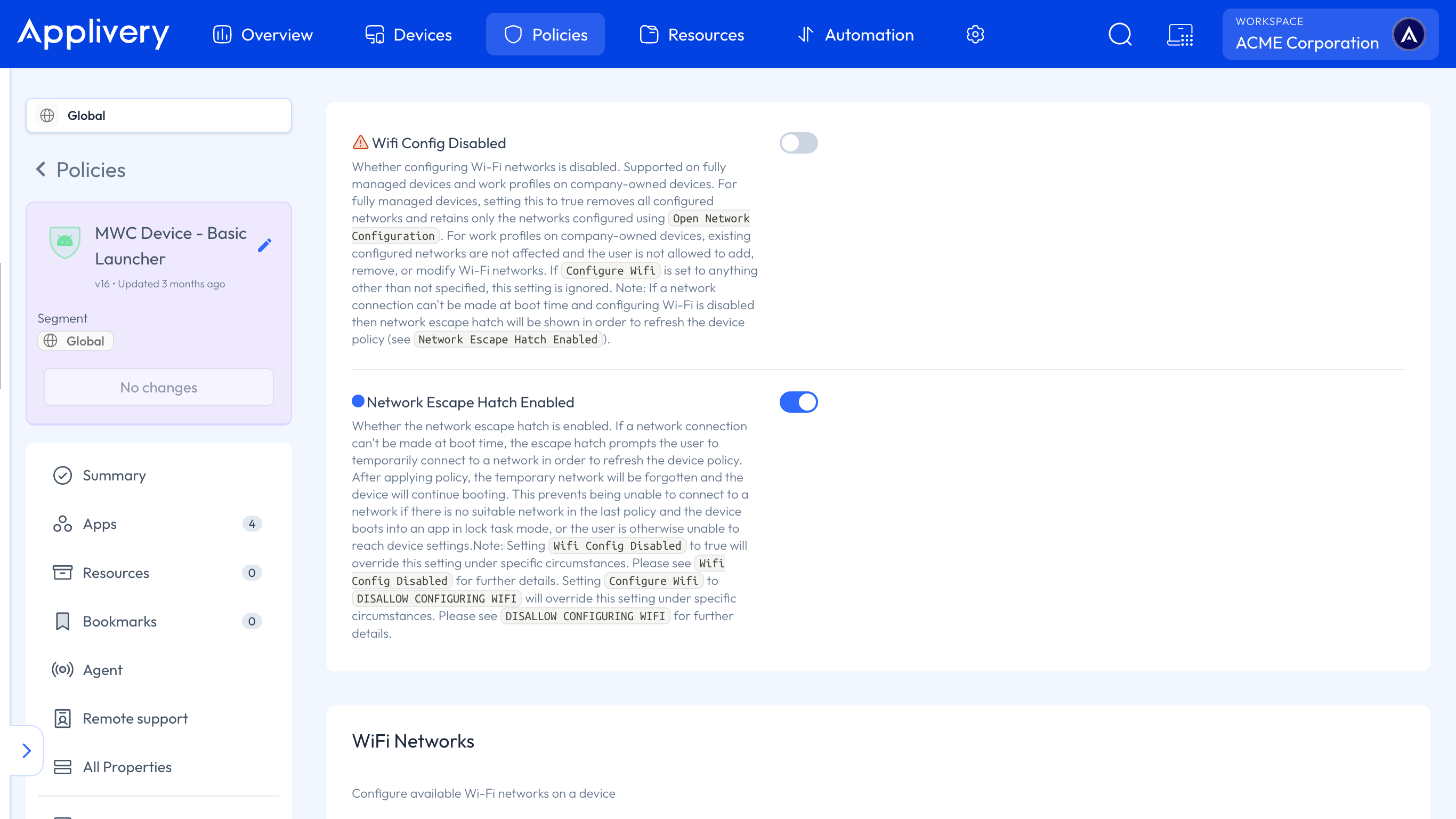
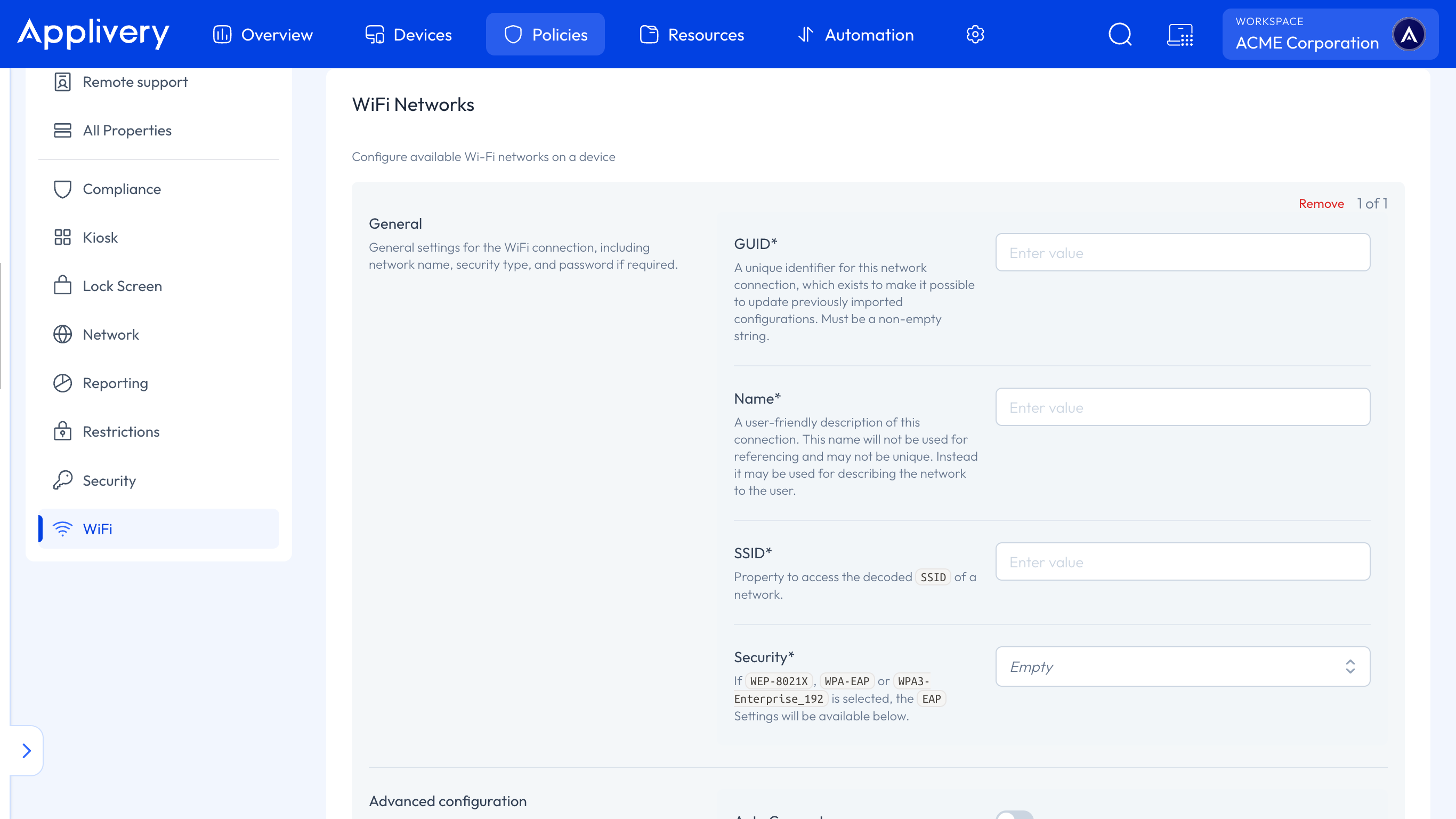
Fill in the network details according to the type of corporate network you need to deploy. See the field reference below for a description of each option.
Click Save to apply changes, then assign the Policy to the relevant devices or groups. Applivery will push the Wi-Fi configuration automatically to all targeted devices.
Field reference
General
GUID — Unique internal identifier for the network entry within the policy. It lets Applivery and Android distinguish this Wi-Fi entry from others, even when multiple entries share the same SSID across different policies or versions.
Name — A friendly label visible only in the Applivery Dashboard. It does not need to match the SSID; it is for administrative purposes only (for example, "Wi-Fi office floor 3").
SSID — The actual name of the Wi-Fi network that the device will see and connect to. This maps to the
SSIDfield inopenNetworkConfigurationand must match exactly what is configured on the access point, including capitalization.Security — The security type of the Wi-Fi network. Applivery supports the values defined by the Android Management API:
None(open),WEP-PSK,WPA-PSK, andWPA-EAP. Selecting a value enables the corresponding fields — for example, a passphrase field for WPA-PSK, or EAP parameters and certificate selectors for WPA-EAP.
Certificate from a Certificate Provider
To authenticate a WPA-EAP network with a certificate requested through SCEP:
Set Security to WPA-EAP.
In the EAP configuration, set Outer to EAP-TLS.
Set Certificate Type to Certificate Provider.
Select the Certificate Provider, then the profile.
You set up providers and their profiles in Certificate Providers.
Advanced configuration
Auto Connect — When enabled, the device connects to this network automatically whenever it is in range, without user intervention, provided the credentials are correct.
MAC Address Randomization Mode — Controls whether the device uses its real hardware MAC address or a randomized one for this network. Maps to
MACAddressRandomizationModein the Android Management API (Android 13+). Relevant in environments with MAC-based access control or network inventory management.Hidden SSID — Marks the network as hidden, meaning the access point does not broadcast the SSID name. When enabled, the device still searches for and connects to the network using the configured SSID, even if it does not appear in the visible networks list.
BSSID Allowlist — An optional list of BSSIDs (MAC addresses of specific access points) that the device is allowed to associate with for this SSID. Restricts connectivity to specific radios — useful when the same SSID exists across multiple locations and you only want devices to connect to a defined subset.
Proxy Settings — Proxy configuration applied while the device is connected to this network. Supports no proxy, manual configuration (host, port, and exclusions), or automatic configuration via PAC URL, following the
ProxySettingsfield of the Android Management API.
Best practices
Enable Auto Connect for networks that must be available from first boot.
Validate the configuration on a pilot group before rolling it out to the entire fleet.
If you plan to block manual Wi-Fi modifications, confirm the policy contains a functional and tested network before enabling that restriction.
In environments with MAC-based access control, evaluate whether to fix MAC Address Randomization Mode based on your network infrastructure's expected behavior.
Once the Policy is applied, the device shows the network as saved or connects automatically, depending on the AutoConnect setting. If the network does not apply as expected, review the security type, password, SSID visibility, certificates, and EAP parameters configured in the Policy.