

A Certificate Provider is a resource that stores one SCEP connection, meaning the server Devices request certificates from it and the challenge they use to prove they're allowed to. On top of that connection, each provider holds one or more Certificate Profiles: the authority name, key settings, and subject for one type of certificate. When you need a different certificate, you add a profile instead of creating another provider.
Your Policies then pick the provider and the profile they need, from an Apple SCEP payload or an Android WPA-EAP Wi-Fi network.
One Auth Connector, one Connector Token, and one challenge serve every profile on a provider. You don't deploy a connector per profile.
Create or edit a Certificate Provider
Once in the Applivery Dashboard, go to Resources 1. From the left-hand menu, select Certificate providers 2 and click + Create Certificate provider 3, or open an existing provider.
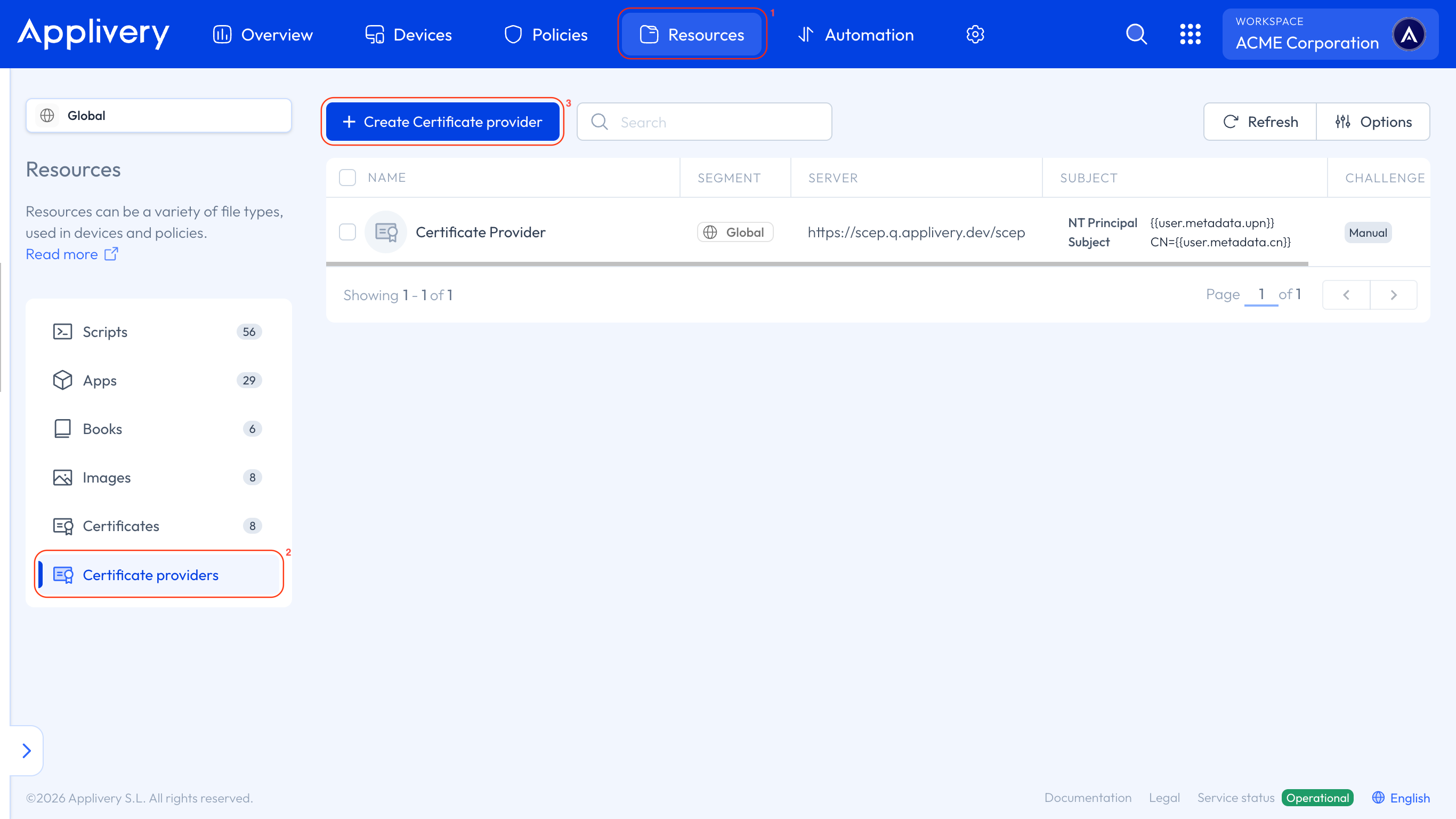
Name: the name you'll see when you select the provider from a Policy.
Description: optional.
Type: SCEP.
On an existing provider, this section also shows its ID and its Connector Token.
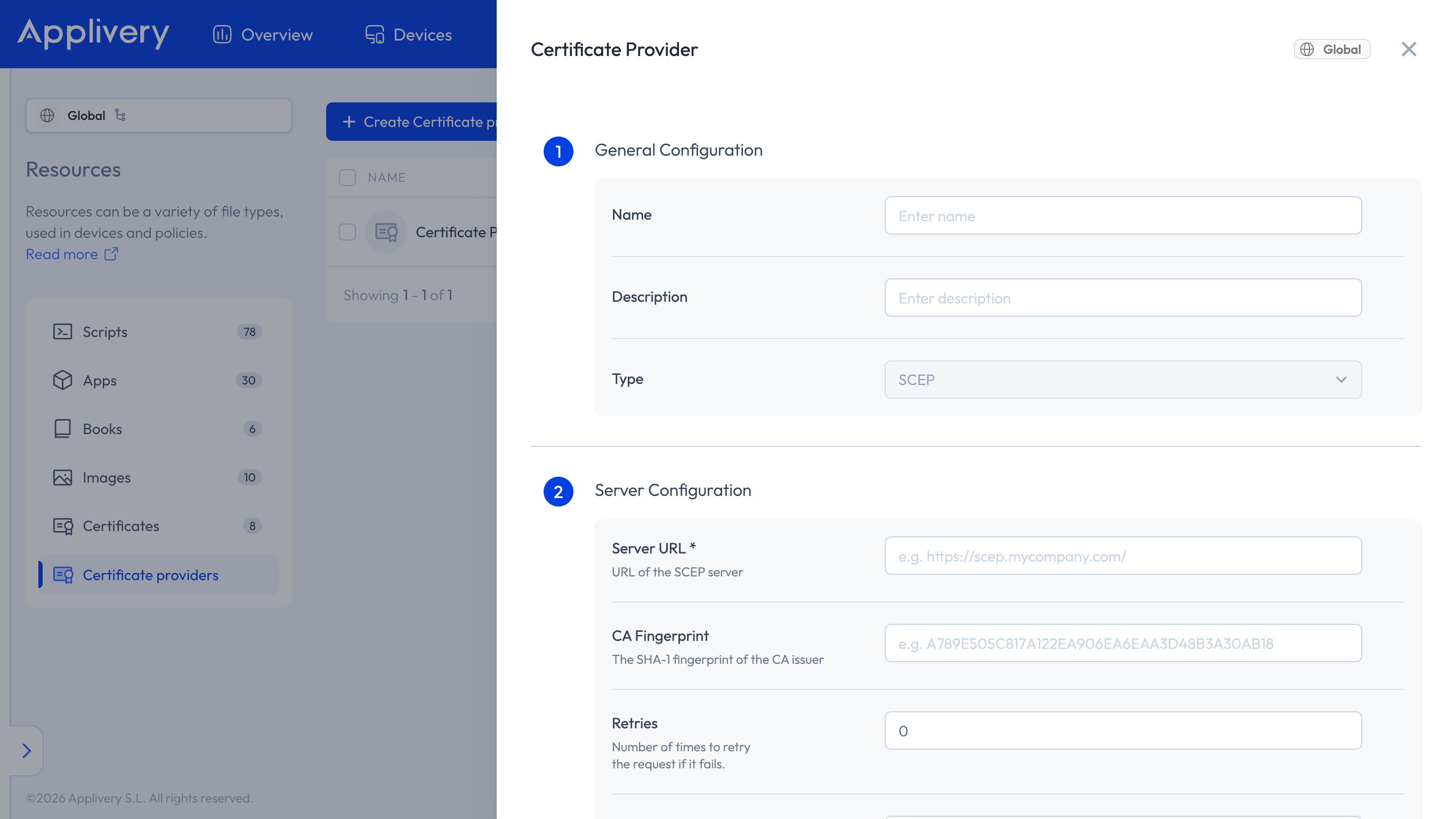
Server URL (required): the URL of the SCEP server. For NDES, for example:
https://<your-ndes-server>/certsrv/mscep/mscep.dll.CA Fingerprint: the SHA-1 fingerprint of the CA issuer. To get it, open the CA certificate used by the NDES server, go to the Extensions section and copy the CA Fingerprint entry.
Retries: how many times to retry the request if it fails.
Retry Delay: the delay, in seconds, between retry attempts.
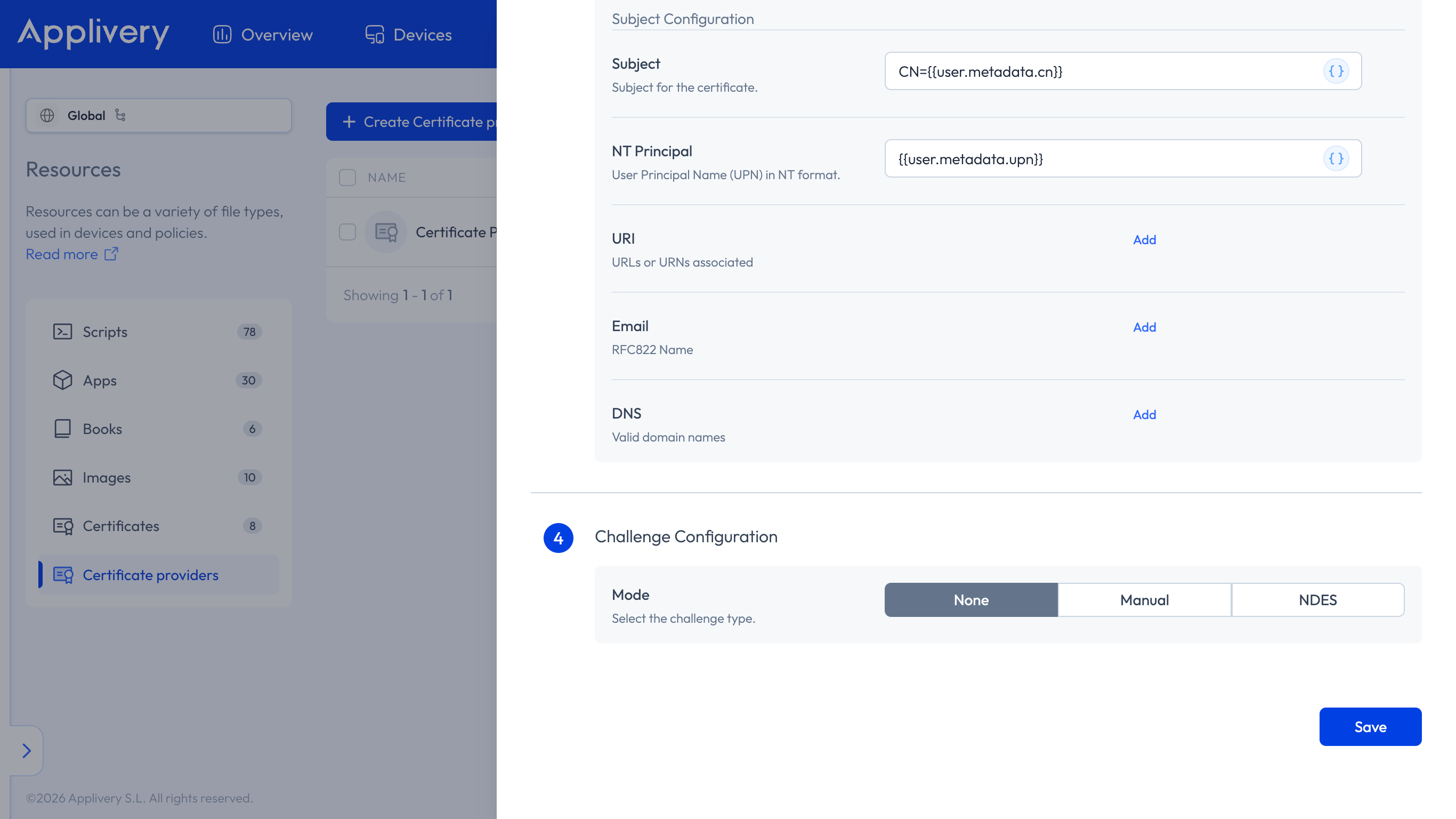
Mode: NDES.
URL:
https://<your-ndes-server>/certsrv/mscep_admin.Username: a domain user with permissions for the Certificate Template configured on the NDES server.
Password: the password for that user.
Fill in at least one profile with its authority name, key, and subject.
Click Save, then reopen the provider to copy the Connector Token shown at the top. You'll need it to deploy the Auth Connector.
Certificate Profiles
Each profile defines the authority, key, and subject of the requested certificates, sharing the server and challenge configuration. Policies select the profile to use.
The Certificate Profiles section shows a badge with the number of profiles on the provider, and each profile has its own tab.
One profile is the Default profile: its tab shows (Default), and its name has a Default badge. A provider always has one.
+ Add profile adds another tab.
Profiles other than the Default one have a delete control. You can't remove the Default profile, or a profile that a Policy still uses.
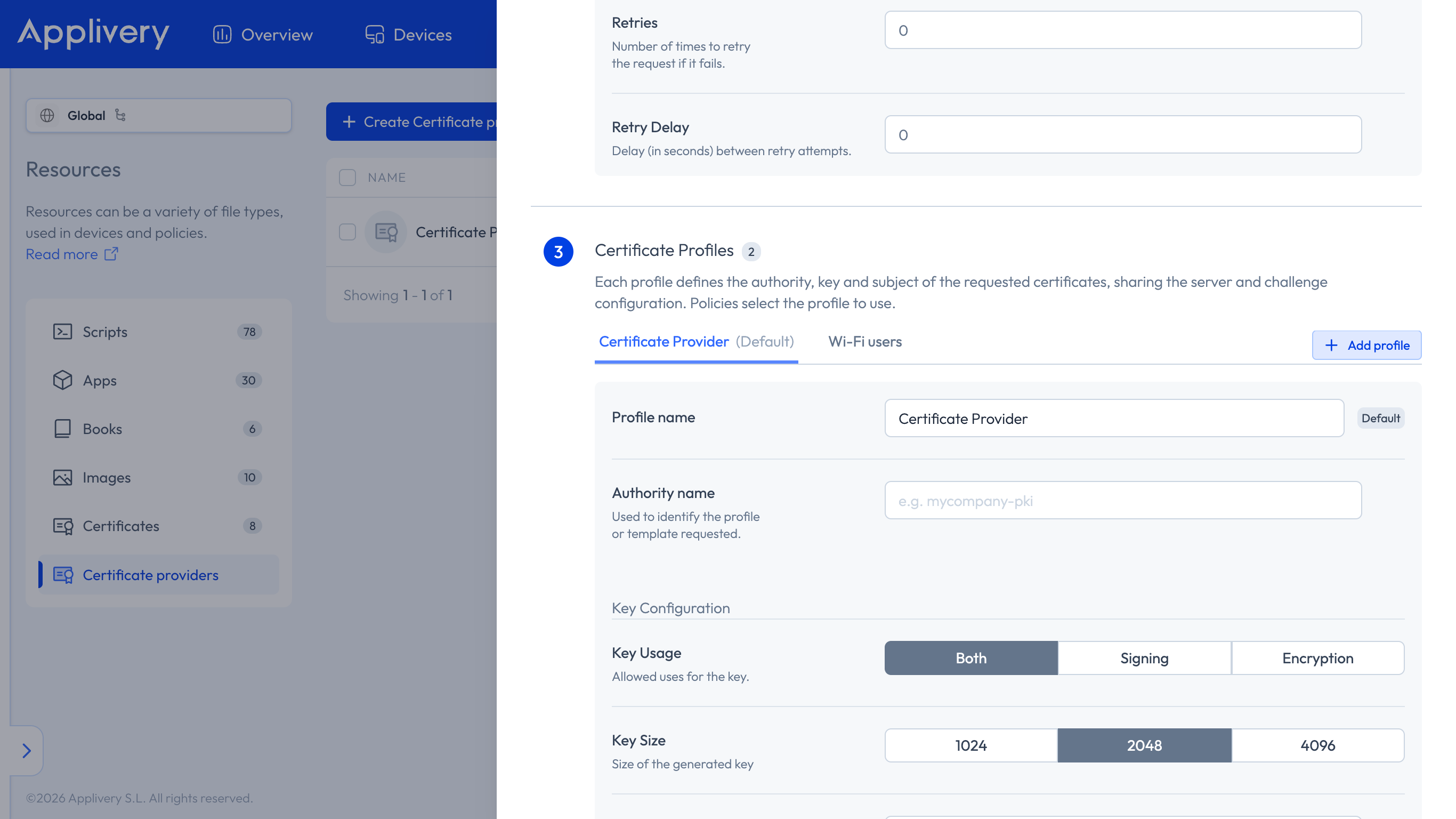
Profile name and Authority name
Profile name: the label you'll see in the Dashboard and when you select the profile from a Policy.
Authority name: used to identify the profile or template requested, for example
mycompany-pki. Enter the intermediate or issuing CA name exactly as it appears in the CA certificate.
Key Configuration
Key Usage: the allowed uses for the key: Both, Signing, or Encryption.
Key Size: the size of the generated key: 1024, 2048, or 4096. It's typically 2048 or 4096, depending on your security policy.
Key Type: RSA.
Key Is Extractable: whether the key can be extracted from the keystore.
Allow All Apps Access: whether all Apps can access the key.
Subject Configuration
Fields marked with the {} symbol support interpolation tags, placeholders that Applivery replaces with Device or employee data when it deploys the certificate. Fields without the symbol don't support them.
Subject: the certificate subject. Supports interpolation tags, for example
CN={{user.email}}.NT Principal: the User Principal Name (UPN) in NT format. Supports interpolation tags.
URI: associated URLs or URNs. Click Add for each one.
Email: the RFC822 name. Click Add for each one.
DNS: valid domain names. Click Add for each one.
If you store your own employee metadata, such as a cn or upn key, you can use it with {{user.metadata.PROPERTY}}, for example CN={{user.metadata.cn}} or {{user.metadata.upn}}.
Use a profile in an Apple Policy
The SCEP payload (com.apple.security.scep) configures Simple Certificate Enrollment Protocol (SCEP) settings. Its card lists iOS 10.0, macOS 10.12 Sierra, tvOS 10.0, watchOS 3.0 and visionOS 1.1.
In the SCEP payload of your Apple Policy, set Source to Certificate Provider.
The card shows the selected provider, with the Change and View details options.
In Profile, select the profile you need from that provider. The Default profile shows as (Default).
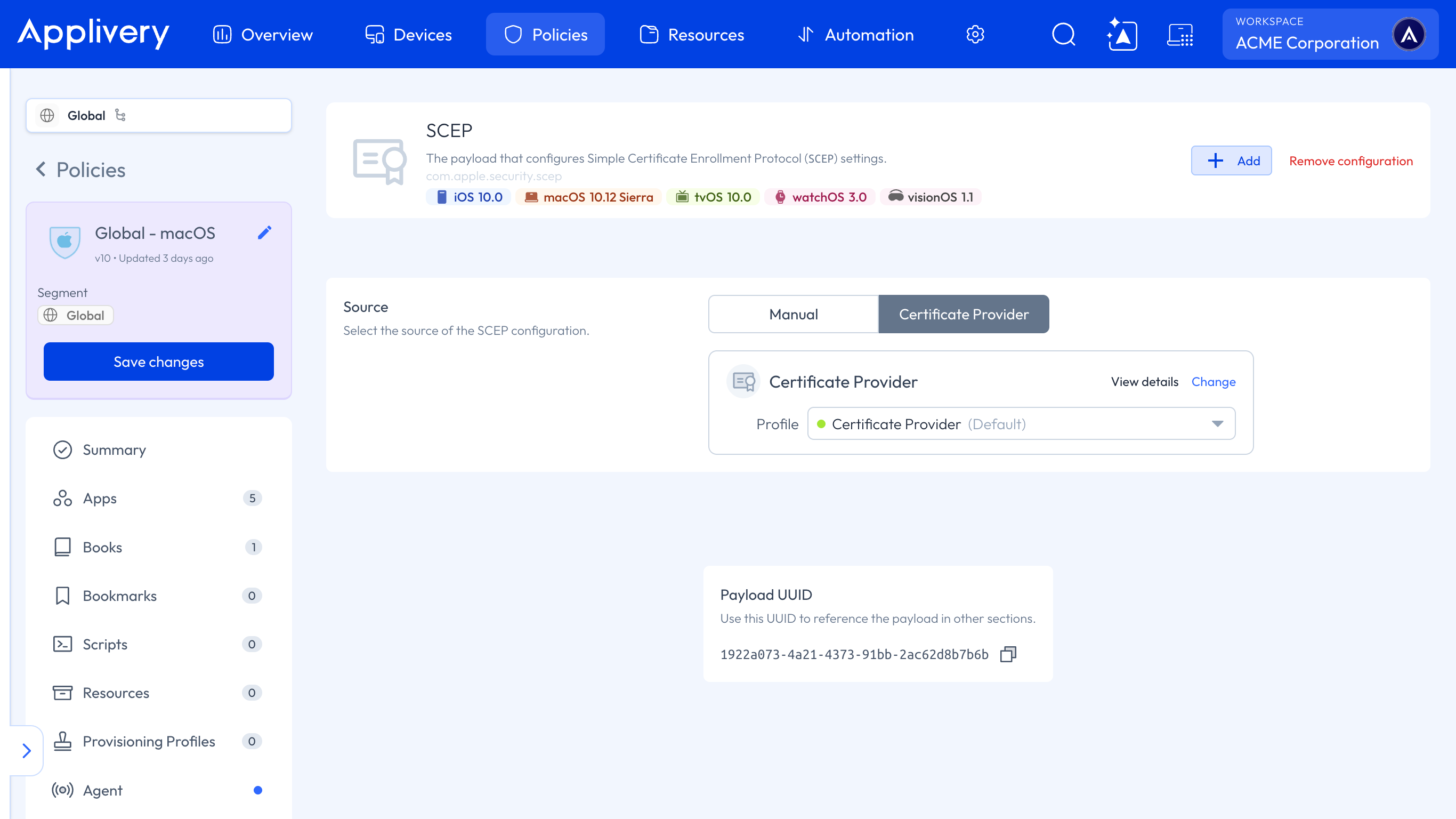
Each SCEP configuration selects one provider and one profile.
Use a profile in an Android Wi-Fi network
From an Android Policy, go to WiFi → + Add WiFi network, as described in Configure Wi-Fi Networks, and then:
Set Security to WPA-EAP.
In the EAP configuration, set Outer to EAP-TLS.
Set Certificate Type to Certificate Provider.
Select the Certificate Provider, then the profile.
The certificate requested through SCEP is installed into the Device keystore by the Android Agent.
If you plan to block manual Wi-Fi changes on the device, make sure at least one valid and tested network is already declared in the policy — otherwise the device may lose Wi-Fi access entirely.
Example
You have one NDES server and need two different certificates:
Create one Certificate Provider with the NDES Server URL and the challenge, using your own
<your-ndes-server>values.In the first profile, enter the authority name as it appears on the issuing CA certificate, Key Size 2048, Key Usage Both, and Subject
CN={{user.email}}.Click + Add profile and create a second profile, with its own authority name and subject, for a different destination in your Policy.
Your Apple SCEP payload and your Android WPA-EAP network each select the profile they need, without a second Certificate Provider.
Providers created before Certificate Profiles
If you created a Certificate Provider before profiles were available, open it: its previous authority name, key, and subject now make up the Default profile. The authority name, which used to sit under Server Configuration, is now in that profile.
Policies that already used the provider keep using its Default profile, so you don't need to recreate anything. The Connector Token stays on the provider, and you can add more profiles with + Add profile.