

How much control you have over location on Android isn't the same on every Device: it depends on whether the Device is Fully Managed / Dedicated or has a work profile (COPE or BYOD). Applivery gives you two levels of control — the system location service and per-app location permissions — and the second behaves differently depending on the mode.
System-level location control
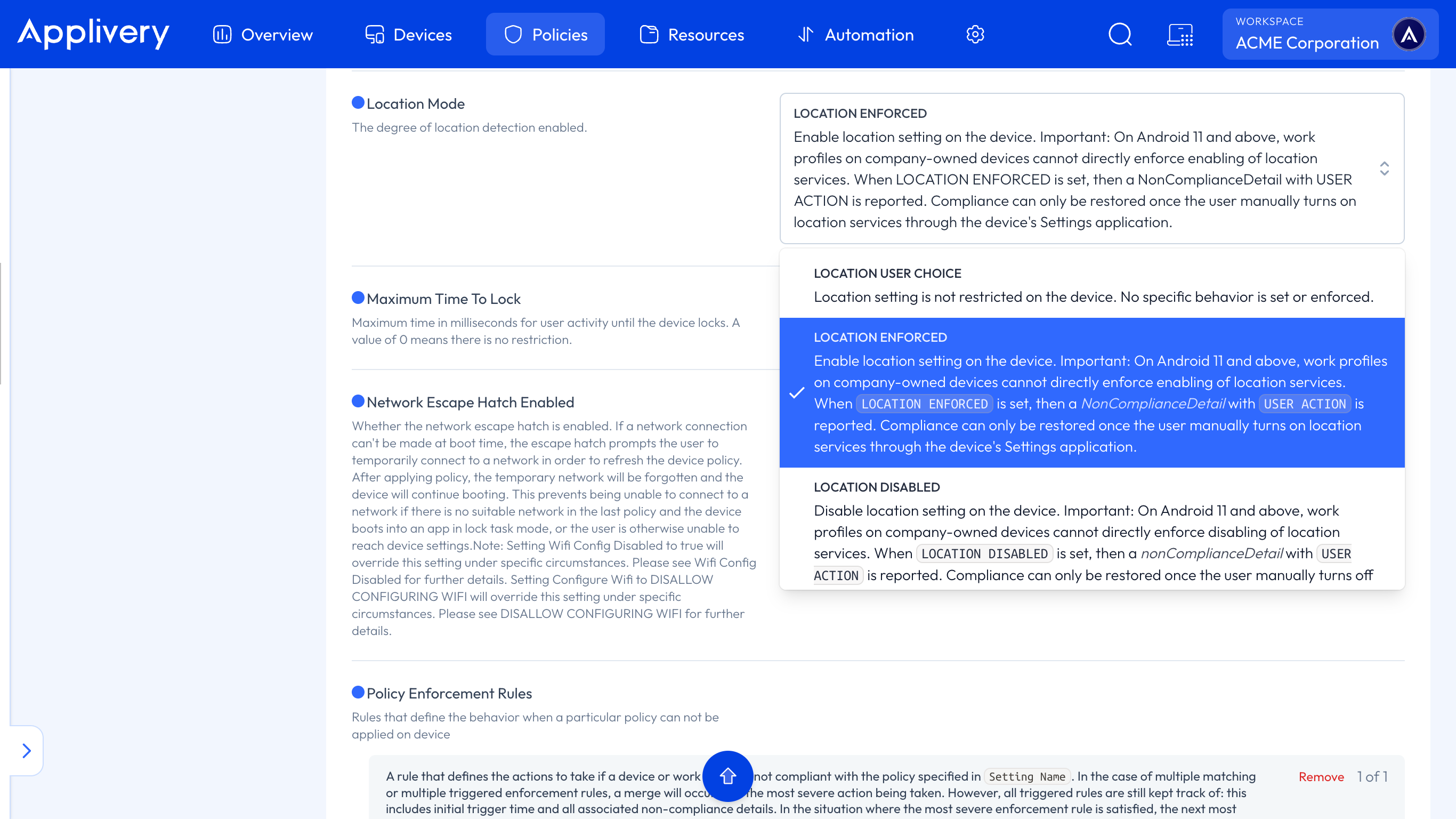
Regardless of the management mode, you can control whether the system location service is active with the Location Mode field.
Once in the Applivery Dashboard, go to any of your Policies. Open All Properties and search for the Location Mode configuration. It has three possible values:
Value | What it does |
|---|---|
| Location isn't restricted on the Device. Nothing specific is enforced — the user decides. |
| Forces location on. |
| Forces location off. |
On Android 11 and later, work profiles on corporate-owned Devices (COPE) can't directly force location on or off at the device level. If you set LOCATION_ENFORCED or LOCATION_DISABLED in that scenario, Applivery reports a NonComplianceDetail with reason USER_ACTION, and compliance is only restored once the user changes the location setting manually from the Device's Settings. In practice, on COPE these two values act more as a compliance signal — the Device is flagged non-compliant until the user acts — than as a silent, immediate enforcement.
A separate field, Share Location Disabled, specifically controls whether location sharing is turned off. It's a different setting from Location Mode — closer to what Applivery's Feature List calls Location sharing management (preventing work-profile apps from sharing location) — and shouldn't be confused with the system switch.
Per-app location permission: Permission Grants
Applivery manages app permissions — location included — from Policies → Apps. Once in a Policy, open Apps from the left-hand menu and select the app from your installed apps. If the app you want to manage isn't installed yet, install it first through any of Applivery's methods, then select it.
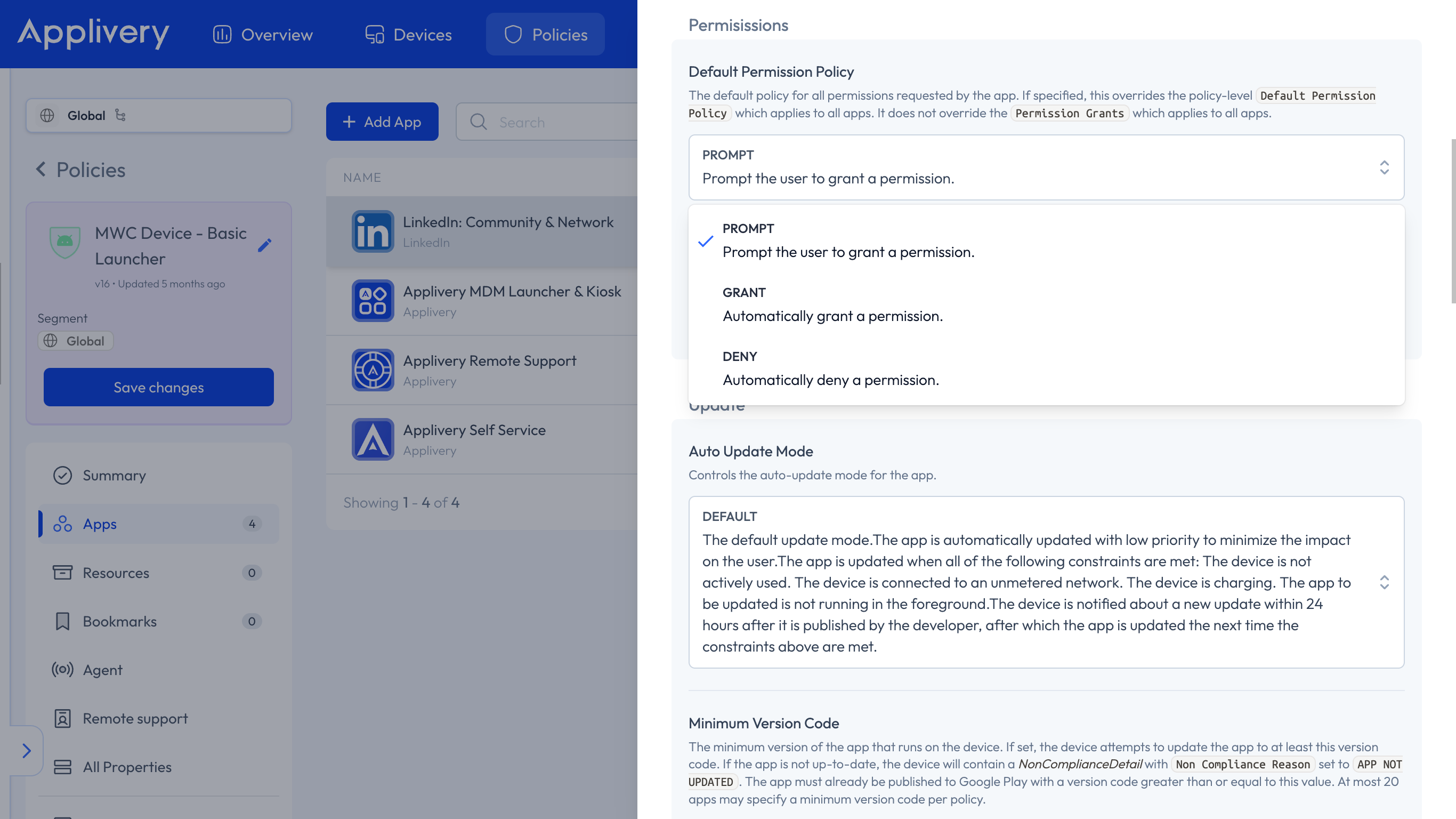
This opens the app's Managed Properties, including a Permissions section with two controls:
- Default Permission Policy: a global rule (Prompt / Grant / Deny) for every permission the app requests.
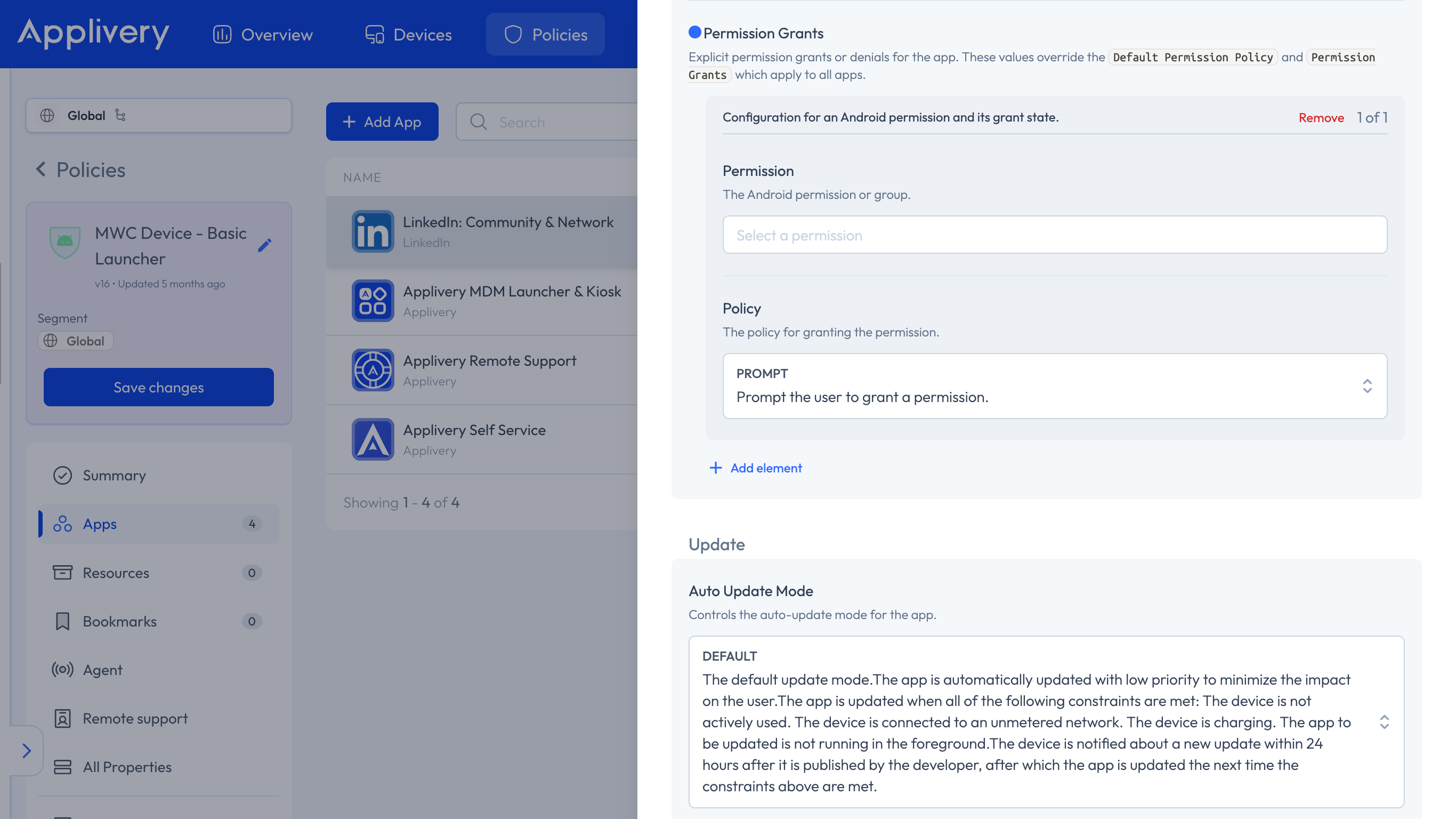
- Permission Grants: per-permission rules. For location, add an item, choose the Location permission in the dropdown, and set its policy to Grant (granted automatically), Deny (denied automatically), or Prompt (the user decides).
This applies to apps with targetSdkVersion 23 or higher, and works the same on AOSP Devices.
Fully Managed and Dedicated Devices
On fully corporate Devices (no separate personal profile), a Permission Grant set to Grant grants the location permission without the user seeing any dialog. It's the usual approach for:
Fleet-tracking apps on logistics Devices.
Field-service apps on dedicated Devices.
Point-of-sale or delivery Devices that need location to operate.
COPE and Work Profile (BYOD)
On COPE and Work Profile (BYOD), ACCESS_FINE_LOCATION and ACCESS_COARSE_LOCATION can't be pre-granted or blocked inside the work profile. This is a technical limitation of the Android platform, not a best-practice recommendation — the user always has to approve the permission manually.
This is part of a wider pattern: on COPE, any permission, restriction, or setting applied by policy only affects the work profile, never the personal profile — and certain sensitive permissions (location, camera, microphone) can't be pre-granted even within the work profile itself. See COPE permission limits for the full picture.
So, for COPE and BYOD, inform users clearly about which work-profile apps access their location and why, rather than trying to force a silent grant the platform won't allow anyway.
Location reporting to Applivery
Beyond the app's own permission, Applivery showing a Device's last known location in the console depends on two things: the Applivery agent having the location permission granted, and the system location service not being disabled. This feeds the location tab in the Device detail — useful for locating lost equipment or checking that field Devices are operating in the expected area.
Applivery shows the last known location, not continuous real-time tracking. Continuous tracking would require a dedicated tracking app.
Recommendations by use case
Use case | Recommendation |
|---|---|
Logistics fleets or field workers (Fully Managed / Dedicated) | Grant the location permission via Permission Grants (Grant). Enforce the system service with |
BYOD or corporate COPE fleets | Don't try to pre-grant the permission — the platform won't allow it in the work profile. Inform users which apps access their location and why. |
Kiosk-mode Devices | If the use case doesn't need location, turn the system service off to save battery. |