


Android’s operating system includes a built-in security feature that blocks the installation of Apps from sources outside the Google Play Store. This means if you’re trying to install an App via Applivery for the first time, you might encounter a warning message.
What you might see
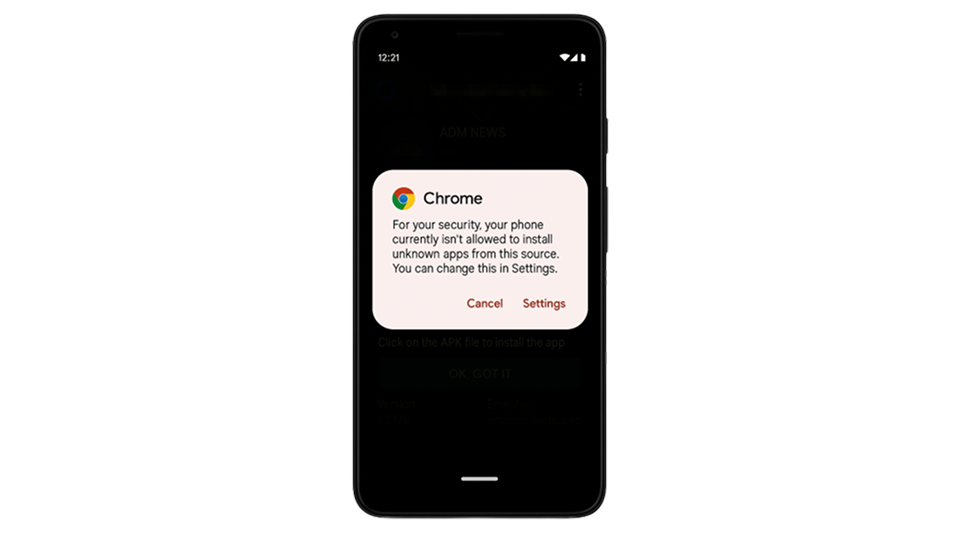
When you attempt to install an App from Applivery, a message like this may appear:
Install blocked
For your security, your phone currently isn't allowed to install unknown Apps from this source. You can change this in Settings.
Prior to Android 8.0 (Oreo), users could enable a global setting to allow installations from unknown sources. However, with the introduction of Android 8.0 (API level 26), this approach shifted to a per-app permission model.
Now, instead of a single setting, users must grant permission to each App individually to install unknown applications. This change enhances security by ensuring that only trusted Apps can install unknown .apk files.
For more details, refer to the official Android Developers documentation available at this link.
How to enable App installation from Applivery
To proceed with the installation, follow these steps:
Open your Device’s Settings.
Navigate to Apps and tap on Special app access (this may be under Advanced depending on your Device).
Select Install unknown Apps.
Here, you’ll find a list of Apps that allow you to request permission to install from unknown sources. To grant access, simply choose the App you’ll be using to download or install the .apk (e.g., Chrome or your file manager), then enable Allow from this source.
Once enabled, you can retry installing the App. Keep in mind that enabling this option will allow app installations from all sources, not just Applivery.
You're still protected
Even if you allow installations from unknown sources, your Device is still protected. Google Play Protect will continue to scan Apps for potential threats like malware or harmful behavior, regardless of where they come from.
If anything suspicious is detected, the App will be blocked automatically.