

The Audit log records the creations, updates, and deletions made in your Workspace, so you can see who changed what, when it happened, and which fields changed.
Open the Audit log
Once in the Applivery Dashboard, click the Workspace dropdown in the top navigation bar and select Audit.
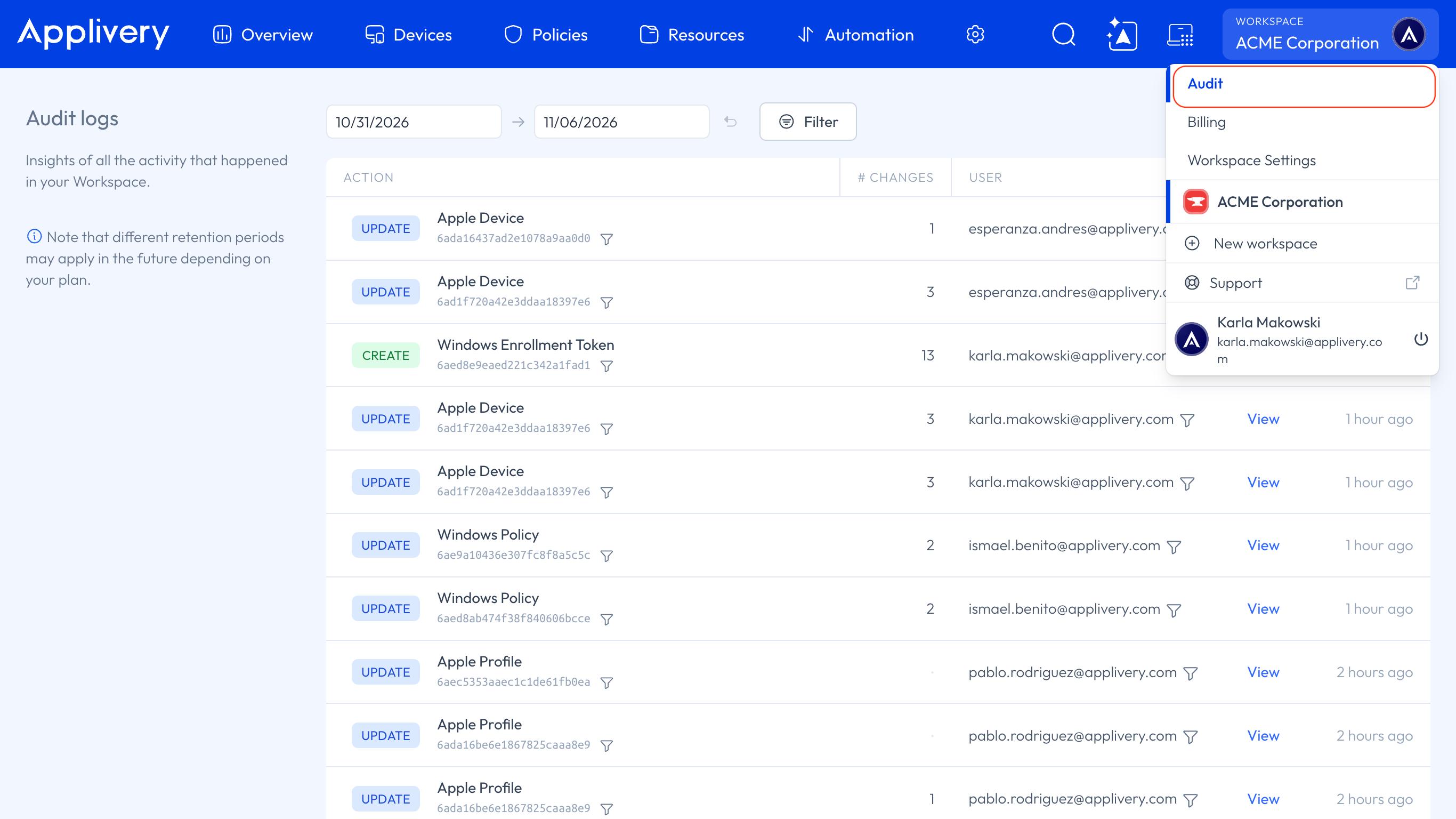
Filter the list
The list shows the last seven days by default. You can change the date range and filter by:
Filter | What it does |
|---|---|
Action | Shows only Create, Update, or Delete entries. |
User | Shows the changes made by one Collaborator. Enter their email. |
Entity | Shows one type of object, such as a Windows Policy or a Windows Enrollment Token. |
Entity ID | Shows the entries of one specific object. Enter its ID. |
Show system logs | Adds entries that aren't tied to a user's action to the list, such as actions run by queues or scheduled tasks. |
Read the list
Each row of the list shows:
Action: the type of change and the object it affects.
# Changes: the number of fields that changed in that entry.
User: the Collaborator who made the change.
Link: click View to open the object.
Created: when the change happened.
Read the changes
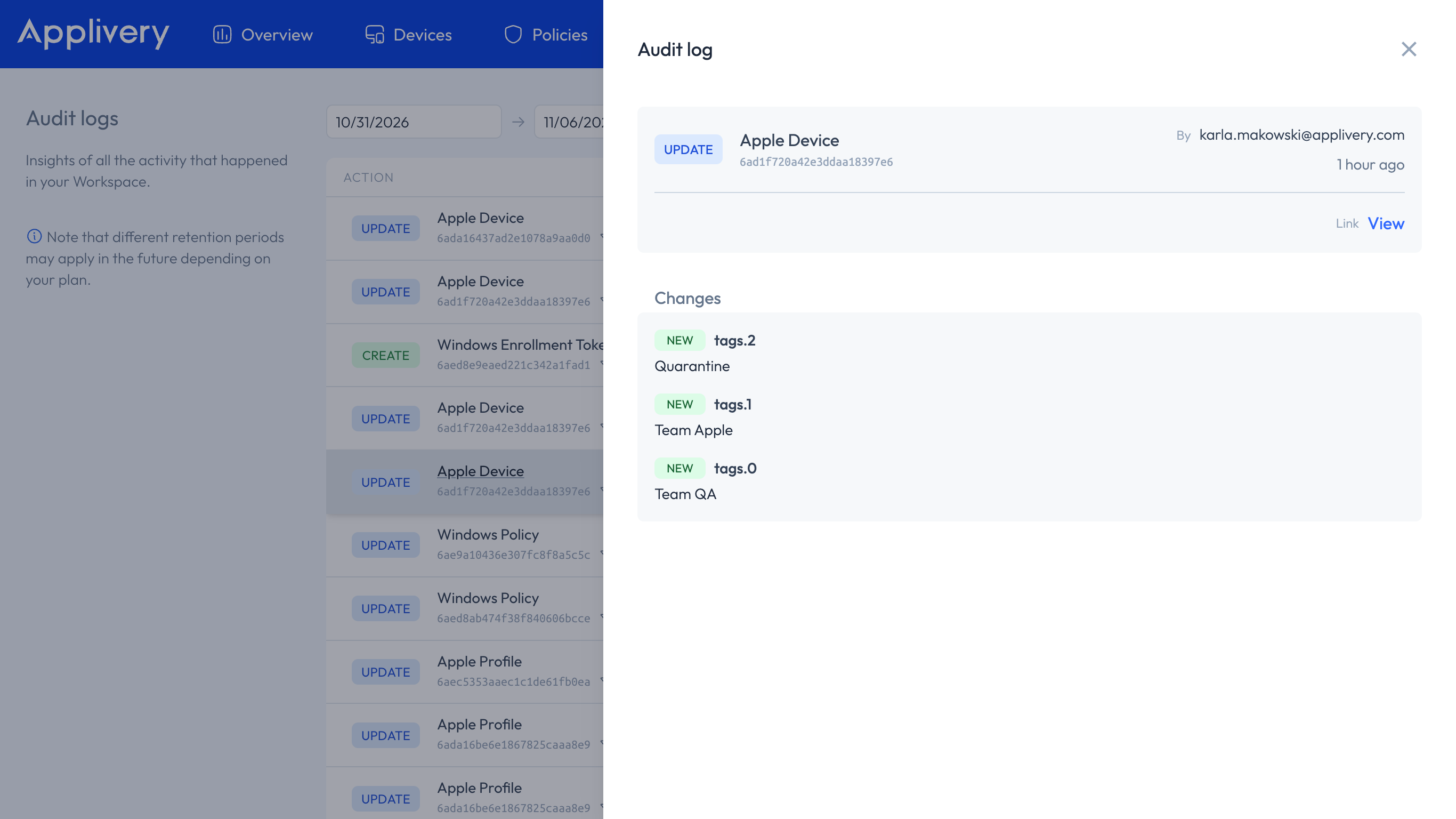
Click an entry to open its details. The Changes list shows one line per field:
EDIT: an existing field changed.
NEW: a field was added.
Each line shows the full path of the field, for example agentConfiguration.allowLocation.
Applivery keeps Audit log entries for 3 months. Different retention periods may apply in the future depending on your plan.
Who can see the Audit log
The built-in Owner and Admin roles can see the Audit log. The Editor and Viewer roles can't. You can check the permissions of each role in Permissions by Role.
You can also read the same entries through the Audit API.