

An enrollment token is the record a Device uses to enroll in Applivery. It sets the Policy, tags, management mode, and expiration for that Device.
The Dashboard calls this record an enrollment: you'll see Enroll device, Create enrollment, and Delete enrollment. The API, the Audit log, and webhooks call it a token, for example Windows Enrollment Token or {os}_enrollment-token_created. Both names refer to the same thing.
You can learn more about Bulk Enrollment by following this link.
Create an enrollment
Once in the Applivery Dashboard, go to Devices and click + Enroll device.
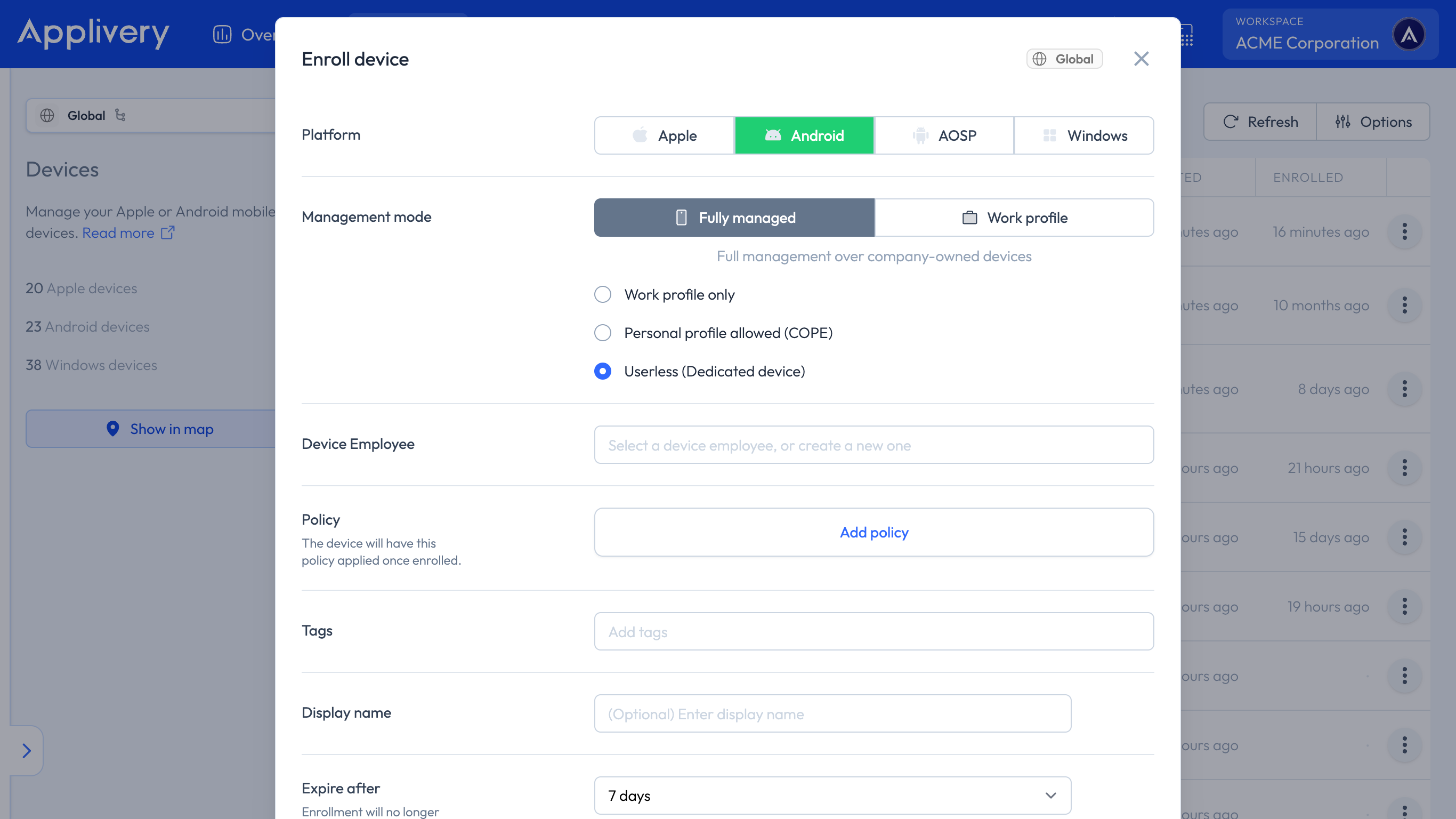
Select Apple, Android, AOSP, or Windows.
On Android, also choose the Management mode:
Fully managed: full management over company-owned Devices, with three options: Work profile only, Personal profile allowed (COPE), and Userless (Dedicated device).
Work profile.
Optionally, choose a Device Employee. You can select an existing one or create a new one.
Click Add policy to choose the Policy the Device will have applied once enrolled.
Click More options for the rest:
Tags: organize, group, and filter the resulting Device.
Display name: a friendly name to identify the Device among the others.
Expire after: how long the enrollment remains usable, from 10 minutes to 30 days. The default is 7 days.
Send instructions email to employee: notifies the employee with the steps to enroll.
Click Create enrollment.
Review the enrollment
The enrollment page shows the Policies, the Device Employee, the Tags, the Segment, the time left in Expires in, and the enrollment instructions for the platform. You can also remove the enrollment from here with Delete enrollment.
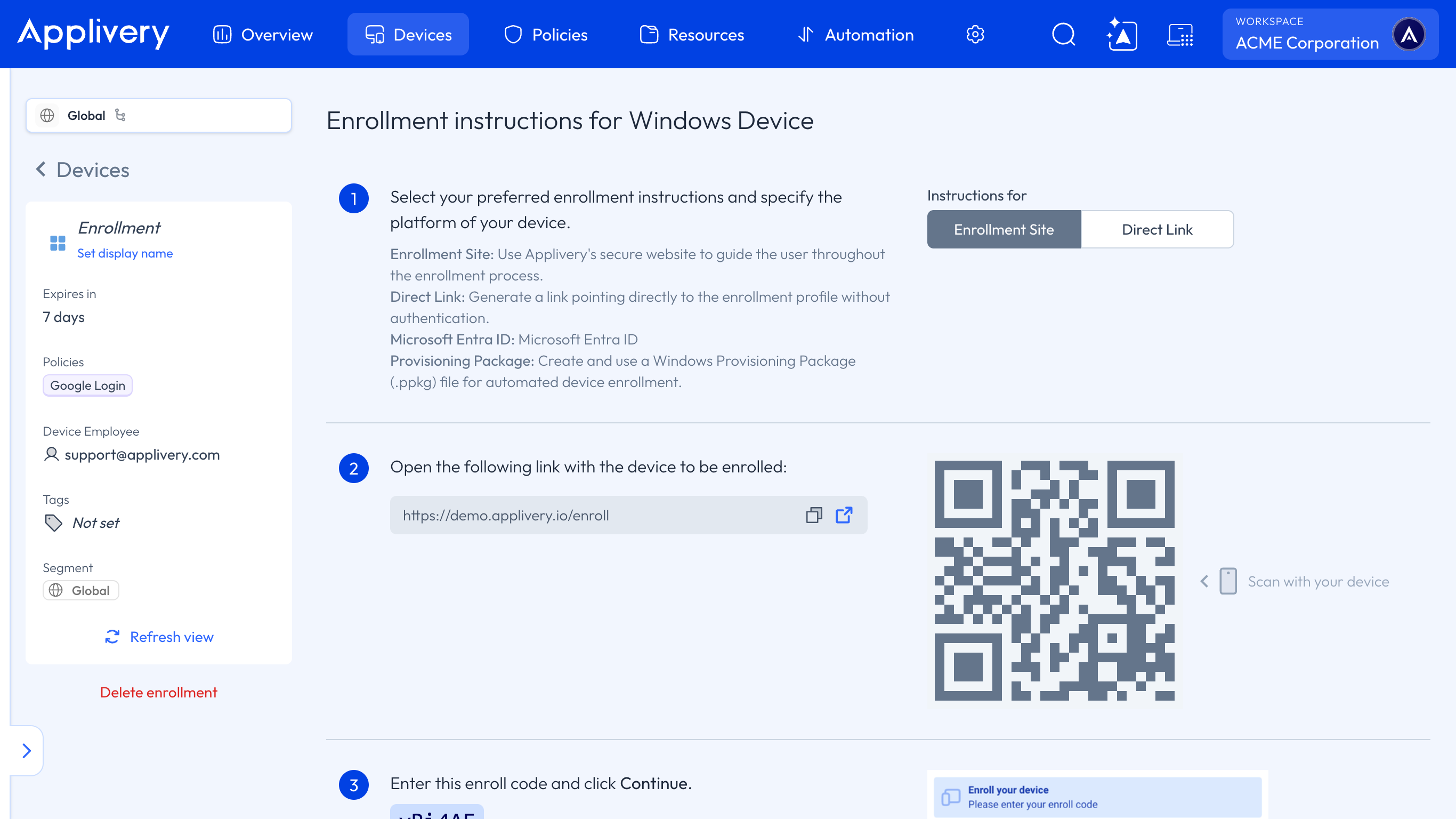
The steps a person follows on the Device depend on the platform:
Expiration
The expiration only applies to enrollments that haven't been used. If nobody uses the enrollment before the Expire after time passes, it disappears and no Device can enroll with it.
When a Device enrolls and you confirm the enrollment, it no longer expires: the enrollment page becomes the Device page.