

Android Enterprise supports two identity models for provisioning Devices: Managed Google Play Accounts Enterprise and Managed Google Domain.
In the first, users are registered through Managed Google Play Accounts — accounts provisioned directly by the EMM provider and not tied to an existing corporate domain. Managed Google accounts aren't supported here, because structurally they aren't part of this model. In the second, your organization operates on a managed Google domain (for example, Google Workspace or Cloud Identity), so users authenticate with their corporate managed Google accounts and that identity is associated directly with the managed Android Devices.
In practice, this determines how much identity control you have. If you need to restrict provisioning to corporate identities from a specific domain, the Managed Google Domain is the model you need. Under a Managed Google Play Accounts enterprise, identity control is limited to the Managed Google Play Accounts scheme, with no way to apply domain-level restrictions. So, whenever you need to limit account sign-up on the Device to only those belonging to your corporate domain, Applivery must have been bound as a Managed Google Domain.
Since 2024, Google provisions a Managed Google Domain by default for all new organizations that register for Android Enterprise, as noted in the official Android Enterprise documentation. The Managed Google Play Accounts enterprise model remains as a fallback for specific cases — for example, organizations that can't or don't want to bind a managed Google domain. This migration applies to organizations already running the older model that want to move to the managed domain model.
Differences and benefits
Managed Google Play Accounts Enterprise | Managed Google Domain | |
|---|---|---|
User account type | Managed Google Play Accounts (limited accounts, created and managed by the EMM) | Managed Google accounts (full accounts, tied to the corporate domain) |
Responsible for authentication | The EMM (Applivery) | |
Tied to a corporate domain | No | Yes |
Domain-based sign-up restriction | Not available | Available ( |
Access to other Google services | Managed Google Play only | Full Google suite (Workspace, Cloud Identity, etc.) |
Centralized user management | No | Yes (Google Admin Console) |
Organization-wide SSO / MFA | No | Yes |
Google's recommendation | Fallback only | Recommended and default since 2024 |
Migrating to a Managed Google Domain gives you:
Domain-restricted provisioning — you can require a corporate account (for example, force authentication with
@yourcompany.comon the Device's first boot).Corporate-credential administration — proper identity governance (roles, MFA, SSO) instead of relying on a loose Gmail account.
Centralized management of users, apps, and Devices alongside the rest of your Google products (Workspace, ChromeOS, Chrome browser) from the Google Admin Console.
Reduced risk from depending on a personal Gmail account for the binding — compromise, loss of access if the account owner leaves, and no corporate security controls.
Before you start
Check the following before you begin the migration:
Your organization must currently be registered as a Managed Google Play Accounts enterprise in Applivery. The upgrade only accepts enterprises with
enterpriseType: MANAGED_GOOGLE_PLAY_ACCOUNTS_ENTERPRISE. If the binding is already a managed Google domain, the operation doesn't apply.A managed Google domain must exist (or be created) for your organization — for example, through Google Workspace or Cloud Identity.
Your Applivery billing plan must include this feature. The API returns
5050 – Feature not allowed for your billing planif it doesn't.
Configure the Google Workspace side
These are the same requirements Applivery asks for when setting up an Android Enterprise directly on a managed domain, and they apply equally before migrating an existing enterprise.
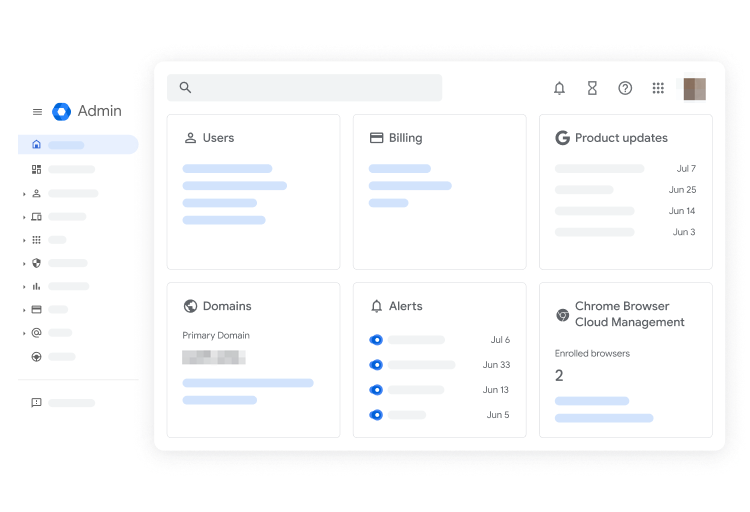
Your corporate domain must be verified in Google Workspace. Check and manage it from the Google Admin Console, signed in with a Super Admin account, under Domains → Manage domains. If it isn't verified, Google will show you how (a DNS record or an HTML file upload).
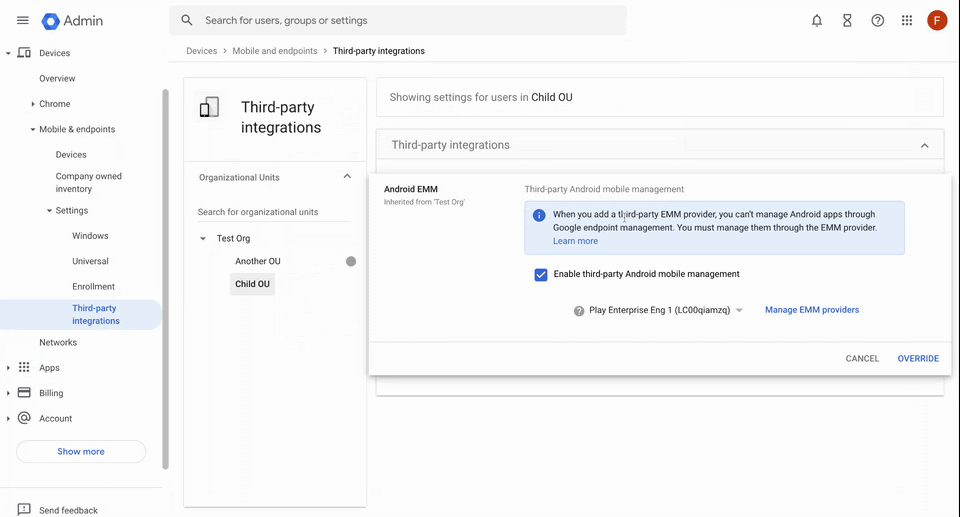
For Applivery to manage Devices under the managed domain, enable third-party EMM integration in Devices → Mobile & endpoints → Settings → Third-party integrations. Select the relevant Organizational Unit (OU) — you can apply it at the top level or per OU — and turn on Enable third-party Android mobile management.
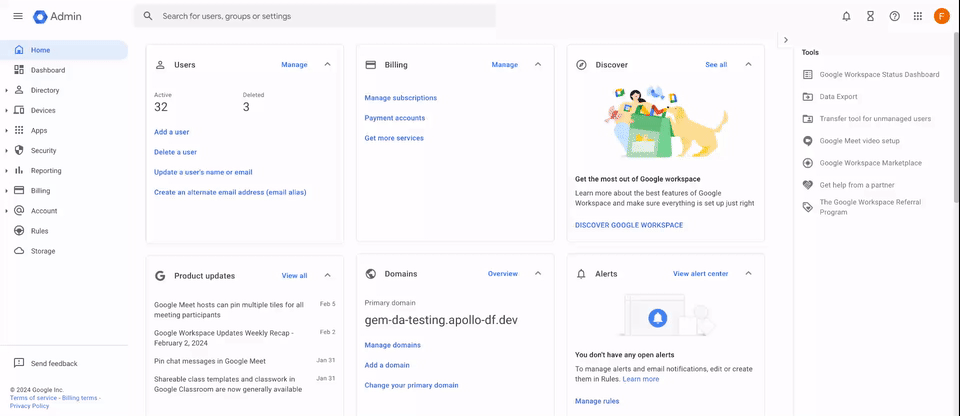
The Google account used in the process must have sufficient permissions — Super Admin is recommended. If you use a different account, assign it a role with Mobile Device Management privileges from Admin roles in the Google Admin Console.
Migrate your Enterprise
The upgrade keeps the same enterprise binding (the same Enterprise ID) and doesn't require re-enrolling Devices that are already managed. You can start it from two places in Applivery — both open Google's assistant to bind your account to the managed Google domain.
Option 1 — From Android Setup
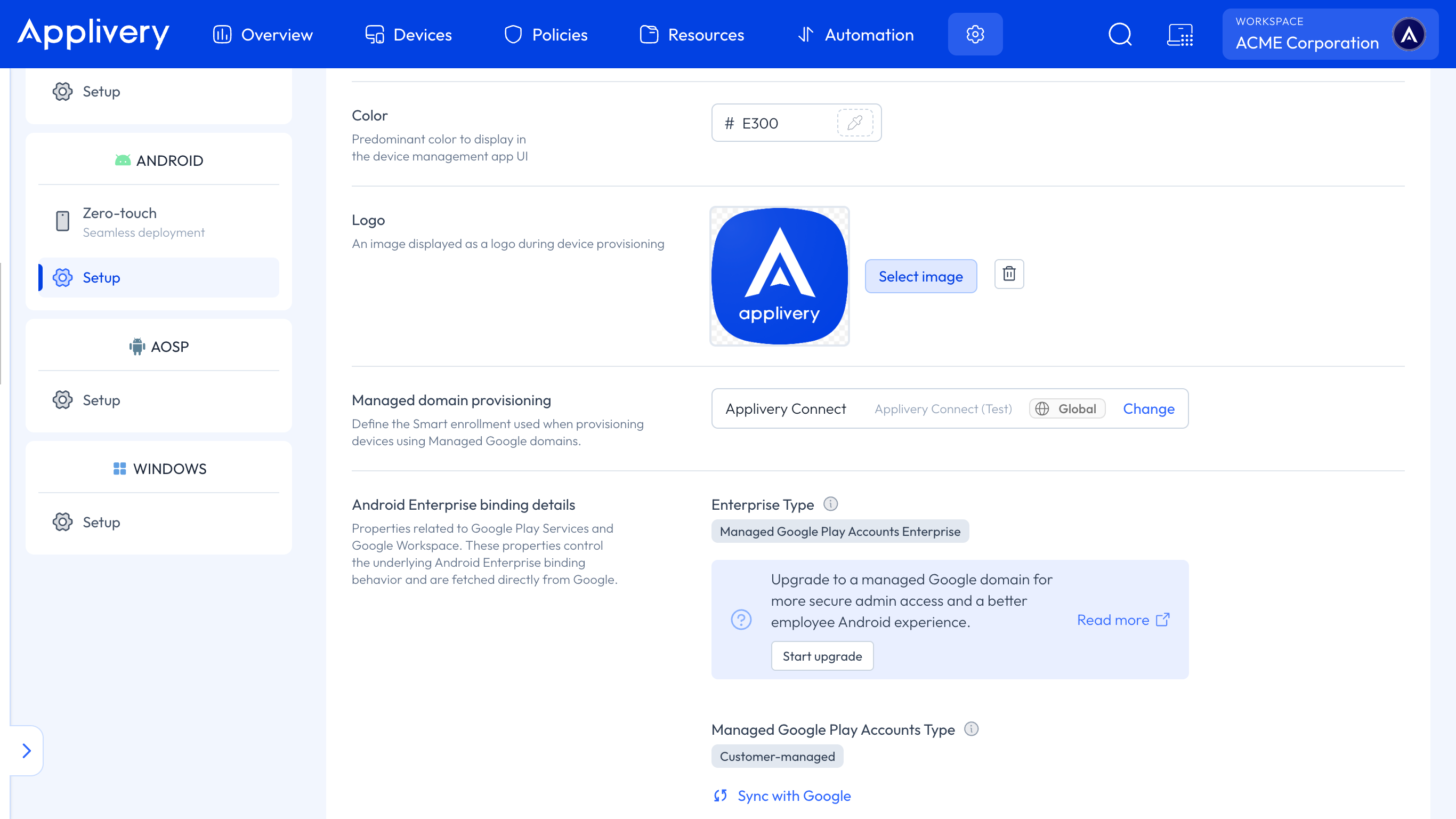
Once in the Applivery Dashboard, go to Settings, then Android, and open the Setup section.
Click Start Upgrade. Google's assistant opens so you can bind the account to your managed Google domain.
Option 2 — From the Managed Google Play catalog
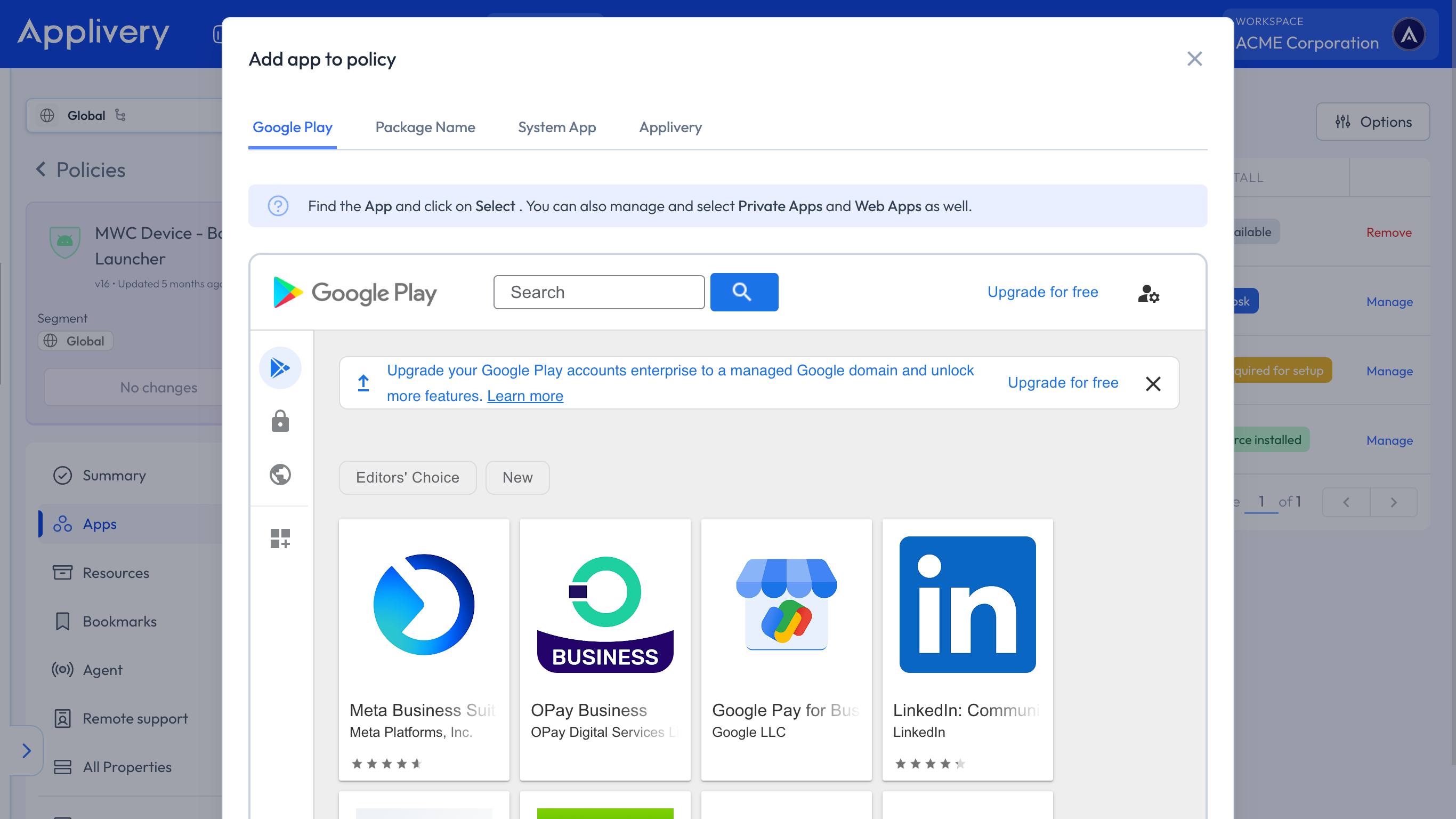
Go to Policies, select any Android policy, and open Apps. Click + Add App, then Google Play.
In the Managed Google Play iFrame, click Upgrade for free to open Google's binding assistant.
Complete the upgrade in Google
Open the URL from the previous step with the Google Workspace Super Admin account for your corporate domain.
Follow the assistant to bind the existing enterprise to the managed domain. Confirm the domain binding and accept the terms Google requests during the process.
Back in the Applivery Dashboard, go to Settings, then Android, open the Setup section, and confirm the enterprise now shows as bound to a managed domain.
Known API errors
Code | Message | Cause |
|---|---|---|
| Feature not allowed for your billing plan | Your billing plan doesn't include this feature |
| Body Validation Error | The request body doesn't match the expected schema |
| Enterprise upgrade is only available for managed Google Play Accounts enterprises (MANAGED_GOOGLE_PLAY_ACCOUNTS_ENTERPRISE) | The enterprise is already in Managed Google Domain mode |
| Error From Emm Android Library | Error returned by the Android EMM library while processing the request |
| No auth token / Invalid Token | Authentication failure on the request |
| Entity not found | The specified organization doesn't exist |
If you hit an error code not listed here, contact Applivery support with your organization ID and the exact code.
Additional considerations
This process is one-way. Once you migrate to a Managed Google Domain, there is no equivalent downgrade endpoint to return to a Managed Google Play Accounts enterprise.
Evaluate the impact on already-enrolled Devices before running the migration in production, and validate it first on a test enterprise or organization if you can.
After the migration, the Required Account Email field in the Work Account Setup Config policy still accepts only one specific account, not a domain wildcard. Domain-level restriction comes from the nature of the binding (managed Google domain) combined with Authentication Type: GOOGLE_AUTHENTICATED, not from that field.