

In corporate environments, defining the correct automatic lock time on Apple Devices—such as iPads—is essential to balance security and usability. An Auto-Lock value that is too short may disrupt daily workflows, while an excessively long value can increase security risks.
With Applivery, administrators can centrally enforce the maximum inactivity time before a Device automatically locks and requires a passcode, ensuring compliance with organizational security Policies across all managed Apple Devices.
Prerequisites
Before applying this configuration, ensure that:
The Apple Device is enrolled in Applivery.
The Policy is correctly assigned to the target Device(s).
Supervision is not required. Apple's Passcode payload — where the Auto-Lock setting lives — is listed by Apple as Requires supervision: N/A, so Auto-Lock applies to supervised and unsupervised Devices alike.
The exception is User Enrollment (BYOD). Apple accepts the payload on user-enrolled Devices but ignores most of its keys: it forces a 6-digit non-simple passcode and removes the Never option from Settings, while ignoring the Auto-Lock value you configure. To enforce a specific Auto-Lock time, use Device Enrollment or Automated Device Enrollment (DEP).
Auto-Lock is one setting within the Passcode configuration. For everything else it contains — length, complexity, expiration, failed attempts — see Passcode Policy.
Configuration
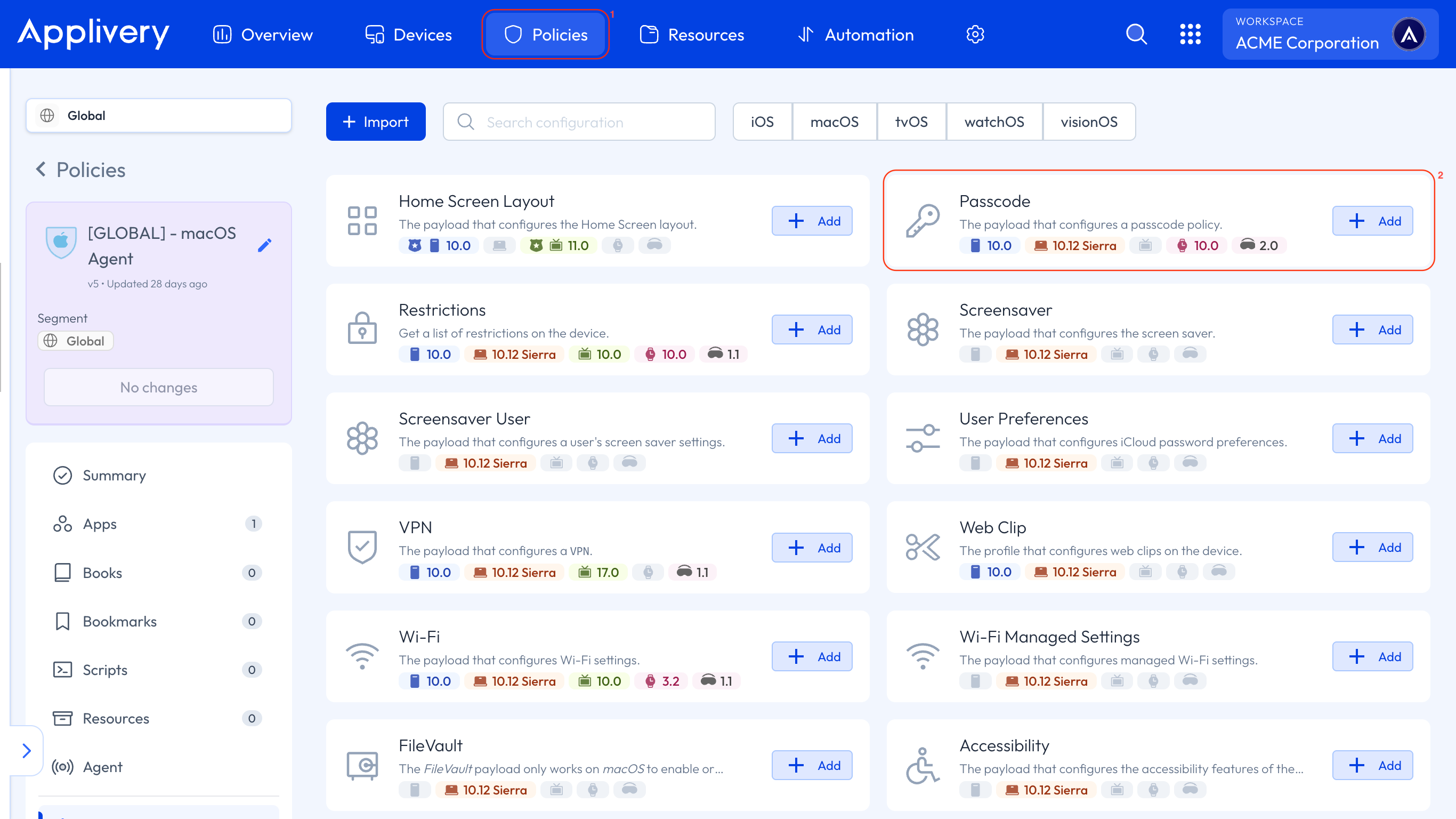
Once in the Applivery Dashboard, go to any of your Policies 1. From the left side menu, select the + Add configuration option and choose Passcode 2.
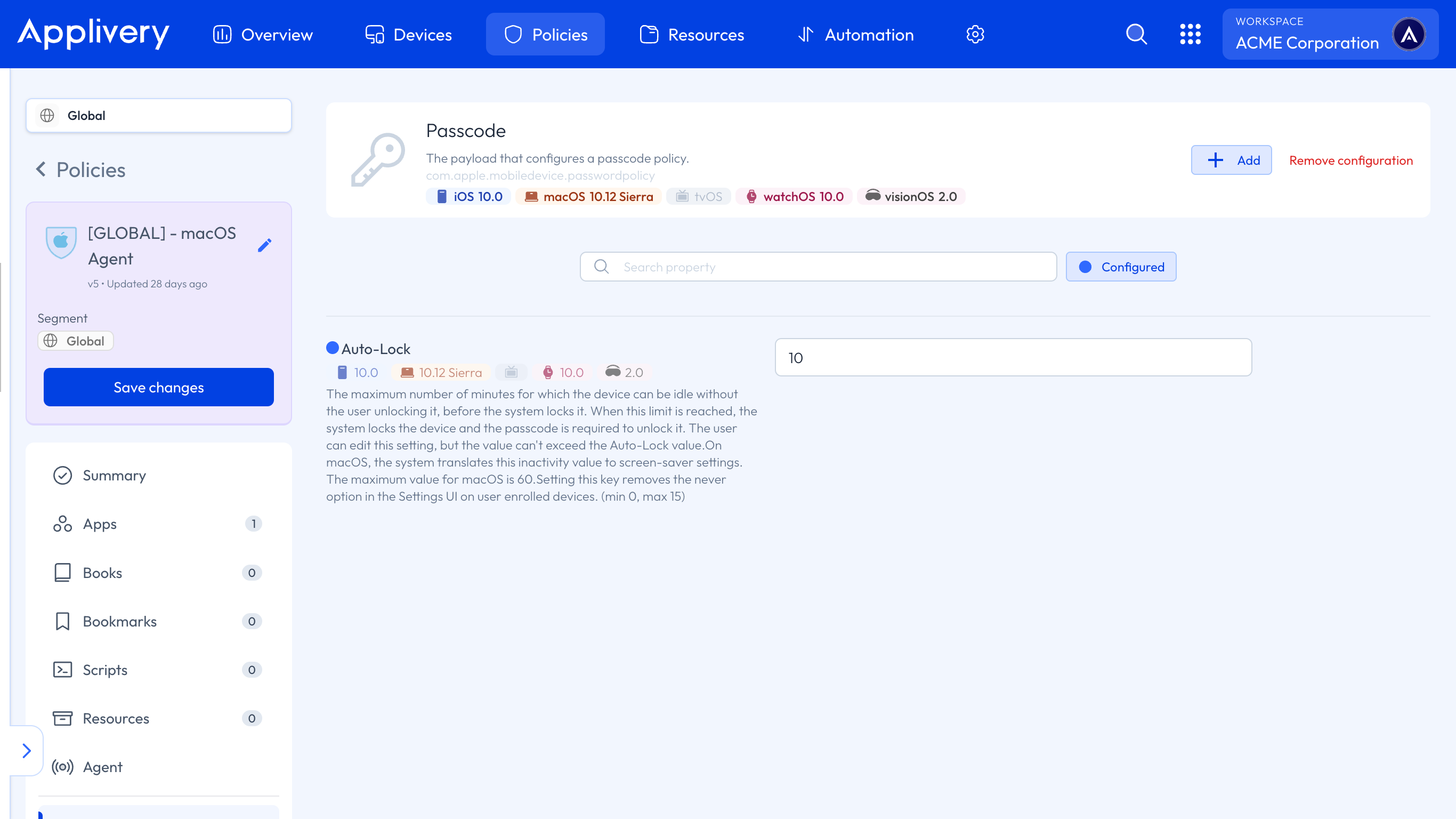
Within the Passcode configuration, locate the Auto-Lock field and enter the desired value in minutes. This value represents the maximum amount of time the Device can remain inactive before it automatically locks and prompts the user for the passcode.
Allowed values and behavior
The Auto-Lock parameter defines a maximum inactivity window rather than an optional suggestion. Apple enforces strict limits on this setting through MDM. The minimum supported value is immediate lock (0 minutes), which is generally discouraged except in highly secure environments. The maximum supported value is 15 minutes.
Apple does not provide a Never option for Auto-Lock via MDM, and it is not possible to fully disable this behavior on managed Devices — supervised or not.
Effects of applying this configuration
Once this configuration is applied, users will no longer be able to increase the Auto-Lock time from the Device’s local settings. The system will always lock after the defined period of inactivity, even when the maximum value is configured. This ensures that unattended Devices do not remain unlocked indefinitely.
Important considerations
No MDM solution, including Applivery, can keep the screen permanently on through Auto-Lock settings. The maximum realistic and recommended value remains 15 minutes, which provides a reasonable compromise between security and usability.
For scenarios where the screen must remain continuously active—such as kiosks, digital signage, or point-of-sale systems—Auto-Lock is not the appropriate mechanism. In these cases, it is strongly recommended to use Kiosk Mode (App Lock Mode) or a dedicated application designed for always-on operation.
Recommended use cases
| Scenario | Recommendation |
|---|---|
| Standard corporate use | Auto-Lock set to 10–15 minutes. |
| Shared device | Short Auto-Lock (5–10 minutes). |
| Kiosk / front desk | App Lock Mode. |
Applivery allows administrators to centrally manage Auto-Lock behavior on Apple Devices, helping organizations maintain compliance with security Policies while minimizing user friction. Although iPadOS does not allow Auto-Lock to be completely disabled via MDM, configuring the maximum supported value offers an effective balance between protection and user experience.