

Once you have your Policies configured, you can start enrolling Devices. Creating them one at a time is fine for a handful of people, but for onboarding a whole team, opening a new office or refreshing a fleet, Applivery lets you invite everyone at once. Let's take a look at it.
Bulk Enrollment creates one enrollment per employee: you add a list of people, and each one gets their own enrollment in the Devices list, with its own instructions and its own expiration. It works for Apple, Android, AOSP and Windows — the form is the same one you already know, only asking for a list of employees instead of a single one.
Creating a bulk enrollment
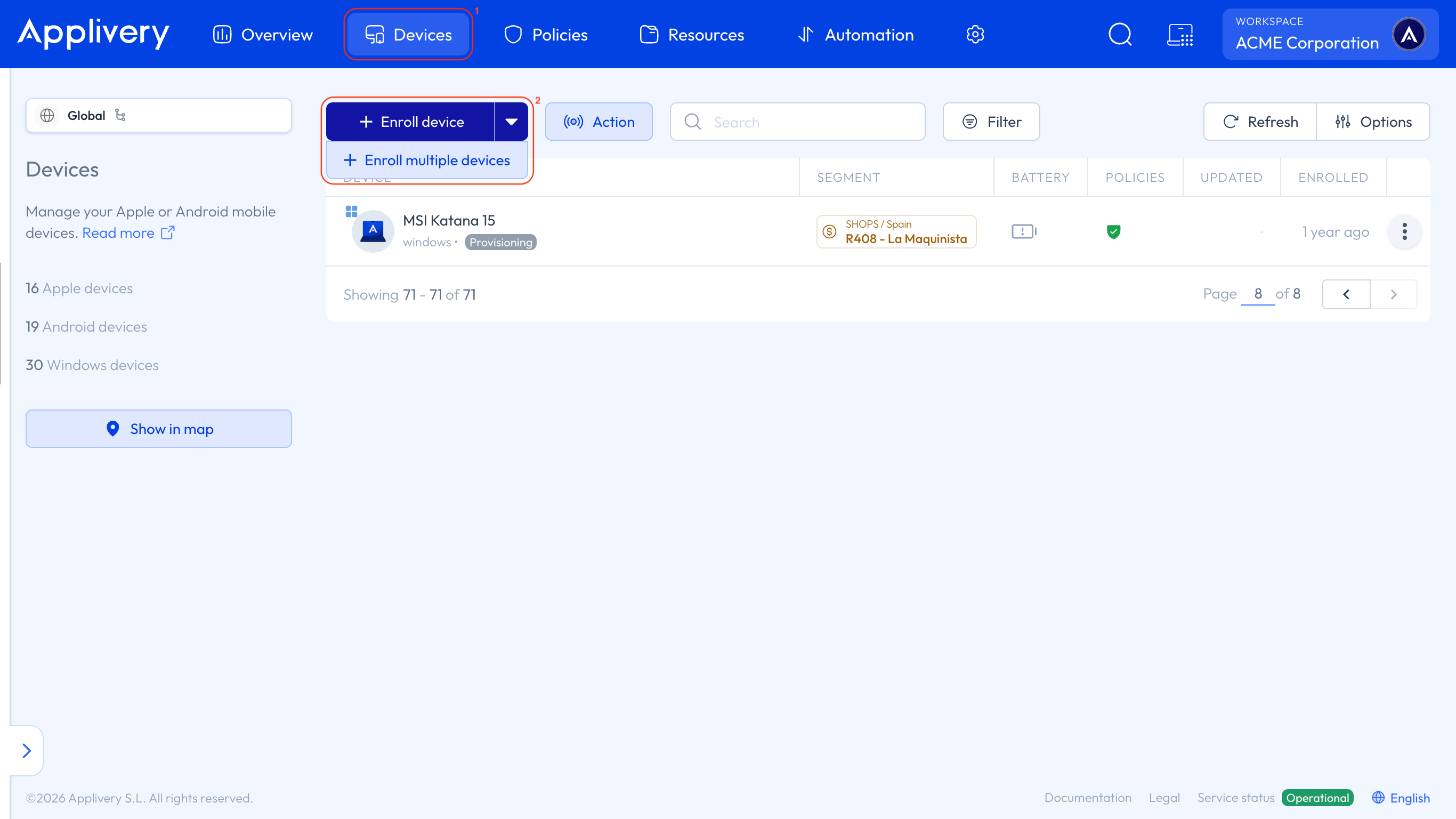
Once in the Applivery Dashboard, navigate to Devices 1. Next to the + Enroll device button, open the dropdown and select + Enroll multiple devices 2.
Fill out the form as follows:
Platform: Choose the platform for this batch.
Management mode: On Android, choose how the Devices will be managed.
Employees: The people you want to invite. Start typing to search your existing employees, or enter a new email address directly — an enrollment will be created for each employee you add.
Policy: The Policy the Devices will have applied once enrolled.
If an employee's email is not found, a new employee is created automatically. You don't need to add anyone to your directory beforehand.
Expand More options for the rest:
Tags: Organize, group, and filter the resulting Devices.
Display name: A friendly name to identify the Devices among the others.
Expire after: How long the enrollments remain usable. Once the time passes, they stop working.
VPP Location (Apple): App licenses will be associated automatically to the Devices from this Apple Business location.
Skip personal info (Apple): Skips the personal information steps during setup.
Send instructions email to employee: Notifies each person with the steps to enroll. When enabled, you can also set the Instructions language and add a custom message.
Click Create enrollments — the button shows how many are about to be created, one per employee.
Each enrollment is then added to the list of Devices with a pending state, the assigned Policy, and its expiration countdown. Click on any of them to display its details and instructions, exactly as you would with an individual enrollment.
A batch applies one Policy to everyone in it. If different people need different Policies, create one batch per Policy — or assign them conditionally using Smart Attributes.
What the employee receives
If you chose to send the instructions email, each employee gets their own message with the steps for their platform and management mode. From their point of view nothing indicates they were part of a batch — the enrollment is individual, and so is the code or QR they receive.
The enrollment instructions vary by platform, and are covered in each platform's enrollment article: