

Custom Collaborator roles let you decide exactly what each Collaborator on your team can do in the Device Management area of the Applivery Dashboard. Instead of choosing between Admin, Editor or Viewer for every Segment permission, you can build a role for a specific job, such as helpdesk, store admin or auditor, and reuse it wherever you need it.
That way, nobody gets full Admin access just because they need one extra action in one place.
This applies to Device Management Collaborator roles. App Distribution Collaborator roles work the same as before.
What is a Collaborator role
A Collaborator role is a named set of Dashboard actions. It answers what a Collaborator can do, but not where: that's decided by the Segment permission you assign it to.
Roles live at organization level. You create them once and reuse them across as many Segment permissions as you like. A role doesn't belong to any Segment.
Built-in roles
Admin, Editor, and Viewer are still available. They're marked as built-in, and you can't edit or delete them. If you want something close to one of them, Duplicate it and edit the copy, which becomes a new custom role.
If you open a built-in role without duplicating it, it opens in read-only mode.
Custom roles
You create custom roles from scratch with Create role, or by duplicating an existing role. You can edit their name, description, and actions at any time.
When you pick a role on a permission, the role selector shows the custom role's name. In the Permissions and By collaborators tables, custom roles show a generic Custom tag instead, so long names don't break the layout.
Roles and Segment permissions
Two layers work together to give someone access:
Layer | What it decides | Where you manage it |
|---|---|---|
Role | Which Dashboard actions are allowed | Settings → Directory → Roles |
Segment permission | Who gets that role, and on which Segment | Settings → Segments & Permission |
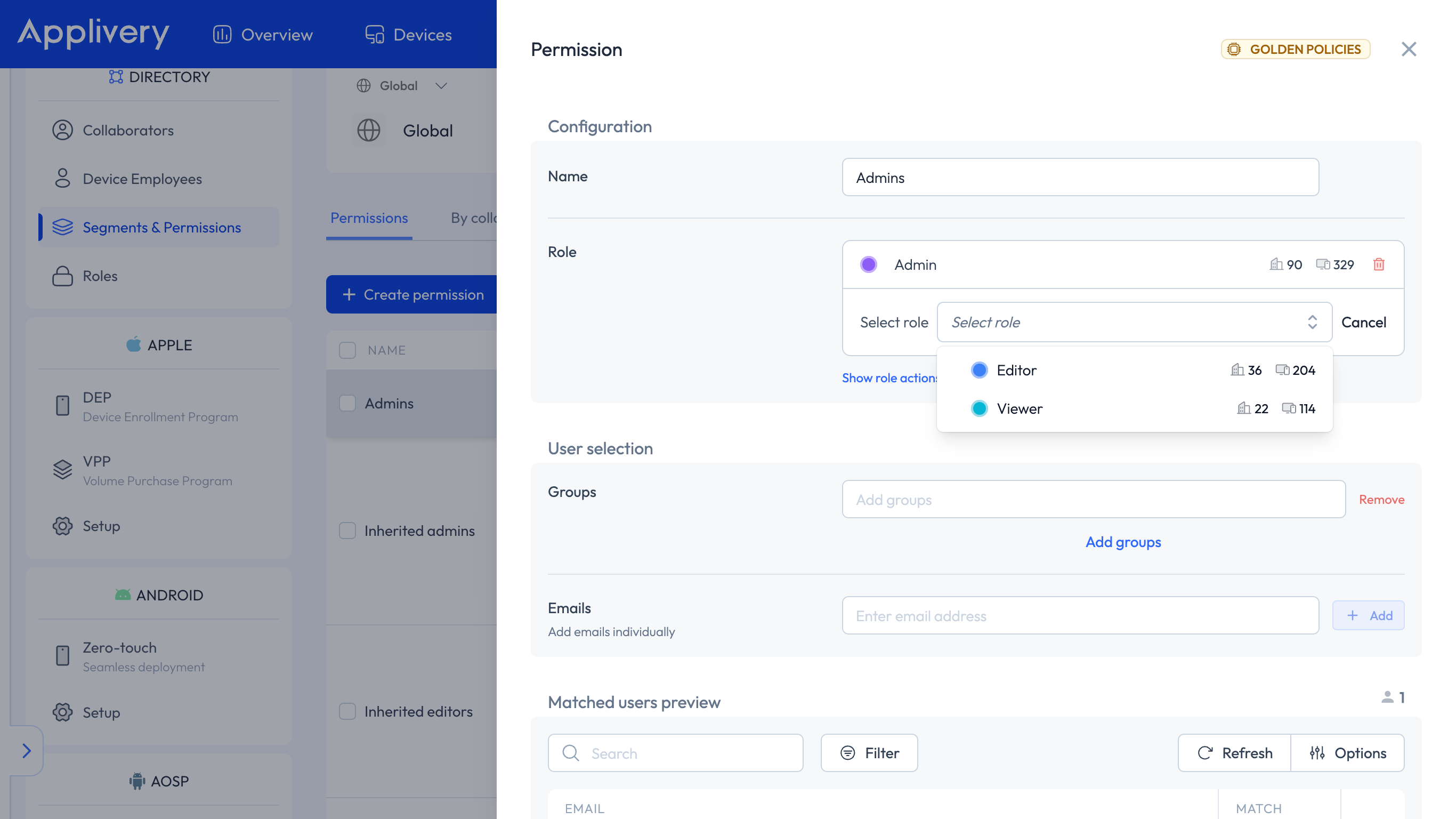
On a Segment permission, you select one role. You can't create or edit the role from the permission itself; instead, the permission shows a read-only preview of the actions included in the selected role.
Action groups: Workspace and Device Management
Every action belongs to one of two groups:
Workspace (W): organization-level settings and people management, such as Collaborators, Segments, login providers, and the few billing-related actions that aren't Owner-only.
Device Management (M): actions on Devices, Policies, enrollment, and other Device Management elements inside a Segment.
A role can include Workspace actions, Device Management actions, or both. The Roles list and the role selector show a W and an M badge for each role: the badge is highlighted when the role has actions in that group, and greyed out when it has none.
Owner-only actions, such as transferring ownership, deleting the workspace, and most billing management actions, are shown in the Workspace group but stay locked. They can't be granted through any role.
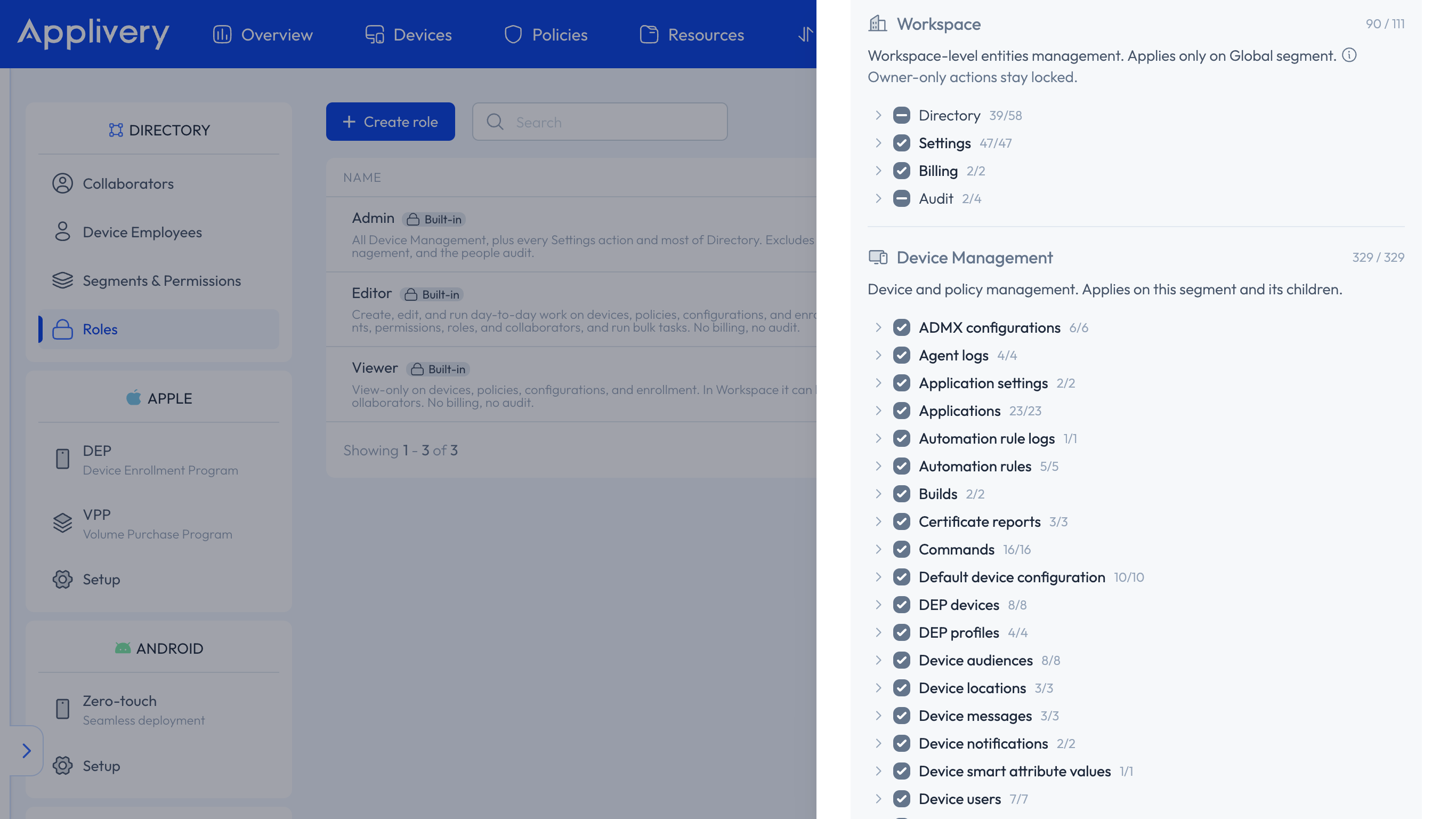
Workspace actions only apply on Global
Workspace actions only take effect when the Segment permission sits on Global, the root Segment of your tree.
If you assign a role that includes Workspace actions on a child Segment:
The role's Device Management actions still apply on that Segment.
Its Workspace actions don't take effect there.
The Dashboard shows a warning under the Role field, but you can still save.
The read-only preview hides the Workspace section, since those actions won't apply.
How permissions add up across Segments
Permissions add up as you go down the Segment tree. Here's an example:
A Collaborator has Viewer on Global.
The same Collaborator has a custom role with extra Device Management actions on Madrid, a child Segment.
On Madrid, that Collaborator can do everything Global and Madrid grant combined.
This also means a permission on a child Segment can't remove actions granted higher up in the tree. If someone needs fewer actions in one store than in the whole region, assign the narrower role at the store level (or lower), rather than a wide role at the region level.
The permission preview only shows the actions in the selected role. It doesn't include what the Collaborator already has from permissions on parent Segments.
How to create a Collaborator role
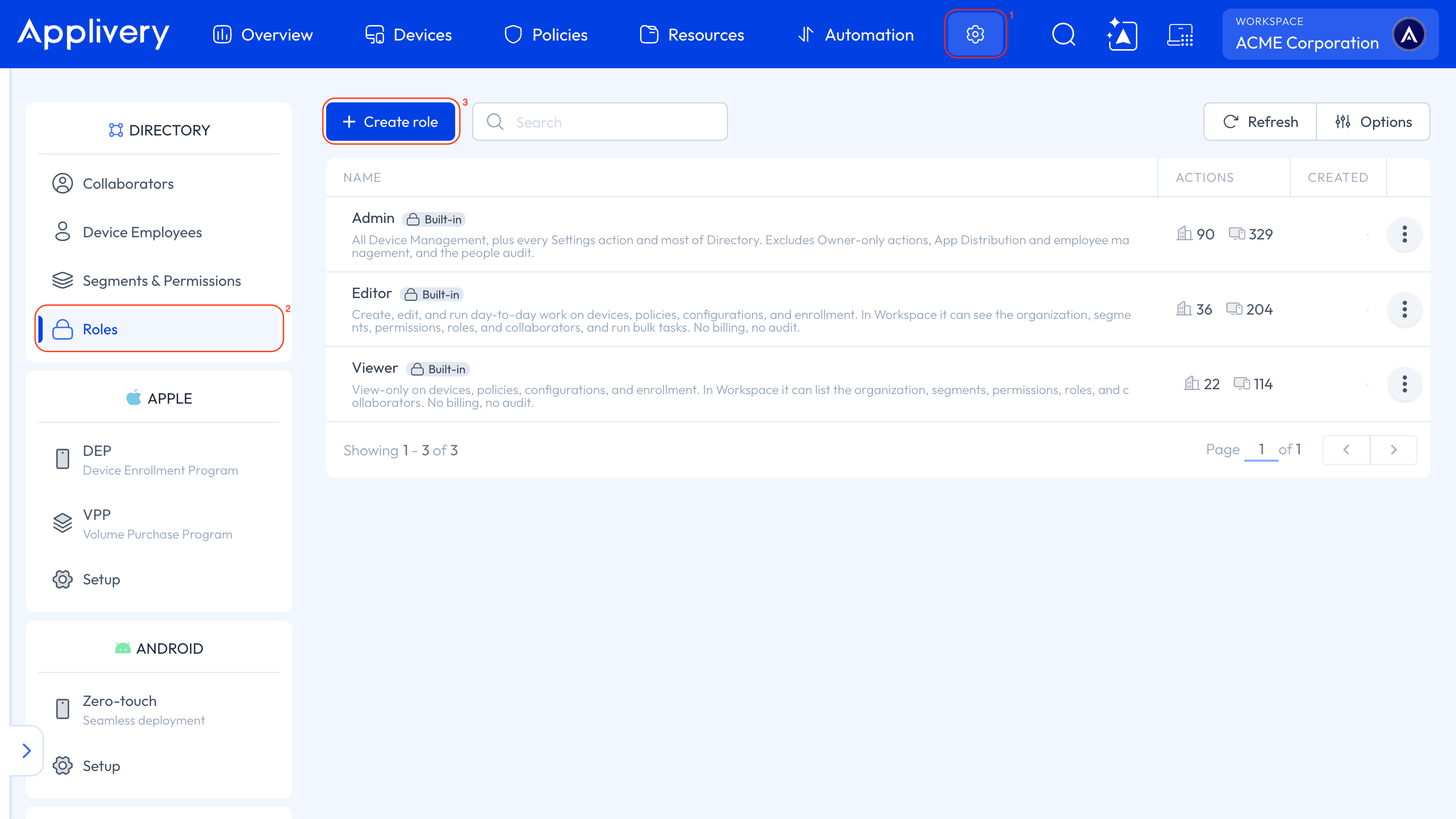
Once in the Applivery Dashboard, navigate to the Settings section 1 and, in the left-hand menu under Directory, select Roles 2.
Click Create role 3, then enter a name and a description for it.
If you want to start from an existing role's actions, choose it as a template 4. Then select or clear the actions you need in the Workspace and Device Management groups 5. Owner-only actions stay locked.
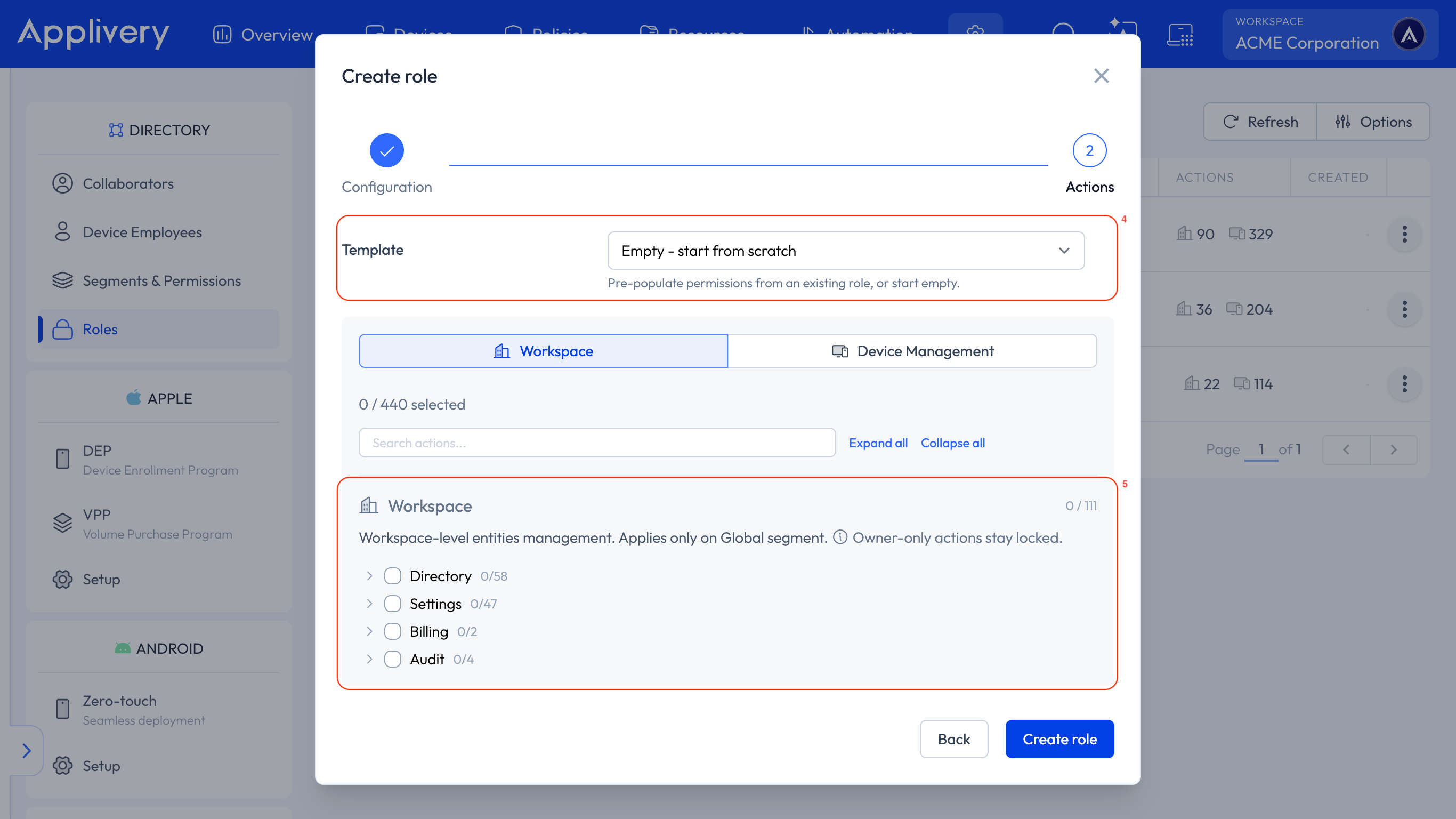
Save the role. It's now available to assign on any Segment permission.
To create a custom role based on a built-in one, open Admin, Editor, or Viewer, click Duplicate, and edit the new role.
How to assign a role on a Segment permission
This follows the same flow you use to create Segments and permissions, with the new role options.
Once in the Applivery Dashboard, navigate to the Settings section 1, select Segments & Permission 2 from the left-hand menu, select the Segment 3, and create or edit a permission 4.
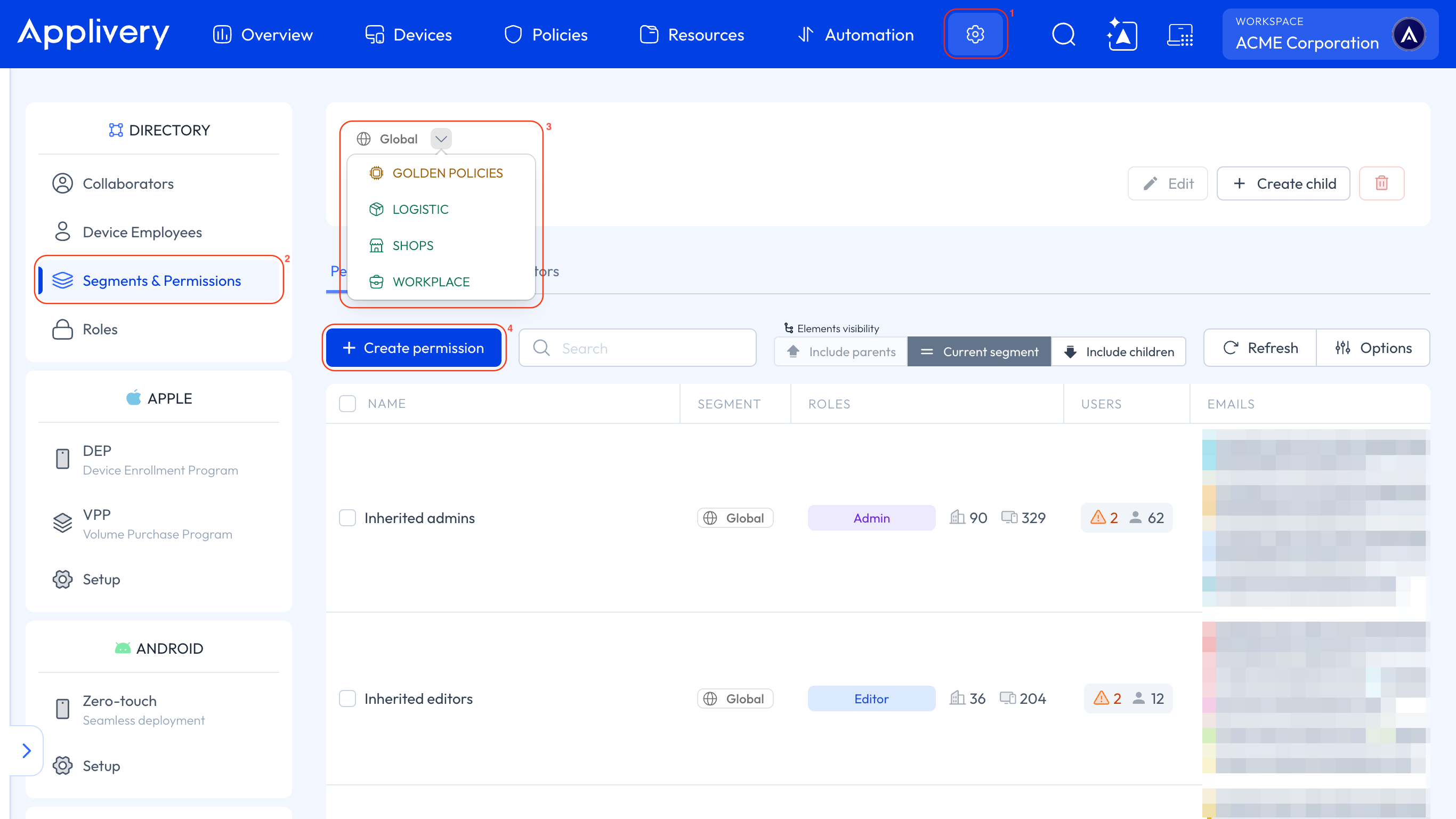
Give the permission a clear name and choose the role, either built-in or custom. Check its W and M badges to see which groups of actions it includes.
If the Segment isn't Global and the role includes Workspace actions, you'll see a warning. Remember that those Workspace actions won't apply to this Segment.
Add the groups and/or email addresses that match this permission.
Check the read-only preview of the role's actions and save.
You can't change individual actions on a single permission. To adjust them, edit the role, or create a new one and assign it instead.
Things to keep in mind
App Distribution Collaborator roles aren't affected by custom roles. See Manage users in App Distribution.
Inventory actions aren't part of custom roles.
A permission on a child Segment can't deny or remove actions granted on a parent Segment.
Each permission uses one role as it is. There's no way to customize actions per permission without creating or editing a role.
Custom roles are for people. Service accounts used for API access and automation have their own roles. See Service Accounts.