

A new Mac shows Apple's default Dock, and the Apps your organization deploys aren't in it. With this Script, you can add the Apps you choose to the end of each user's Dock, once. It doesn't replace what's already there and it doesn't lock anything: users can still reorder, remove, or add items afterwards.
Since it's a Bash Script, the Dock isn't managed by the Policy. The Script adds each App one time per user and then leaves the Dock alone.
If you need the Policy to define the Dock, pin Apps so they can't be removed, or lock the Dock, use the Dock Configuration of the Policy instead. You can learn more about it by following this link.
Requirements
macOS Devices enrolled in Applivery and assigned to a Policy.
The Applivery MDM Agent enabled in that Policy. Scripts are run by the Agent. Learn more about the macOS Agent.
The Apps you want in the Dock deployed to the Devices. The Script doesn't install Apps, it only adds them to the Dock.
The
add-dock-apps.shScript, included at the end of this guide.
How the Script works
Each time it runs, the Script does the following:
Finds the user logged in at the console of the Device. If there's none (for example, at the login window), it exits and tries again on the next run.
Goes through the Apps in the list and decides which ones are still pending for that user:
An App that was already handled for that user on a previous run is skipped. This is what keeps the Dock editable: if the user removed the App, it stays removed.
An App that isn't installed on the Device yet is skipped, and checked again on the next run.
If no App is pending, it exits without touching the Dock.
Waits until that user's Dock is running and ready, for up to five minutes. If it isn't ready by then, it exits and tries again on the next run, so the Dock macOS builds on a first login is never replaced.
For each pending App:
If the user already has it in the Dock, nothing changes.
Otherwise, it's added at the end of the Apps section of the Dock.
Records each App it has handled for that user in
~/Library/Application Support/AppliveryDockSetup, so it isn't handled again.Restarts the Dock only if something was added, so the new Apps show up. The Dock blinks for a moment when this happens.
The Script only uses tools included in macOS. You don't need to install anything else on the Device.
Choose the Apps
Open add-dock-apps.sh in a text editor and edit the APPS list with the full path of each App, one per line and between double quotes. This example adds four Apps:
APPS=(
    "/Applications/Google Chrome.app"
    "/Applications/Microsoft Teams.app"
    "/Applications/Slack.app"
    "/Applications/Utilities/Adobe Creative Cloud/ACC/Creative Cloud.app"
)
Apps are added in the order of the list. To get the exact path of an App, select it in Finder, hold the Option key, and choose Edit > Copy as Pathname (or press Option + Command + C). Then paste it between the quotes.
Upload the Script to Applivery
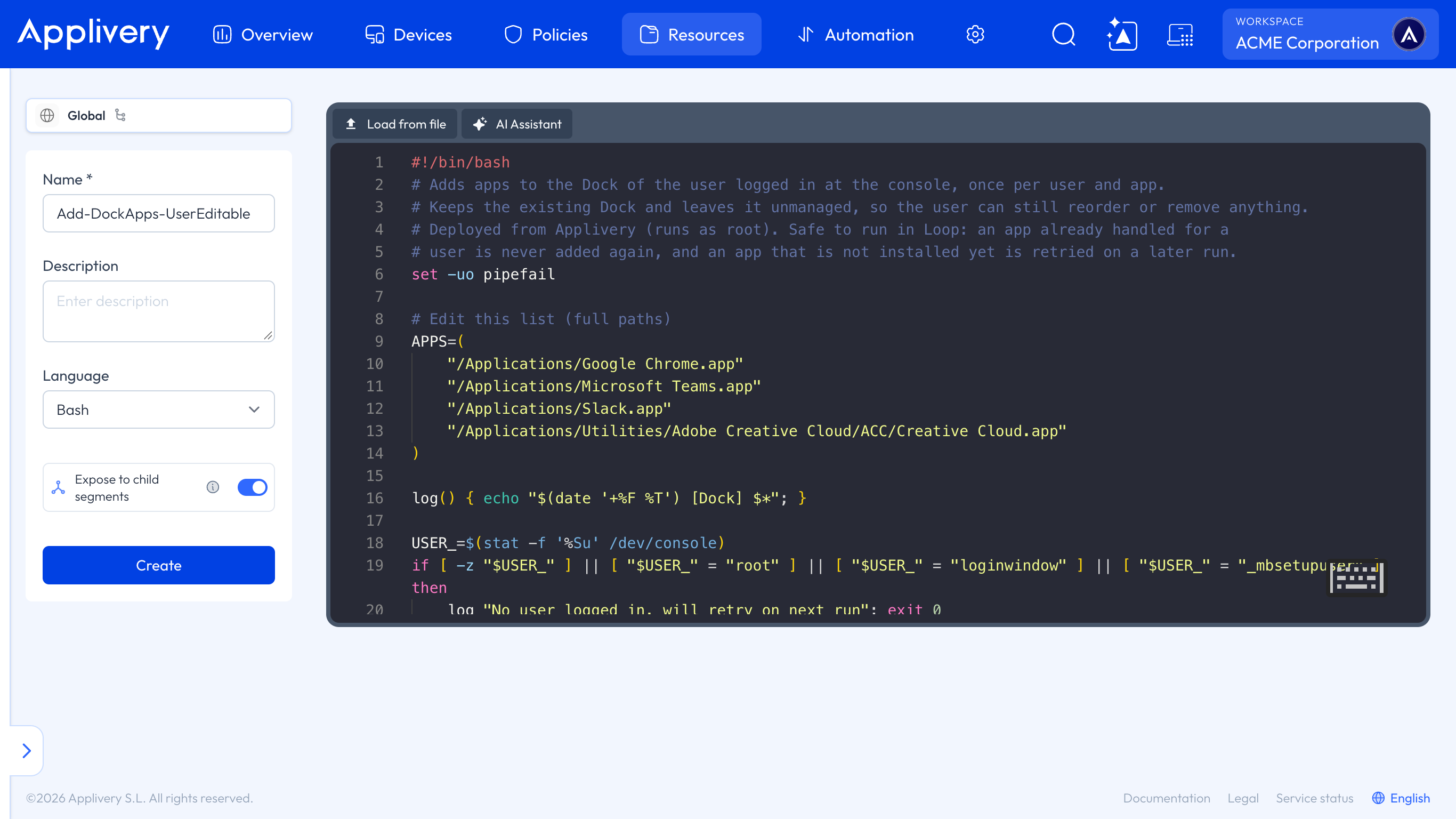
Once in the Applivery Dashboard, go to the Resources section 1. Select the Scripts tab 2 and click the + Create Script 3 button.

Fill in the form as follows:
Name:
Add-DockApps-UserEditable(or any name you prefer).Description: optional, for example Adds Apps to the user's Dock once and leaves it editable.
Language: Bash.
Then click Load from file and select your add-dock-apps.sh file, or paste the Script content directly into the editor. Click Create to save the Script.
Add the Script to your macOS Policy
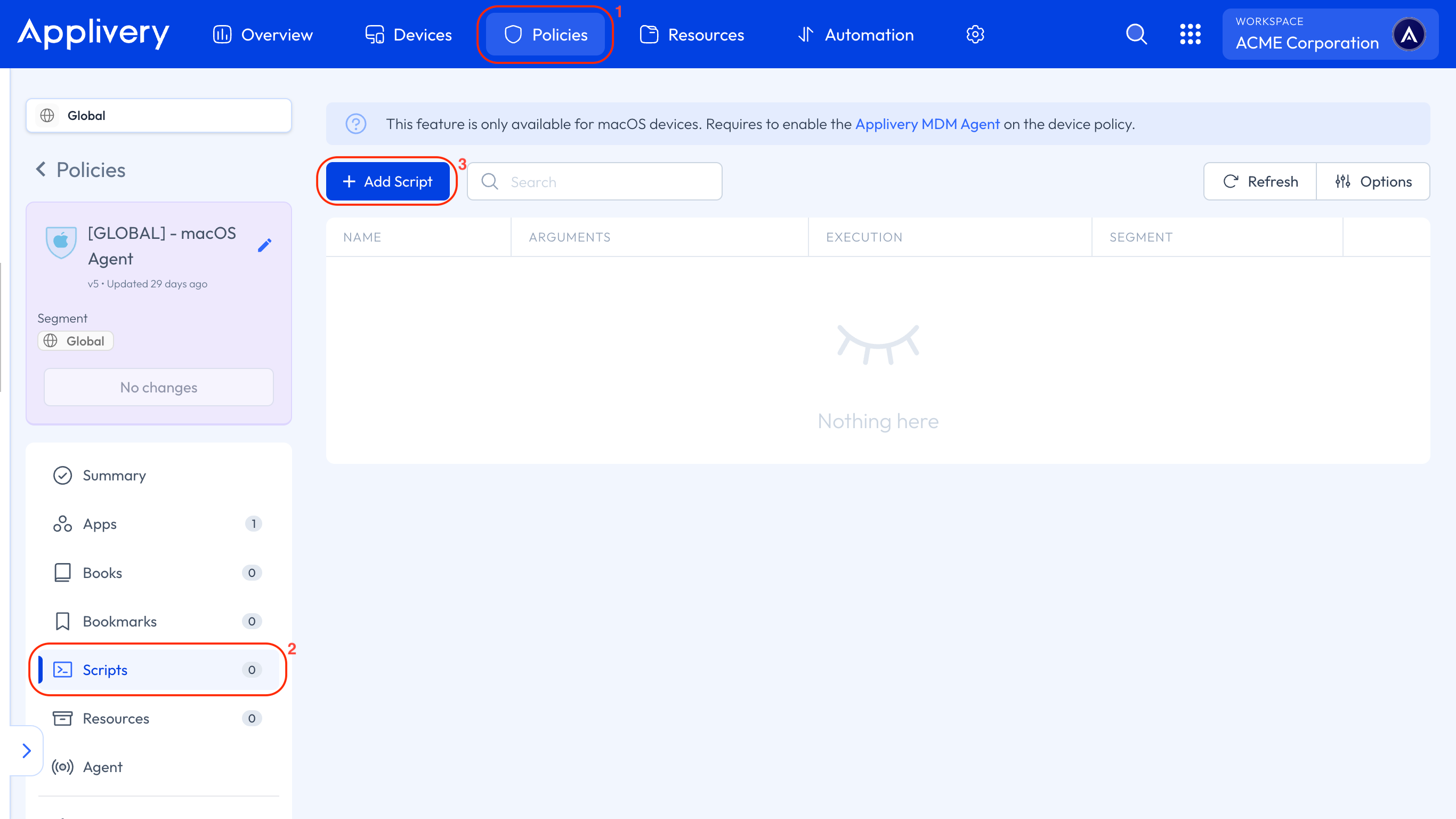
Next, go to the Policies 1 section and select the Policy assigned to your macOS Devices, or create a new one. From the left-hand menu, select the Scripts 2 section.
Scripts are only available for macOS Devices and require the Applivery MDM Agent to be enabled in the Policy. If it isn't enabled yet, go to the Agent section of the Policy and enable it before continuing.
Click the + Add Script 3 button.
In the modal view, search for and select the Add-DockApps-UserEditable Script you created in the previous step. Set the Execution method to Loop and click 1d next to the Loop time field. The field is filled with 86400 seconds, so the Script runs once a day. Leave Arguments empty and click Add.
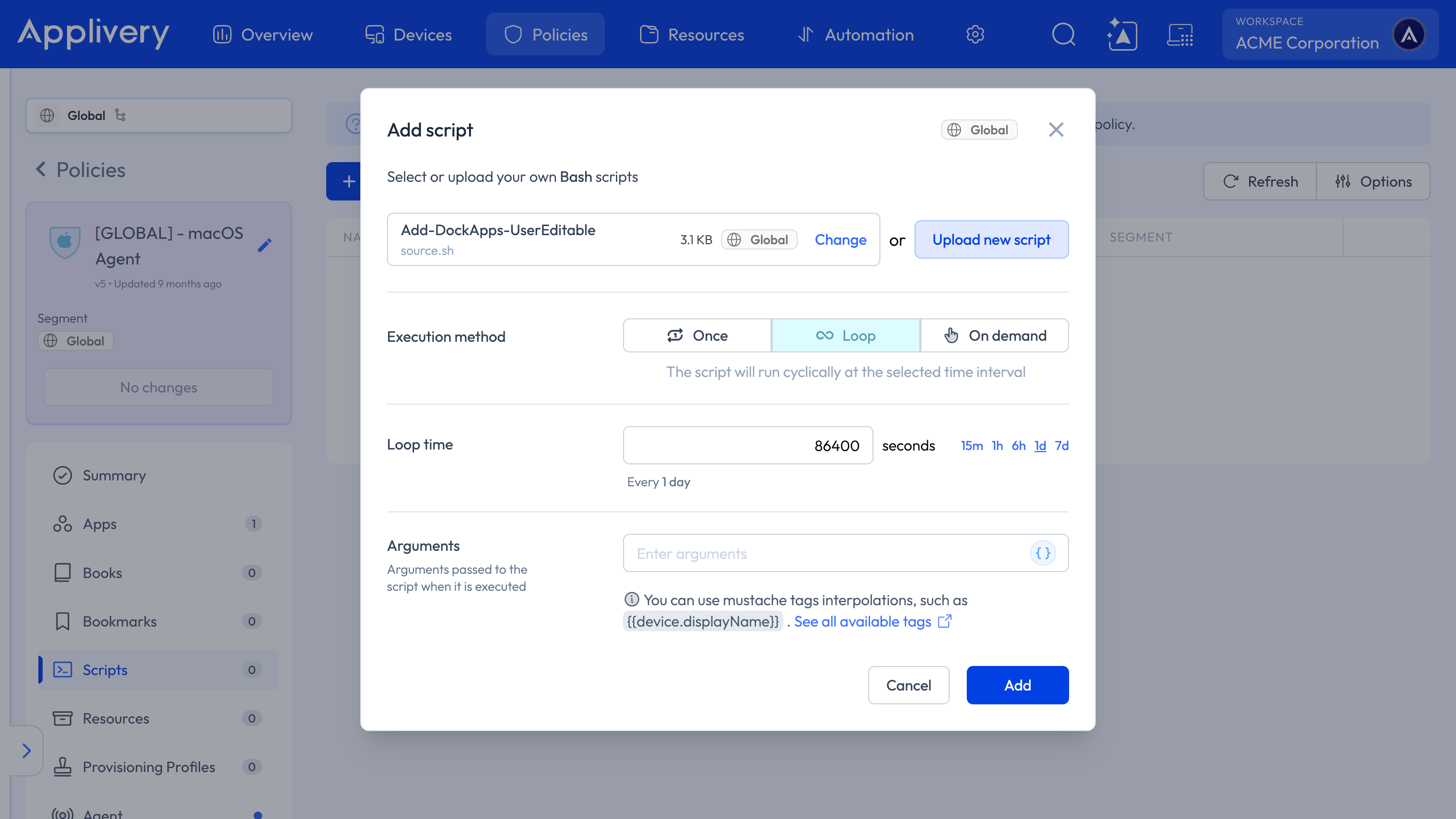
Loop is recommended over Once. The Script only acts on the user logged in at the console at the moment it runs, and only on Apps that are already installed. Running it every day picks up what a single run would miss: an App installed later, a Device that was at the login window, or another user of the same Mac. On Devices that are already set up, the daily run finds nothing pending and exits right away.
The Script now appears in the list. Click Save changes to publish a new version of the Policy. The Script is sent to every Device assigned to the Policy.
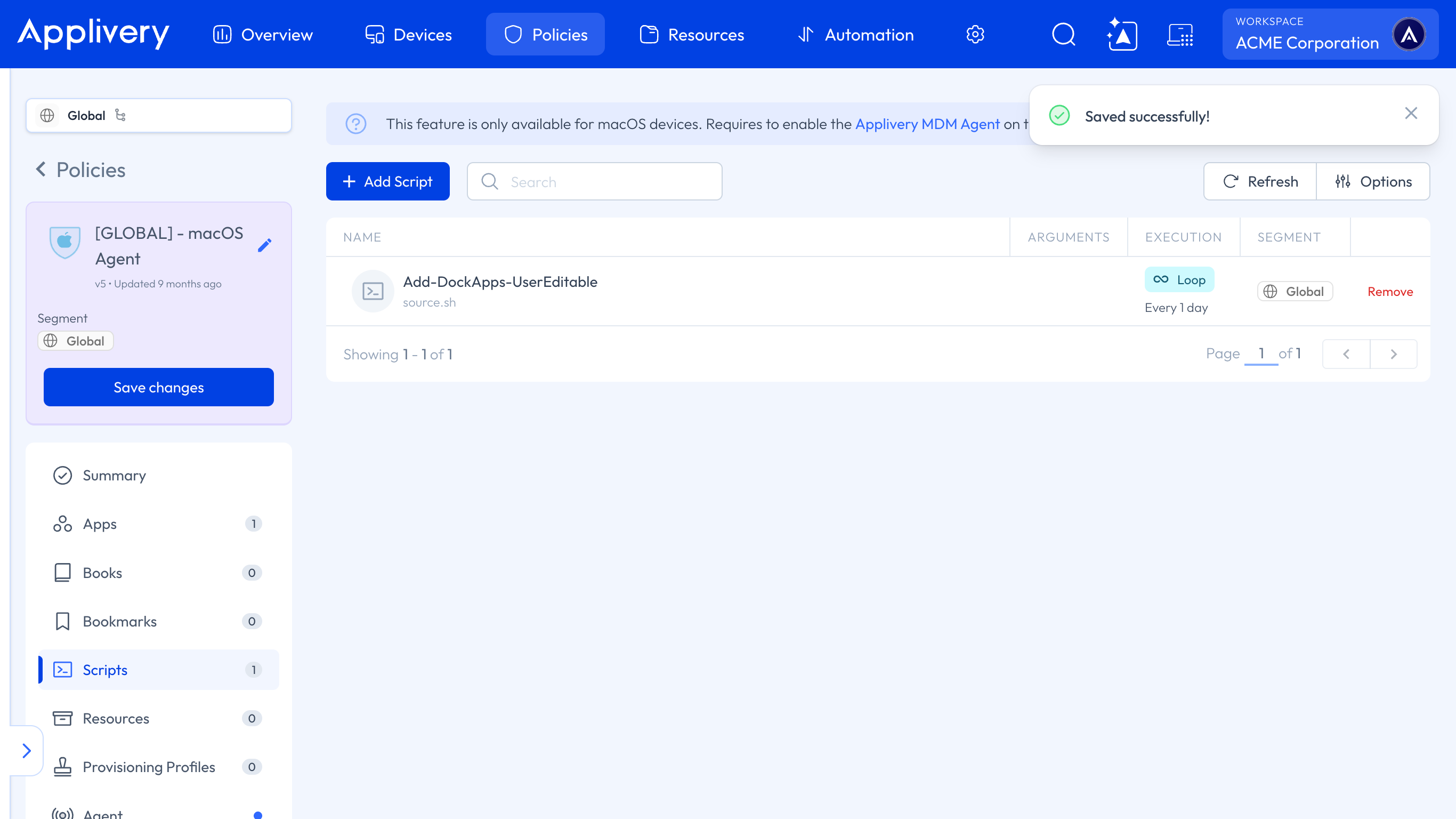
Before rolling it out to all your Devices, add the Script to a pilot Policy with one or two test Devices and check the result as described below.
Result on the Device
Once the Script has run, the user finds the Apps at the end of the Apps section of the Dock, right after the items that were already there. Nothing is removed or reordered.
From that point on, the Dock belongs to the user. They can reorder the new Apps, remove them, or add others as usual, and the Script won't undo those changes on its next runs.
Verify the execution
Open the Device in the Applivery Dashboard, go to the Scripts tab, and click the Execution history button to see the execution history of the Script. You can learn more about it in Scripts by following this link.
A run finishes successfully even when nothing was added, for example, because nobody was logged in or an App wasn't installed yet. Read the output of the run to know what happened. The Script only fails when an App couldn't be written to the Dock.
This is an example of the output of a first run on a Device where Slack isn't installed yet:
2026-11-09 09:12:40 [Dock] Not installed yet, will retry on next run: /Applications/Slack.app
2026-11-09 09:12:40 [Dock] Added: /Applications/Google Chrome.app
2026-11-09 09:12:40 [Dock] Added: /Applications/Microsoft Teams.app
2026-11-09 09:12:40 [Dock] Added: /Applications/Utilities/Adobe Creative Cloud/ACC/Creative Cloud.app
2026-11-09 09:12:41 [Dock] Done for jane
And this is an example of the next run on the same Device, with Slack still not installed:
2026-11-10 09:12:38 [Dock] Handled before, left as the user has it: /Applications/Google Chrome.app
2026-11-10 09:12:38 [Dock] Handled before, left as the user has it: /Applications/Microsoft Teams.app
2026-11-10 09:12:38 [Dock] Not installed yet, will retry on next run: /Applications/Slack.app
2026-11-10 09:12:38 [Dock] Handled before, left as the user has it: /Applications/Utilities/Adobe Creative Cloud/ACC/Creative Cloud.app
2026-11-10 09:12:38 [Dock] Nothing to add for jane
Troubleshooting
Output | Cause | What to do |
|---|---|---|
| The Script ran with nobody logged in at the console: the Device was at the login window or still in Setup Assistant. | Nothing. It's applied on a later run with a user logged in. |
| The App isn't at the path set in the | Deploy the App to the Device, or correct the path in the Script. |
| The user already had the App in the Dock. | Nothing. The Dock isn't changed. |
| The App was handled on a previous run for this user. | Nothing. This is what keeps the Dock editable. |
| No App is pending for this user. | Nothing. |
| The user's Dock wasn't running or ready after five minutes, usually during a first login. | Nothing. It's applied on the next run. |
| macOS rejected the change to the Dock. The run is reported as failed. | Check the rest of the output for the error. The App is retried on the next run. |
Change the Apps later
To add more Apps to the Dock later, create a new Script with the updated APPS list, then replace the previous one in the Policy: in the Scripts section, click Remove on the old Script, add the new one with + Add Script, and click Save changes. Apps that were already handled for a user are left as that user has them, and only the new ones are added.
To add an App again for a user who removed it, delete its record on that Device. The record is a file with the name of the App inside the user's home folder. For example, run this as that user:
rm "$HOME/Library/Application Support/AppliveryDockSetup/Google Chrome.app"
The App is added again on the next run of the Script.
Script
#!/bin/bash
# Adds apps to the Dock of the user logged in at the console, once per user and app.
# Keeps the existing Dock and leaves it unmanaged, so the user can still reorder or remove anything.
# Deployed from Applivery (runs as root). Safe to run in Loop: an app already handled for a
# user is never added again, and an app that is not installed yet is retried on a later run.
set -uo pipefail
# Edit this list (full paths)
APPS=(
"/Applications/Google Chrome.app"
"/Applications/Microsoft Teams.app"
"/Applications/Slack.app"
"/Applications/Utilities/Adobe Creative Cloud/ACC/Creative Cloud.app"
)
log() { echo "$(date '+%F %T') [Dock] $*"; }
USER_=$(stat -f '%Su' /dev/console)
if [ -z "$USER_" ] || [ "$USER_" = "root" ] || [ "$USER_" = "loginwindow" ] || [ "$USER_" = "_mbsetupuser" ]; then
log "No user logged in, will retry on next run"; exit 0
fi
UID_=$(id -u "$USER_")
# The non-root branch only exists so you can test the script by hand in your own session
as_user() { if [ "$(id -u)" -eq 0 ]; then launchctl asuser "$UID_" sudo -H -u "$USER_" "$@"; else "$@"; fi; }
# One marker per app in the user's home: this is what makes a removal by the user stick
MARKS="$(as_user sh -c 'echo "$HOME"')/Library/Application Support/AppliveryDockSetup"
# Apps still to handle for this user: no marker yet and installed on the device
PENDING=()
for app in "${APPS[@]}"; do
if [ -e "$MARKS/$(basename "$app")" ]; then
log "Handled before, left as the user has it: $app"
elif [ ! -e "$app" ]; then
log "Not installed yet, will retry on next run: $app"
else
PENDING+=("$app")
fi
done
[ ${#PENDING[@]} -eq 0 ] && { log "Nothing to add for $USER_"; exit 0; }
# The Dock must be running and have its own list of apps. On a first login macOS is still
# building it, and writing at that point would replace the default Dock instead of adding to it.
CURRENT=""
for _ in $(seq 1 60); do
pgrep -u "$UID_" -x Dock >/dev/null \
&& CURRENT=$(as_user defaults read com.apple.dock persistent-apps 2>/dev/null) \
&& [ -n "$CURRENT" ] && break
CURRENT=""; sleep 5
done
[ -z "$CURRENT" ] && { log "Dock not ready yet, will retry on next run"; exit 0; }
as_user mkdir -p "$MARKS"
CHANGED=0
FAILED=0
for app in "${PENDING[@]}"; do
if grep -qF "file://${app// /%20}" <<<"$CURRENT" || grep -qF "\"$app\"" <<<"$CURRENT"; then
log "Already in Dock: $app"
elif as_user defaults write com.apple.dock persistent-apps -array-add \
"<dict><key>tile-data</key><dict><key>file-data</key><dict><key>_CFURLString</key><string>${app//&/&}</string><key>_CFURLStringType</key><integer>0</integer></dict></dict><key>tile-type</key><string>file-tile</string></dict>"; then
log "Added: $app"; CHANGED=1
else
log "Could not add, will retry on next run: $app"; FAILED=1; continue
fi
as_user touch "$MARKS/$(basename "$app")"
done
# The Dock only shows the new apps after it restarts (it blinks for a moment)
[ $CHANGED -eq 1 ] && as_user killall Dock
log "Done for $USER_"
exit $FAILED