

Adobe Creative Cloud Desktop is the App your users need to sign in to Adobe and install Photoshop, Illustrator, Premiere Pro, and the rest of the Creative Cloud catalog. Deploying it from Applivery means it's ready on every macOS Device without manual installation and without giving admin rights to the end user.
You can do this with a Bash Script that downloads the latest Adobe installer from Adobe's servers, verifies its checksum and Adobe's code signature, and runs Adobe's own silent installer. You don't need to install anything else on the Device beforehand, not even Homebrew.
Requirements
Before deploying Adobe Creative Cloud on macOS Devices through Applivery, make sure you have the following:
macOS Devices enrolled in Applivery and assigned to a Policy.
The Applivery MDM Agent enabled in that Policy. Scripts are run by the Agent. Learn more about the macOS Agent.
Outbound HTTPS access from the Devices to:
formulae.brew.sh: public index maintained by the Homebrew project. The Script only reads the current Adobe installer URL and its SHA-256 checksum from it. Homebrew itself isn't installed or used.ccmdls.adobe.com: Adobe's download server. The installer is always downloaded from here.
The
install-adobe-cc.shScript, included at the end of this guide.
The Script installs the Creative Cloud Desktop App only. Users install individual Apps such as Photoshop or Illustrator afterwards from Creative Cloud, once they sign in with their Adobe ID. If you need to pre-install specific Adobe Apps or manage licensing centrally, check the Alternative: Adobe Admin Console package section below.
How the Script works
Exits right away if Creative Cloud is already installed, so it's safe to keep in the Policy.
Looks up the latest Adobe download URL and its SHA-256 checksum for the Device architecture (Apple silicon or Intel). This avoids hard-coding a version that becomes outdated with every Adobe release.
Stops if the download URL doesn't point to
ccmdls.adobe.com, so the installer can only come from Adobe.Downloads the installer, verifies the checksum, and mounts the disk image.
Stops unless the installer is signed by Adobe Inc. (Apple Developer Team ID
JQ525L2MZD).Runs Adobe's installer with
--mode=silent.Writes a log to
/var/log/applivery-adobe-cc.logand returns0on success or1on failure, so the result is reported correctly in Applivery.
The Script needs root privileges to install the App. If it runs without them, it stops with Must run as root and makes no changes.
Upload the Script to Applivery
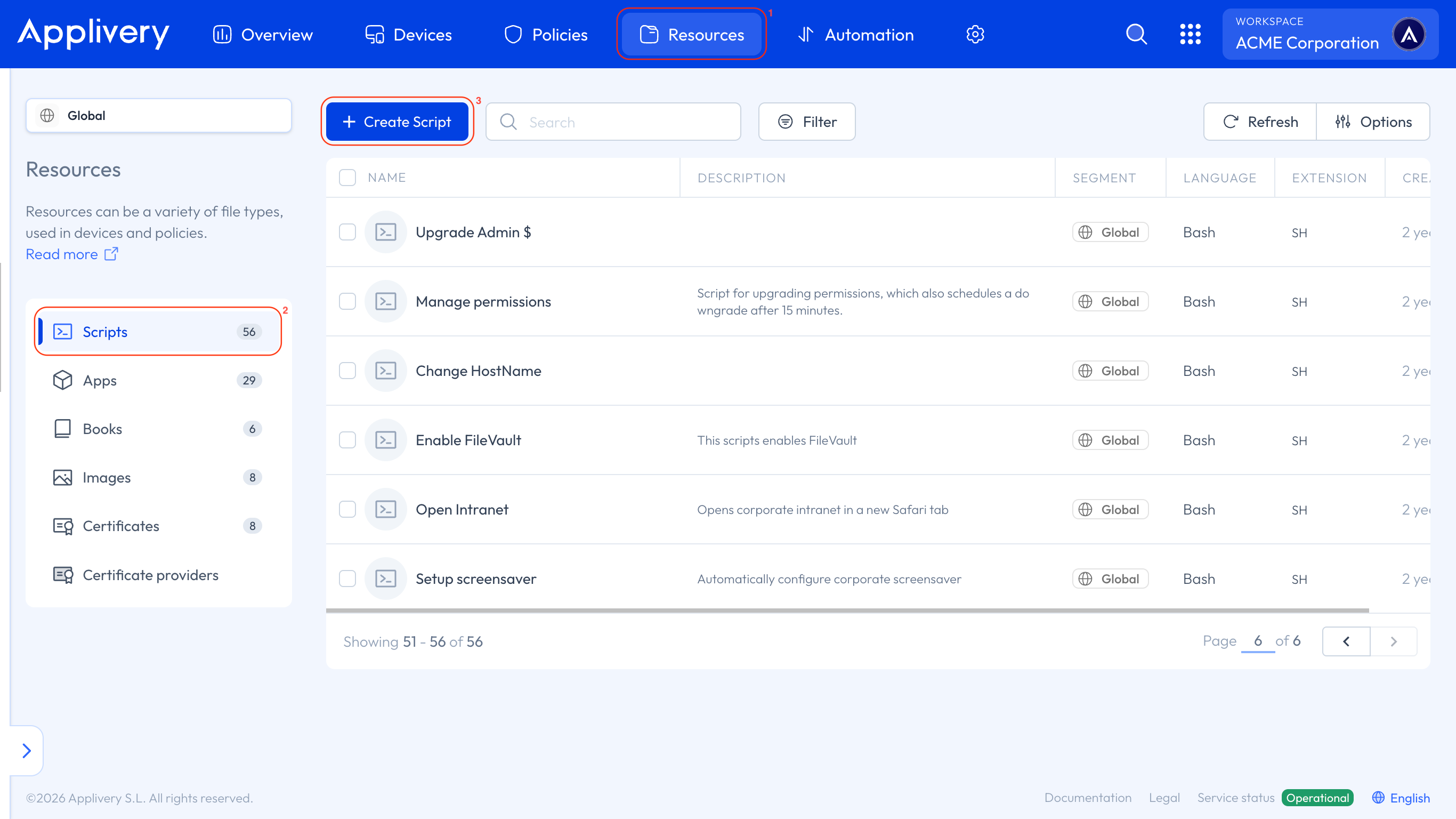
Once in the Applivery Dashboard, go to the Resources section 1. Select the Scripts tab 2 and click the + Create Script 3 button.
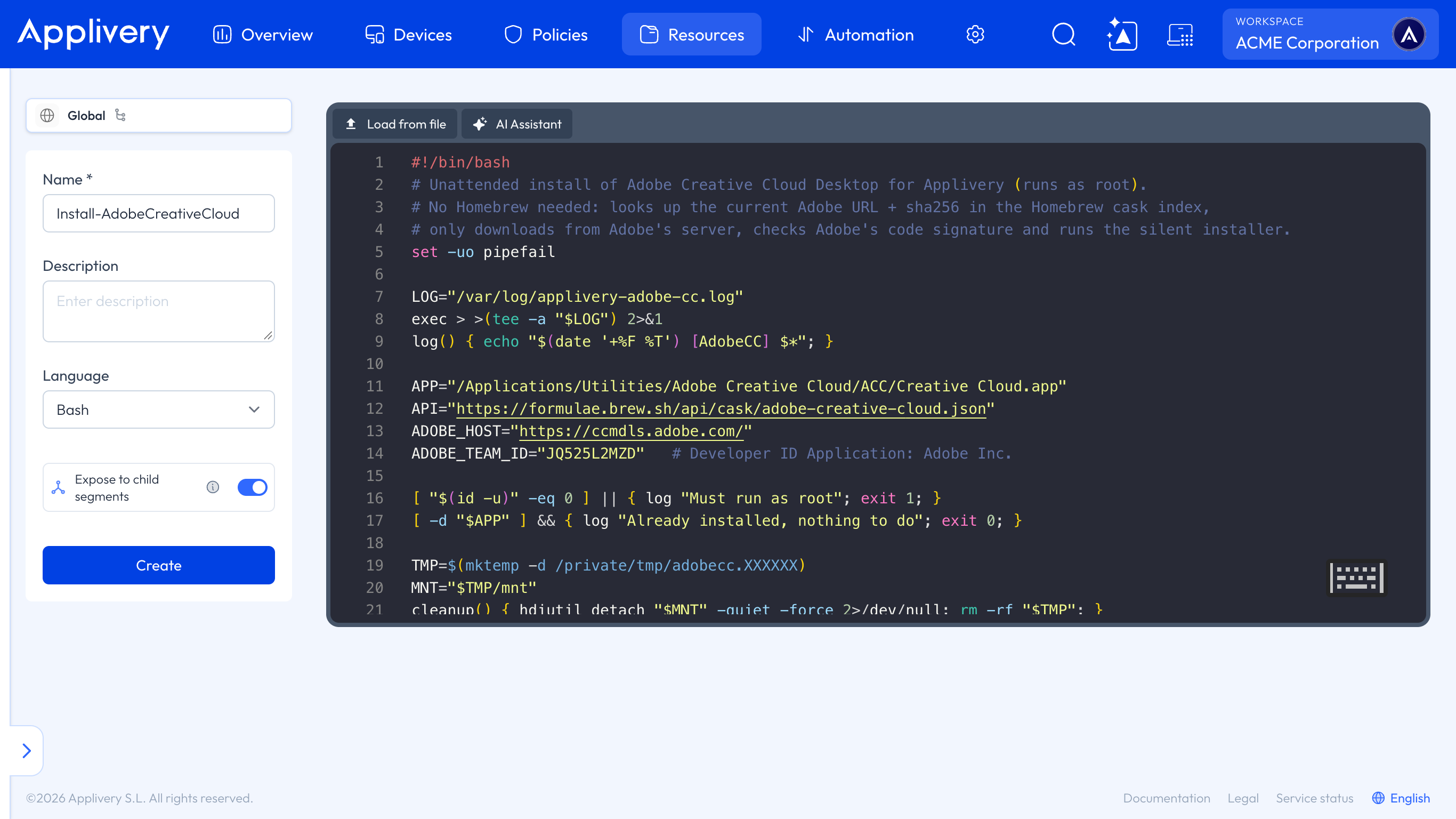
Fill in the form as follows:
Name:
Install-AdobeCreativeCloud(or any name you prefer).Description: optional, for example Unattended install of Adobe Creative Cloud Desktop.
Language: Bash.
Then click Load from file and select the install-adobe-cc.sh file, or paste the Script content directly into the editor. Click Create to save the Script.
Add the Script to your macOS Policy
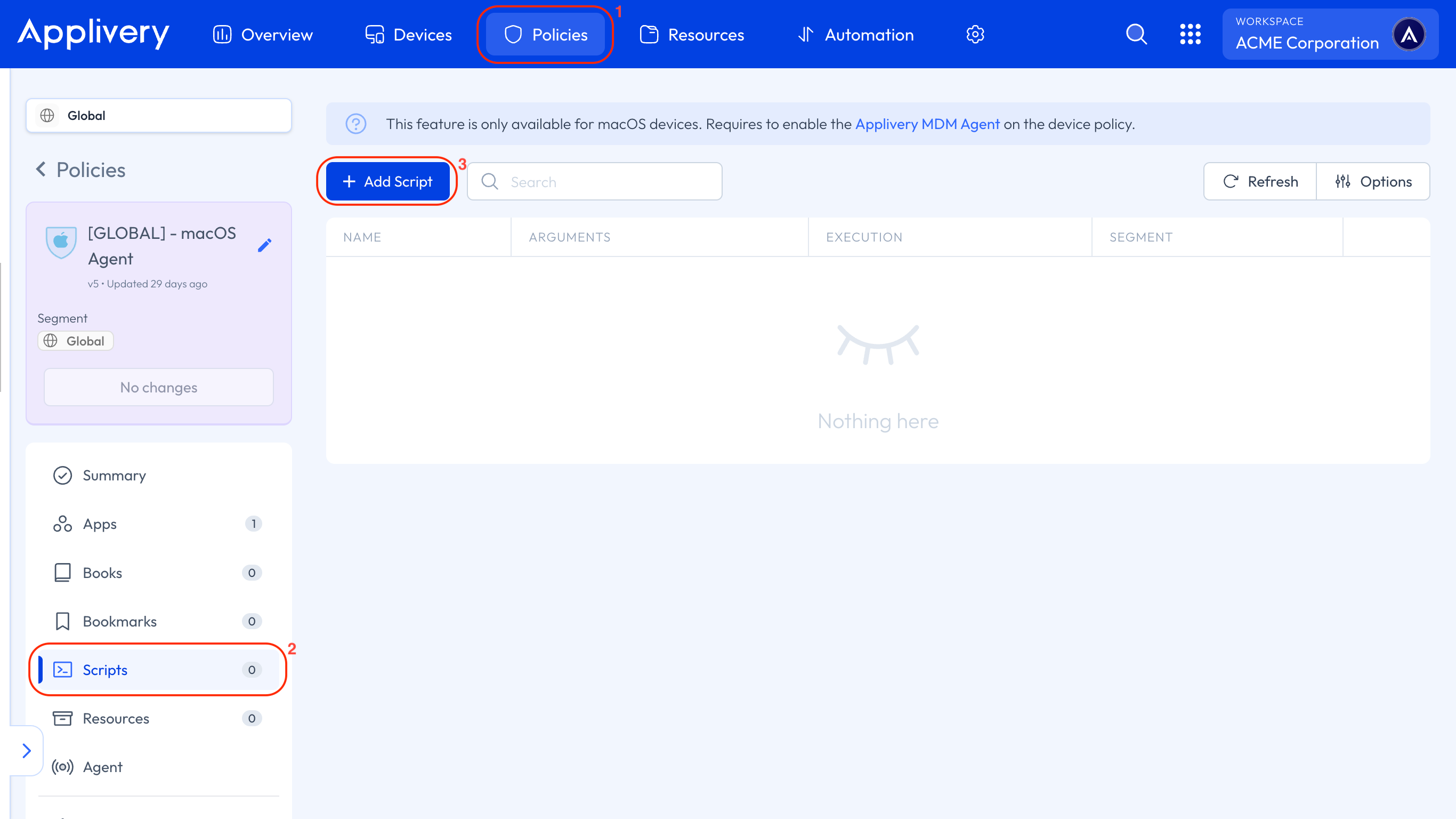
Next, go to the Policies 1 section and select the Policy assigned to your macOS Devices, or create a new one. From the left-hand menu, select the Scripts 2 section.
Scripts are only available for macOS Devices and require the Applivery MDM Agent to be enabled in the Policy. If it isn't enabled yet, go to the Agent section of the Policy and enable it before continuing.
Click the + Add Script 3 button.
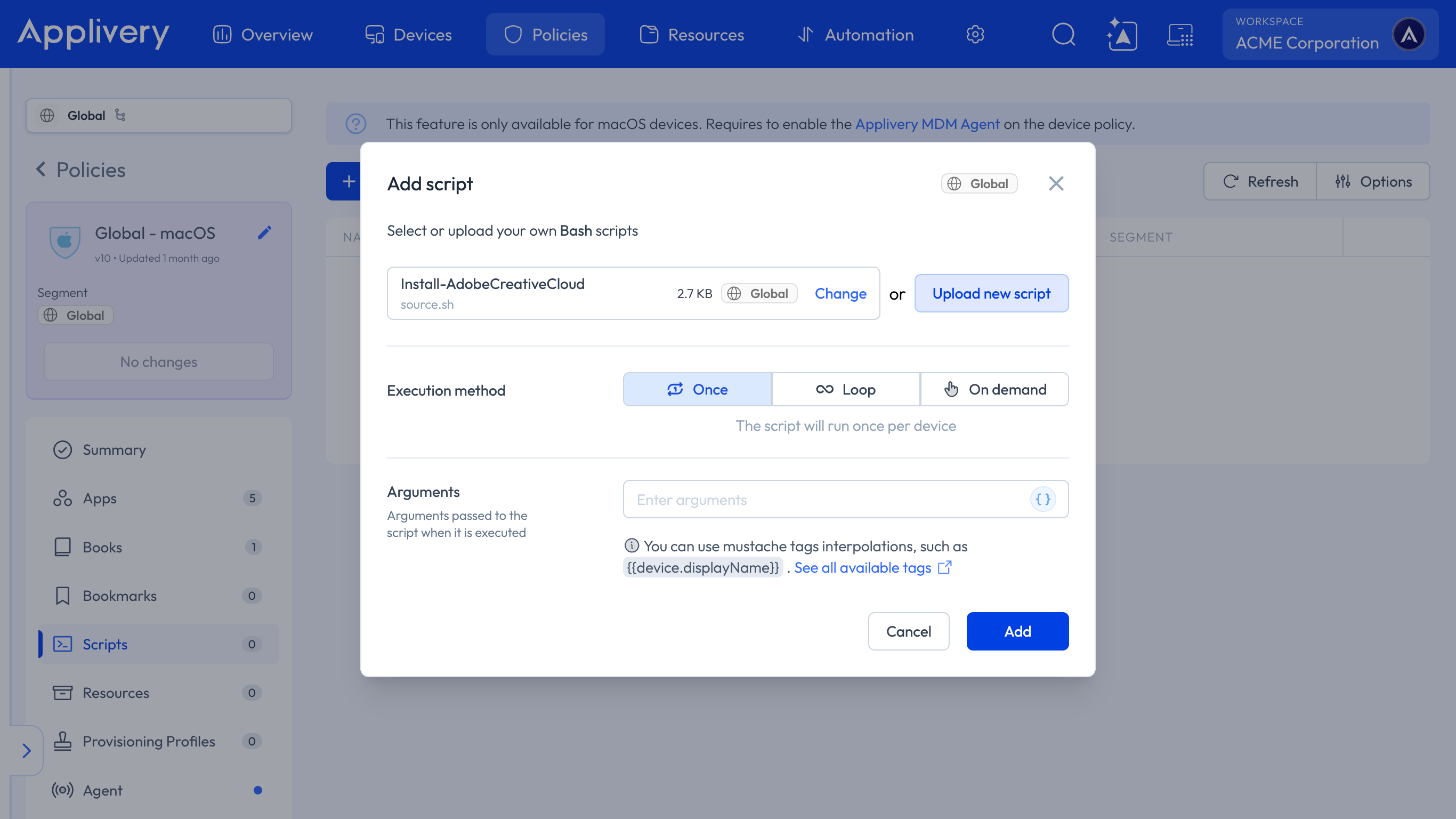
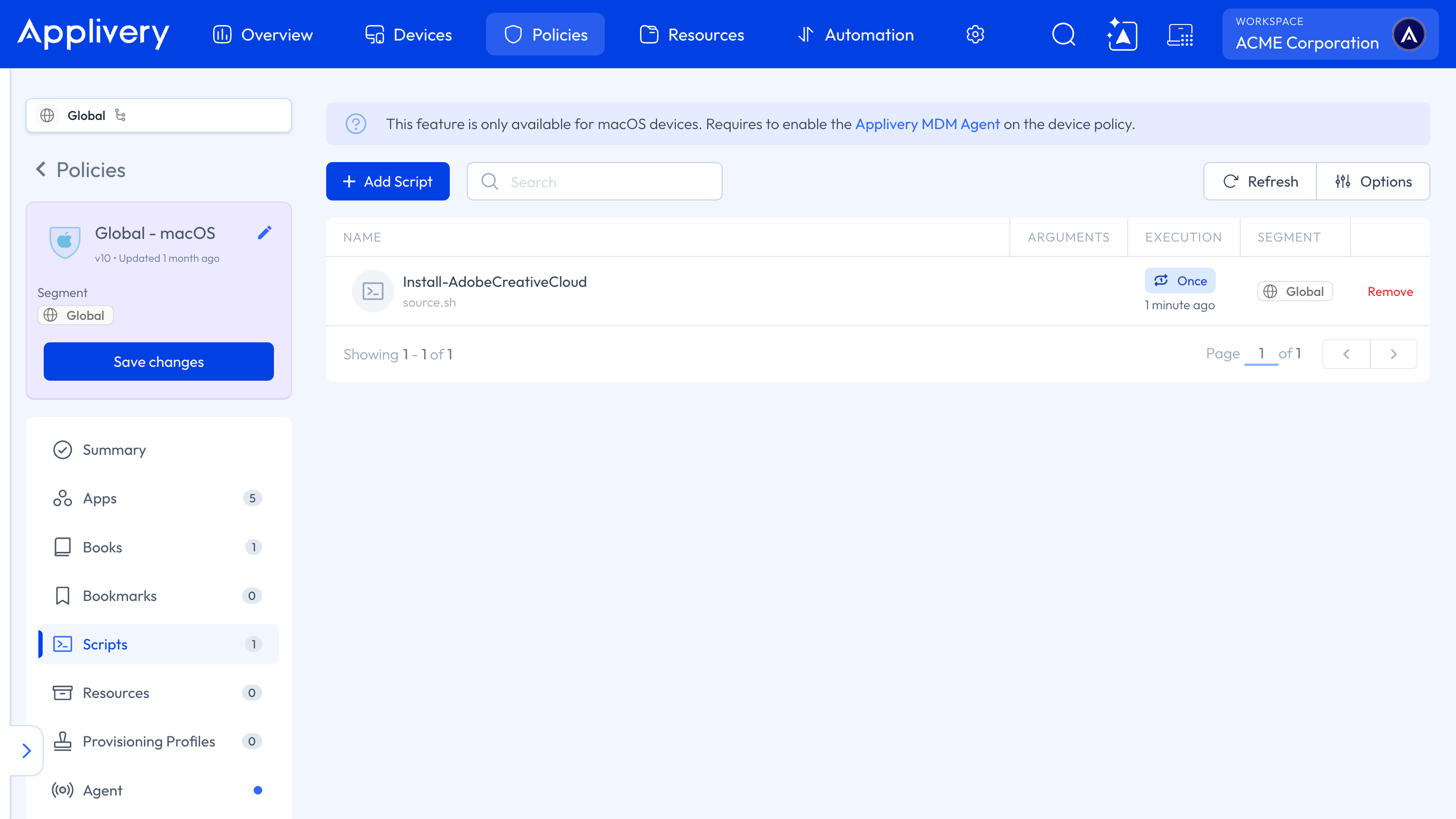
In the modal view, search for and select the Install-AdobeCreativeCloud Script you created in the previous step. Set the Execution method to Once so the Script runs a single time per Device. No arguments are needed. Click Add.
The Script now appears in the list. Click Save changes to publish a new version of the Policy. The Script runs on every Device assigned to the Policy the next time the Agent syncs.
Before rolling it out to all your Devices, assign the Script to a pilot Policy with one or two test Devices and check the result as described below. It's also safe to assign it to Devices that already have Creative Cloud: the Script detects it and exits without making any changes.
Verify the installation
Once the Script has run, open the Device in the Applivery Dashboard, go to the Scripts tab, and click the Execution history button to see the result and output of the Script. You can learn more about it in Scripts by following this link.
If an execution fails (for example, because the Device had no internet access at that moment), fix the cause and use the Repeat execution option on the Script so it's sent to the Device again.
On the Device itself, Creative Cloud is installed at:
/Applications/Utilities/Adobe Creative Cloud/ACC/Creative Cloud.app
The Script log is saved at /var/log/applivery-adobe-cc.log. A successful run looks like this:
2026-11-10 10:57:28 [AdobeCC] Downloading https://ccmdls.adobe.com/AdobeProducts/StandaloneBuilds/ACCC/ESD/6.11.0/478.6/macarm64/ACCCx6_11_0_478_6.dmg
2026-11-10 10:57:40 [AdobeCC] Running silent installer
Starting installer...
Installation successful.
2026-11-10 10:57:46 [AdobeCC] Installed OK
If the Script runs again on a Device that already has Creative Cloud, the log shows Already installed, nothing to do and nothing changes.
Adobe's installer may print lines starting with objc[...]: Class ... is implemented in both ... in the output. They're harmless warnings from the installer itself and don't mean the installation failed. The last line of the log gives you the result.
Troubleshooting
Log message | Cause | What to do |
|---|---|---|
| The Device can't reach | Allow the domain in your firewall or proxy. |
| The installer index returned an unexpected response. | Run the Script again later. If it persists, use the Adobe Admin Console package instead. |
| The index returned a download URL outside | Don't bypass this check. Use the Adobe Admin Console package instead. |
| The Device can't reach | Allow Adobe's download domains in your firewall or proxy. |
| The downloaded file is corrupt or was modified in transit. | Run the Script again. If it persists, check for a proxy that inspects or rewrites downloads. |
| The downloaded disk image couldn't be mounted. | Run the Script again. If it persists, check the rest of the output for the error. |
| The downloaded installer isn't signed by Adobe Inc. | Don't run the installer. Check for a proxy that rewrites downloads and try again from another network. |
| The Script ran without root privileges. | Run it through an Applivery Policy or Device assignment, not manually as a standard user. |
| Adobe's installer returned an error. | Check Adobe's logs in |
Uninstall Creative Cloud
To remove Creative Cloud Desktop from a Device, run Adobe's own uninstaller in silent mode as root, for example from another Applivery Script:
"/Applications/Utilities/Adobe Creative Cloud/ACC/Creative Cloud Uninstaller.app/Contents/MacOS/Creative Cloud Uninstaller" -u
Adobe's uninstaller removes the App but leaves some components on the Device: the com.adobe.acc.installer.v2 helper in /Library/PrivilegedHelperTools with its LaunchDaemon in /Library/LaunchDaemons, and the folders /Library/Application Support/Adobe and /Library/Logs/CreativeCloud. Remove them separately if you need a clean Device.
Alternative: Adobe Admin Console package
If your organization manages Adobe licenses through the Adobe Admin Console, you can create a managed package there that includes Creative Cloud Desktop and, optionally, specific Apps such as Photoshop or Acrobat with your licensing settings already applied. Adobe provides it as a .pkg installer, which you can deploy with Applivery. You can learn how in PKG Deployment by following this link.
Use the Script in this guide when you only need Creative Cloud Desktop on the Devices and prefer to always install the latest version without rebuilding packages.
Once Creative Cloud is installed, you can also add it to your users' Dock without locking it. You can learn how in Add Apps to the Dock by following this link.
Script
#!/bin/bash
# Unattended install of Adobe Creative Cloud Desktop for Applivery (runs as root).
# No Homebrew needed: looks up the current Adobe URL + sha256 in the Homebrew cask index,
# only downloads from Adobe's server, checks Adobe's code signature and runs the silent installer.
set -uo pipefail

LOG="/var/log/applivery-adobe-cc.log"
exec > >(tee -a "$LOG") 2>&1
log() { echo "$(date '+%F %T') [AdobeCC] $*"; }

APP="/Applications/Utilities/Adobe Creative Cloud/ACC/Creative Cloud.app"
API="https://formulae.brew.sh/api/cask/adobe-creative-cloud.json"
ADOBE_HOST="https://ccmdls.adobe.com/"
ADOBE_TEAM_ID="JQ525L2MZD"   # Developer ID Application: Adobe Inc.

[ "$(id -u)" -eq 0 ] || { log "Must run as root"; exit 1; }
[ -d "$APP" ] && { log "Already installed, nothing to do"; exit 0; }

TMP=$(mktemp -d /private/tmp/adobecc.XXXXXX)
MNT="$TMP/mnt"
cleanup() { hdiutil detach "$MNT" -quiet -force 2>/dev/null; rm -rf "$TMP"; }
trap cleanup EXIT

curl --proto '=https' --tlsv1.2 -fsSL --retry 3 "$API" -o "$TMP/cask.json" || { log "Cannot reach cask API"; exit 1; }
get() { plutil -extract "$1" raw -o - "$TMP/cask.json" 2>/dev/null; }

if [ "$(uname -m)" = "arm64" ]; then
    URL=$(get url); SHA=$(get sha256)
else
    # Intel build is listed under macOS codename variations (all point to the same osx10 DMG)
    for k in tahoe sequoia sonoma ventura monterey; do
        URL=$(get "variations.$k.url") && SHA=$(get "variations.$k.sha256") && break
    done
fi
[ -n "${URL:-}" ] && [ -n "${SHA:-}" ] || { log "Could not resolve download URL"; exit 1; }
# The index is third-party: never download from anywhere but Adobe
case "$URL" in "$ADOBE_HOST"*) ;; *) log "Unexpected download host, aborting: $URL"; exit 1 ;; esac
log "Downloading $URL"

curl --proto '=https' --tlsv1.2 -fL --retry 3 -s "$URL" -o "$TMP/acc.dmg" || { log "Download failed"; exit 1; }
[ "$(shasum -a 256 "$TMP/acc.dmg" | awk '{print $1}')" = "$SHA" ] || { log "Checksum mismatch, aborting"; exit 1; }

mkdir -p "$MNT"
hdiutil attach "$TMP/acc.dmg" -nobrowse -readonly -mountpoint "$MNT" -quiet || { log "Mount failed"; exit 1; }

# Only run the installer if it is signed by Adobe (the checksum alone comes from the index)
codesign --verify --deep --strict \
    -R="anchor apple generic and certificate leaf[subject.OU] = \"$ADOBE_TEAM_ID\"" \
    "$MNT/Install.app" 2>/dev/null || { log "Signature check failed, aborting"; exit 1; }

log "Running silent installer"
"$MNT/Install.app/Contents/MacOS/Install" --mode=silent
RC=$?

if [ $RC -eq 0 ] && [ -d "$APP" ]; then
    log "Installed OK"
    exit 0
fi
log "Installer failed (exit $RC). See /Library/Logs/Adobe/Installers and ~/Library/Logs/CreativeCloud"
exit 1