

Enforce a password or PIN policy and automatic screen lock on your Windows Devices with the Passcode configuration.
Requirements
Windows 10 1507 or later, or Windows 11, in any edition.
The rules apply to local accounts. Microsoft Entra ID and domain accounts follow the password policy of their own directory.
Configure the password policy
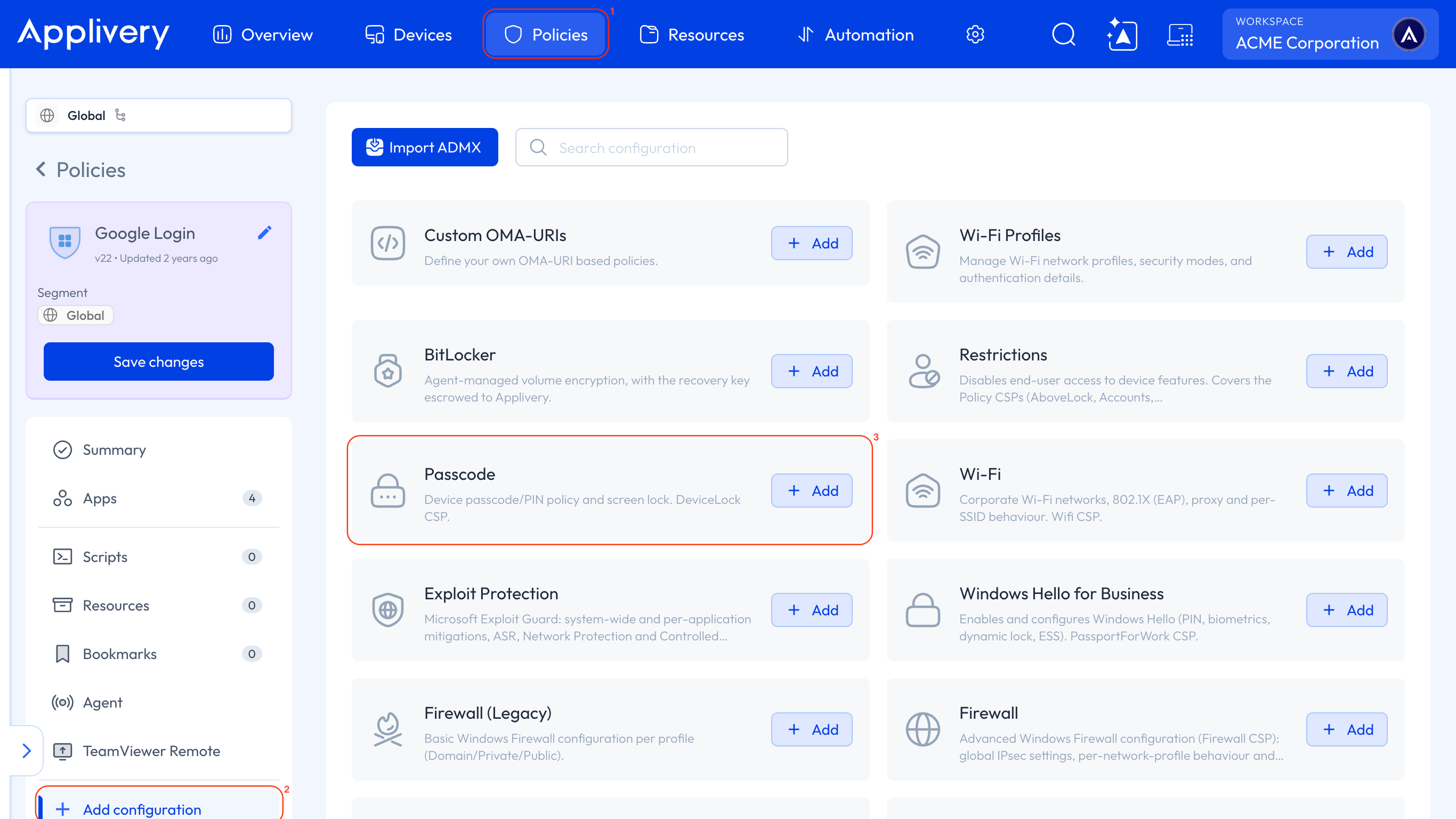
Once in the Applivery Dashboard, head to Policies 1. Choose the Policy where you want to add this configuration. In the left-hand menu, select + Add configuration 2, and search for Passcode 3.
In Basic requirements:
Set Device Password Enabled to 0 Enabled. This is the main switch: while it stays on 1 Disabled, which is the default, every other rule in the form is ignored.
Set Allow Simple Device Password to 0 Not allowed to block trivial PINs like 1111 or 1234, and picture passwords on desktop.
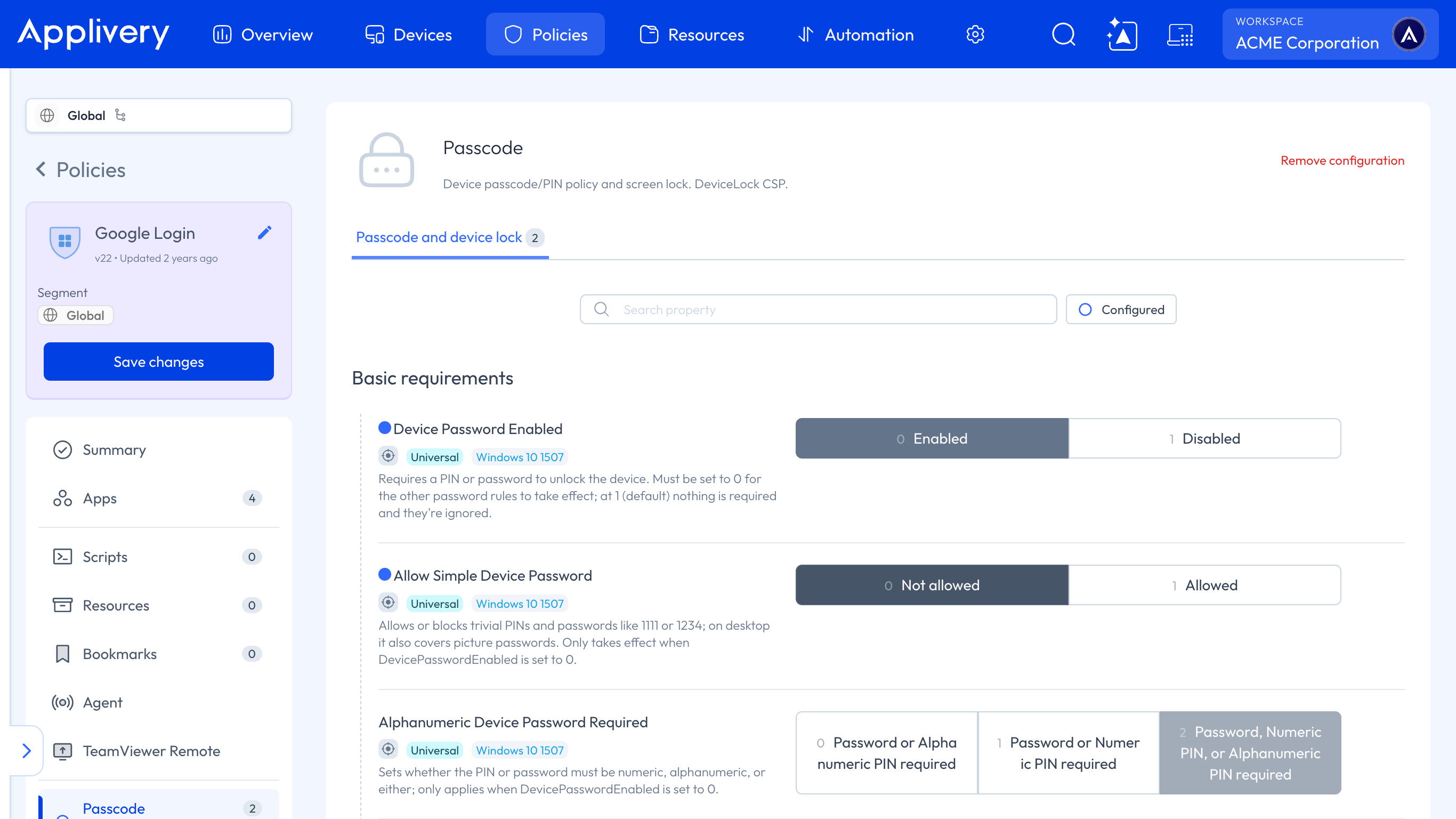
Alphanumeric Device Password Required: 0 Password or Alphanumeric PIN required.
Min Device Password Length: 12. The default value is 4.
Min Device Password Complex Characters: 2 Digits and lowercase letters are required.
Device Password Expiration: 90 days. Leave it empty so the password never expires.
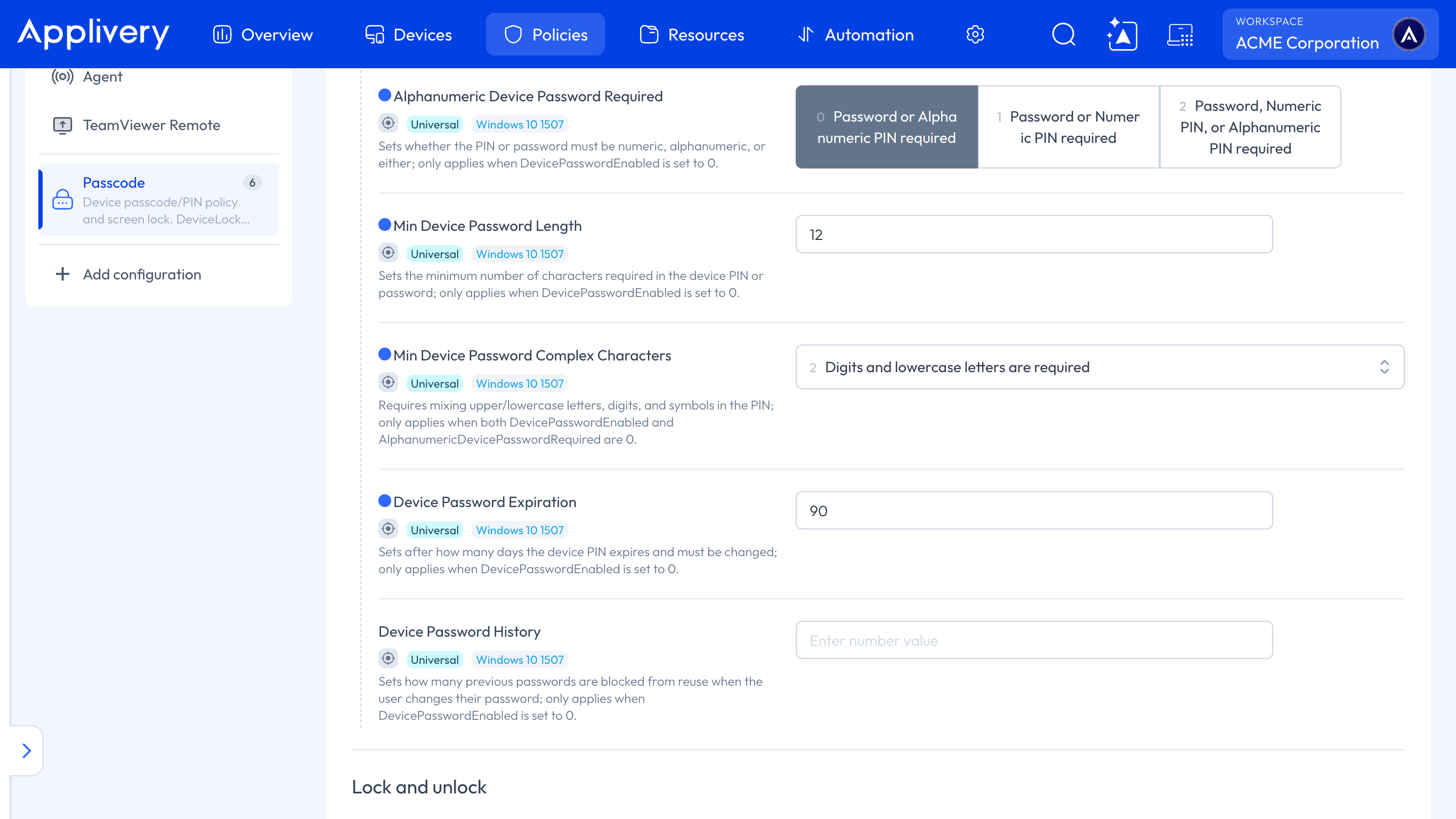
The complexity dropdown shows which values Windows accepts on desktop. Values 3 and 4 are marked in the list itself as not supported for desktop accounts, so stick to 1 or 2 on PCs.
Scroll to the end of Basic requirements and configure Lock and unlock:
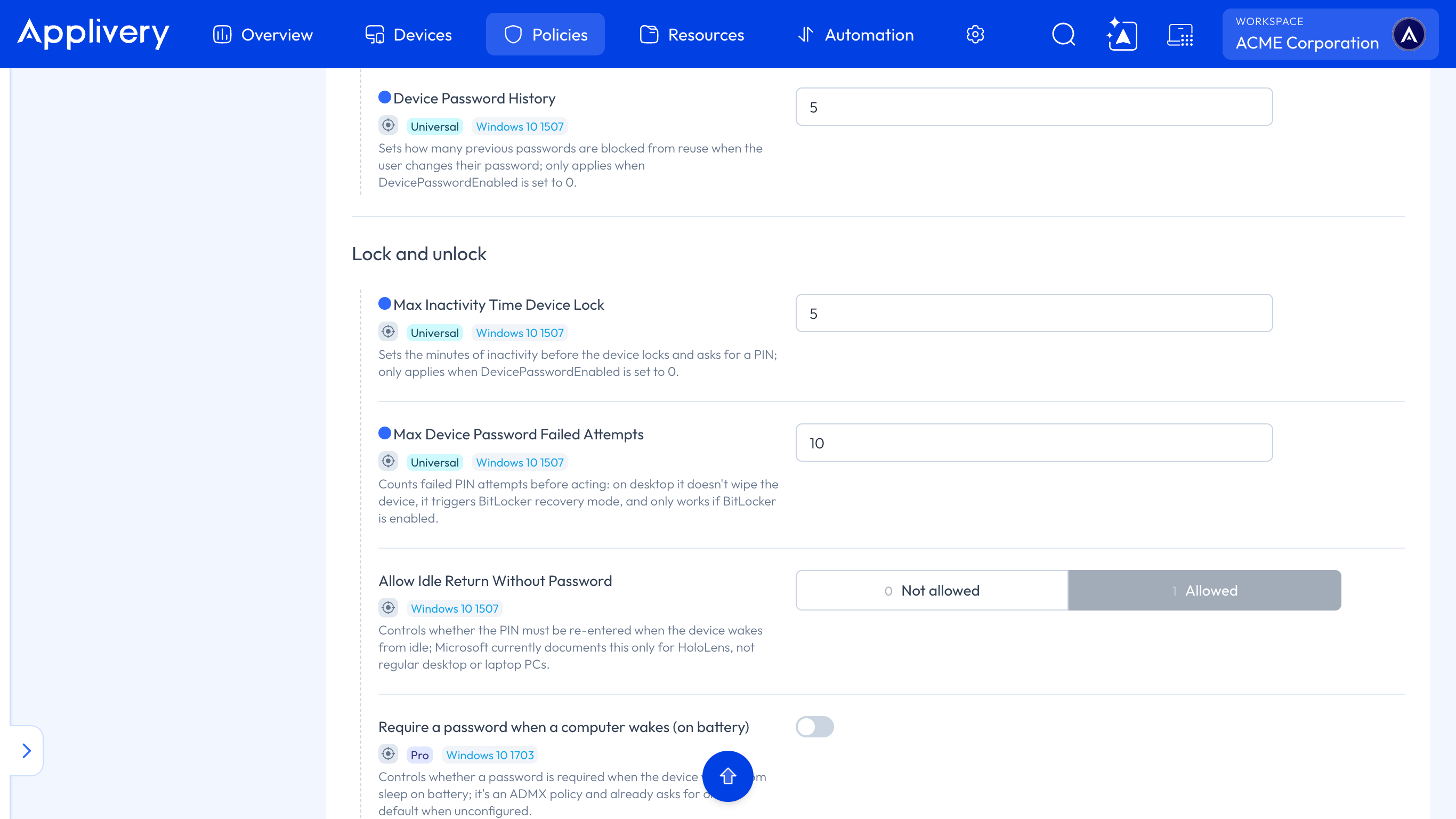
Device Password History: 5. Users can't reuse their last five passwords.
Max Inactivity Time Device Lock: 5 minutes. The Device locks and asks for the password after that much inactivity.
Max Device Password Failed Attempts: 10. On desktop, this does not wipe the Device: it sends it to BitLocker recovery, and it only works if BitLocker is turned on.
Open Summary and set View summary as OMA URIs to check the exact nodes and values that will be sent to the Device.
Click Save changes. Nothing reaches the Devices until you save. If you leave the page before saving, Applivery asks whether you want to discard the draft.
Assign the Policy to a Device from Assigned devices by clicking + Assign to device, or to a group or Segment.
What the user experiences
If the user's current password doesn't meet the Policy, Windows asks them to change it at their next sign-in.
Notes
Microsoft only documents Allow Idle Return Without Password for HoloLens.
There is no CSP to unlock a locked local account remotely. This Policy only prevents and limits failed attempts.