

Applivery’s Automation Rules are a device orchestration mechanism that enables administrators to define automated business logic for the life cycle management and configuration of mobile and desktop Devices.
An Automation Rule consists of a Device Audience definition that, when met, automatically triggers one or more actions on Devices that satisfy the criteria.
This allows you to dynamically apply configurations, security Policies, or app deployments without manual intervention.
Creating an Automation Rule
Once in the Applivery Dashboard, navigate to the Automation 1 section. Select Automation Rules 2 and click the + Create Automation Rule button 3.
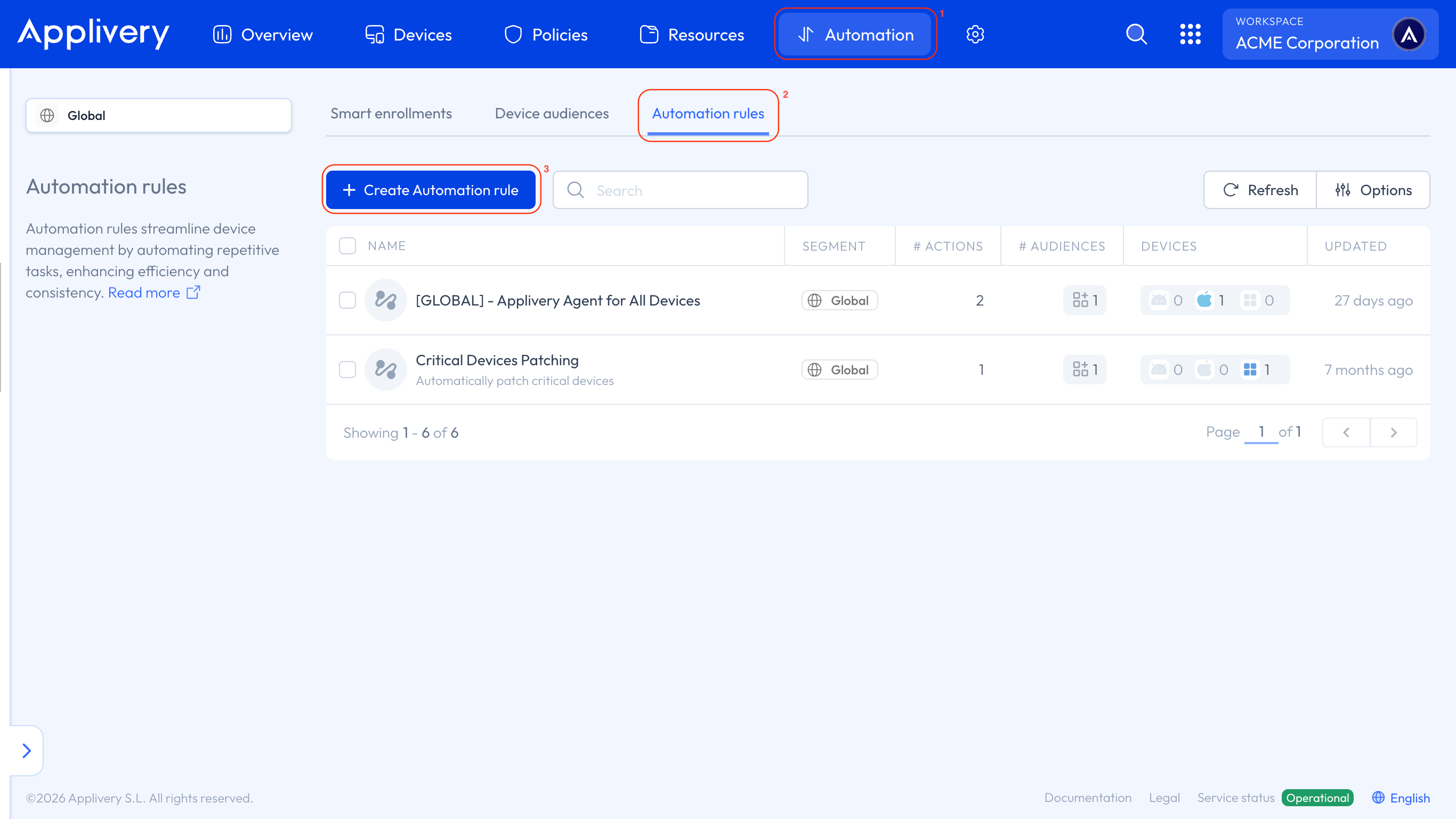
The configuration form includes the following sections:
Configuration
Name: A unique and descriptive identifier for the rule.
Description (Optional): A brief explanation of the rule’s purpose.
Devices audience
The Device Audience defines which Devices will be affected by the rule’s actions. Devices are selected based on:
Device tags: Metadata associated with Devices, such as location (Madrid, Nursing), operating system (iOS, Android, Windows), or device type (iPhone, Tablet).
Employee tags: Metadata associated with the user assigned to the Device.
Serial numbers: Explicit selection of individual Devices by their unique serial numbers.
Add device / Add employee: Manually include specific Devices or users.
The rule applies to all Devices that meet all criteria defined in the Device Audience (AND logic between selection types).
You can learn more about Device Audiences by following this link.
Actions
Actions define what the system will execute on Devices that match the defined audience. There are two:
Set a Policy 4 — applies a previously defined configuration Policy to the selected Devices.
Add a Smart Attribute — assigns a Smart Attribute value to the selected Devices. Because Smart Attributes feed Device Audiences in turn, this lets you build layered automation: one rule labels the Devices, another acts on that label.
These are the only two actions available. Automation Rules configure Devices — they don't send commands. There is no action to lock, wipe or disenroll a Device from a rule. To reach those outcomes automatically, apply a restrictive Policy with the rule and let that Policy's own Policy Enforcement Rules (Android only) handle blocking and wiping. Otherwise, use remote commands manually.
When configuring the Set a Policy action, you specify the target platform 5, such as Apple, Android, or Windows, to determine which Devices the Policy applies to.
You also assign a numeric priority 6 value, for example, 100. If multiple rules affect the same device, the system applies the Policy associated with the rule that has the highest priority (with lower numbers indicating higher priority). This ensures consistent and predictable behavior across the fleet.
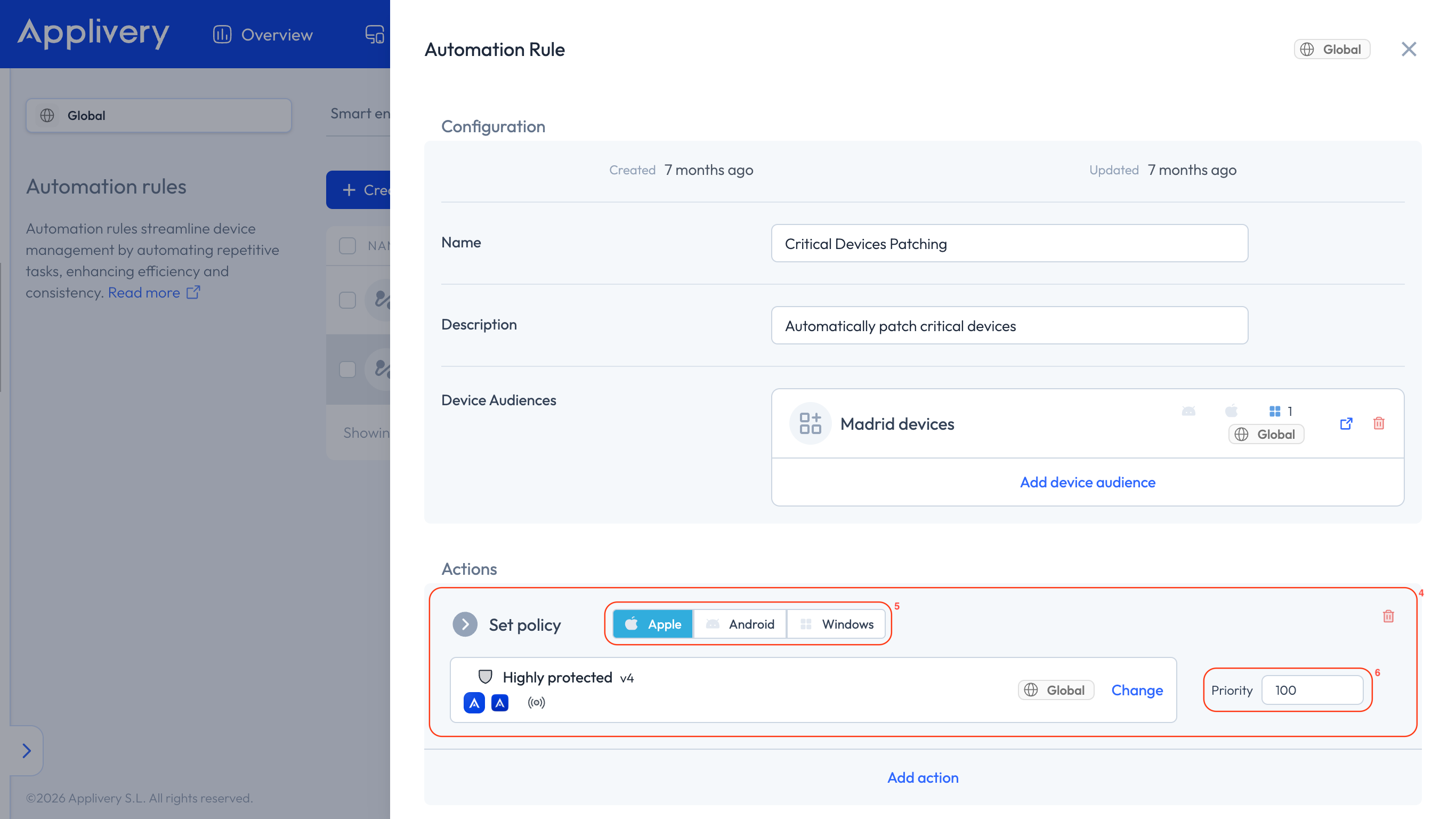
Automation Rules continuously evaluate Devices to determine if they meet the defined audience criteria. When a Device matches, the specified actions—such as applying a Policy—are automatically executed. If the Device no longer meets the criteria, actions can be reverted or updated according to the rule’s configuration. This ensures Devices always reflect the intended settings and simplifies fleet management by enabling automatic segregation and configuration based on metadata.