

A Device tag is a free text label that you put on a Device. Their main use is grouping: a Device Audience with a Device tag filter selects every Device that has that tag, and Automation Rules can then act on that audience.
You can learn more about Device Audiences by following this link.
Assign tags to a Device
Once in the Applivery Dashboard, go to Devices and open the Device.
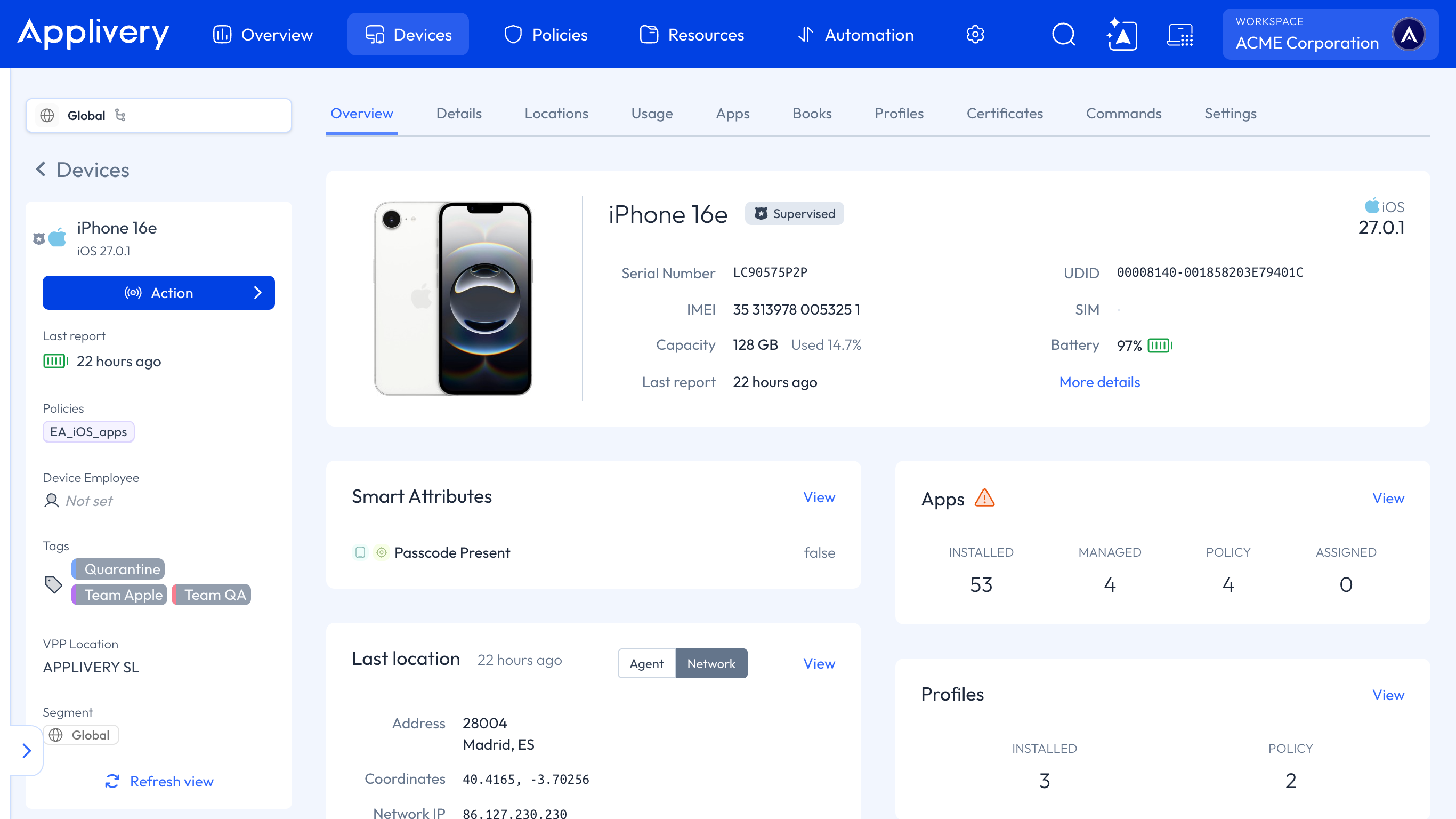
In the Tags block, click the pencil icon.
Search for or pick the tags you need and click Save.
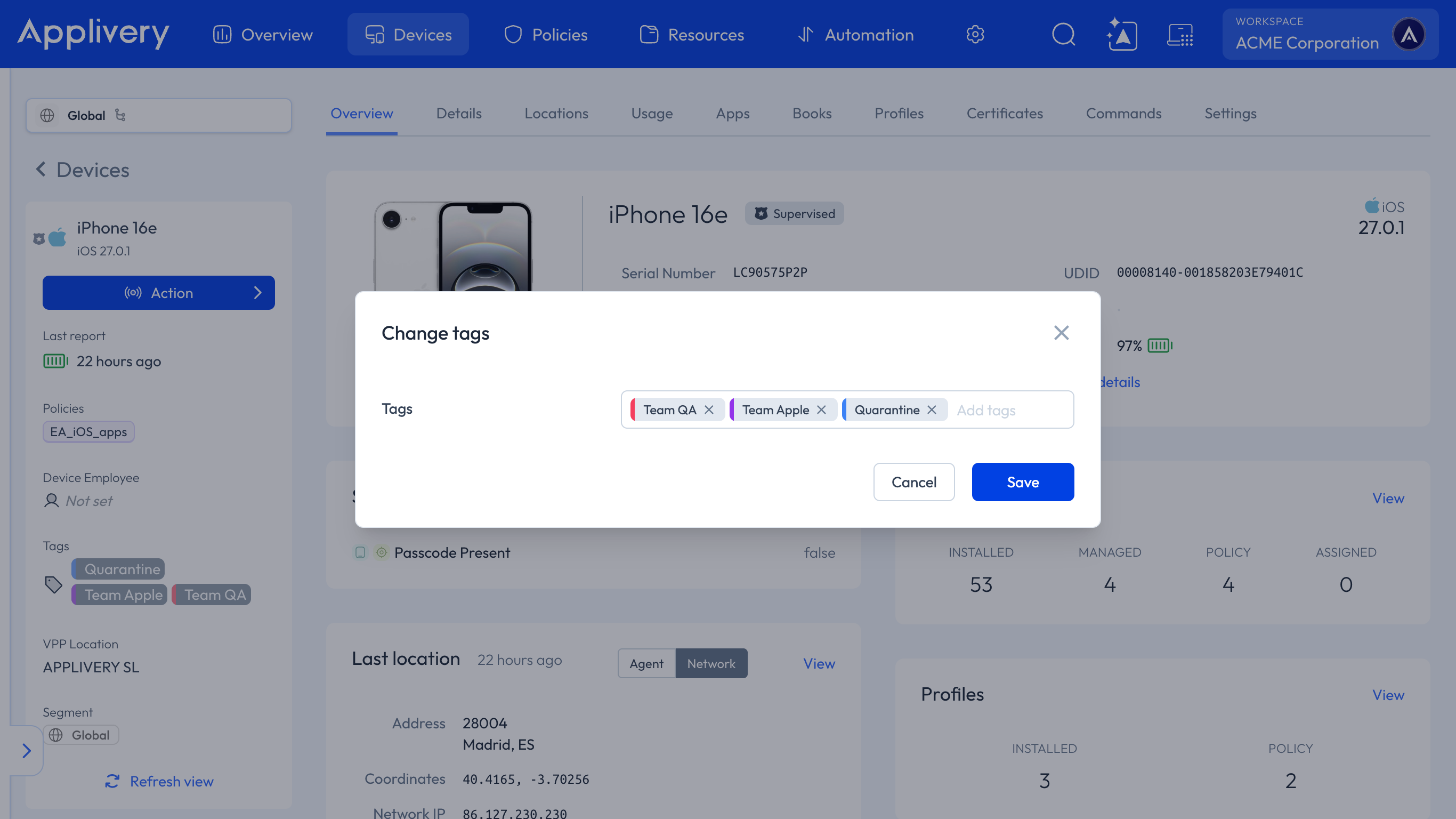
The tag picker lists the tags that already exist in your Workspace. You can't duplicate a tag: if you type the text of one that already exists, the tag you just typed disappears.
Some names use a prefix, such as CITY:Barcelona or COUNTRY:Spain. The prefix is a naming convention, not a product feature.
Use tags in a Device Audience
Go to Automation > Device audiences and create a Device Audience.
Add a filter and choose Device tag.
Choose the operator and the tag:
is any of: the Device has at least one of these tags.
is none of: the Device has none of these tags.
contains: some tag on the Device contains this text.
To combine several filters, use ALL and ANY groups.
The Employee tag filter is a different one: it matches Devices by the tags of their assigned employee, not by the tags on the Device.
Tags during enrollment
Enrollments have a Tags field under More options, so you can organize, group, and filter the resulting Devices from the start. You can read more in Enrollment Tokens.