

Sometimes you need to decide, centrally, which websites a Device can reach — a shared iPad in a shop that should only open two internal tools, or a fleet where a handful of sites simply shouldn't be reachable. The Web Content Filter configuration is where you do that.
It gives you two lists: sites you always allow, and sites you always block. Behind them, the matching rules are less literal than they look, and that's where most surprises come from.
Prerequisites
The Device is supervised. System-level web content filtering on iOS and iPadOS, Safari included, only works on supervised Devices.
The Policy is correctly assigned to the target Device(s).
Configuration
Once in the Applivery Dashboard, go to the Policy 1 you want to modify. From the left side menu, select + Add configuration and choose Web Content Filter 2.
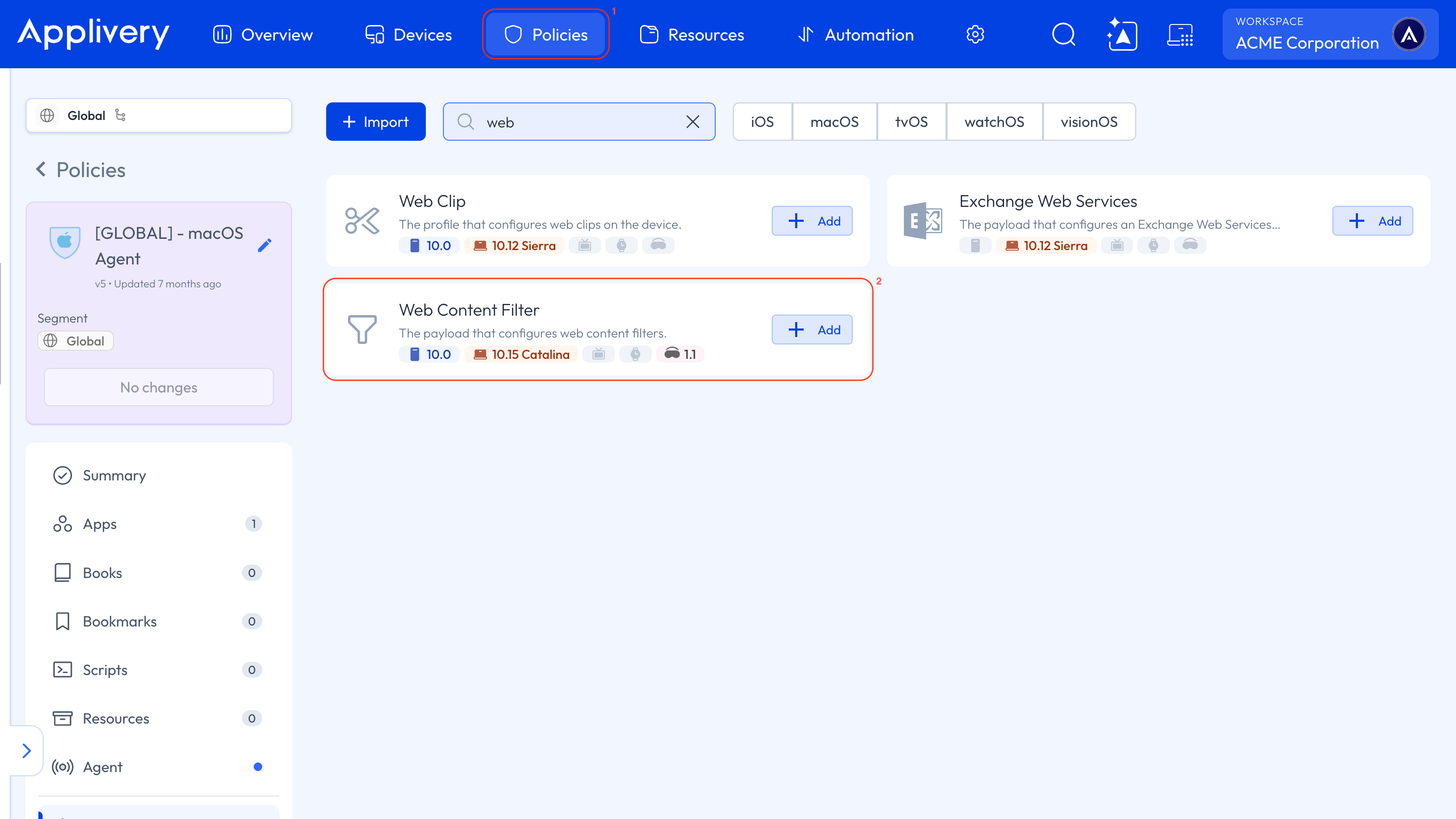
Add the sites you want to block to the denied list, the ones you always want reachable to the permitted list, or both.
Once applied, a Device that tries to open a blocked site doesn't fail silently — Safari shows a Website Blocked message.
What you can set
Setting | What it does |
|---|---|
Automatic filtering | Apple's built-in filter, which blocks adult content automatically. Required if you want to use the permitted list. |
Permitted URLs | Sites allowed even if the automatic filter would treat them as adult content. Leave it empty and every non-adult site is reachable except those you denied. |
Denied URLs | Sites that are never reachable, even if the automatic filter considers them fine. Keep this list to no more than 500 URLs. |
Hide denied URLs | From iOS 18, hides the denied list from the profile shown in Settings → General → VPN & Device Management. |
Plug-in | Hands filtering to a third-party filter instead of Apple's built-in one. |
The permitted list only works with automatic filtering turned on. Apple ties the two together: if automatic filtering is off, permitted URLs have nothing to make an exception to, and the list does nothing.
*.apple.com and *.icloud.com are always reachable, whether or not you list them. Don't spend time trying to block them.
How URLs are matched
This is the part worth reading twice, because the filter doesn't compare URLs the way you'd expect.
Include the scheme. Entries need https:// or http://. If a site answers on both, add an entry for each.
Matching is by substring. A URL matches an entry if the exact characters of that entry appear anywhere inside the requested URL. Blocking example.com/a therefore also blocks example.com/apple, example.com/about and example.com/a/b.
The www prefix is discarded before matching, and the consequences are wider than they look. Blocking www.example.com leaves example.com as the pattern — which then matches m.example.com as well.
So a rule you wrote for one hostname can quietly cover mobile subdomains and anything else containing that string. Check what else your entry catches before rolling it out.
A subdomain doesn't cover the main domain. Blocking blog.example.com leaves example.com reachable. If you want both, add both.
Trailing slashes are matched explicitly. An entry ending in /, such as example.com/a/, covers example.com/a and example.com/a/b.
Redirects aren't followed. If a blocked URL redirects somewhere else, the destination has to be on the list too — otherwise the redirect goes through.
Examples
Goal | Entry | Result |
|---|---|---|
Block a whole domain, subpaths included |
| Blocks |
Block one path prefix |
| Blocks |
Block a path explicitly |
| Blocks |
Allow only a specific set of sites | Automatic filtering on + the sites in the permitted list | Those sites are always reachable |
When several policies apply
Every filtering rule is active at the same time, and a site has to pass all of them to be reachable. In practice that means the restrictions add up rather than override each other: if any applied Policy denies a site, it's denied.
If a site you expect to work is blocked, check every Policy assigned to the Device, not just the one you edited.
Important considerations
A blocked website is still reachable through its app. If a social network is on the denied list but its app is installed, the user carries on as normal — the filter only covers web traffic. To close that gap, block the app too, as described in Block and Allow Apps.
The filter covers Safari and WebKit. Third-party browsers that don't use WebKit, and traffic generated by apps, fall outside it. For those, you need a plug-in filter or a network-level control such as a global HTTP proxy or filtered DNS.
Enabling the filter disables clearing Safari history. This is a documented Apple side effect, not a bug. From iOS 26 there's an explicit setting for it, which also blocks private browsing, since private mode keeps no history to retain.
Users can't change any of this on the Device while the profile is installed.
This isn't a compliance-grade filter. For strict regulatory requirements, or coverage beyond Safari, combine it with a global HTTP proxy, filtered DNS, or a third-party filter through the plug-in option.
Unsupervised and personal Devices
The built-in filter needs supervision, so it isn't available on unsupervised or user-enrolled Devices. The route there is the plug-in option with a third-party filter, which requires a content filter UUID — Apple makes that identifier mandatory precisely for unsupervised Devices and User Enrollment, from iOS 16 onwards. Managed apps carrying the same UUID share the filter.
Troubleshooting
Symptom | Likely cause | What to check |
|---|---|---|
A blocked URL is still reachable | The user is going through the native app, or a redirect lands on a URL that isn't listed | Block the app as well; add the redirect destination to the list |
The profile doesn't install | The Device isn't supervised, or a plug-in filter is missing its identifiers | Confirm supervision; check the content filter UUID |
A permitted site is still blocked | A contradicting entry exists in a denied list — possibly in a different Policy | Review every Policy applied to the Device; denied entries win |
The permitted list has no effect | Automatic filtering is off | Turn automatic filtering on; the permitted list depends on it |
Filtering doesn't cover other browsers or app traffic | Expected — the built-in filter covers Safari and WebKit | Consider a plug-in filter or a global HTTP proxy |