

If your users browse with Google Chrome on their iPhones and iPads, you can decide which websites Chrome is allowed to open — block a couple of distracting sites, or lock Chrome down to a short list of work tools. You do it from the Chrome app entry in your Policy, through its managed app configuration.
Chrome vs. Apple's Web Content Filter
These properties only control Google Chrome. If you need to restrict Safari, use Apple's native Web Content Filter instead. The two mechanisms are independent: blocking a URL in one doesn't block it in the other.
Chrome URL blocking | Web Content Filter | |
|---|---|---|
Scope | Google Chrome only | Safari and WebKit |
Where you set it | Policy → Apps → Google Chrome → Configuration | Policy → Web Content Filter configuration |
Supervision required | No | Yes |
Prerequisites
Google Chrome is added as an app in your iOS/iPadOS Policy. The configuration only reaches Chrome when it's installed as a managed app.
The device doesn't need to be supervised.
Access to a test device, so you can check the result in
chrome://policy.
Configuration
In the Applivery Dashboard, go to Policies 1 and select your iOS/iPadOS Policy.
Go to Apps 2, and add or edit the Google Chrome 3 entry.
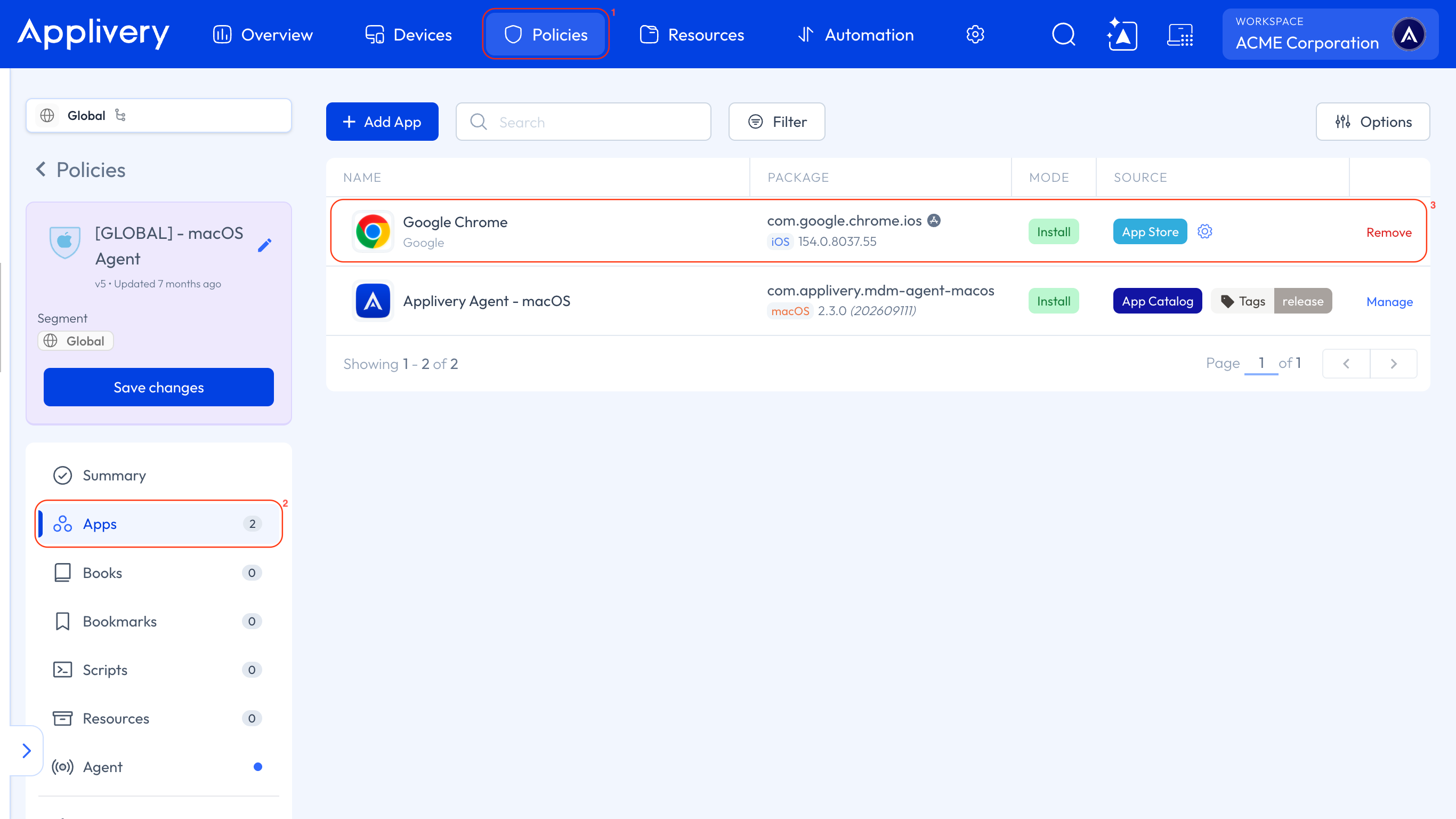
In the Configuration field, add URLBlocklist (and URLAllowlist if you need exceptions). You can use either JSON mode or Property mode — both produce the same result. See the examples below.
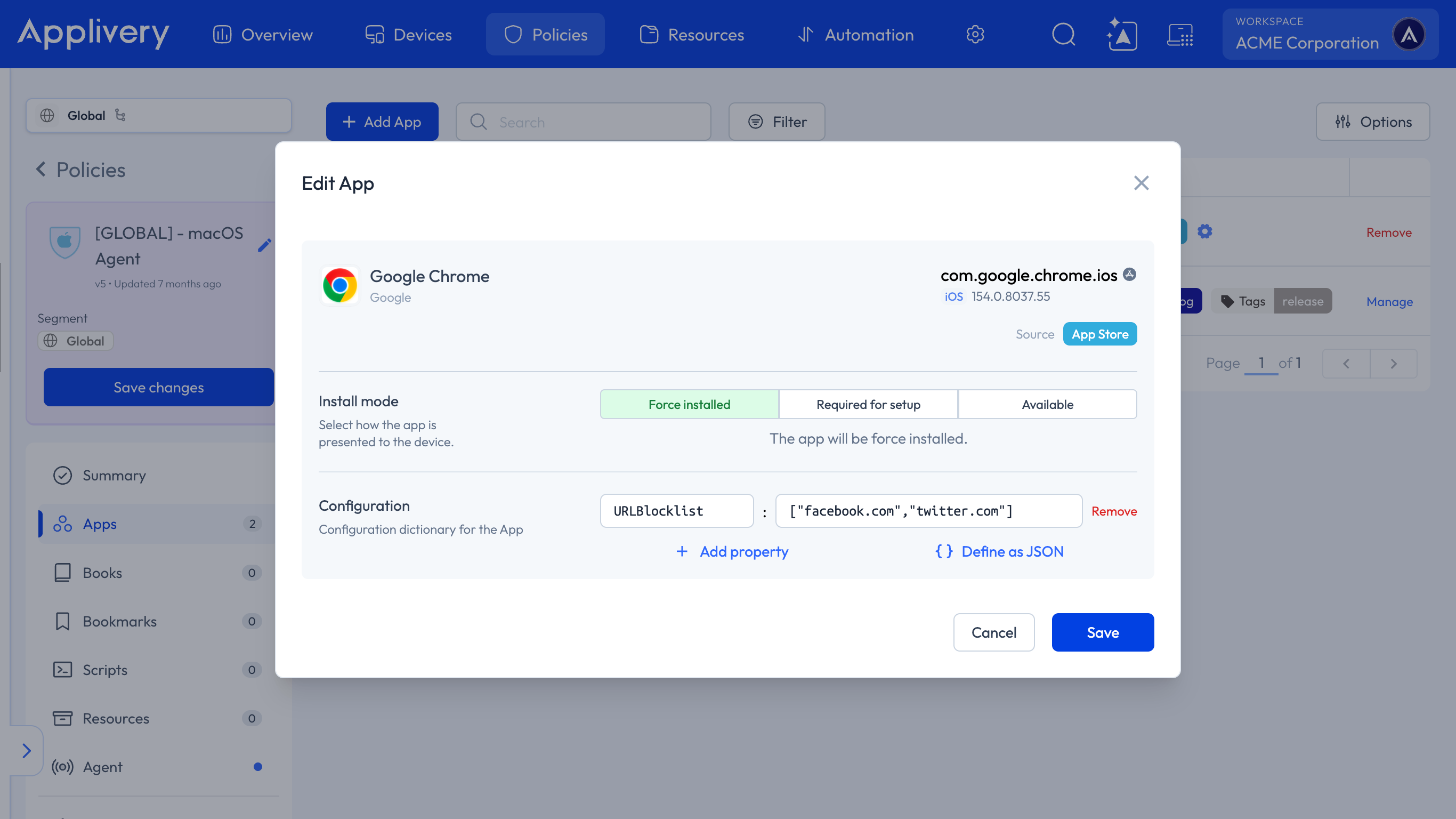
Save the changes and apply the Policy to your devices.
Fully close Chrome and open it again so it picks up the new configuration.
Blocking specific sites
JSON mode — paste the object with the list as a JSON array:
{
  "URLBlocklist": [
    "facebook.com",
    "x.com"
  ]
}
Property mode — click + Add Property and fill it in:
Key:
URLBlocklistValue:
["facebook.com","x.com"]
Allowing only a list of sites
Block every site with *, then list the exceptions in URLAllowlist:
{
  "URLBlocklist": [
    "*"
  ],
  "URLAllowlist": [
    "mail.google.com",
    "applivery.com"
  ]
}
In Property mode, add two properties: URLBlocklist with the value ["*"], and URLAllowlist with the value ["mail.google.com","applivery.com"].
Add the properties at the root. URLBlocklist and URLAllowlist go directly in the Configuration field. Don't wrap them in a container key such as ChromePolicy — Chrome will show them as Unknown policy and ignore them.
URL filter syntax
Entries follow Chrome Enterprise's filter format, [scheme://][.]host[:port][/path][@query] — the same syntax Applivery uses on every platform where URLBlocklist and URLAllowlist are available.
Entry | What it matches |
|---|---|
| The domain and all its subdomains. You don't need a separate |
| Only that exact host. Other subdomains stay reachable. |
| All hosts. It's a special value on its own, not a wildcard you can put inside a hostname. |
When the two lists collide, the most specific filter wins. Chrome selects the filters with the longest matching host, then the longest matching path, then the longest set of query tokens. If a block and an allow filter are equally specific, the allow filter takes precedence.
For the full syntax reference, with more examples and special cases, see URL Filters.
Checking it applied
On the device, open Chrome and go to
chrome://policy.Tap Reload policies.
Find
URLBlocklistandURLAllowlist: the Status should be OK and the Value should match what you configured.Try to open one of the blocked sites. Chrome should show its blocked-page message.
Troubleshooting
What you see in | Likely cause | What to do |
|---|---|---|
Status Error | One of the entries isn't valid syntax — for example | Check each entry against the URL Filters syntax. Remember a bare domain already covers its subdomains. |
Status Unknown policy | The properties were sent inside a container key such as | Move |
Status OK, but the site still opens | Chrome hasn't been restarted since the Policy was applied. | Fully close Chrome and open it again. |
An allowed site is still blocked | A more specific entry in | Check which filter is more specific, and make sure no other configuration for Chrome is applied to the device. |
Blocking the website isn't blocking the app
These properties only stop access through Chrome. If a service has its own native app, users can keep using it there. To stop people using the service itself, also block the app — see Block & Allow Apps.