

Screenshots are one of the easiest ways for sensitive information to leave a managed Device. A customer record, an internal dashboard, a payroll screen — one tap and it is in the camera roll, ready to be shared anywhere.
Applivery lets you shut that off at operating system level on iOS, iPadOS and macOS, using Apple's native Restrictions payload. And unlike many Apple restrictions, this one does not require the Device to be supervised.
What this restriction does
Apple's Restrictions payload (com.apple.applicationaccess) includes a setting that stops the user from saving a screenshot or a screen recording. When you turn it on, the user can still press the usual key combination or button shortcut, but the system never generates or saves the resulting file.
The restriction behaves the same way on iOS, iPadOS and macOS, although each platform has its own minimum OS version.
This restriction works at operating system level, not per App. It does not replace the content protection controls that some Apps implement natively — video conferencing or corporate mail Apps, for example — and it cannot stop someone from photographing the screen with another device.
Requirements
Platform | Minimum OS version | Supervision required |
|---|---|---|
iOS / iPadOS | iOS 5 / iPadOS 13.1 | No |
macOS | macOS 10.14.4 | No |
Because supervision is not required, you can apply this restriction to company-owned Devices and, in certain user enrollment scenarios, to BYOD Devices — subject to the general limitations of each enrollment method.
How it works
The restriction is part of the com.apple.applicationaccess (Restrictions) payload of the MDM configuration profile. It is the same payload used by other system restrictions, such as blocking AirDrop or App installation, so you can combine it with them inside the same profile.
<key>allowScreenShot</key>
<false/>
Setting this key to false prevents screenshots and screen recordings from being saved. Apple's default value is true, meaning allowed.
A Device can carry more than one Restrictions payload, but Apple states explicitly that you should not manage the same restriction from two different profiles. If you do, the resulting behavior is not guaranteed.
Configuration
Go to the Applivery Dashboard and open Policies 1.
Pick an existing Apple Policy, or create a new one for the platform you need — iOS/iPadOS or macOS.
A Policy can only be linked to one platform. If you manage both iPhone/iPad and Mac, you need one Policy per platform.
From the left-hand menu, go to the Restrictions 2 section inside + Add configuration.
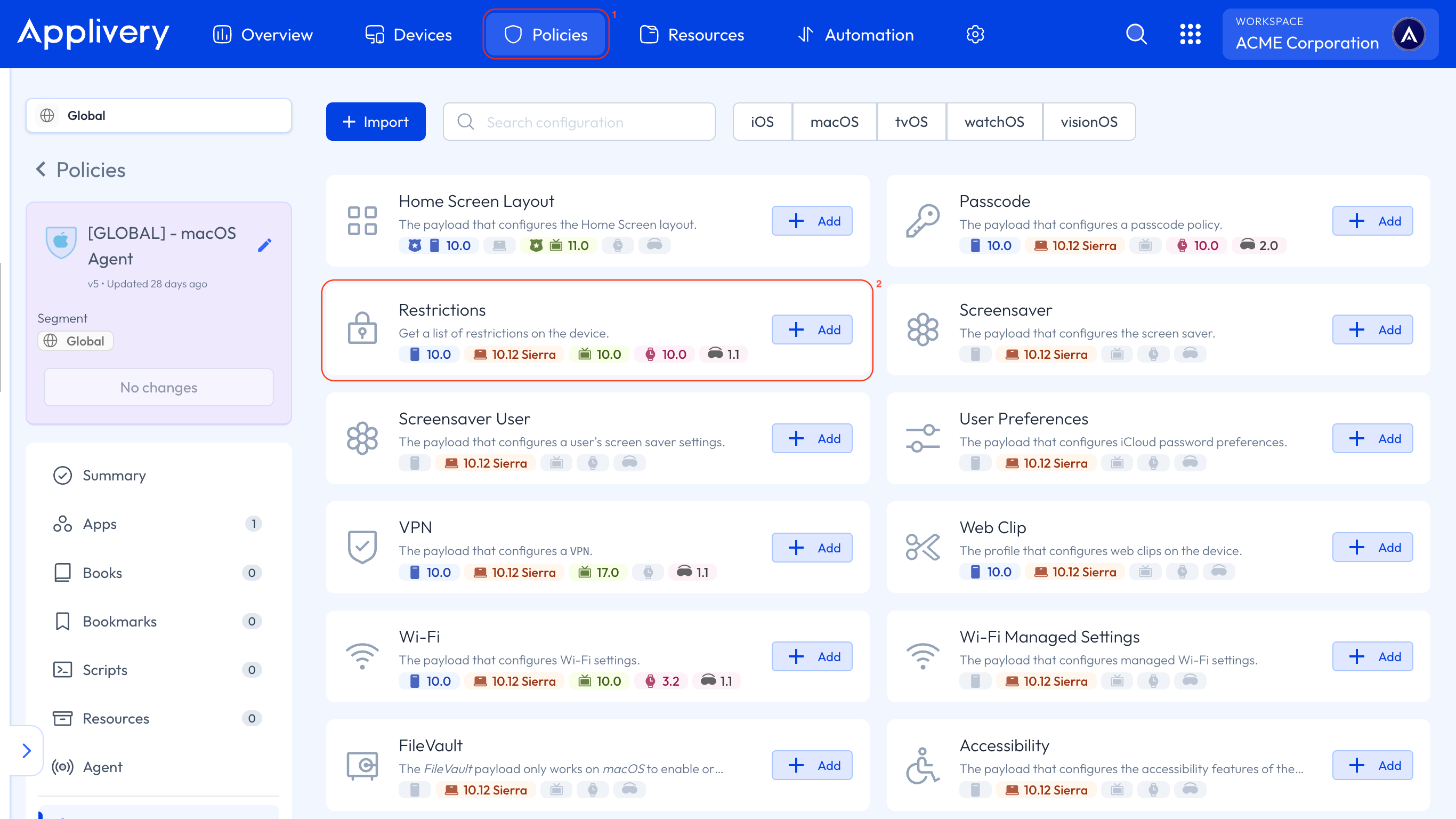
Locate Allow Screenshots and Screen Recording and turn it off to block the feature.

Save the configuration and assign the Policy to the Device or Device group you want to cover.
The availability legend in the Dashboard only lists macOS Mojave 10.14.4 or later and visionOS 2.0, but this setting is also supported on iOS and iPadOS, and it affects them in exactly the same way.
Important considerations
Screenshots and screen recordings cannot be separated. Apple covers both with the same key, so you cannot allow one and block the other.
This restriction does not control third-party App access to screen observation on other Devices — remote screen viewing features such as Classroom, for example. Apple handles that through a sub-restriction nested under the same key.
A photo of the screen taken with another device is still possible. Treat this restriction as one layer of your data loss prevention strategy, not as an absolute guarantee.
Troubleshooting
The user can still save screenshots after the Policy is applied
Confirm the profile actually installed on the Device. On iOS/iPadOS, check Settings > General > VPN & Device Management. On macOS, check System Settings > Profiles.
Check that no other configuration profile on the Device manages the same restriction with a different value. As Apple notes, when more than one Restrictions payload acts on the same key, the resulting behavior is not guaranteed.
On macOS, if the profile is removed and applied again, some Restrictions settings may need a system restart to apply or revert fully. This behavior has been observed with other macOS restrictions managed by the same payload, though it is not specifically confirmed for
allowScreenShot.