
You are here: Home > Device Management > Android > Policies > Distribute Certificates

Secure Remote Access: Distribute Certificates

Securely issue certificates to Android devices remotely using Applivery. Enable secure access to corporate resources for your remote workforce.

3 min read

TL;DR

Remotely issue certificates to Android devices via Applivery policies for secure access to corporate resources, ensuring secure access for remote workers.

Certificates play a crucial role in identifying and authenticating mobile Devices, enabling secure access to corporate resources like G Suite and enterprise Wi-Fi hotspots.

Some organizations require Devices to be on-premises and behind a firewall to distribute device certificates. However, as some users can no longer access corporate locations and networks, there is a need for a way to issue these certificates remotely.

With this feature, organizations can ensure their users remain connected and productive, even while working remotely.

Warning

This feature requires the Applivery MDM Agent to be enabled in the Device policy.

Adding a certificate to a Policy

1
Navigate to Policies

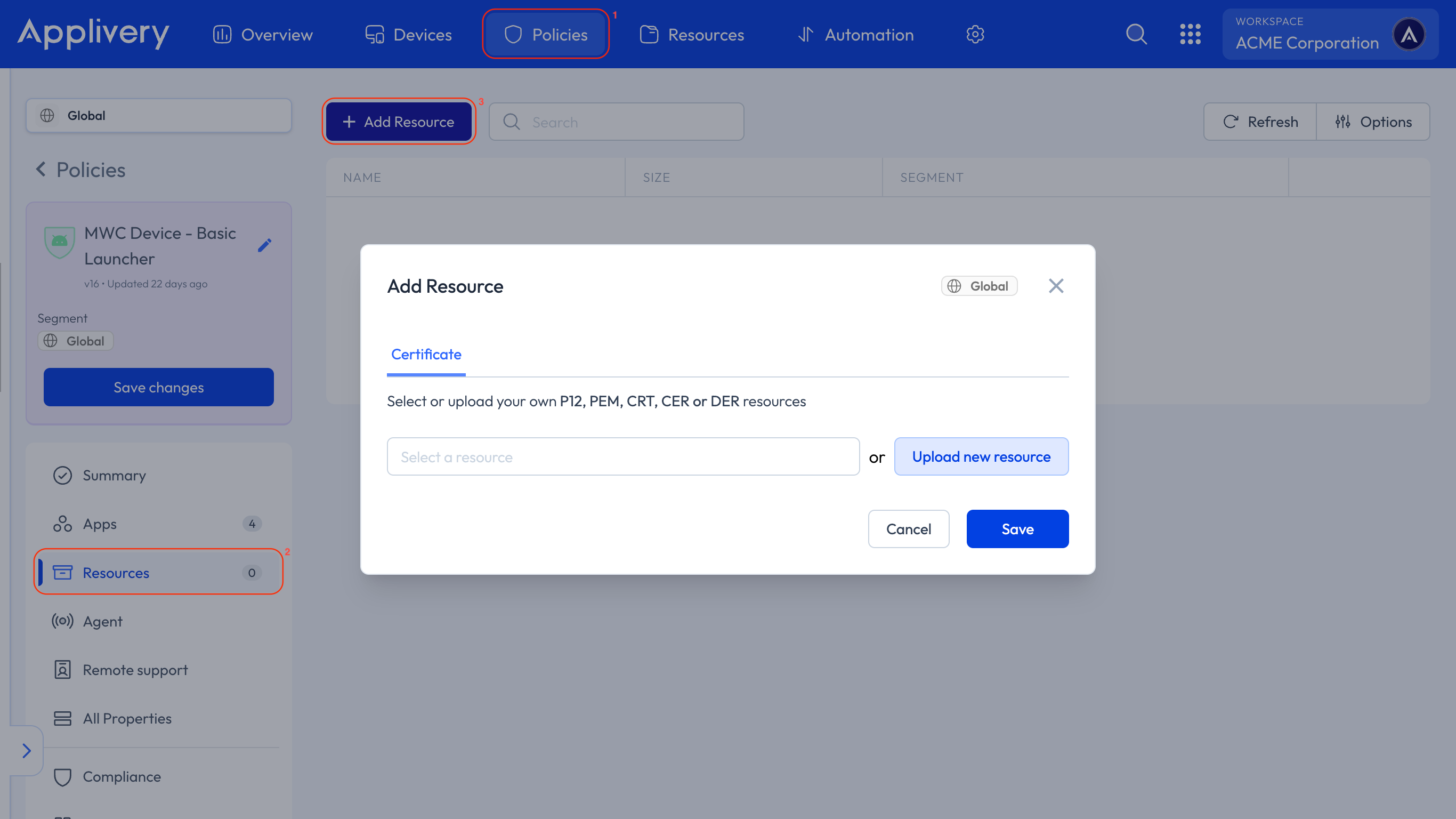
Once in the Applivery Dashboard, navigate to Policies 1.

2
Select Android Policy

Select the Android Policy where you want to add a certificate.

3
Add Resource

In the left-hand menu, click on the Resources 2 section, then click the + Add Resource button 3.

4
Upload Certificate

A modal view will be displayed, allowing you to select the type of file you want to add to the Policy.

Select an existing certificate from the Resources section or Upload new resource. Certificates must be uploaded in .p12, .pem, .der, .crt or .cer format.

Warning

Password-protected .p12 certificates are not supported. Make sure the .p12 file you upload has no password set.

5
Save Changes

Once you’ve completed the necessary configurations in your Policy, Save changes.
add certificate

Key Takeaways

  • Remote certificate issuance ensures secure access for remote workers.
  • Applivery supports .p12, .pem, .der, .crt, and .cer certificate formats.
  • Password-protected .p12 certificates are not supported.
  • Certificates are added to Android policies via the Assets section in the Applivery Dashboard.

Navigate to Device Management > Policies, select an Android policy, add a certificate asset, and upload your certificate in .p12, .pem, .der, .crt, or .cer format.

Applivery supports .p12, .pem, .der, .crt, and .cer certificate file formats for remotely issuing certificates to Android devices.

No. Password-protected .p12 certificates are not supported. Upload a .p12 file that has no password set.

In the Applivery Dashboard, go to Device Management > Policies, select your policy, then add the certificate in the Assets section.

Remote certificate issuance allows users to securely access corporate resources, like G Suite, even when they are not on the corporate network.

The first step is to navigate to Device Management > Policies in the Applivery Dashboard.

Remotely issued certificates enable secure access to corporate resources like G Suite and enterprise WiFi hotspots.

When adding a certificate asset, you can select an existing certificate or upload a new one in the Certificate tab.

Was this page helpful?

Last updated: March 24, 2026