

On macOS, Safari and Chrome don't share a management mechanism. Each is controlled by a different payload inside the configuration profile, so restricting web access means configuring both — there's no single setting that covers the two.
This guide walks through each one, and through the trap that catches most people in Safari.
Before you start
The Mac is enrolled in Applivery through Apple MDM, Automated Device Enrollment, or manual enrollment. Neither payload requires supervision.
Both payloads can be imported as a custom configuration: go to Policies, select your macOS Policy, then + Add configuration → + Import, and either paste the XML or upload it with Load XML.
For Safari, there's a better route — Applivery exposes the payload as a native configuration under + Add configuration → Parental Controls: Content Filter.
You can combine both payloads in the same
.mobileconfigunder onePayloadContent, or import them as independent configurations in the same Policy.
The user has to restart the browser. Until the browser is relaunched, it keeps running with the configuration it read at startup, so the restriction looks like it didn't apply. This is the first thing to check before troubleshooting anything else.
Google Chrome
Chrome on macOS is managed through managed preferences injected into the com.google.Chrome domain, using its native URLBlocklist and URLAllowlist policies.
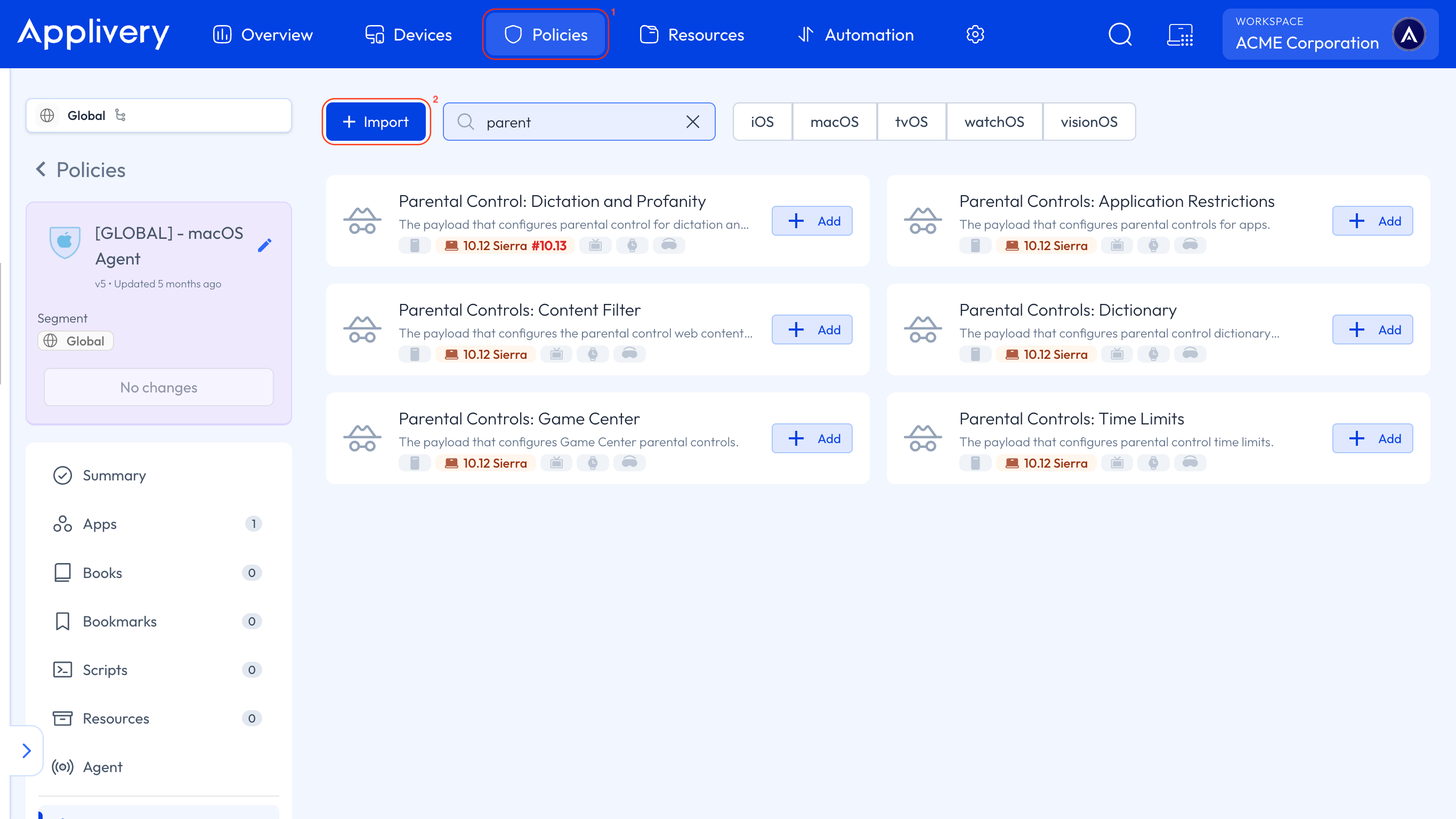
Go to Policies 1, select your macOS Policy, then + Add configuration → + Import 2, and paste or upload the XML.
Blocking specific domains
<?xml version="1.0" encoding="UTF-8"?>
<!DOCTYPE plist PUBLIC "-//Apple//DTD PLIST 1.0//EN" "http://www.apple.com/DTDs/PropertyList-1.0.dtd">
<plist version="1.0">
<dict>
  <key>PayloadContent</key>
  <array>
    <dict>
      <key>PayloadType</key>
      <string>com.google.Chrome</string>
      <key>PayloadUUID</key>
      <string>7D9A8B87-7A4F-4B9E-9C75-111111111111</string>
      <key>PayloadDisplayName</key>
      <string>Google Chrome - URL Blocklist</string>
      <key>PayloadIdentifier</key>
      <string>com.google.Chrome.7D9A8B87-7A4F-4B9E-9C75-111111111111</string>
      <key>PayloadVersion</key>
      <integer>1</integer>
      <key>URLBlocklist</key>
      <array>
        <string>website1.com</string>
        <string>website2.com</string>
      </array>
    </dict>
  </array>
  <key>PayloadDisplayName</key>
  <string>Chrome URL Policy macOS</string>
  <key>PayloadIdentifier</key>
  <string>com.applivery.profile.f537cccc-6b42-4a4d-a432-9ef86ae7366a</string>
  <key>PayloadType</key>
  <string>Configuration</string>
  <key>PayloadUUID</key>
  <string>8c99db2f-eb79-4b1a-9099-827422b47588</string>
  <key>PayloadVersion</key>
  <integer>1</integer>
</dict>
</plist>
Allowing only a list of sites
Block every host with a single asterisk, then list the exceptions:
<key>URLBlocklist</key>
<array>
  <string>*</string>
</array>
<key>URLAllowlist</key>
<array>
  <string>mail.google.com</string>
  <string>applivery.com</string>
</array>
Filter format
Entries follow the pattern [scheme://][.]host[:port][/path][@query].
Entry | What it matches |
|---|---|
| The domain and all its subdomains. You don't need a separate |
| Only that exact host. Other subdomains stay reachable. |
| All hosts. It's a special value on its own, not a wildcard you can put inside a hostname. |
Two limits worth knowing:
The asterisk isn't a general wildcard.
*.website1.comdoesn't work as a way to cover subdomains — a barewebsite1.comalready does that. It isn't accepted at the end of a path either, sohttps://example.com/*is not a valid entry.You can list up to 1,000 entries.
When the two lists collide, the most specific filter wins. Chrome selects the filters with the longest matching host, then the longest matching path, then the longest set of query tokens. If a block and an allow filter are equally specific, the allow filter takes precedence.
Checking it applied
On the Mac, open chrome://policy and confirm that URLBlocklist or URLAllowlist appear with Source: Platform and the value you expect. If they're not there, the profile hasn't landed; if they're there but browsing still works, the browser hasn't been restarted.
Once it's working, visiting a listed site shows Chrome's blocked-page message.
Safari
Safari on macOS doesn't use the WebContentFilter payload from iOS and iPadOS — that one is supervised-only and iOS-specific. On macOS, the equivalent is the Parental Controls payload, com.apple.familycontrols.contentfilter.
You can import it as custom XML, but the native form is the better route. Both are covered below.
Using the native form
Applivery exposes this payload as a native configuration, with the fields translated and validated in the Dashboard.
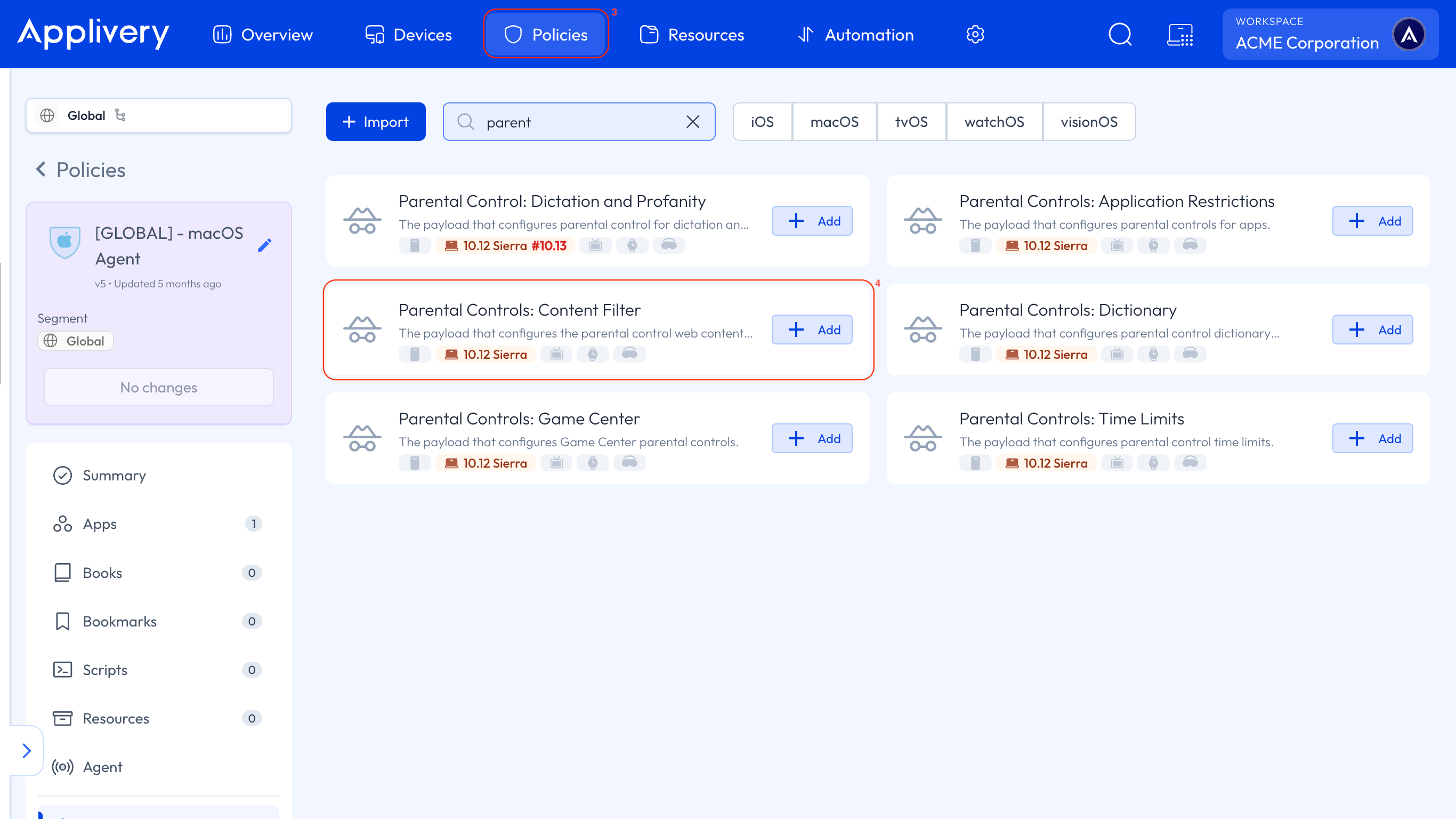
Go to Policies 3, and select the macOS Policy you want to modify.
From the left side menu, click + Add configuration, search for parent, select Parental Controls: Content Filter 4, and click + Add.
Use the fields marked as deprecated. The form recommends the newer Denylist and Allowlist fields, and at the time of writing you should ignore that recommendation: the new keys don't block reliably on macOS, and the deprecated ones do.
Use Filter Blacklist and Filter Whitelist. Apple deprecated them in macOS 15.2, but they keep working — including on macOS 26 Tahoe.
The master switches
Restrict Web must be ON for any filtering to happen at all. With it off, nothing else in the configuration has any effect. The same applies to Use Content Filter, which turns on Apple's automatic content filtering.
Two modes, mutually exclusive
The form follows the same logic as the payload: only one mode applies at a time.
Selective blocking — block specific sites, everything else stays reachable:
Filter Blacklist: the sites to block, one per entry with + Add element.
Filter Whitelist: exceptions within that blocking. Useful mainly when Use Content Filter is on, and the automatic adult-content filter is catching a site it shouldn't.
Whitelist Enabled must stay OFF. Turning it on switches you to the other mode and the blacklist stops applying.
Allow only listed sites — block everything except a list:
Whitelist Enabled: ON.
Site Whitelist: the only field that has any effect in this mode, and required once Whitelist Enabled is on.
Filter Blacklist is ignored while this mode is active. You don't need to empty it.
Goal | Restrict Web | Whitelist Enabled | Field to fill |
|---|---|---|---|
Block specific sites, allow the rest | ON | OFF | Filter Blacklist |
Allow only certain sites, block the rest | ON | ON | Site Whitelist |
Using custom XML
If you'd rather import the payload directly, this blocks specific sites:
<?xml version="1.0" encoding="UTF-8"?>
<!DOCTYPE plist PUBLIC "-//Apple//DTD PLIST 1.0//EN" "http://www.apple.com/DTDs/PropertyList-1.0.dtd">
<plist version="1.0">
<dict>
  <key>PayloadContent</key>
  <array>
    <dict>
      <key>PayloadType</key>
      <string>com.apple.familycontrols.contentfilter</string>
      <key>PayloadUUID</key>
      <string>A2B3C4D5-6E7F-4A1B-9C2D-222222222222</string>
      <key>PayloadDisplayName</key>
      <string>Safari - Content Filter</string>
      <key>PayloadIdentifier</key>
      <string>com.applivery.safari.A2B3C4D5-6E7F-4A1B-9C2D-222222222222</string>
      <key>PayloadVersion</key>
      <integer>1</integer>
      <key>restrictWeb</key>
      <true/>
      <key>useContentFilter</key>
      <true/>
      <key>filterBlacklist</key>
      <array>
        <string>https://www.website1.com</string>
        <string>https://www.website2.com</string>
        <string>https://website3.com</string>
      </array>
    </dict>
  </array>
  <key>PayloadDisplayName</key>
  <string>Safari URL Policy macOS</string>
  <key>PayloadIdentifier</key>
  <string>com.applivery.profile.b6d1e2f3-4a5b-4c6d-8e9f-0a1b2c3d4e5f</string>
  <key>PayloadType</key>
  <string>Configuration</string>
  <key>PayloadUUID</key>
  <string>b6d1e2f3-4a5b-4c6d-8e9f-0a1b2c3d4e5f</string>
  <key>PayloadVersion</key>
  <integer>1</integer>
</dict>
</plist>
And this allows only the listed sites:
<key>restrictWeb</key>
<true/>
<key>whitelistEnabled</key>
<true/>
<key>siteWhitelist</key>
<array>
  <string>https://mail.google.com</string>
  <string>https://applivery.com</string>
</array>
whitelistEnabled and useContentFilter are mutually exclusive. Use one or the other, never both in the same payload.
URL format in Safari
URLs must start with
http://orhttps://. If a site answers on both, add an entry for each.Matching is by string root. Blocking
https://www.website1.comalso blockswww.website1.com/exampleand any path underneath it — but it does not automatically cover other subdomains such asexample.website1.com. Add those as separate entries if you need them.Redirects aren't followed. If a blocked or allowed URL redirects elsewhere, the destination has to be on the list too.
The filter also disables clearing Safari history and browsing data, and turns off private browsing.
Blocking the website isn't blocking the tool
Blocking a domain in Chrome or Safari only stops access through the browser. Plenty of tools ship a native desktop app that talks to its servers directly, never touching a browser, and is therefore untouched by URLBlocklist or filterBlacklist.
If the goal is to stop people using a service rather than just visiting its website, pair this configuration with app control — see Block & Allow Apps.
Payload summary
Browser | PayloadType | Blocking keys | Allowing keys | Supervision |
|---|---|---|---|---|
Google Chrome |
|
|
| Not required |
Safari |
|
|
| Not required |
Apple introduced renamed keys in macOS 15.2 — filterDenyList, filterAllowList, siteAllowList and allowListEnabled — and deprecated the originals at the same time. The table above deliberately uses the deprecated names, because those are the ones that currently block reliably.
Before you roll it out
Deploy to one Mac first and confirm two things: that the policy arrived, using chrome://policy for Chrome, and that the browser has been restarted. Most reports of "the block isn't working" come down to one of those two, not to the payload itself.