

Restricting device provisioning to a corporate domain depends directly on the identity model your Android Enterprise is configured with. Before you can lock enrollment to your company's accounts, it helps to understand the two models available and what each one lets you do.
The two Android Enterprise identity models
Android Enterprise supports two identity models for provisioning Devices:
Managed Google Play Accounts enterprise — users are registered through Managed Google Play Accounts, accounts provisioned directly by the EMM provider and not tied to an existing corporate domain. Managed Google accounts aren't supported here, because structurally they aren't part of this model.
Managed Google domain — your organization operates on a managed Google domain (for example, Google Workspace or Cloud Identity). Users authenticate with their corporate managed Google accounts, and that identity is associated directly with the managed Android Devices.
In practice, this determines how much identity control you have. If you need to restrict provisioning to corporate identities from a specific domain, the managed Google domain model is the one you need. Under a managed Google Play Accounts enterprise, identity control is limited to the Managed Google Play Accounts scheme, with no way to apply domain-level restrictions.
So, whenever you need to limit account sign-up on the Device to only accounts belonging to your corporate domain, Applivery must have been bound as a managed Google domain.
With that in place, if a user signs in with a Google account on their managed Device, the system forces that account to belong to your company domains — and if it doesn't, sign-in is blocked.
If, on top of that, you want to force the user to sign in and prevent them from skipping that step, you control it through the Work Account Setup Config policy field, part of Google's Android Management API.
This configuration requires a verified Google Workspace domain, and your users' managed Google accounts must already exist in the Google Admin Console before you apply the policy. It doesn't provision them on its own — it only controls which account is accepted during setup.
Prerequisites
A managed Google Workspace domain, verified in the Google Admin Console and linked to Applivery.
Managed Google accounts already created for the users who will enroll Devices.
An Android Enterprise bound to Applivery through Google Workspace (a managed account under your corporate domain). See Getting Started with Android if you're still using a non-managed, managed Google Play account.
Configure the domain restriction
Once in the Applivery Dashboard, go to any of your Policies 1. From the left-side menu, go to Compliance, and locate the Work Account Setup Config 2 setting. You can also open the All Properties section and search for it directly.
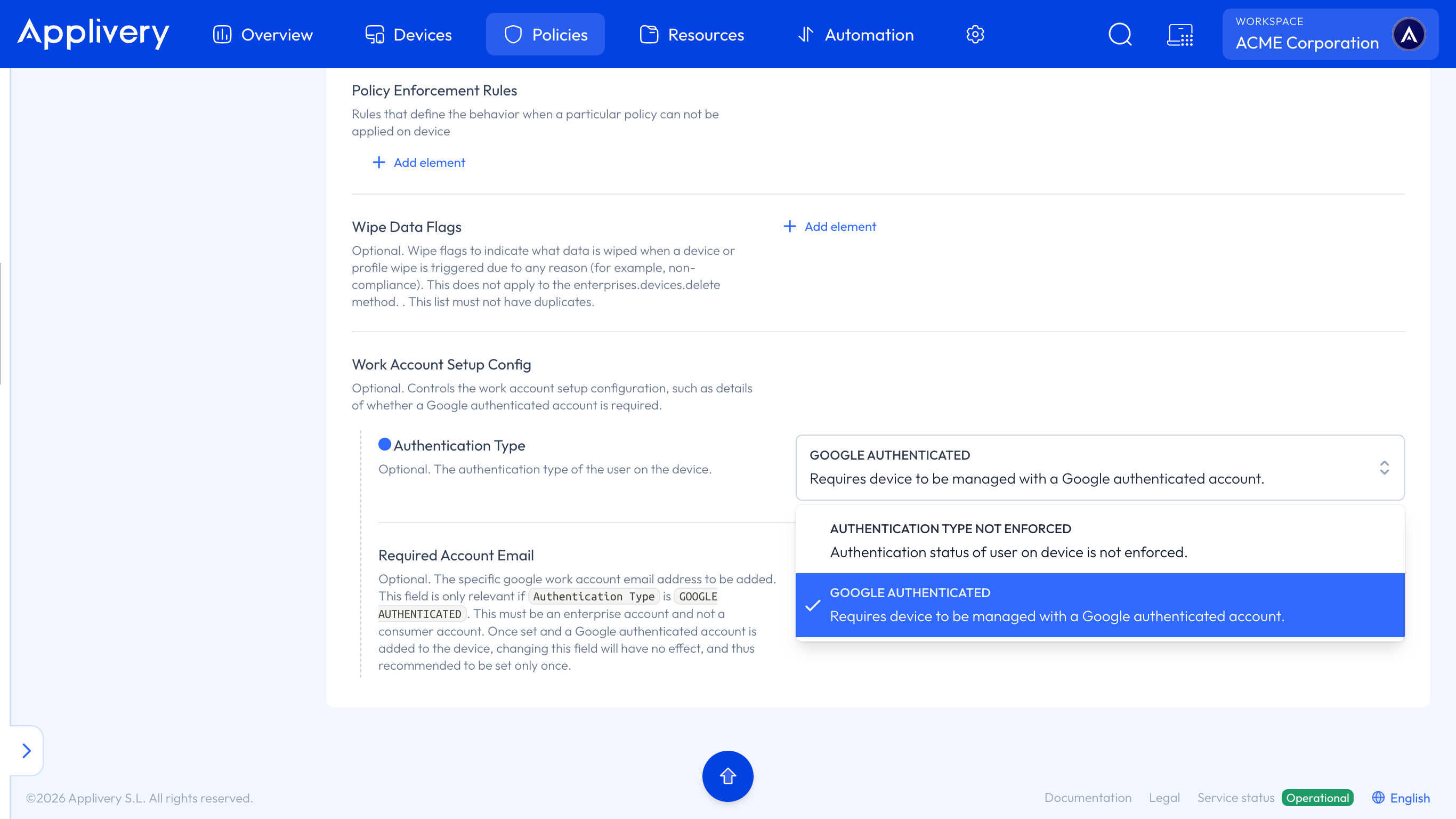
Inside the Android policy configuration, the Work Account Setup Config block accepts two parameters relevant to this use case:
Field | Type | Description |
|---|---|---|
Authentication Type | enum | Set to |
Required Account Email | string (optional) | The exact email address the user must use. If omitted, any managed Google account belonging to your enterprise is accepted — that is, any account in the domain. |
Restrict to the domain only (any company account)
If you don't need to pin a specific account, just enable Google authentication without Required Account Email. The Device accepts any managed Google account that belongs to your enterprise. If the user tries to sign in with an account outside the domain, Android Device Policy rejects it automatically — and they can't skip this step, so they're forced to sign in with a company account.
Restrict to a specific account
Add Required Account Email when you want to decide in advance which user should use that Device — for example, in enrollments targeted at a specific person.
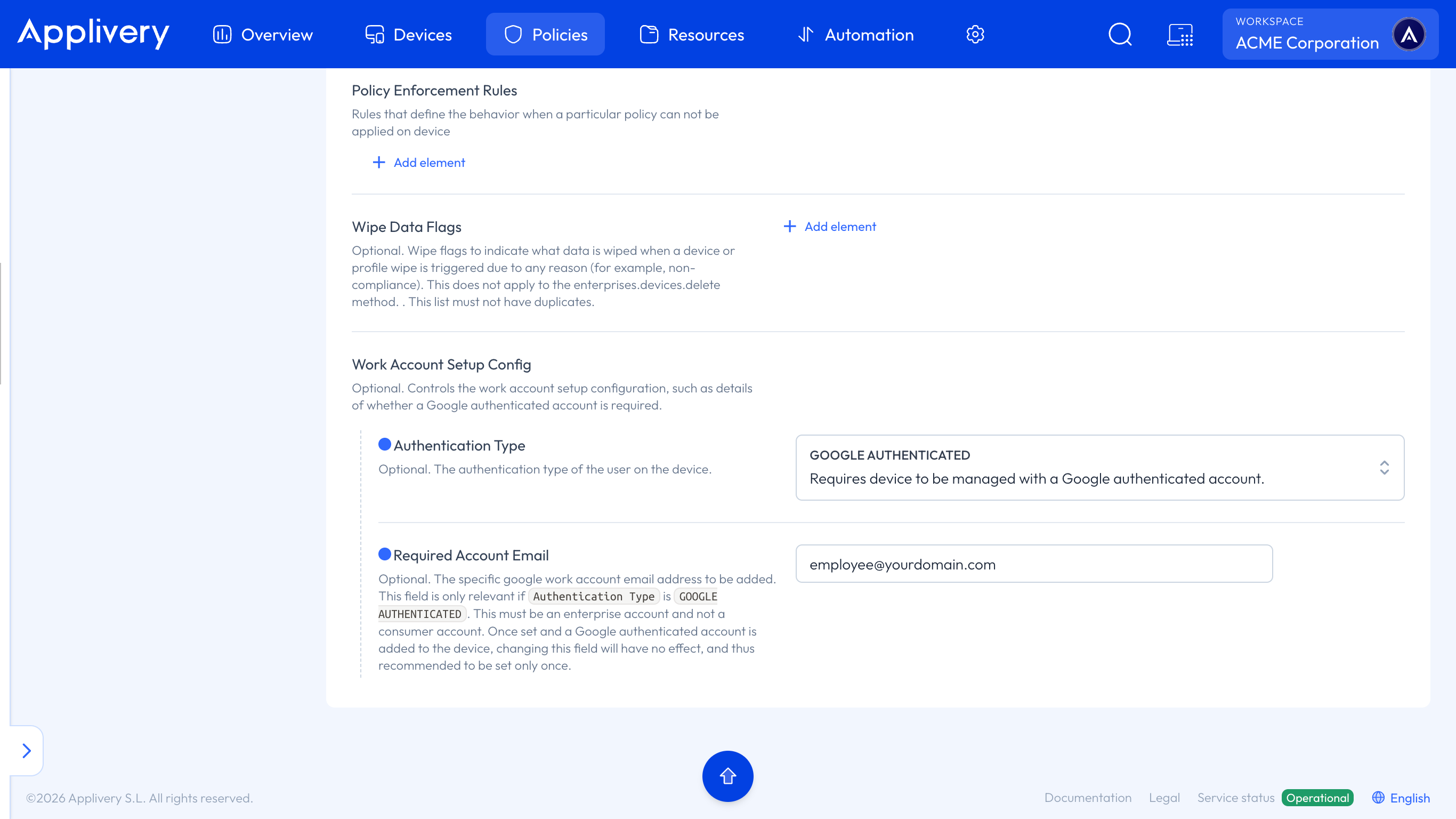
If you set Required Account Email to an address that doesn't belong to your enterprise domain by mistake, the Device becomes permanently non-compliant, and the user sees an error message until an administrator corrects the policy.
What the user experiences
The exact behavior depends on whether the Device already has an account configured and whether Required Account Email is specified:
No existing account + with Required Account Email: the user is prompted to sign in with that exact account.
No existing account + without Required Account Email: the user is prompted for any valid managed Google account from the domain.
Required account already present on the Device: the update happens in the background, without asking the user to sign in again.
User enters an account other than the required one: they see an error directly on the Google sign-in screen and must try again with the correct account.
User enters an account outside the corporate domain (no Required Account Email set): the account is automatically removed from the Device, and they're asked to sign in again with a valid account.
Troubleshooting
Situation | Likely cause | Reported non-compliance reason |
|---|---|---|
The user sees "Work policy requires the specified work account" or similar | They tried to sign in with an account other than Required Account Email | (blocked at sign-in, never reported as non-compliance) |
The Device becomes permanently non-compliant and shows "Contact your IT administrator" or similar | Required Account Email points to an account that doesn't belong to your enterprise |
|
The account is removed from the Device automatically | The user signed in with an account outside the domain, and no Required Account Email was set |
|
If you combine this configuration with enforcement rules (block or wipe after N days of non-compliance), the Device shows progressive warnings before applying the configured mitigation action.
Google doesn't publish a specific minimum Android version for Work Account Setup Config or GOOGLE_AUTHENTICATED. The base requirement is that the Device supports Android Enterprise, available from Android 5.0 onwards.
By using Work Account Setup Config, you tie Android Enterprise provisioning to your corporate domain — forcing Devices to be set up only with your company's managed Google accounts and, if you need it, with one specific account through Required Account Email. Applied on top of a verified Google Workspace environment with properly provisioned managed accounts, this strengthens identity security, reduces enrollment mistakes, and gives you granular control over which user can sign in on each Device, while keeping the experience aligned with the compliance policies you've defined in Applivery.