

Assigning a Policy to a Device is only half the job. The other half is knowing whether the Device actually did what you asked — and if it didn't, why not. That's what Compliance checks answer.
They work as a list of open issues. Each entry is one problem, titled with what's wrong and expanded with the details behind it.
Checks only appear when there's something to report. A Device with an empty list is a Device with nothing pending — there are no green entries confirming that each item passed. Silence is the good outcome here.
Where to find them
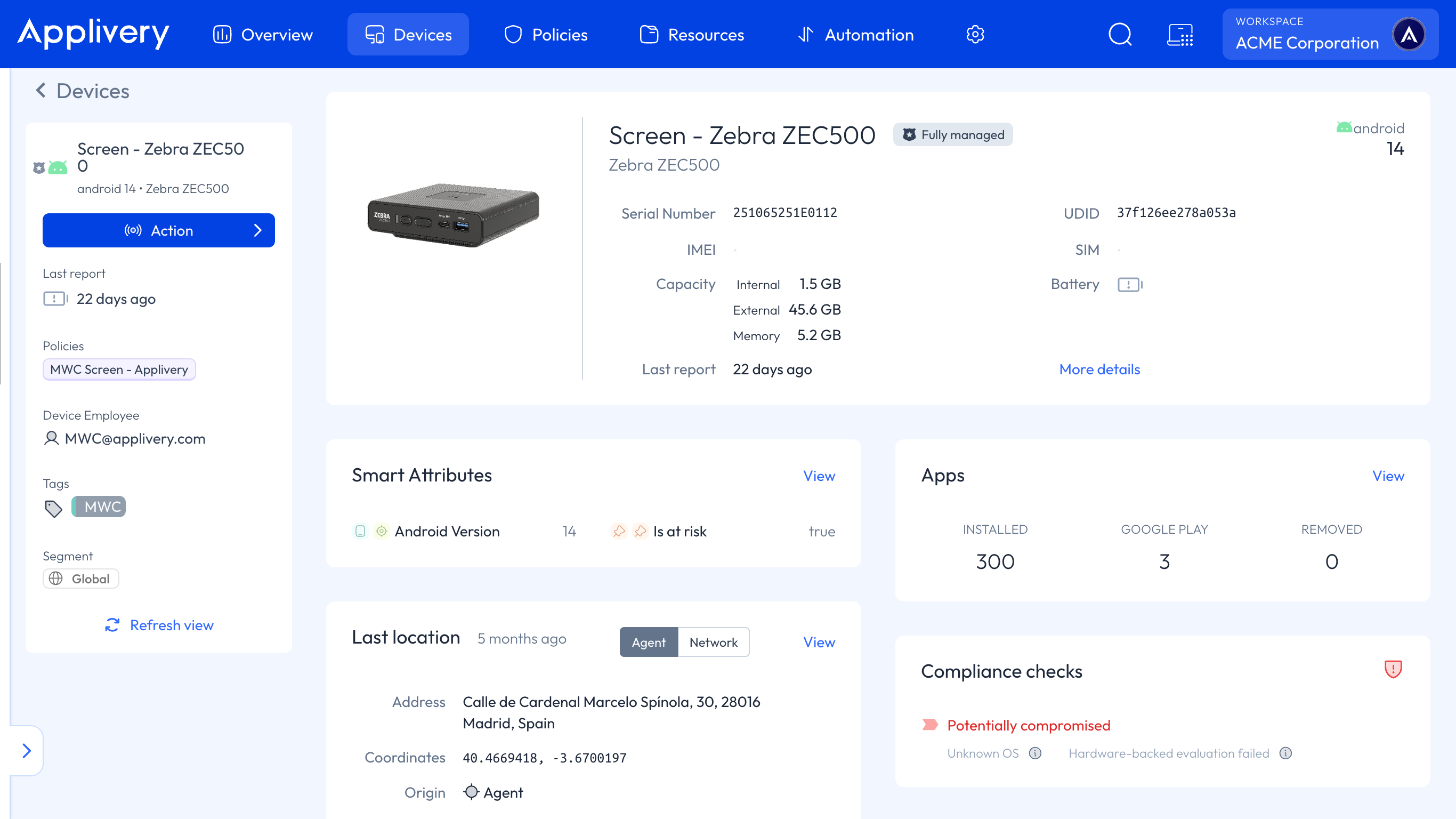
Open a Device from the device list and go to the Overview section, where you'll find the Compliance checks.
The shield icon next to the Policy field in the device list is the summary of that same information, so you can triage the fleet without opening Devices one by one:
Shield | What it means |
|---|---|
🟢 Green | The Device is compliant. Nothing to do. |
⚪ Grey | At least one check is open, and it isn't a security problem. |
🔴 Red | The security posture is At risk or Potentially compromised. |
The distinction between grey and red is worth internalising. Grey is operational — something hasn't landed yet, or a setting isn't supported. Red is a trust issue — the operating system itself may have been modified. They call for completely different responses.
What each platform reports
Compliance checks are a common view, but each Device only reports what its own operating system exposes. A block that doesn't appear isn't missing data — that platform has no such concept.
Check | Apple | Android | AOSP |
|---|---|---|---|
Policy version not yet pushed | — | ✅ current + desired | ✅ current |
Pending configuration profile | ✅ | — | — |
Pending apps | ✅ | — | — |
Pending books | ✅ | — | — |
Setting-level failures | — | ✅ | ✅ |
Security posture | — | ✅ | — |
Two consequences worth knowing before you promise anything to a customer:
On Apple you don't get setting-level failures. You see what's still pending, not a per-setting reason. If a restriction isn't taking effect on an iPhone, this view won't tell you why.
On AOSP there's no security posture, because it depends on the Play Integrity API. That's covered in Device Security Posture.
Apple checks
Policy profile
Policy profile is not up to date means the Device hasn't applied the current version of the Policy profile. When a profile is meant to be removed instead, the check reads Policy profile should be uninstalled.
Apps
Apps produce one check each, and the title tells you which of the three situations you're in:
Title | What it means |
|---|---|
App not installed | The Device doesn't have the App yet. |
App not updated | The App is installed, but at an older version than the one deployed. |
App should be uninstalled | The App is on the Device and shouldn't be. |
Each one shows the Bundle ID, tagged with its origin — Applivery for Apps uploaded to the platform, VPP for Apps licensed through Apple Business — plus the expected Version and, when the App is already there, the Installed version. Comparing those two is what separates a failed install from an outdated one.
Books
Books work the same way: Book not installed or Book should be uninstalled, showing either the Resource name for a book uploaded as an asset, or the App Store's name for one distributed through the store.
Android and AOSP checks
Policy version
Policy version is not yet pushed to the device means the Device is still running an older version of the Policy than the one assigned.
On Android the check shows both the Current policy and the Desired policy, each with its version, so the gap is visible at a glance. On AOSP only the current one is shown.
This usually clears itself on the next sync. If it persists, the Device is either offline or unable to apply one of the settings — in which case you'll also see a setting-level check explaining which.
Setting-level failures
This is the block that answers "which setting failed, and why". Each check is titled with the reason, and expands with the details:
Field | What it tells you |
|---|---|
Package | The App the problem relates to, when it relates to one. |
Field | The exact setting, or the precise field path inside it for settings with nested fields. |
Reason | A more specific explanation where one exists — an app installation failure, or a password or Wi-Fi specific reason. Shown in orange. |
Current value | What the Device actually has, when the setting couldn't be applied. |
WiFi GUID | The specific network configuration at fault, on Wi-Fi problems. |
That combination is what makes the block useful in support: you don't get "the Device is non-compliant", you get the field, the reason and what the Device has instead.
Two of these deserve a note:
Password problems add the scope in brackets — whether the requirement applies to the whole Device or only to the Work Profile. On Devices where the two are separate, that's the difference between the user changing the right password and the wrong one.
App installation failures are where the Reason field earns its place. It distinguishes an install still in progress from an App that isn't approved, has no licences left, isn't available in the user's country, or isn't compatible with the Device — each of which is a completely different fix.
Security posture
On Android, a Device whose posture is at risk appears as a check in red, titled At risk or Potentially compromised, listing the risk detected and Google's advice for mitigating it. It's the check behind the red shield, and the only one that isn't about your configuration. See Device Security Posture.
Compliance checks report, they don't enforce
Nothing in this view blocks or wipes a Device on its own. Acting on what you find is a separate decision:
Remote commands from the Dashboard, for a one-off response to a specific Device.
Policy Enforcement Rules on Android, to block and then wipe automatically after a number of days. These react to exactly the setting-level failures above, and have no equivalent on Apple.
Automation Rules, to apply a different Policy automatically to a Device Audience.