

Lost Mode locks a lost or stolen iPhone or iPad and shows a message and a phone number on its Lock Screen, so anyone who finds it knows how to return it. Apple calls this Managed Lost Mode.
While it's active, the current user is logged out and nobody can use the Device.
Requirements
The Device must be enrolled in Applivery and supervised.
The Device must run iOS or iPadOS 10.0 or later.
Enable Lost Mode
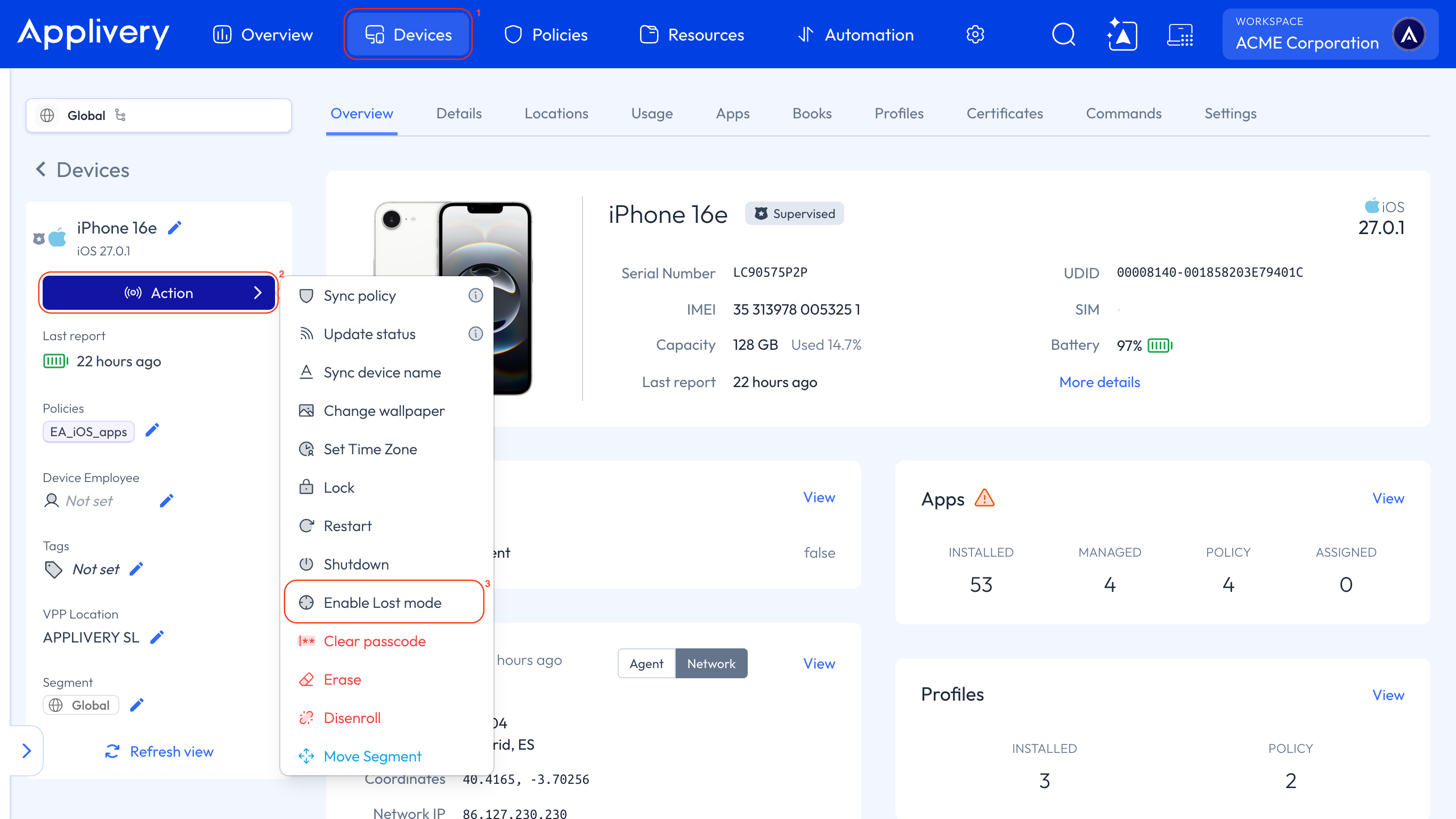
Once in the Applivery Dashboard, go to Devices 1 and select the iPhone or iPad.
Click the Action 2 button and select Enable Lost Mode 3.
Fill in the fields of the dialog:
Field | Required | What the Device shows |
|---|---|---|
Footnote | No | Text at the bottom of the Lock Screen. |
Message | Yes, unless you fill in Phone Number | Text on the Lock Screen. |
Phone Number | Yes, unless you fill in Message | Phone number on the Lock Screen. |
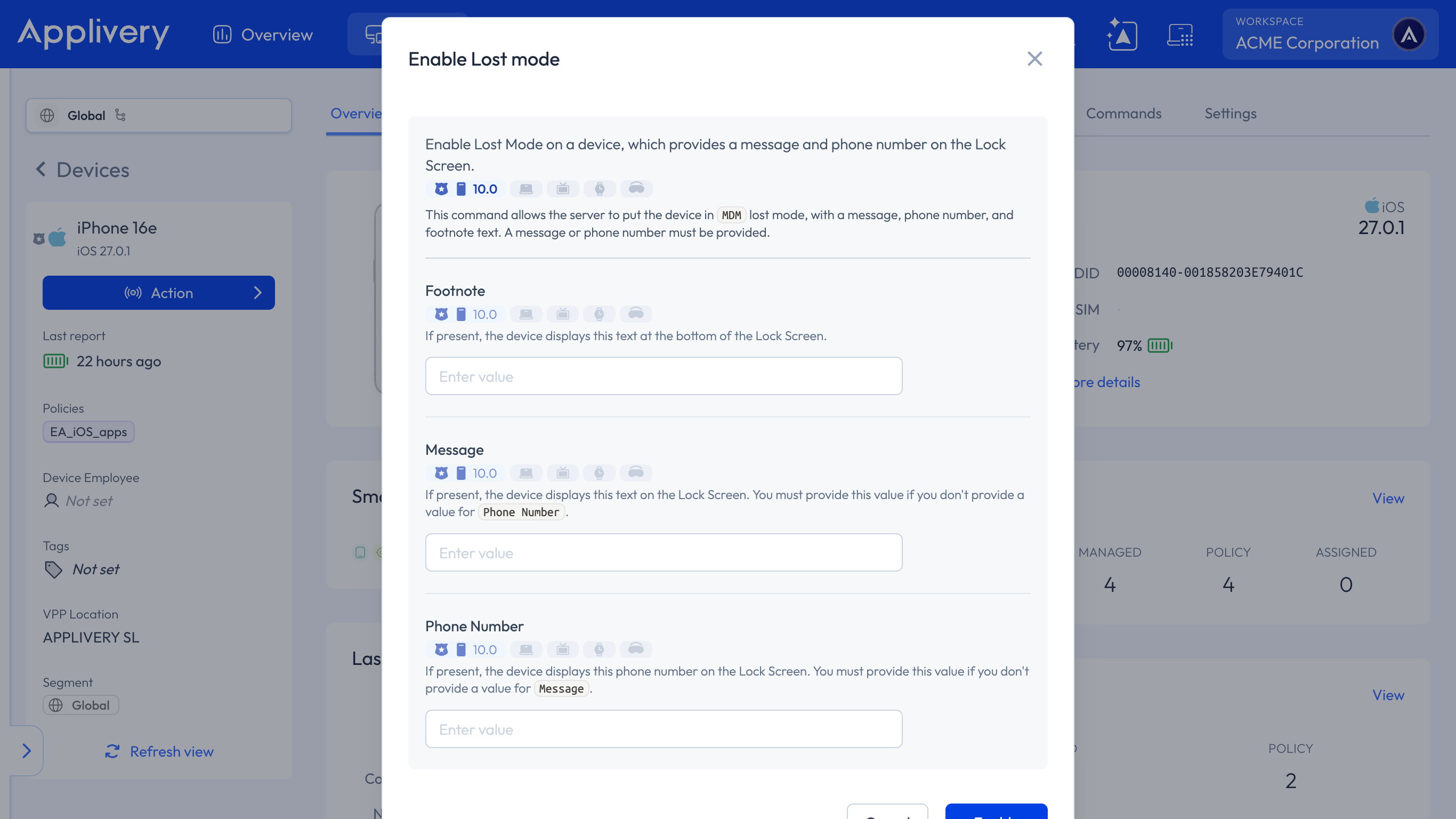
Click Enable to send the command to the Device. To close the dialog without sending it, click Cancel.
Manage a Device in Lost Mode
While Lost Mode is active, the Device page shows an alert at the top with a message and three buttons:
Button | What it does |
|---|---|
Get location | Sends the Device Location command, which requests the current location of the Device, even if Location Services are off. Only the device management service can access this location, and the user is notified if anyone accessed it. |
Play Lost Mode Sound | Plays the Lost Mode sound on the Device. It keeps playing until you disable Lost Mode or someone turns the sound off on the Device. |
Disable Lost Mode | Takes the Device out of Lost Mode. |
Get location and Play Lost Mode Sound work only while the Device is in Lost Mode.
Once the Device reports its location, a map appears in the same alert, along with the coordinates and when the location was reported. The Get location button then becomes Update location, so you can request a newer one.
You can also send every Lost Mode command from the Commands section of the Device: click + New command and select the command.
Disable Lost Mode
Lost Mode can only be turned off from the device management service, so the Device stays locked until you do it from Applivery.
Open the Device and click Disable Lost Mode in the alert, or click Action and select Disable Lost mode. The user then sees a message on the Lock Screen or an alert on the Home Screen.
The Device needs an internet connection to receive the command. If it has lost its connection, follow the steps in Disable Lost Mode Without Internet.