

There are two separate things you may want from Wi-Fi management, and it's worth being clear about which one you need, because their requirements are very different:
Delivering a network, so Devices connect to the corporate Wi-Fi on their own without anyone typing a password. This doesn't require supervision and works even on personal Devices.
Restricting which networks can be joined, so a Device can't connect to anything else. This does require supervision.
You can do the first without the second. You can't do the second without the first — the restriction works by allowing only the networks you delivered.
Delivering a Wi-Fi network
Prerequisites
The Apple Device is enrolled in Applivery.
The Policy is correctly assigned to the target Device(s).
Supervision is not required. Apple lists the Wi-Fi payload as Requires supervision: N/A, and it's explicitly allowed in User Enrollment on iOS, macOS and visionOS — so corporate Wi-Fi reaches personal Devices too.
Configuration
Once in the Applivery Dashboard, go to any of your Policies 1. From the left side menu, select + Add configuration and choose Wi-Fi 2.
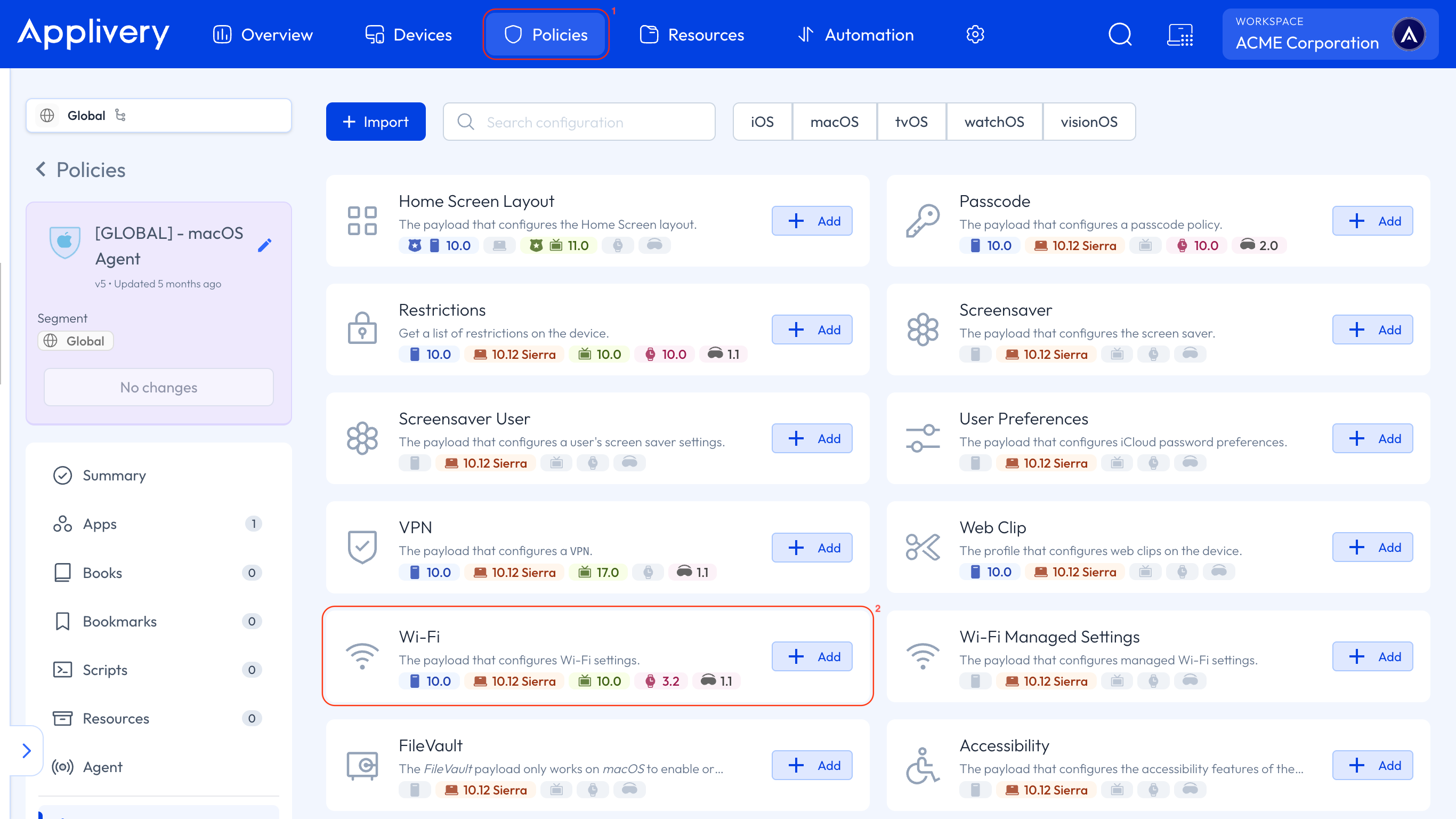
The essential settings are:
Setting | What it does |
|---|---|
SSID | The name of the network to join. |
Hidden network | Mark the network as hidden, so the Device can find it even though it doesn't broadcast its name. |
Auto join | When on, the Device connects on its own. When off, the user has to tap the network name. |
Encryption type | The security of the network. See the table below. |
Password | The access point password, for anything other than an open network. |
You can declare several networks in the same Policy. Apple allows multiple Wi-Fi payloads, so a Device can carry the office network, the warehouse network and a guest network at once. This matters if you plan to restrict networks later — every network the Device legitimately needs has to be declared, or it won't be able to connect to it.
Encryption types
From iOS 16, tvOS 16, watchOS 9 and macOS 13 onwards, the values stopped being interchangeable and now mean exactly what they say:
Value | Networks the Device can join |
|---|---|
WPA | WPA or WPA2 |
WPA2 | WPA2 or WPA3 |
WPA3 | WPA3 only |
Any | WPA, WPA2, WPA3 and WEP |
None | Open networks |
Before iOS 16, WPA, WPA2, and WPA3 were equivalent, and all allowed joining any WPA network. If you wrote a profile back then and your access points have since moved to WPA3, a value that used to work may now be too narrow — or too broad. WPA2 is the safe choice for a mixed environment, since it covers both WPA2 and WPA3.
Enterprise networks (802.1X)
For WPA/WPA2 Enterprise, the configuration accepts an enterprise network configuration with the EAP settings, and a client certificate referenced from the same Policy. The certificate is distributed as a resource and the Wi-Fi configuration points at it, so the Device authenticates without the user entering anything.
Proxy
The configuration also supports a proxy for the network — manual, with the server address, port, and optional credentials, or automatic through a PAC file URL. With the automatic option, you can allow the Device to connect directly if the PAC file is unreachable, which avoids leaving Devices stranded when the PAC server has a bad day.
Restricting which networks can be joined
Once the corporate network is delivered, you can prevent the Device from joining anything else.
Restriction | What it does | Requirements |
|---|---|---|
Force Wi-Fi to allowed networks only | Limits the Device to joining only Wi-Fi networks set up through a configuration profile. | iOS 14.5+ · iPadOS 14.5+ · visionOS 2+ · supervised |
Force Wi-Fi power on | Prevents turning Wi-Fi off from Settings, Control Center, or by toggling Airplane Mode. Does not control which network the Device joins. | iOS 13+ · iPadOS 13+ · supervised |
These live in the Restrictions configuration, not in the Wi-Fi one.
The restriction works by origin, not by name. It doesn't hold a list of allowed SSIDs — it allows any network that arrived through a configuration profile and blocks everything else. If you're expecting to type in the names of the networks you want to permit, that isn't how it works.
The practical consequence: to allow a network, you deliver it. There's no way to permit a network the Device knows about, but that wasn't installed by profile.
Validate the Wi-Fi profile before you enable the restriction. If the declared network is misconfigured — wrong password, wrong encryption type, a typo in the SSID — the Device ends up unable to join anything, including the network that would deliver a corrected Policy. Recovering it means physical access.
Test on one Device, confirm it connects, and only then apply the restriction to the fleet.
The two restrictions are complementary and answer different questions. Force Wi-Fi to allowed networks only controls which network; Force Wi-Fi power on stops the user from sidestepping the whole thing by turning Wi-Fi off. On a shared or single-purpose device, you usually want both.
There's an older restriction, Force Wi-Fi whitelisting (iOS 10.3+), which Apple deprecated in iOS 14.5 in favour of Force Wi-Fi to allowed networks only. Use the current one.
Personal Devices (User Enrollment)
Delivering Wi-Fi works on BYOD — Apple explicitly allows the payload in User Enrollment on iOS, macOS and visionOS.
The restrictions don't. They require supervision, and a personal Device enrolled through User Enrollment is never supervised. That's the expected outcome rather than a limitation to work around: on a Device the employee owns, you deliver the corporate network and leave their personal use alone.