

"Is this iPhone encrypted?" is a question that comes up in every security audit, and on Apple Devices it has an unusual answer: encryption isn't something you turn on. On iOS and iPadOS, Data Protection is a capability of the hardware, and it's always there. There is no policy setting to enable it, because there's nothing to enable.
What there is, is a way to verify it — and that's what the Security info panel is for.
Where to find it
Open a Device from the device list in the Applivery Dashboard and go to Details → Security info.
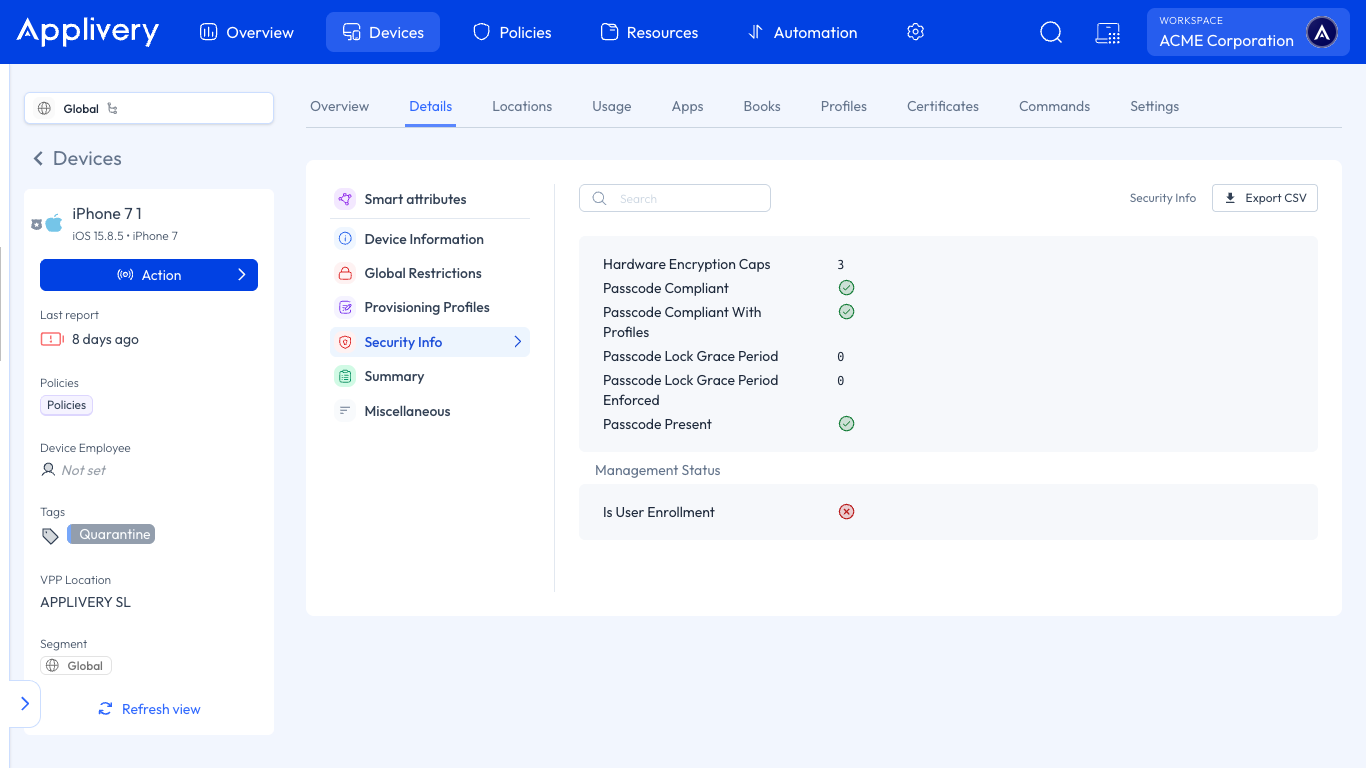
Verifying encryption on iPhone and iPad
Encryption on iOS depends on two things at once, and Apple states the criterion explicitly:
For a Device to have Data Protection, the hardware encryption capabilities must be 3 , and a passcode must be present. Both conditions, not one or the other.
Value | What it means |
|---|---|
Hardware encryption capabilities |
|
Passcode present | Whether the Device has a passcode set at all |
This is why the Passcode configuration matters so much on Apple Devices. The hardware does the encryption, but the passcode is the key. A Device with full hardware capabilities and no passcode is, in practice, an unprotected Device — and it will report exactly that here.
If you're filling in a compliance checklist that asks "is the Device encrypted?", this pair of values is your evidence.
Passcode compliance
Two values report whether the passcode is good enough, and the difference between them matters:
Value | What it checks |
|---|---|
Passcode compliant | The passcode meets all requirements on the Device, including those coming from Exchange and other accounts. |
Passcode compliant with profiles | The passcode meets the requirements coming from MDM profiles only. |
When you're troubleshooting "why is this Device flagged?", the second one is usually the one you want: it tells you whether your Policy is satisfied, without the noise of requirements set by a mail account you don't manage.
Neither value applies to Devices enrolled through User Enrollment. Apple doesn't report passcode presence or profile compliance for personal Devices, so an empty value on a BYOD Device isn't a fault — it's the expected behaviour. Combined with the fact that Apple ignores most passcode settings in User Enrollment, personal Devices simply can't be verified this way.
Encryption on Mac
macOS works the other way around: encryption is a real setting, and it's FileVault.
Value | What it reports |
|---|---|
FileVault enabled | Whether full disk encryption is on. |
Has institutional recovery key | Whether an organizational recovery key exists. |
Has personal recovery key | Whether a personal recovery key exists. |
Recovery keys are worth checking alongside the encryption state itself. An encrypted Mac with no escrowed recovery key is a Mac you can't help when the user forgets their password.
FileVault is covered in its own article.
iPhone and iPad work the opposite way to Mac
Both report here, but the question you're answering is different on each:
iPhone / iPad | Mac | |
|---|---|---|
Is encryption a setting? | No — it's always in the hardware | Yes — FileVault |
What you do about it | Verify it | Enable it, then verify it |
What makes it effective | The passcode | FileVault being on |
What to check | Hardware capabilities | FileVault enabled + a recovery key exists |
The practical consequence: on an iPhone, "not encrypted" is really "no passcode", and you fix it with a Passcode configuration. On a Mac, it's a FileVault problem and you fix it there.
What Security info does not tell you
There is no jailbreak or integrity status for iOS. Apple's MDM protocol simply doesn't expose one — no MDM in the market can report it, Applivery included. The two integrity-related values that exist in this response, Secure Boot and System Integrity Protection, are macOS-only and return nothing on an iPhone or iPad.
If your requirements include detecting compromised Apple Devices, that has to come from a third-party Mobile Threat Defense solution.