

If an App can't make calls only when the Device is in kiosk mode, add the system Phone Apps (the dialers) your Devices use to the Policy and test again. In a kiosk, system Apps aren't shown or managed by default, so you need to include them explicitly.
Symptoms
An App tries to start a call and it drops abruptly or never connects.
The system Phone App can make calls, or the App can't receive calls either.
The issue goes away when you remove the kiosk or switch the Advanced Launcher to Launcher mode.
Changing the default Phone App doesn't fix it.
What happens
In Applivery, the Advanced Launcher has two operating modes:
Mode | What it does | Restrictions |
|---|---|---|
Launcher | Provides a launcher with the Policy's Apps | Doesn't apply kiosk restrictions |
Kiosk | Activates a full multi-app kiosk | Does apply restrictions to the Device |
Kiosk mode restricts the Device to the Apps you define in the Policy, and its Kiosk-only settings only apply when the Device is genuinely in kiosk mode.
This issue shows up mostly with Apps that make calls from inside the App itself. Those Apps usually open the Device's Phone App to place the call. If Kiosk mode blocks that Phone App, the call can't start.
How to diagnose it
Run these tests on a test Device with a copy of your production Policy:
Test | Result | Conclusion |
|---|---|---|
Call from the system Phone App, outside the affected App | Works | The Device and the line are fine |
Call from the affected App with the kiosk active | Fails | Possible block by the kiosk |
Call from the affected App with the kiosk removed (other Policies still applied) | Works | The issue is in the kiosk, not in the other Policies |
Switch the Advanced Launcher from Kiosk to Launcher | Works | Confirms it depends on Kiosk mode |
Always test with a duplicated Policy and a single Device. Don't change your production Policy to diagnose.
Fix: add the dialers to the Policy
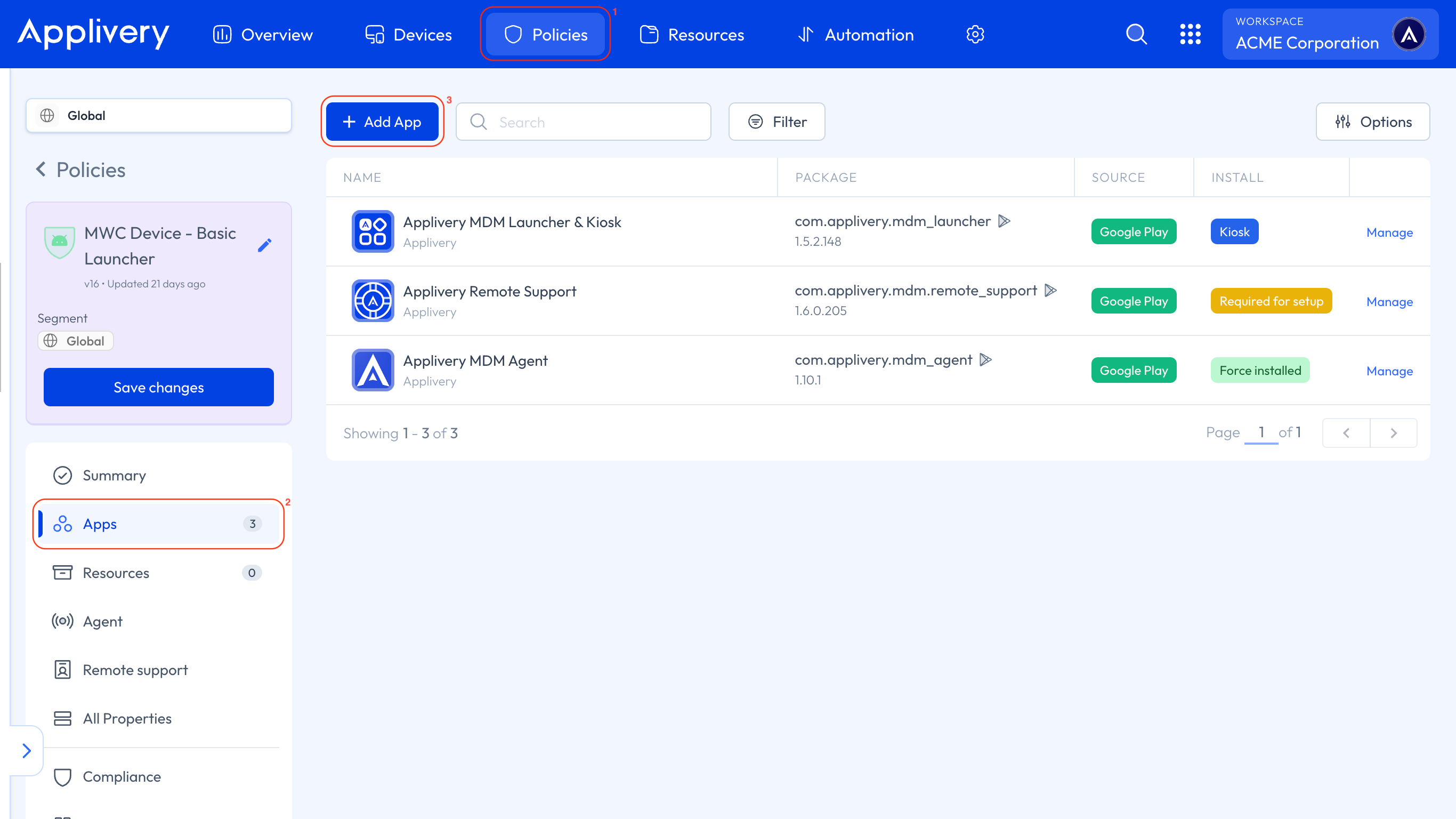
Once in the Applivery Dashboard, open the affected Policy 1 and go to the Apps 2 section from the left-hand menu, then select + Add App 3.
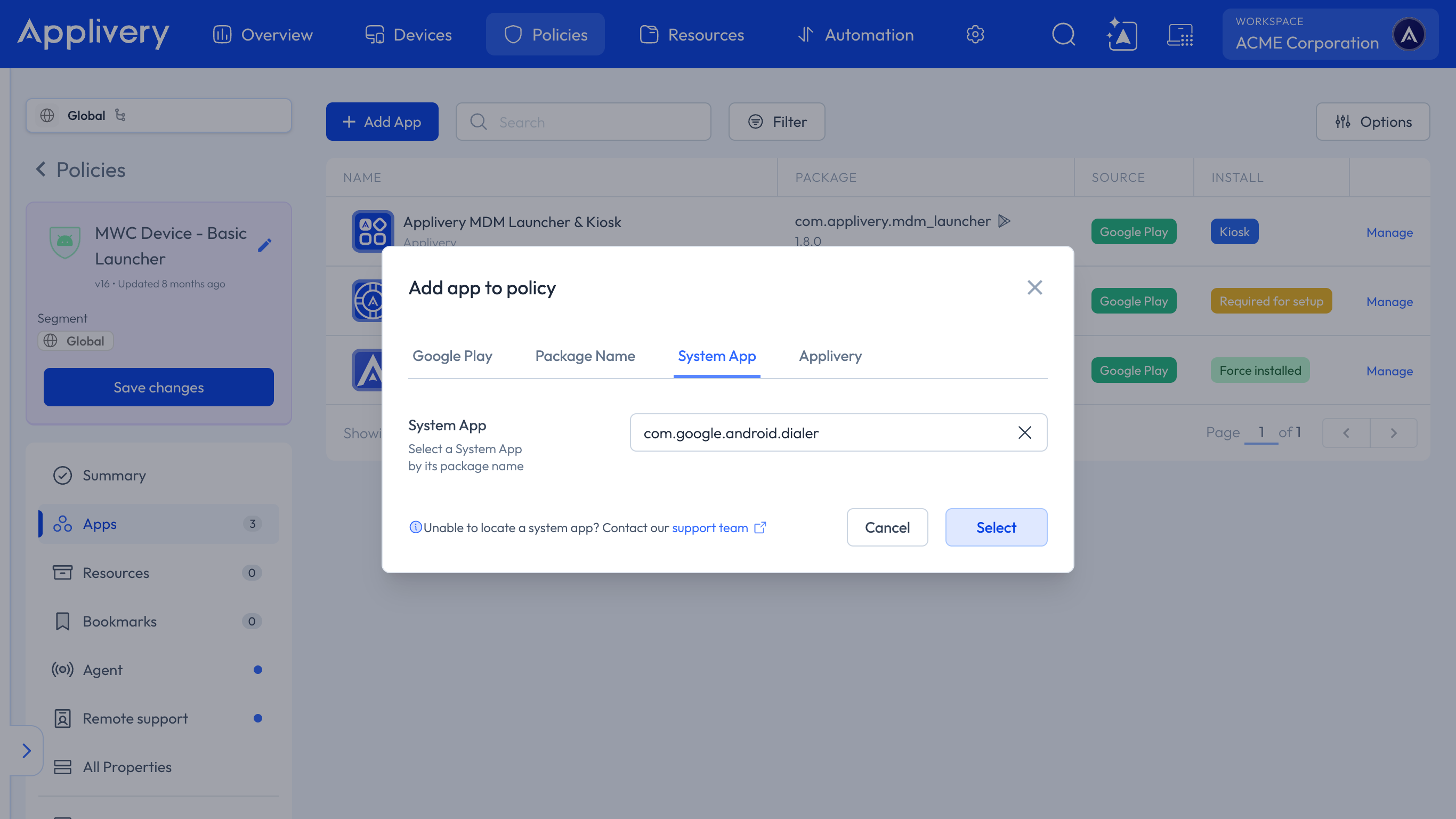
Select the System App tab. Pick the Phone App your Devices use or type its package name. If your fleet has several manufacturers, add each one's Phone App.
To find the package name, turn on Application Reports Enabled in the Policy's Reporting section. The full list of Apps, including system Apps, then appears in the Device details under Apps. You'll find more details in System Apps.
Click Select, choose the Available installation type and add the App to the Policy's list.
Save the Policy and wait for the Device to receive it. Then test an outgoing and an incoming call from the affected App.
What usually doesn't fix it
These actions don't fix the block:
Granting permissions to the App through Grant permissions in the managed properties.
Setting another Phone App as default, whether Google's or the manufacturer's.
Temporary workaround
If you need calls to work while you adjust the Policy, run the Advanced Launcher in Launcher mode. Keep in mind it doesn't apply kiosk restrictions (status bar, navigation, power button, Settings access), so the Device is less locked down.
If it still fails
Confirm the Device has received the latest Policy.
Check that the Phone App appears in the Policy's App list and that the package name matches the one the Device uses.
Repeat the diagnostic tests to confirm the failure still depends on Kiosk mode.
If the issue persists, contact Applivery support with the Device model, the Policy and the exact time of the failure.