

A credential manager (or credential provider) is the App that stores and fills in passwords, passkeys and other sign-in data on the Device. Users pick theirs in Settings → Passwords, passkeys & accounts → Preferred service (the exact name varies by manufacturer). With Applivery, you decide which of those services they can turn on.
The Credential Provider Policy Default setting, in the Android Policy's All Properties, defines what happens by default: DISALLOWED blocks every manager and ALLOWED restricts none. With DISALLOWED, you can allow specific Apps by setting Credential Provider Policy to Allowed in each App's properties within the Policy.
Before you start
The Device must run Android 15 or later. On earlier versions, the setting isn't guaranteed to apply.
You configure the setting in any Android Policy in the Applivery Dashboard, and it applies to the Devices that Policy is assigned to.
To allow a specific manager, the App must be added to the Policy (Apps section). For a third-party App, the usual approach is to distribute it as a force install from Managed Google Play.
This Policy decides which managers the user can turn on; it doesn't set password or screen lock rules. For those, see Password Policies and Lock Screen with Keyguard.
How the two settings combine
You want to… | Credential Provider Policy Default | Credential Provider Policy (per App) |
|---|---|---|
Block every credential manager |
| Don't allow any App (leave it on Unspecified) |
Allow only the managers you approve |
|
|
Not restrict credential managers |
| No App needs configuring (Apps on Unspecified can act as a manager) |
Default setting values:
DISALLOWED: Apps whose Credential Provider Policy isn't specified can't act as a credential manager.ALLOWED: Apps whose Credential Provider Policy isn't specified can act as a credential manager.
Per-App setting values:
Unspecified: the App follows the Policy's default setting.Allowed: the App can act as a credential manager.
The Credential Provider Policy Default selector also shows the DISALLOWED EXCEPT SYSTEM value, meant to block every manager except the ones preinstalled by the manufacturer. With this value, the Android Management API behaves incorrectly with system Apps. It's a Google issue, pending a fix on their side. Even though it still appears in the interface, avoid it until it's fixed. To allow only the managers you approve, use DISALLOWED and allow each App with Allowed.
Configure the default behavior
Once in the Applivery Dashboard, go to Policies 1 and open an Android Policy. In the left-hand menu, open All Properties 2 and type credential in the search box.
In Credential Provider Policy Default 3, select DISALLOWED to block every manager or ALLOWED to leave them unrestricted.
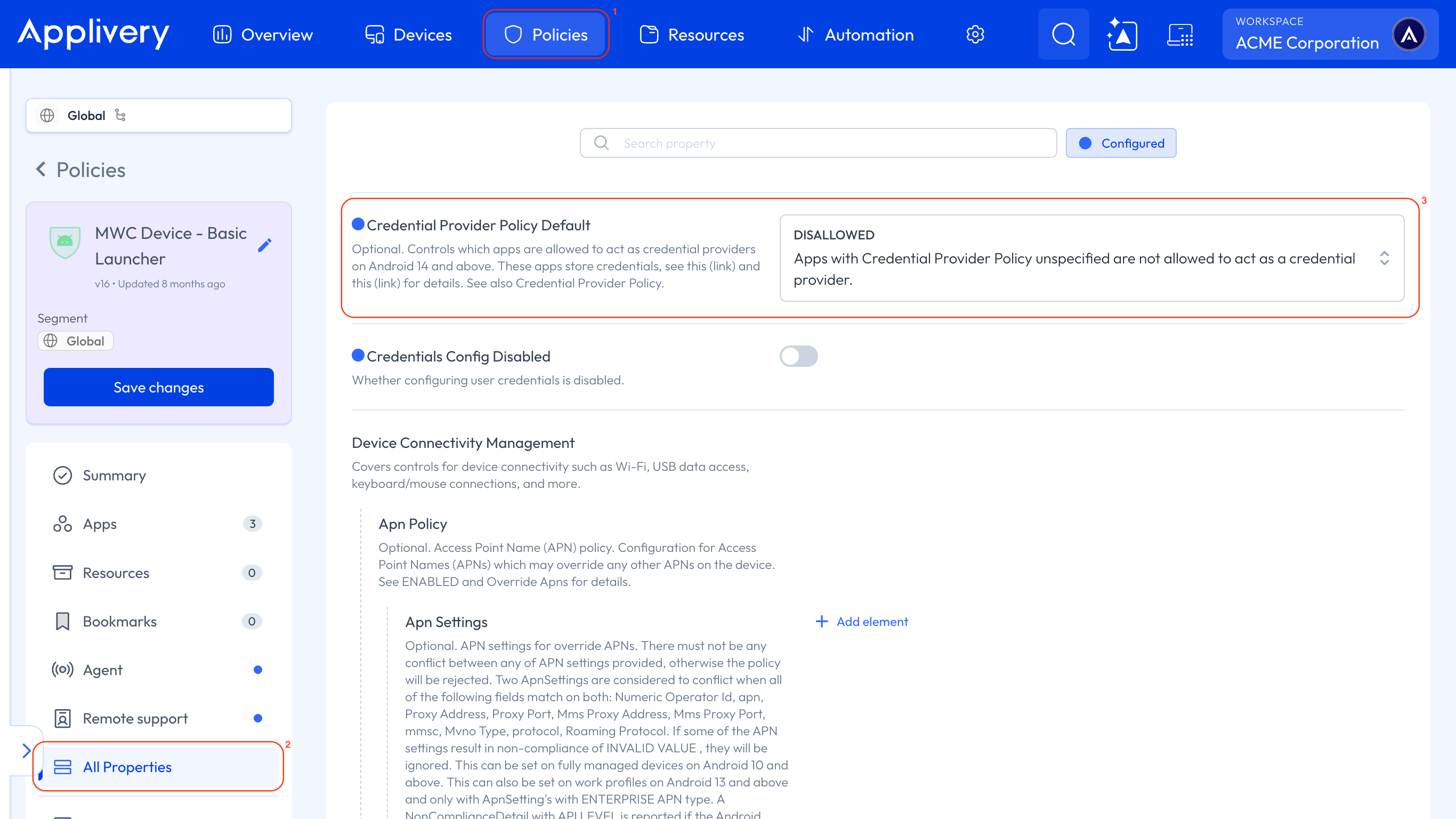
Next to this setting you'll see Credentials Config Disabled, which controls whether the user can configure user credentials on the Device. It's a different setting and doesn't affect which password managers they can turn on.
Click Save changes on the Policy card. In the Save policy dialog, review the number of affected Devices and the changes, and click Save & Deploy. You'll see the Saved successfully! message.
Allow a credential manager from the App properties
Use this procedure when the default setting is DISALLOWED and you want users to be able to use one or more specific managers. You allow them App by App, in the same panel where you configure Managed App Properties.
First, Credential Provider Policy Default must be set to DISALLOWED and saved, as in the previous section.
Once in the Applivery Dashboard, go to Policies, open the Android Policy you'll assign the manager to, and select Apps in the left-hand menu.
If the manager isn't in the list:
Click + Add App. The Managed Google Play iframe opens.
Search for the App (if it's public) and approve it. If it's a private App, upload it as explained in Distribute Private Apps Using Managed Google Play.
Set the install type. For a corporate manager, the usual choice is Force installed: it installs on its own and the user can't remove it. You'll find every type in Forced Install Apps.
Click the App in the list to open the side panel with its configurable properties. Scroll to the bottom and find Credential Provider Policy, which shows as Empty until you configure it.
Open the dropdown and choose Allowed ("App is allowed to act as a credential provider"). The other option, Unspecified, lets the App follow the Policy's default setting.
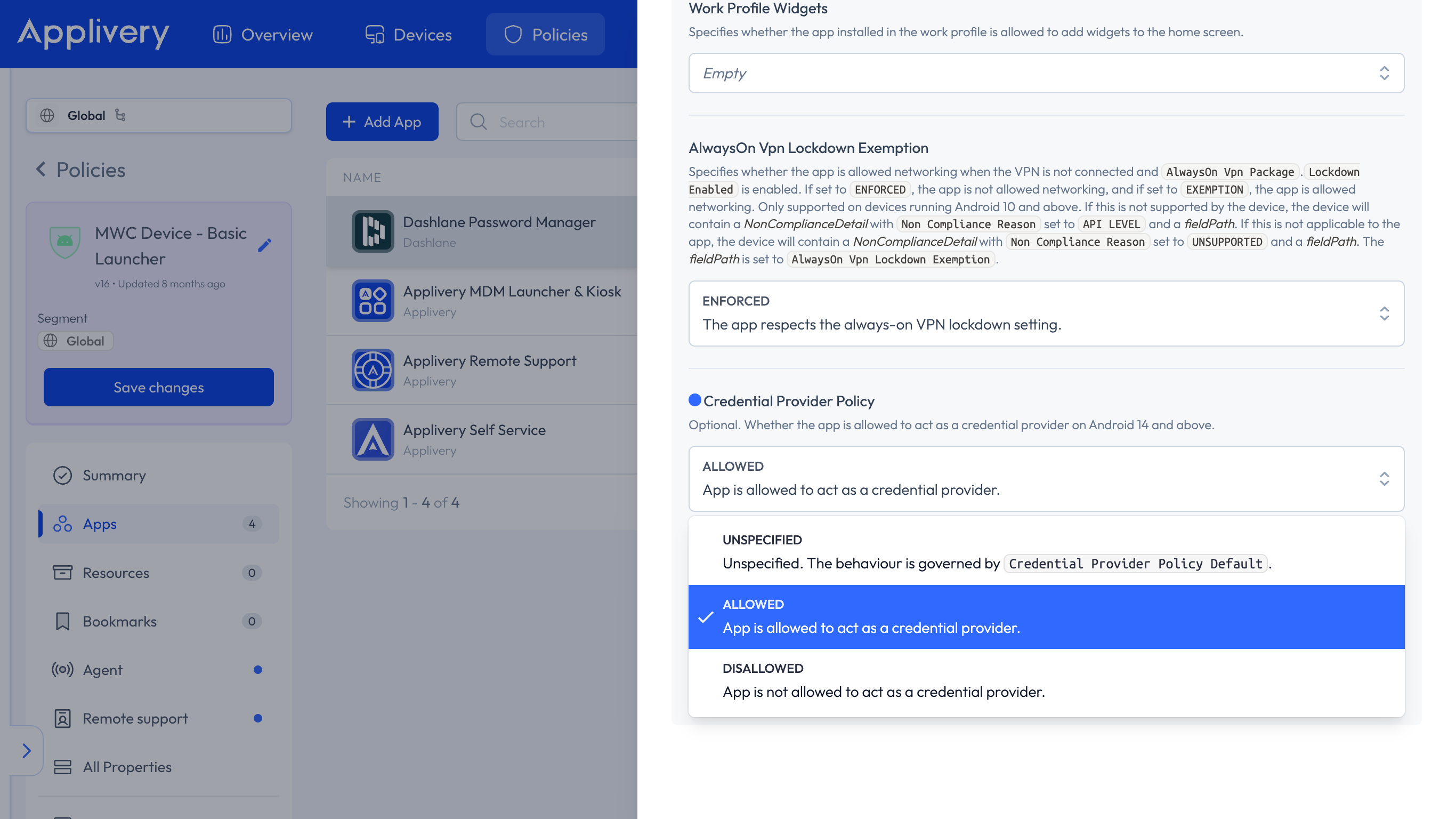
Close the side panel and click Save changes on the Policy card. In the Save policy dialog, review the affected Devices and click Save & Deploy. You'll see the Saved successfully! message.
Repeat Allow the App and Save and deploy for each manager you want to allow. The allowlist is the set of Apps with Allowed in the Policy.
On the Device, open Settings → Passwords, passkeys & accounts → Preferred service. The allowed manager should be selectable, and the rest should appear disabled.
The App's Credential Provider Policy field only takes effect if the App is included in the Policy and assigned to the Device. If the App isn't in the Policy, the user can't use it as a credential manager when the default setting is DISALLOWED.
What the user sees on the Device
Users manage their service in Settings → Passwords, passkeys & accounts → Preferred service.
Configuration | Behavior on the Device |
|---|---|
| Services appear disabled and can't be turned on; the system shows that the option is blocked by the work policy. |
| That App can be selected as the preferred service; the rest stay disabled. When the user picks it, Android asks them to confirm the change of service. |
| The Policy doesn't block managers: Apps left unspecified can act as a credential manager. |
Changes can take a few moments to reach the Device. If you don't see the effect, check that the Policy shows as applied in the Device details and reopen the Preferred service screen.
Devices with a work profile
You can use this Policy on fully managed, dedicated, and work profile Devices (both personally owned and corporate).
On Devices with a work profile, the Policy only applies to the work profile. The user's personal space isn't affected, and their personal credential managers keep working normally.
Troubleshooting
The Device shows "The policy is not supported by the version of Android Device Policy on this device"
The message appears in the Device details under Compliance checks, for the credentialProviderPolicyDefault field. Check that the Device runs Android 15 or later and that Android Device Policy is up to date. If the message persists, contact Applivery support with the Device model, the Android version, and the Android Device Policy version.
The user can still turn on a manager that should be blocked
Check that the Policy with the setting is assigned to that Device and that you clicked Save & Deploy. Also check that the default setting is DISALLOWED (not ALLOWED) and that the manager doesn't have Allowed in its App properties.
I allowed a manager with Allowed, and the user can't select it
Check that the App is included in the Policy, that it's installed on the Device, that you saved and deployed the Policy after changing the Credential Provider Policy field, and that the Device runs Android 15 or later.
I selected DISALLOWED EXCEPT SYSTEM and can't turn on the preinstalled manager
The issue is in Google's API with system Apps, and it's pending a fix on their side. Use DISALLOWED and allow the manager you want with Allowed in the App properties.
I can't find the setting in the Policy
Open All Properties and search for credential. The default setting is there; the per-App setting is in each App's properties panel under Apps.