

The APN (Access Point Name) is the access point the Device uses to connect to its carrier's data network. When a fleet uses corporate SIMs with a private APN (for example, to reach the company's internal network through the carrier), configuring it by hand on every Device doesn't scale. With apnPolicy, you declare it once in the Policy and it reaches every assigned Device, without any user action.
Applivery sends the Android Policy configuration to Devices through the Android Management API (AMAPI), so the fields and requirements for apnPolicy are the ones Google defines in its policy reference.
Prerequisites
Requirement | Details |
|---|---|
Device with an active SIM or eSIM | The APN only affects the carrier's mobile data connection. |
Android Device enrolled in Applivery | With an Android Enterprise Policy assigned. |
Fully managed | Android 10 or later. Multiple APN types are supported. |
Work profile | Android 13 or later, and only APNs with the |
APN details provided by the carrier | APN name, username and password if applicable, authentication type, MCC+MNC, proxy, etc. |
If the Device doesn't meet the minimum version, nothing visibly fails: the setting is discarded and the Device reports a non-compliance reason (API_LEVEL or MANAGEMENT_MODE).
How it works
apnPolicy has two fields:
overrideApns: turns Policy-defined APNs on or off. Values:OVERRIDE_APNS_UNSPECIFIED,OVERRIDE_APNS_DISABLEDandOVERRIDE_APNS_ENABLED. WithOVERRIDE_APNS_ENABLED, the Policy's APNs can take precedence over the Device's other APNs. The behavior matches Android'sDevicePolicyManager.setOverrideApnsEnabled.apnSettings: the list of APNs. Each entry is anApnSettingobject.
APNs in the list can't conflict with each other. Two entries conflict when they match on all of these fields: numericOperatorId, apn, proxyAddress, proxyPort, mmsProxyAddress, mmsProxyPort, mmsc, mvnoType, protocol and roamingProtocol. If there's a conflict, the Policy is rejected.
Configure an APN
Once in the Applivery Dashboard, go to Policies 1, open the Android Policy, or create a new one.
From the left-hand menu, click the Network 2 section and look for the Apn Policy 3 configuration and set overrideApns to OVERRIDE_APNS_ENABLED.
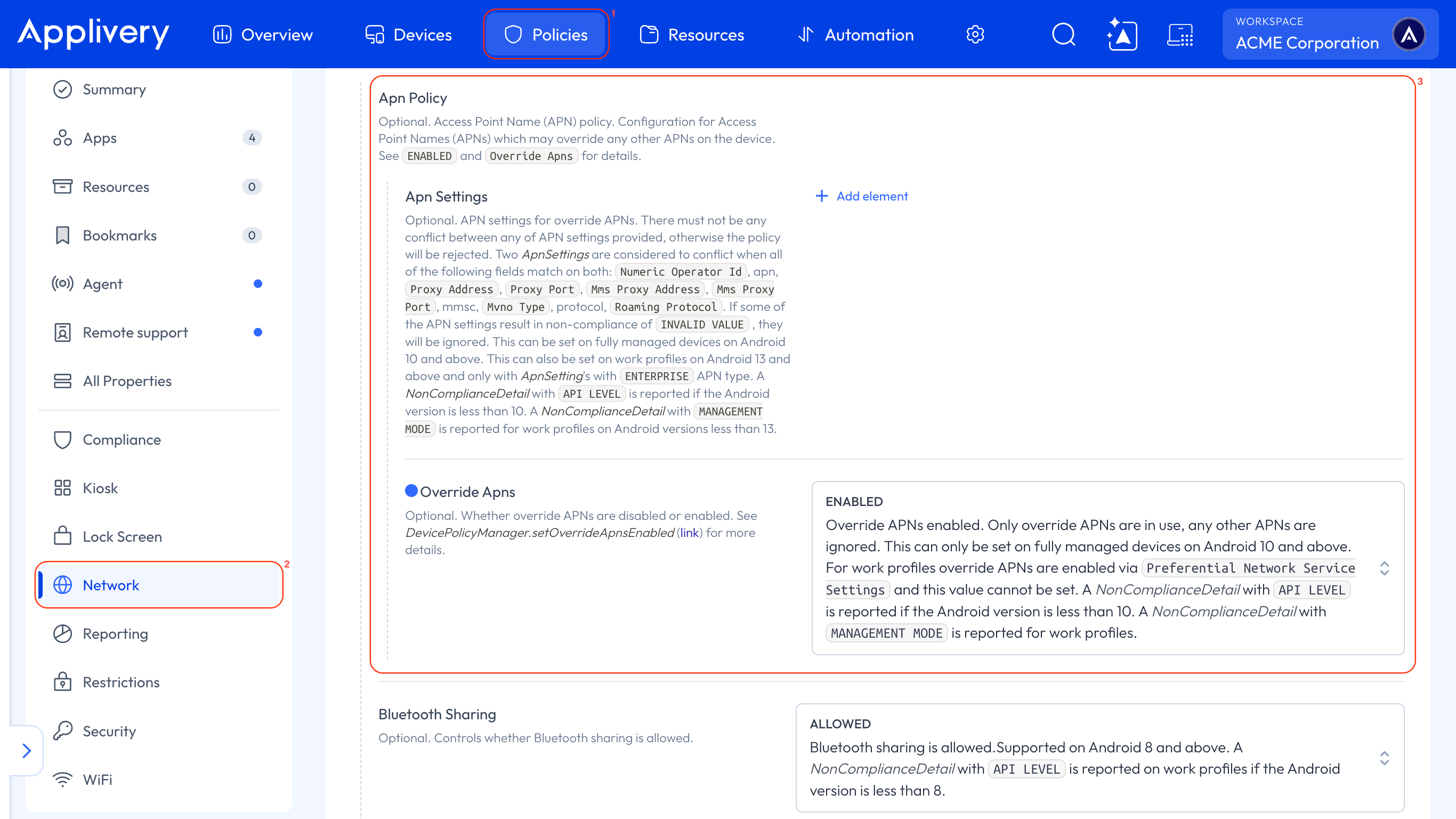
Add one apnSettings entry per APN and fill in at least the required fields: apn, displayName and apnTypes.
Click Save and assign the Policy to the relevant Devices or groups.
Field reference
Required
Field | Description |
|---|---|
| The APN name. The Policy is rejected if it's empty. |
| A friendly name for the APN. The Policy is rejected if it's empty. |
| List of usage types for the APN. Rejected if it's empty, contains |
apnTypes values: ENTERPRISE, BIP, CBS, DEFAULT, DUN, EMERGENCY, FOTA, HIPRI, IA, IMS, MCX, MMS, RCS, SUPL, VSIM and XCAP.
On fully managed Devices you can combine several types. On work profiles, ENTERPRISE is the only type allowed. Types the Device or management mode doesn't support are ignored; if none is valid, the whole entry is ignored and INVALID_VALUE is reported.
Optional
Field | Description |
|---|---|
| Authentication type: |
| APN credentials, if the carrier requires them. |
| Numeric operator ID: MCC (country code) + MNC (network code). |
| MVNO match type: |
| Carrier ID. |
| Connection protocol, normal and roaming: |
| Radio technologies the APN can use: |
| APN proxy. Port |
| Multimedia messaging (MMS) parameters. The MMS proxy address is an IP or a hostname, not a URL. |
| MTU size in bytes for IPv4 and IPv6. Requires Android 13 or later. |
|
|
Check that it was applied
On the Device, open Settings → Mobile networks → Access Point Names (the path varies by manufacturer) and check that the APN appears with the
displayNameyou defined.Check that the Device has a mobile data connection with Wi-Fi turned off.
If the APN doesn't appear, review the Device's non-compliance reasons.
Troubleshooting
Symptom | Likely cause | What to do |
|---|---|---|
The Device reports | Android lower than 10 (any mode), or | Update the Device or remove the fields that require Android 13. |
The Device reports | Work profile on Android lower than 13, or with an | Use only |
| None of the | Review the declared types. |
The Policy is rejected when saving |
| Fix the fields and check that no two APNs share the same key values. |
The APN applies but there's no data | Wrong carrier details (APN, authentication, protocol). | Confirm the parameters with the carrier and try |