
User management is a core component of App Distribution in Applivery. It ensures that the right people have the correct level of access to projects, Apps, and the Enterprise Store.
Applivery divides users into two main categories: Collaborators and Store Employees. Understanding the distinction between them is essential for setting up a secure and well-organised distribution workflow.
Collaborators
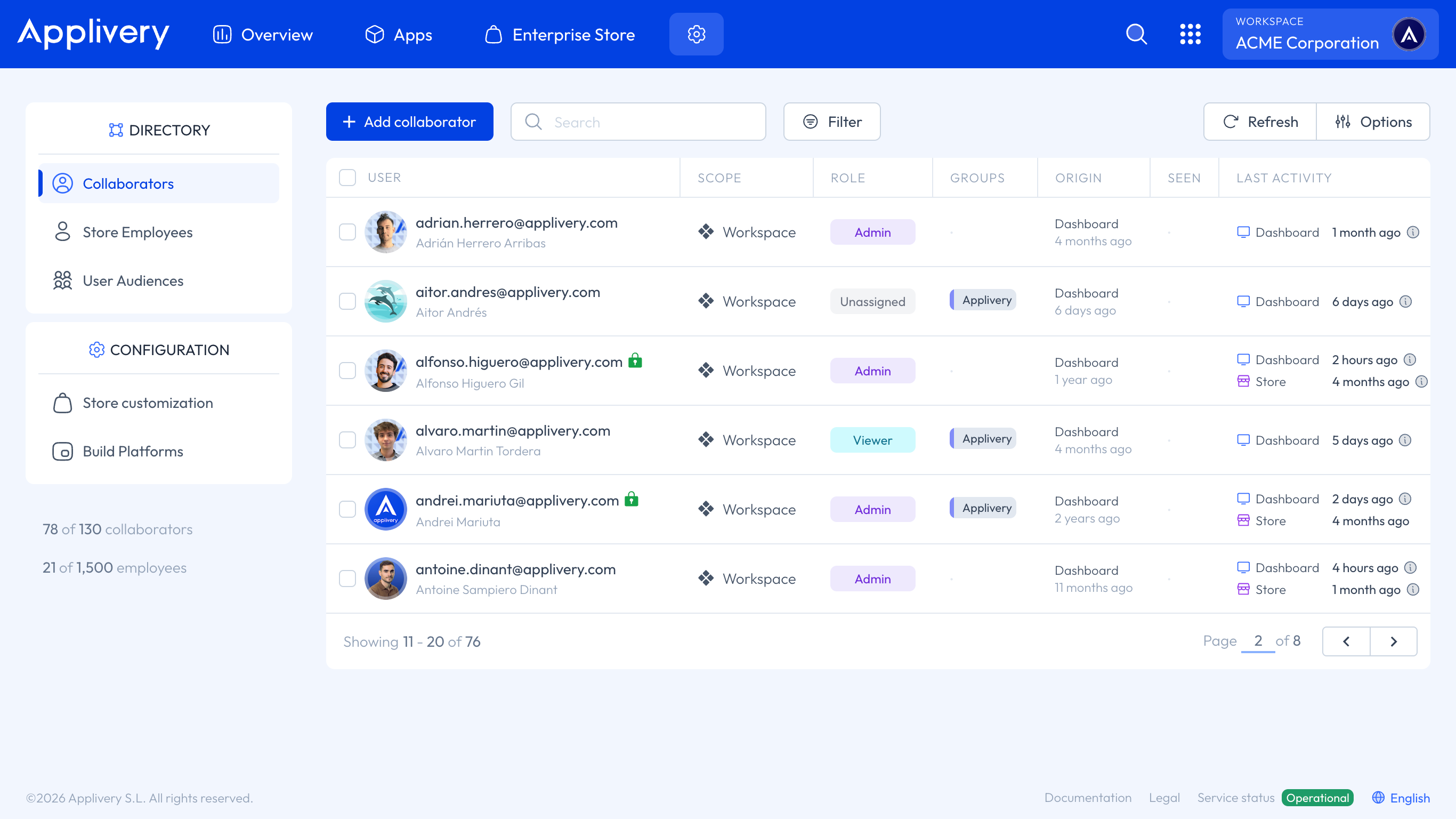
Collaborators are users with administrative access to your Workspace and App projects. They operate through the Applivery Dashboard and are responsible for managing Apps, uploading Builds, configuring settings, and overseeing distribution.
Roles and Permissions
Each Collaborator is assigned one of the following roles, which determines their level of access:
| Role | Description |
|---|---|
| Owner | Super-administrator of the Workspace. Has full access to all resources, including Billing. Only one Owner per Workspace. |
| Admin | Full administrative permissions over Apps and Workspace settings, except Billing. Can manage other Collaborators. |
| Editor | Can upload Builds. Has read-only access to Distribution and Settings. Cannot access Billing. |
| Viewer | Read-only access to all resources, except Billing, Directory, and Settings. |
| Unassigned | No access at the Workspace level. Can be assigned a specific role at the individual App level. |
Follow the principle of least privilege when assigning roles — grant each Collaborator only the access they need to perform their responsibilities.
Store Employees
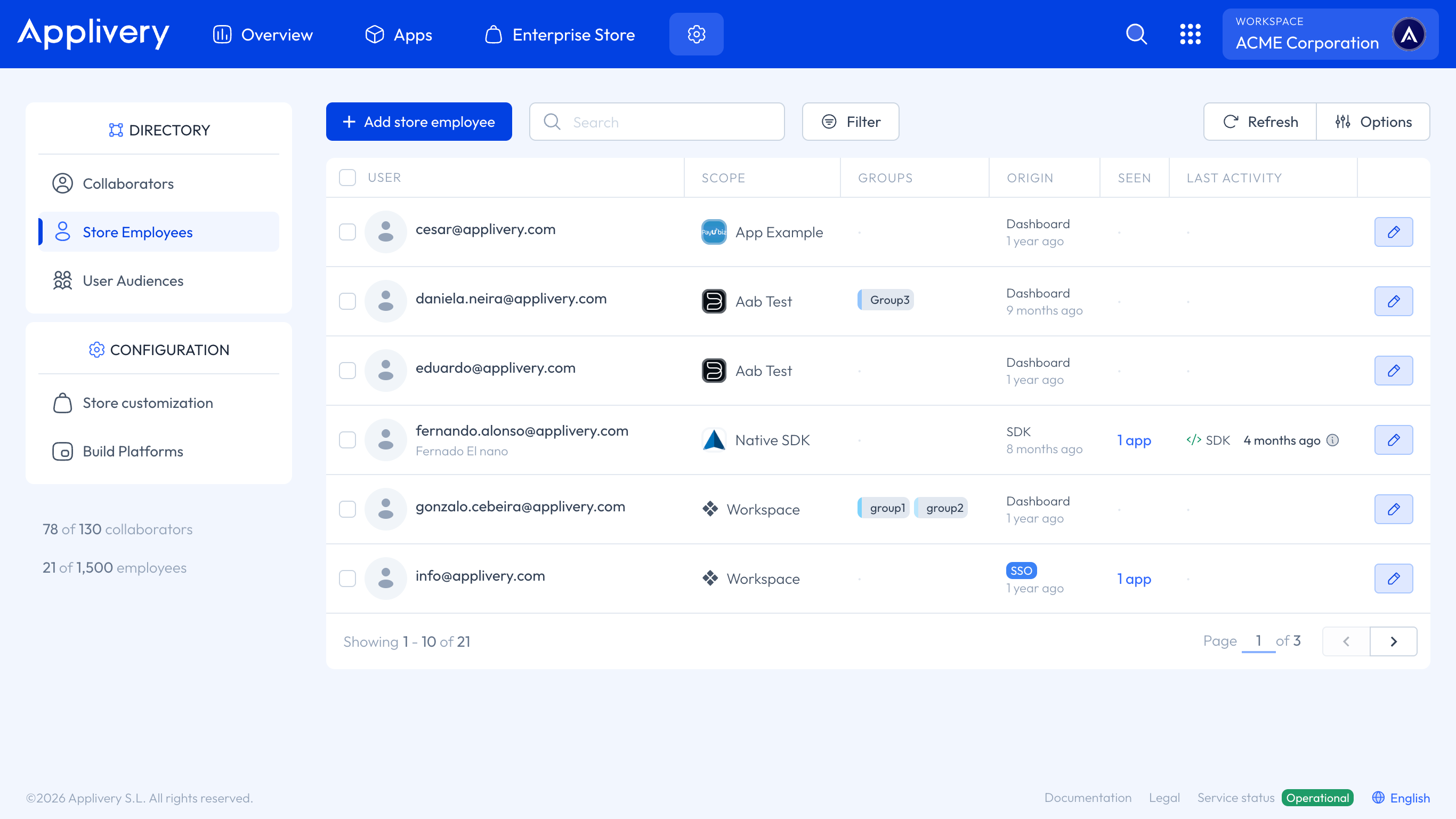
Store Employees represent the end users who access your Apps through the Enterprise Store. Unlike Collaborators, they do not have access to the Applivery Dashboard — they only interact with the App Store experience.
Store Employee accounts can be managed at both the App and Organisation levels, and their access is controlled through Groups, User Audiences, and app-specific permissions.
Employee origins
Store Employee accounts are created through different mechanisms. The origin of an account determines how it was created and how it behaves:
| Origin | Description |
|---|---|
| Dashboard | Employees manually invited by an administrator from the Dashboard. They receive an email invitation to register their account and access the App Store. |
| SSO | Employees automatically created the first time they log into the App Store using Single Sign-On. No manual invitation required. |
| SDK | Named employees (with at least a known email address) created programmatically via the Applivery SDK bindUser() method. |
| SDK Temporal | Anonymous users automatically created by the SDK to identify a Device. Unique per Workspace based on device ID. Expire automatically after 30 days of inactivity. |
| OTP | Temporary external users granted access via a One-Time Password at the Publication level. Designed for users who are not part of your organisation and should not require an Applivery account or SSO access. OTP users are scoped to a specific Publication and expire after 30 days unless configured as persistent. |
For more information about SDK users and how bindUser() works, see SDK Users.
You can learn more about OTP users by following this link.
Groups and User Audiences
Collaborators can organise Store Employees into collections to simplify app targeting and distribution at scale.
Groups are static collections of Store Employees manually created by administrators. They are well-suited for department-based distribution, temporary project teams, or controlled rollout scenarios where membership is fixed and explicitly managed.
User Audiences are dynamic groups automatically populated based on Store Employee attributes or activity. Membership updates automatically as attributes change, making Audiences ideal for large-scale or evolving distribution scenarios where managing static groups would be impractical.
Apps and Publications can be targeted to individual employees, Groups, and User Audiences — or a combination of all three. This allows for precise access control, phased rollouts, and compliance with internal distribution Policies.
User Activity
The User Activity view provides visibility into the last login and last action timestamps for every user, whether a Collaborator or Store Employee.
Logins update both the last login and last action timestamps.
Other actions — such as uploading a Build or installing an App — update the last action timestamp only.
Regularly reviewing user activity helps keep the Workspace clean and ensures that inactive or stale accounts are identified and handled appropriately.
How to invite users
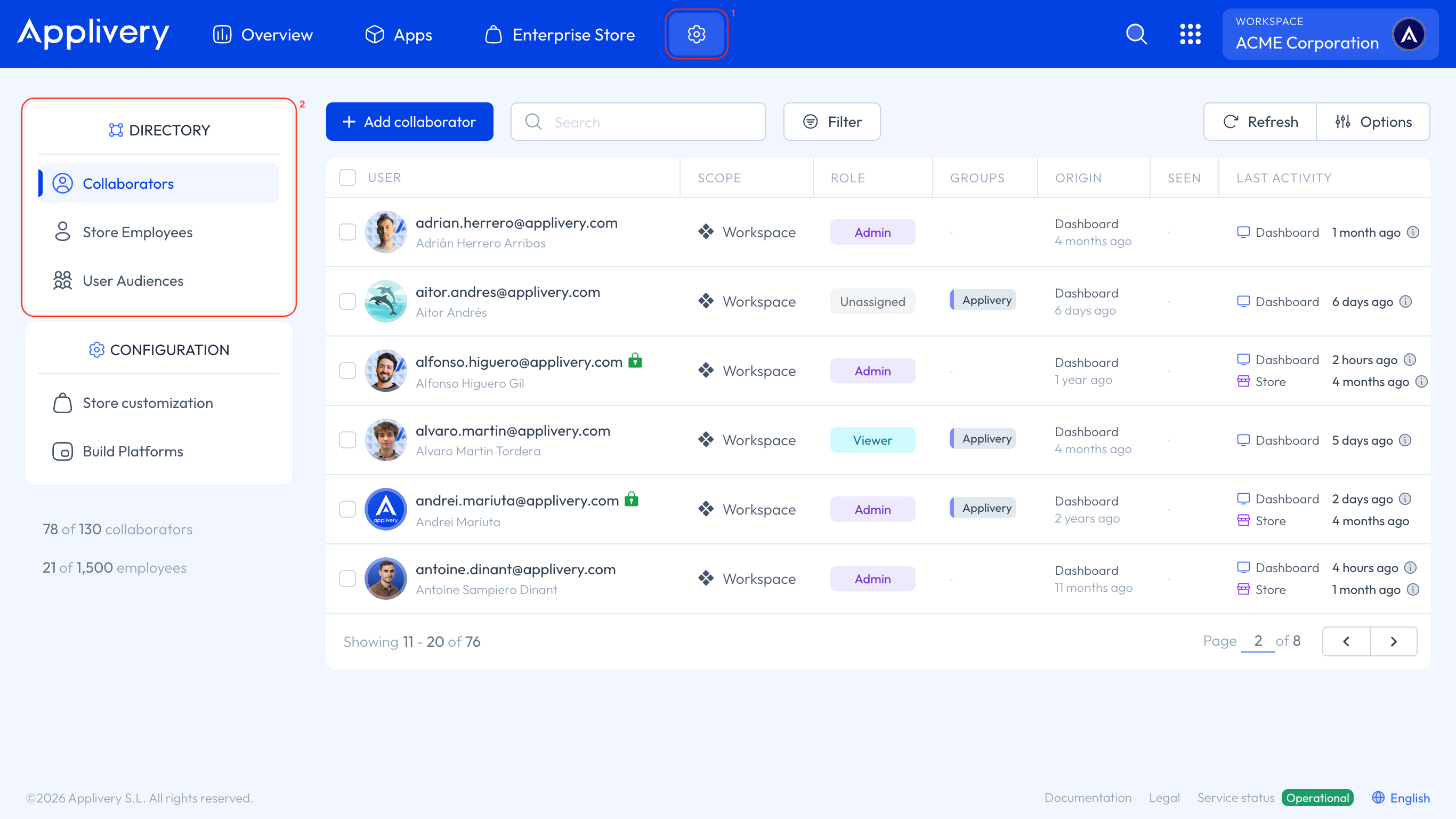
To add users to your Workspace, go to the Applivery Dashboard, navigate to Settings 1, and select the Directory 2 section from the left-hand menu. From there, choose whether to add a Collaborator or a Store Employee.
Inviting Collaborators
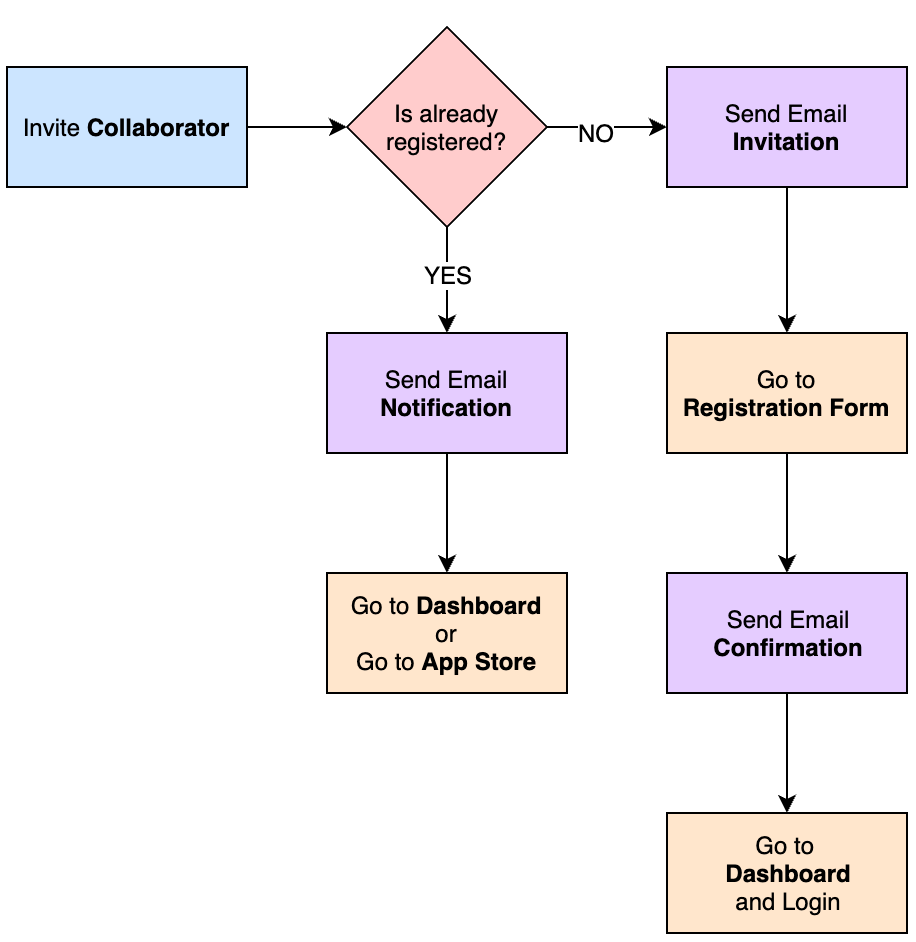
The invitation flow for new Collaborators depends on whether the person already has an Applivery account.
New user (no existing Applivery account):
The user receives an email invitation to sign up. Their email address is pre-filled in the registration form.
After registering, the user receives a second email to verify their address.
Once verified, they are redirected to the login page to enter their new credentials.
After logging in, they access the Dashboard. They may need to select your Workspace from the left-hand menu to find the App they were invited to.
Existing user (already has an Applivery account):
The user receives an email notification with a direct link to the Dashboard. They may need to log in first before the link redirects them to the correct App.
Inviting Store Employees
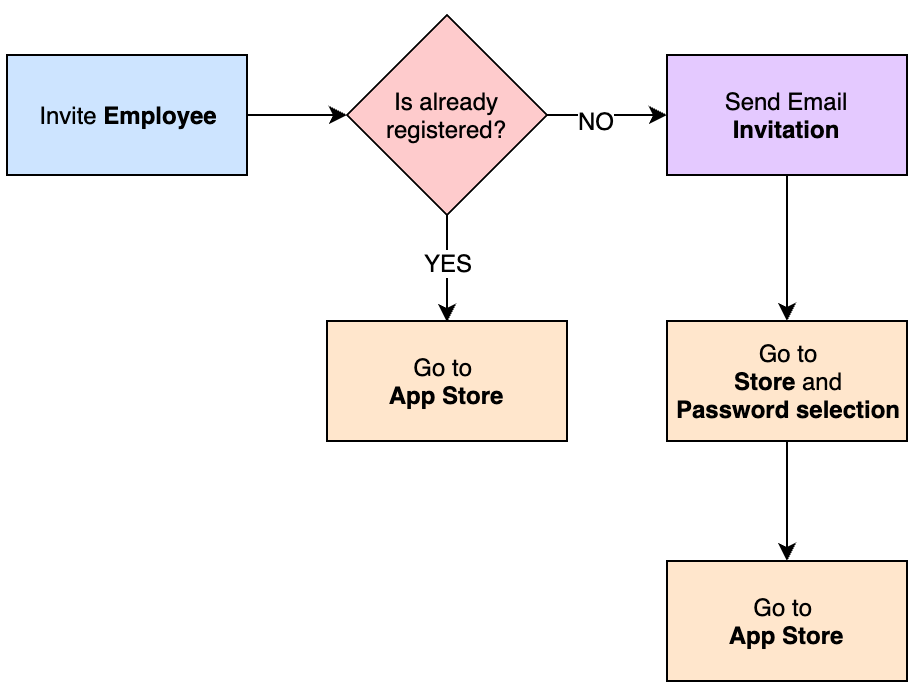
When a Store Employee is invited, they are directed straight to your Enterprise Store — not the Dashboard. They follow a streamlined onboarding flow to access the Apps they are authorised to install and use.
Best Practices
Assign Collaborator roles following the principle of least privilege — give each person only the access they need.
Use User Audiences for dynamic, attribute-based App targeting rather than maintaining large static groups manually.
Use Groups for fixed, intentional groupings such as teams, departments, or beta testers.
Combine Groups and Audiences for hybrid distribution strategies — for example, a baseline audience plus an opt-in group for early access.
Review Store Employee activity regularly to identify and remove stale or inactive accounts, particularly SDK Temporal users that may accumulate over time.