

BOS™ OEMConfig is Bluebird's enterprise-grade configuration tool that enables IT administrators to remotely manage and fine-tune Device behavior at a system level. Through integration with Applivery, BOS™ OEMConfig leverages Android Enterprise's managed configurations framework to apply granular controls over Bluebird-specific hardware and software components.
Administrators can define and enforce advanced Device Policies — including network parameters, application management, security restrictions, and kiosk mode behavior — all from a centralized management Dashboard. This integration ensures full compliance, consistent Device performance, and streamlined control across the entire Bluebird Device fleet.
Getting started
Once in the Applivery Dashboard, go to any of your Policies (1). From the left side menu, go to Apps (2) and click the + Add App button (3).
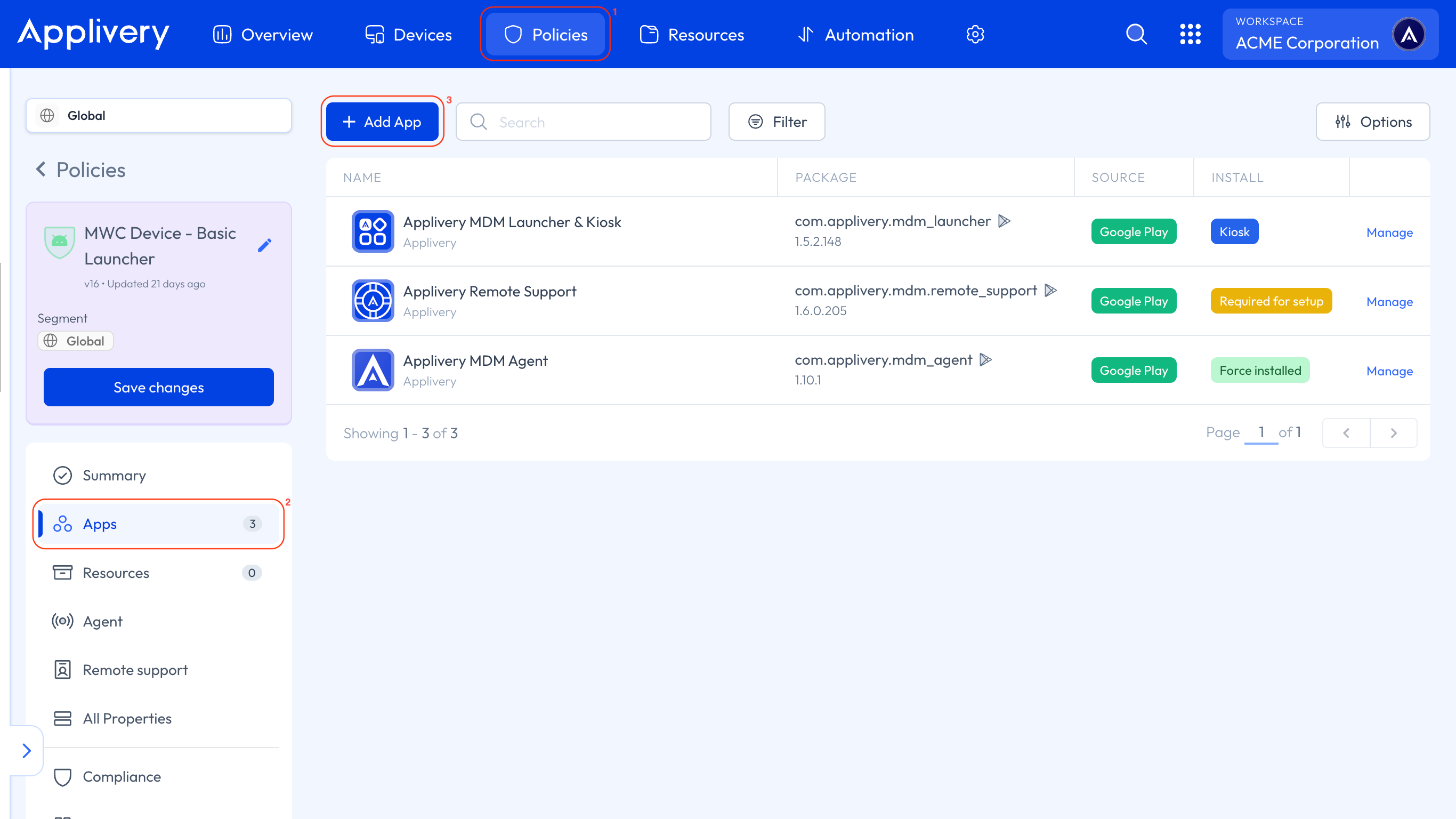
Search for the BOS™ OEMConfig App and select the one from Bluebird Inc. (package name: com.bluebird.android.oemconfig). Set the Install Type to Force Installed to ensure the App is automatically installed on any Device associated with the Policy.
Once the App appears in the list, click on it to expand all the managed properties and configure them according to your requirements.
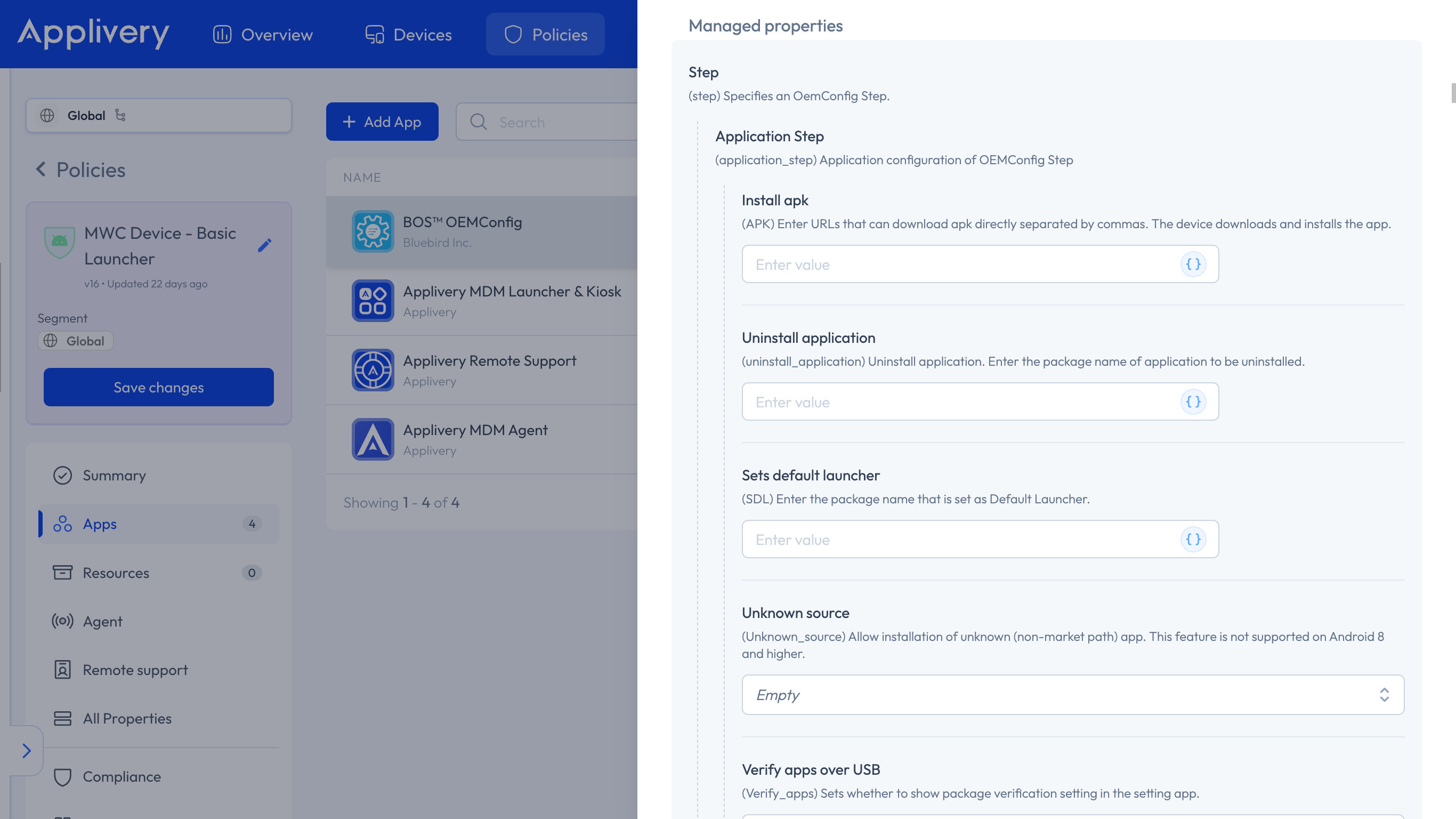
The OEM-specific settings described in this document are defined and maintained by their respective OEM vendors, and may change periodically. Since these configurations are managed externally, the options and values displayed in the Applivery Dashboard may occasionally differ slightly from those shown in this documentation.
| Settings | Description |
|---|---|
| Install APK | Enter the URLs (separated by commas) that allow direct APK downloads. The Device will automatically download and install the Apps from these links. |
| Uninstall Application | Specify the package names of Apps to be removed from the Device. |
| Sets Default Launcher | Specify the package name of the application that should be configured as the default launcher. |
| Unknown Source | Allow app installations from unknown sources by enabling this option. Not supported on Android 8 or later. |
| Verify Apps Over USB | Enable this option to display the Verify Apps over USB setting on the Device. |
| Initialize App Status | Activating this option initializes the App state by enabling all applications that were previously disabled. |
| Disabled App List | Enter a comma-separated list of package names for Apps to be disabled. Disabled Apps will be hidden from the launcher and cannot be used. |
| Enabled App List | Enter a comma-separated list of package names for Apps to be enabled. These Apps will appear in the launcher and will be accessible to users. |
| Disable App Update | Enter a comma-separated list of package names for Apps that should have automatic updates disabled. Apps included in this list will remain on their current version and will not be updated automatically. |
| Settings | Description |
|---|---|
| Add Network | Specify a list of new Wi-Fi SSIDs to add to the Device. |
| Network Name | Enter the SSID or Wi-Fi name. |
| Hidden Network | Enable if the network does not broadcast its SSID. Not supported on Android 8 or lower. |
| Direct Connect | Enable to try to connect to the Wi-Fi network immediately after adding it. |
| Network Security | Define the security type. The available options are NONE, WEP, PSK, EAP, or FT-PSK. |
| Password | Enter the password required to authenticate the network. |
| Proxy | Configure a proxy server. The available options are NONE, STATIC and PAC. |
| IP Settings | Specify IP assignment. The available options are DHCP or STATIC_IP. |
| Host/Uri | Enter the proxy host address. |
| Port | Enter the proxy port number. |
| User ID | Enter the user ID for EAP authentication. |
| EAP | Choose the Extensible Authentication Protocol for the network. The available options are PEAP, TLS, TTLS, PWD, SIM, AKA, LEAP, and FAST. |
| Phase 2 | Select the Phase 2 authentication method. The available options are NONE, PAP, MSCHAP, MSCHAPV2, and GTC. |
| Static IP Address | Enter the static IP address for the network. |
| Static IP Gateway | Enter the network's gateway IP address. |
| DNS List | Enter DNS1 and DNS2 addresses as a comma-separated list. |
| Privacy (Randomized MAC) | Enable to connect using a randomized MAC address. Not supported on Android 9 or lower. |
| R SSID | Specify the Wi-Fi SSIDs to remove from the Device. |
| R SSID Security | Select the security type of the Wi-Fi network to be removed. The available options are NONE, WEP, PSK, EAP, and FT-PSK. |
| Network Notification | Enable this option to show notifications whenever a public Wi-Fi network is available. |
| WLAN Country Code | Choose the country code for the Wi-Fi network. |
| Frequency Band | Choose the frequency band that the Device should use for the Wi-Fi network. |
| Wi-Fi Auto Wakeup | Enable this option to allow the Device to automatically turn on Wi-Fi whenever it detects a saved network with strong signal quality. |
| Wi-Fi Icon Visible | Show the Wi-Fi icon even when disconnected. Not supported on Android 8 or lower. |
| Wi-Fi Operation Mode | Set the Wi-Fi operation mode. Supported only on Android 7 (EF501/EF401). |
| Hide Wi-Fi Settings | Choose whether to hide Wi-Fi settings. The available options are Off (show), and On (hide). |
| All Wi-Fi Privacy | Set global Wi-Fi privacy. The available options are On (use device MAC), and Off (use randomized MAC). |
| Wi-Fi Calling Mode | Select the Wi-Fi calling mode. The available options are UNKNOWN, Wi-Fi ONLY, CELLULAR PREFERRED, Wi-Fi PREFERRED. |
| Settings | Description |
|---|---|
| Alarm Volume | Set the Device's alarm volume. Minimum: 0, Maximum: 7. |
| Media Volume | Set the media playback volume. Minimum: 0, Maximum: 15. |
| Ring Volume | Set the phone's ringtone volume. Minimum: 0, Maximum: 7. |
| Call Volume | Set the in-call voice volume. Minimum: 1, Maximum: 5. |
| Default Notification Sound | Choose whether the default notification sound is enabled. Not supported on Android 7.0 Nougat and above. |
| Dial Pad Tones | Enable or disable sounds while dialing. |
| Screen Locking Sounds | Enable or disable sounds when locking or unlocking the screen. |
| Touch Sounds | Enable or disable sounds when interacting with the touchscreen. |
| Touch Vibration | Enable or disable vibration feedback when touching the screen. |
| Settings | Description |
|---|---|
| Brightness Level | Adjust the screen backlight brightness. Valid range between 0–255. |
| Auto-Rotate Screen | Enable or disable automatic screen rotation. |
| Screen Saver | Choose whether to turn the screen saver on or off. |
| Screen Time Out | Set the duration of inactivity before the screen turns off. The available options are 15 seconds, 30 seconds, 1 minute, 2 minutes, 5 minutes, 10 minutes, or 30 minutes. |
| Dark Theme | Enable or disable Dark Mode — On activates it, while Off turns it off. |
| Desktop Mode | Configure desktop mode settings, including Force activities to be resizable, Enable freeform windows, and Force desktop mode. |
| Update Display Size | Adjust the display scaling. The available options are 204, 240, 246, 254, and 262. |
| Update Font Size | Adjust the text size. The available options are 0.85, 1.00, 1.15, 1.30, 1.50, 1.80, or 2.00. |
| Settings | Description |
|---|---|
| Time Zone | Specify the Device's time zone. |
| Automatic Time Zone | Enable this option to automatically use the network-provided time zone. |
| Automatic Date & Time | Enable to automatically use the network-provided date and time. |
| Use 24-Hour Format | Enable this option to display time in the 24-hour format. |
| NTP Server | Enter the URL of the NTP server to synchronize the Device's time. |
| Set the date of the Device | |
| Year | Set the system year for the Device. |
| Month | Set the system month for the Device. |
| Day | Set the day for the Device based on the specified time zone. |
| Set the time on the Device | |
| Hour | Set the Device time (in hours) according to the specified time zone. |
| Minute | Set the Device time (in minutes) according to the specified time zone. |
| Settings | Description |
|---|---|
| Kiosk State | Select whether to enable or disable kiosk mode on the Device. |
| Kiosk Customer Name | Enter the customer name associated with the kiosk. This field is required. |
| Blocks | Specify the list of system features to be blocked. The available options are Status bar, Recent Apps, and ADB. |
| Clip | Configure the function of the floating clip, such as enabling the flash or barcode feature. |
| Password | Set a numeric password to access the Administrator page. The password must be at least 4 digits. |
| List of app package names to use | Enter the package names of the applications accessible on the Device, separated by commas. |
| Settings Shortcut | Configures which detailed settings shortcuts are accessible in kiosk mode, such as Wi-Fi and Bluetooth. |
| Kiosk Google Search Widget | Enable this option to display the Google Search widget while the Device is in kiosk mode. |
| Settings | Description |
|---|---|
| Disable OTA Update | Enable to completely disable OTA updates. |
| OTA OS Upgrade Start | Set whether to start the OTA OS upgrade. If a higher version is available and updated, the Device will restart, and you will not receive feedback on the update results. |
| OTA Data Type | Enable it to allow OTA file downloads over a mobile data connection. |
| OTA Server URL | Enter the OTA server URL. If left blank, the Device will attempt the OS update using the default URL. |
| OS Update Pop-Up Window | Display a pop-up once updated information is received. |
| Popup Time Settings | If the update is canceled, the pop-up will reappear at the specified time. Default: 08. |
| OS Pop-Up Cancel Allowance (infinite) | Allows unlimited cancellation of the OS update pop-up. |
| OS Pop-Up Cancel Allowance (date) | Set specific dates for OS update popup behavior. Default: 1. |
| Send CSR Info | Enter the server URL for sending CSR information. |
| Advanced OTA | |
| Product Server URL | Enter the product server URL. If left blank, the Device will attempt to retrieve the OTA URL using the default URL. |
| Advanced OTA Server URL | Enter the advanced OTA server URL for warranty information and Web Console access. If left blank, the Device will use the default URL. |
| Agent Download URL | Specifies the URL for the Advanced OTA Agent to update the pre-installed agent. |
| Terminal Group | Define the group a Device belongs to, used for group-based updates. |
| User ID | Enter the credential user ID for Web Console access. |
| Password | Enter the password for Web Console access. |
| Settings | Description |
|---|---|
| Battery Percentage | Enable to show the battery percentage in the status bar. |
| Active Low Battery Health Notification | Enable or disable Low Battery Health notifications in the Battery Manager App (v3.3.1 or later). |
| Low Battery Health(%) Threshold | Set the battery health percentage at which the Low Battery Health notification triggers. Values differ by device model—typically between 60% and 80%. |
| Active High Battery Cycle Notification | Enable or disable High Battery Cycle notifications in the Battery Manager App (v3.3.1 or later). |
| High Battery Cycle Threshold | Set the battery cycle count at which the High Battery Cycle notification triggers. Values vary by model, usually between 400 and 600 cycles. |
| Active High Battery Temperature Notification | Enable or disable High Battery Temperature notifications in the Battery Manager App (v3.3.1 or later). |
| High Battery Temperature Threshold | Set the temperature (°C) at which the High Battery Temperature notification triggers. Values vary by model, typically between 50.0℃ and 59.0℃. |
| Set BatterySaver Mode | Enable or disable Battery Saver mode. On activates the mode, Off deactivates it. |
| Set BatteryMode Mode | Enable or disable “Battery Mode” mode. On activates the mode, Off deactivates it. |
| Settings | Description |
|---|---|
| Bluetooth | Enable or disable Bluetooth connectivity on the Device. |
| NFC | Enable or disable NFC functionality on the Device. |
| Settings | Description |
|---|---|
| Ethernet | Enable or disable Ethernet connectivity on the Device. |
| Data Roaming | Enable or disable data roaming. Not supported on Android 8 or lower. |
| Set Hide APN Password | Choose Off to show or On to hide the APN password. |
| Set Enable Nano Card | Enable or disable the Nano SIM card. (Supported only on EF551, S50, and S70 models.) |
| Disallow Share Wi-Fi QR Code | Prevent users from sharing Wi-Fi credentials via QR code. |
| Set Captive Portal | Configure captive portal settings for the Device's network connection. |
| Specify the APN list to add | |
| APN Name | Enter a name to identify the APN among other networks. |
| APN Domain | Enter the domain name of the APN server. |
| APN Proxy | Enter the domain name or IP address of the proxy server. |
| APN Port | Specify the port number for the proxy server. |
| APN MMS Proxy | Enter the domain name or IP address of the multimedia messaging proxy server. |
| APN MMS Port | Specify the port number for the MMS proxy. |
| APN Server | Enter the URL of the APN server. |
| APN User | Enter the username used for authentication. |
| APN Password | Enter the password associated with the username. |
| APN MMSC | Enter the Multimedia Messaging Service Center URL for the APN. |
| APN MCC | Enter the Mobile Country Code. |
| APN MNC | Enter the Mobile Network Code. |
| APN Type | Enter a comma-separated list of APN types. The available options include DEFAULT, MMS, SUPL, DUN, HIPRI, FOTA, IMS, CBS, IA, and EMERGENCY. Use ***** to allow all specified types. |
| Authentication Type | Choose the authentication method. The available options are NONE, PAP, CHAP, or PAP or CHAP. |
| Bearer | Define a list of bearers: LTE, HSPAP, HSPA, HSUPA, HSDPA, UMTS, EDGE, GPRS, eHRPD, EVDO_B, EVDO_A, EVDO_0, 1xRTT, IS95B, or IS95A. |
| APN Protocol | Select the APN protocol: IPv4, IPv6, or IPv4/IPv6. |
| APN Roaming Protocol | Select the APN protocol for roaming: IPv4, IPv6, or IPv4/IPv6. |
| APN MVNO Type | Choose the type of Mobile Virtual Network Operator: SPN (Service Provider Name), IMSI (International Mobile Subscriber Identity), GID (Group Identifier), or ICCID (Integrated Circuit Card Identifier). |
| APN MVNO Data | Enter the corresponding MVNO data. |
| APN Preference | Enable this to set the configured APN as the default. |
| Remove the specified APNs. This feature is supported on Devices with BOS Provisioning App version 4.12.2 or later. | |
| Remove Multiple APNs (Using APN Display Name as Input) | Enter the APN display names separated by commas. |
| Remove Multiple APNs (Using APN Domain Name as Input) | Enter the APN domain names separated by commas. |
| Private DNS: By default, Devices automatically upgrade to DNS over TLS if the network's DNS server supports it. Users who prefer not to use DNS over TLS can disable it. This feature is not supported on Android 8 or lower. | |
| Private DNS Mode | Select the private DNS mode. The available options are Off, Automatic, or Private DNS provider hostname. |
| DNS Provider Hostname | Enter the hostname of the DNS provider. |
| Ethernet Static IP | |
| IP Address | Enter the static IP address. |
| Network Prefix Length | Enter the prefix length. |
| Gateway | Enter the gateway address. |
| DNS1 | Enter the primary DNS unless overridden by Private DNS. |
| DNS2 | Enter the secondary DNS unless overridden by Private DNS. |
| Ethernet Network Configuration | |
| Ethernet State | Enter the state. |
| Connection Type | Choose between DHCP or Static IP. |
| Static IP Configuration for Ethernet Network | |
| IP Address | Enter the static IP address. |
| Network Prefix Length | Enter the prefix length. |
| Gateway | Enter the gateway address. |
| DNS1 | Enter the primary DNS unless overridden by Private DNS. |
| DNS2 | Enter the secondary DNS unless overridden by Private DNS. |
| Advanced Ethernet Options | |
| Proxy | Choose between None, Manual, or Proxy Auto-Config. |
| Proxy Hostname | Enter the hostname. |
| Proxy Port | Enter the proxy port (for Proxy type: Manual). |
| Bypass Proxy for | Enter the bypass proxy port (for Proxy type: Manual). |
| PAC URL | Enter the PAC URL (for Proxy type: Auto-Config). |
| Set Ethernet Config | |
| Ethernet Config Type | Choose between Normal config or Enterprise config. |
| EAP Method | Choose between PEAP, TTLS, or TLS. |
| Phase 2 Authentication | Choose between None, PAP, MSCHAP, MSCHAPV2, or GTS. |
| Identity | Enter the identity. |
| Anonymous identity | Enter the anonymous identity. |
| Password | Enter the password. |
| CA Certificate Name | Enter the CA certificate name. |
| User Certificate Name | Enter the user certificate name. |
| Set Network PLMN | |
| Install PLMN Net ID | Enter the “Public Land Mobile Network” network identifier to be installed. |
| Install PLMN Net Priority | Set the priority level for the specified PLMN network. |
| Install PLMN Net Mode | Specify the network mode for the selected PLMN configuration. The available options are GMS, WCDMA, LTE, NR, or Quadruple mode. |
| Settings | Description |
|---|---|
| Default IME | Enter the package name of the App to be used as the default Input Method Editor. |
| Language | Specify the system language to be used on the Device. |
| Spell Checker | Enable this option to turn on the spell checker. |
| Pointer Speed | Adjust the pointer speed on the Device. You can set any value between –7 and 7. |
| Disable Autofill Service | Enable this option to disable the Device's autofill service. |
| Settings | Description |
|---|---|
| Lock Screen Notification | Specify whether notifications should be displayed when the Device is on the lock screen. |
| Settings | Description |
|---|---|
| Location Mode | Sets the Device's location mode. Options like DeviceOnly, BatterySaving, and HighAccuracy no longer have distinct meanings on Android 8 and higher. On these versions, all are simply interpreted as location services being enabled. |
| Settings | Description |
|---|---|
| Touch Type | Set the Device's touch type. Note that the available touch types may vary depending on the Device model, so please verify which values are supported for your specific model. The available options are Normal, Glove, Pen, and Finger, along with their corresponding variants. |
| Settings | Description |
|---|---|
| Select Key Format | Define the format of the side key. The available options are SCAN/SCAN, SCAN/PTT, PTT/SCAN, and PTT/PTT. |
| DataWedge Mode | Configure the Barcode DataWedge mode. |
| Floating Clip | Specify whether the floating clip feature is enabled. |
| Set PTT/Scan Left Key | Configure the left PTT/Scan key behavior. The available options are DISABLE, SCAN, PTT. |
| Set PTT/Scan Right Key | Configure the right PTT/Scan key behavior. The available options are DISABLE, SCAN, PTT. |
| Set Volume Key as Scan Key | Specify whether the volume key should function as a scan key. |
| Settings | Description |
|---|---|
| Logger State | Choose whether to start or stop the logger. |
| Main Log | Enable this option to include main system logs. |
| Kernel Log | Enable this option to include kernel logs. |
| Radio Log | Enable this option to include radio logs. |
| Event Log | Enable this option to include event logs. |
| Settings | Description |
|---|---|
| Download File Source URL | Specify the source URL of the file to be downloaded. |
| Download Destination File Path | Specify the destination file path where the downloaded file will be saved. |
| Settings | Description |
|---|---|
| Block Home Key | Enable this option to block the home key. When activated, pressing the home key will have no effect. |
| Block Recent-App Key | Enable this option to block the recent Apps key, which normally shows a card view of the most recently used Apps. |
| Block Power Key | Enable this option to block the power key. When activated, pressing the power key will have no effect. |
| Block Back Key | Enable this option to block the back key. When activated, pressing the back key will have no effect. |
| Block Volume Key | Enable this option to block the volume keys. When activated, pressing the volume keys will have no effect. |
| Block Vibration Mode Setting | Enable this option to prevent the Device from entering vibration mode. When blocked, the vibration mode cannot be activated using the volume up + power key combination. Not supported on Android 8 or lower. |
| Block Status Bar | Specify how the status bar should be blocked. The available options are All, None, Quick Settings. |
| Disable Recovery Mode | Enable this option to disable access to recovery mode. |
| Disable Fastboot Mode | Enable this option to disable access to fastboot mode. |
| Block Add User/Guest | Enable this option to prevent adding new users or guests to the Device. |
| Disable Lock Screen | Enable this option to disable the Device's lock screen. |
| Disallow Transferring Files Over USB | Enable this option to prevent file transfers over USB. |
| Disallow Bluetooth | Enable this option to disable Bluetooth. |
| Disallow Changing Wi-Fi Access Points | Enable this option to prevent the Device from changing Wi-Fi access points. |
| Disallow External Mounted Memory | Enable this option to prevent access to external mounted memory. |
| Disallow Mounting USB OTG | Enable this option to prevent USB OTG mounting. |
| Disallow Settings | Enable this option to block access to the Device settings. |
| Disable Microphone and Audio Recording | Enable this option to block all microphone and audio recording functionality on the Device. |
| Disable Microphone and Audio Recording in the Call | Enable this option to disable the microphone and audio recording during calls when the microphone/audio is blocked. |
| List of Packages Excluded From Disabling Microphone and Audio Recording | Enter a comma-separated list of package names for Apps that are exempt from microphone/audio restrictions. |
| Disable Camera | Enable this option to block the Device camera. |
| List of Packages Excluded From Disabling Camera | Enter a comma-separated list of package names for Apps that are exempt from camera restrictions. |
| Disable Battery Manager Settings | Enable this option to block the Battery Manager App. |
| Disallow Proximity Sensor During Calls | Enable this option to block the proximity sensor during calls. Not supported on Android 8 and lower. |
| Disallow NFC | Enable this option to block NFC. |
| Disallow Airplane Mode | Enable this option to block the Airplane mode. |
| Disallow Add Multi User | Enable or disable the ability to add multiple users. |
| Disallow DND Mode | Enable this option to block the Do Not Disturb mode. |
| Disallow Auto Rotate | Enable or disable automatic screen rotation. |
| Disallow Battery Saver | Enable this option to block battery saver. |
| Disallow Data Roaming | Enable this option to block data roaming. |
| Disallow Mobile Data | Enable this option to block mobile data. |
| Settings | Description |
|---|---|
| Set Device Name | Specify the Device name. |
| Hide Hotseat | Hide the hotseat in the launcher. |
| Configure a list of certificates to be installed | |
| Input File Download URL | Enter the URL to download the certificate file. |
| Input Certificate's Name | Enter the name of the certificate. |
| Input Certificate's MIME Type | Enter the certificate's MIME type. The available options are CA-CERT, PKCS12, or Wi-Fi-CONFIG. |
| Input Certificate's Password | Enter the password of the certificate. |
| Update SLED Firmware | |
| Firmware File URL | Specify the destination file path where the downloaded file will be saved. |
| SLED Type | Specify the Scanner LED type. The available options are RFR900, RFR901, RFR971. |
| Firmware File Version | Enter the firmware version. |
| Start Update time(Hour) | Set the hour to start the firmware update. |
| Start Update time(Minute) | Set the minute to start the firmware update. |
| Settings | Description |
|---|---|
| Barcode Step | Add and configure a list of barcode profiles. |