
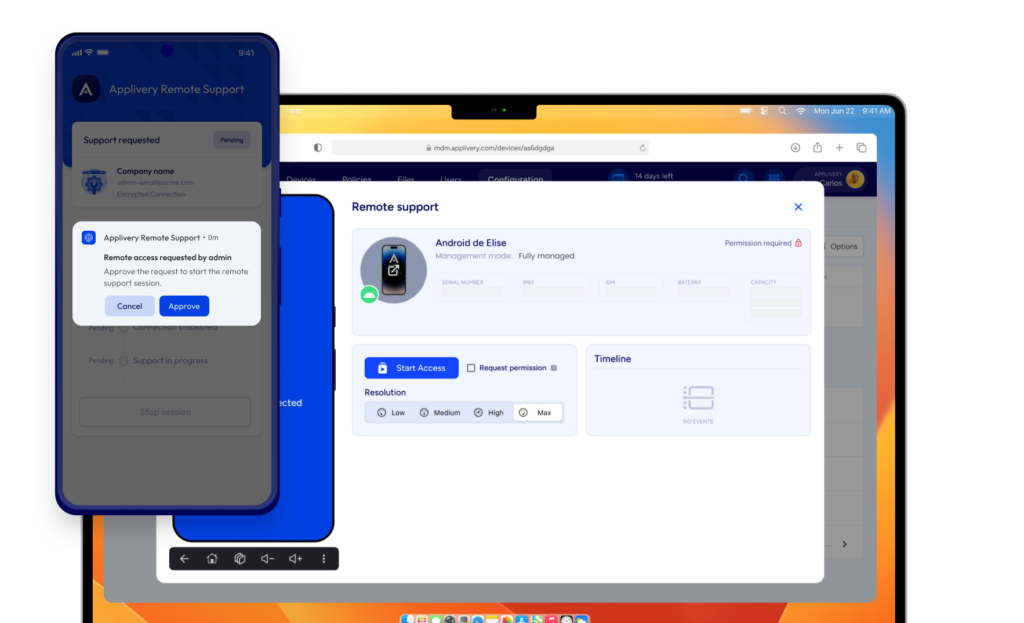
MDM Remote Support, or Mobile Device Management Remote Support (including Remote Control or Remote Access), enables an authorized administrator to remotely access and control Devices such as smartphones, tablets, or desktops. This capability is used to manage and troubleshoot Devices efficiently.
Remote Support allows IT professionals to diagnose and resolve users’ technical issues from a remote location. It serves as a critical tool for IT managers, facilitating prompt issue resolution without requiring physical presence. This approach not only improves support efficiency but also enhances user satisfaction and productivity.
With the Applivery Remote Support App, you can assist users by viewing or controlling their Android Devices directly. Support sessions can be initiated instantly from Applivery, allowing you to act as an agent and provide seamless remote assistance to Device users.
Enabling Remote Support at the Policy level
Applivery Device Management Android Remote Support is enabled at the Policy level. Go to any of your Policies (1) and select the Remote support section (2) from the left side menu.
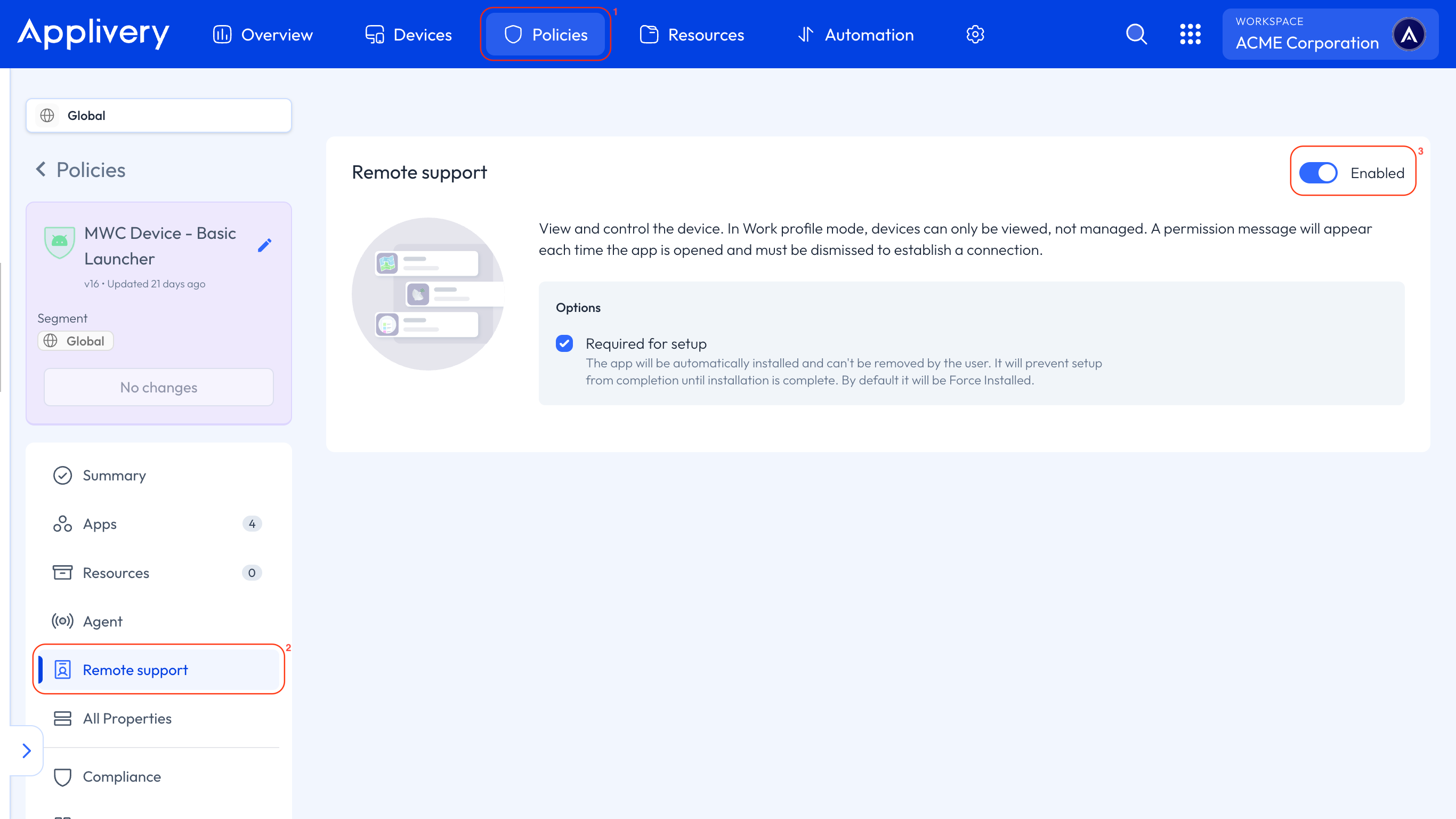
To enable the Remote Support App, click the Enable button located at the top right (3).
Last, decide whether you want the App to be installed in the Required for Setup mode. This way is the most common for new Devices, and the App will be installed during the enrollment process to ensure it’s installed before the system starts up.
If you don’t select this option, the application will be installed in force-installed mode, which is the most common scenario. In this case, the Remote Support app will be automatically installed on Devices and cannot be removed.
Don’t forget to click the Save changes button before leaving the page to deploy all your changes.
Starting a new session
There are two ways to request remote assistance: by user or by admin.
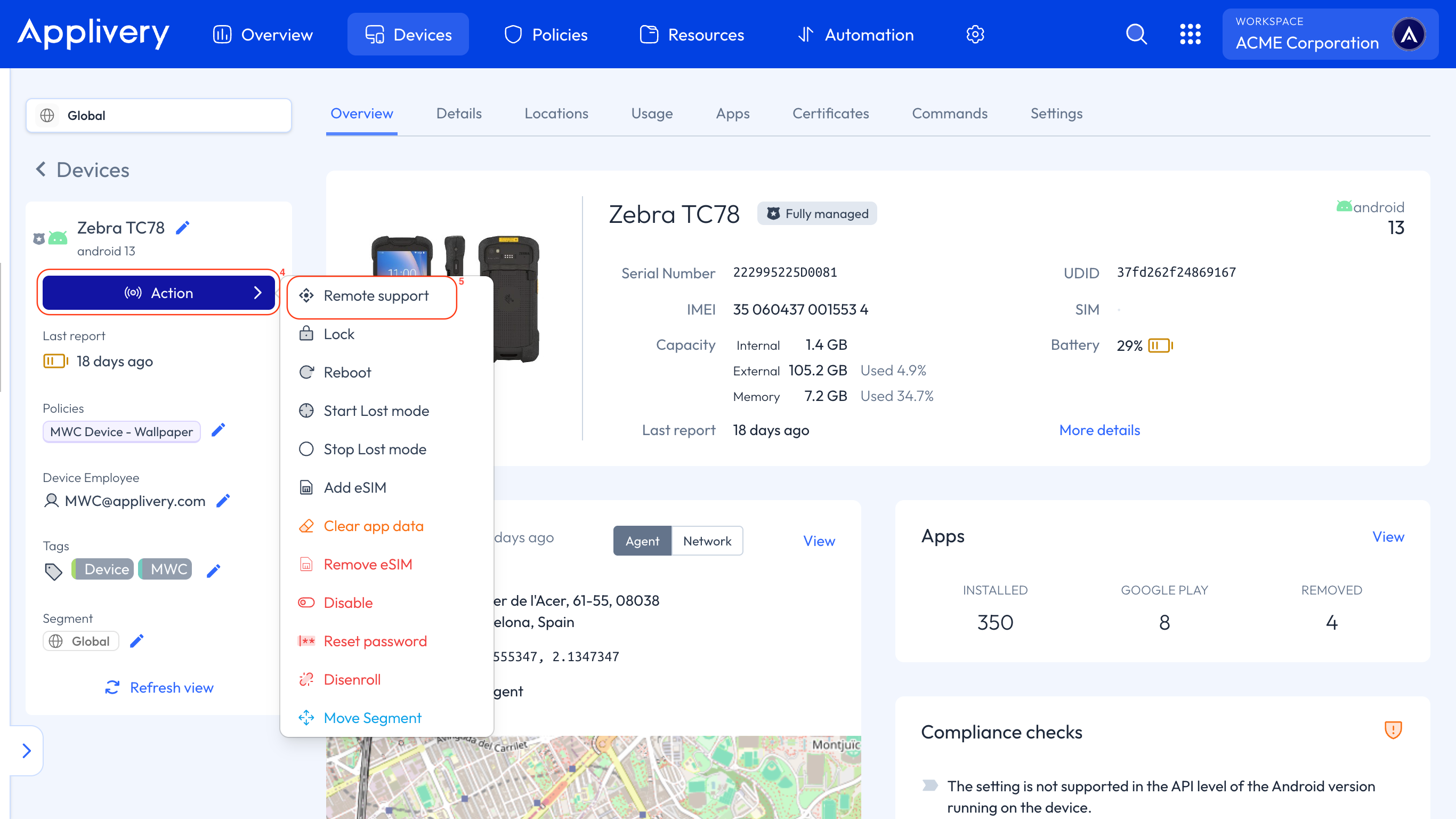
If you’re the admin, navigate to any of your Android Devices to start a session. On the Device side, click the Action button (4), then select Remote Support (5).
There are two operation modes:
Request permission: The user must accept the request to start the session.
Unattended: Start the session without user interaction.
For unattended mode, please ensure that the Remote Support App has been opened at least once, all necessary permissions have been granted, and the screen has been properly calibrated.
Watch how to do it!
For unattended mode, carefully follow the on-screen instructions. Calibration requires identifying the location of the "Start Now" button. To achieve this, take a screenshot when the dialog box appears.
You do not have to press the “Start Now” button.