
This is a premium feature that may not be available on your current plan. Check availability on the Applivery pricing page.
The Lightweight Directory Access Protocol (LDAP) is an open, vendor-neutral application protocol for accessing and managing distributed directory information — most commonly corporate user directories such as Active Directory or OpenLDAP. Integrating Applivery with your LDAP server allows employees to authenticate against your existing directory using their corporate credentials, without needing a separate Applivery account.
LDAP authentication applies to both Applivery modules:
App Distribution — employees authenticate against your LDAP directory when accessing private App Stores. Access can be restricted by LDAP groups to control which users see which Apps.
Device Management — end users of managed Devices authenticate against your LDAP directory when the MDM portal requires identity verification, for example, during device enrollment flows that require user authentication.
Applivery supports LDAP both with and without SSL (ldap:// and ldaps://).
How LDAP authentication works
The authentication flow is the same regardless of which module the user is accessing:
The user reaches an Applivery login prompt — either an App Store domain/subdomain (App Distribution) or the MDM portal (Device Management).
They enter their corporate username and password.
Applivery sends the credentials to your LDAP server for validation.
If authentication succeeds and the user has the required permissions, they are granted access and see only the resources they are authorized for.
No Applivery account creation is required for end users — their existing directory credentials are the only login needed.
App Distribution
Users accessing a private App Store are shown only the Publications they are authorized for, based on their LDAP group membership. This is the primary use case for controlling which employees can download which app Builds.
Device Management
Users authenticating through the MDM portal — for example, during enrollment flows or when accessing the employee-facing portal — are validated against your LDAP directory. This allows IT teams to enforce corporate identity verification as part of the Device onboarding process, without requiring a separate Applivery identity for each user.
Prerequisites
Before configuring the integration in Applivery, make sure you have the following information from your LDAP administrator:
The LDAP server address, protocol (
ldap://orldaps://), and port (typically389for LDAP,636for LDAPS).A Bind DN — the distinguished name of a service account with read access to your directory.
The Bind DN password for that service account.
The Search base — the distinguished name of the directory node from which Applivery should search for users (e.g.,
ou=people,dc=example,dc=com).The Search filter — the LDAP attribute that contains the user's login name (e.g.,
uid,sAMAccountName).The Email field — the LDAP attribute that contains the user's email address (e.g.,
mail).
Authorize Applivery's IP address
If your LDAP server uses IP allowlisting, you must add the following Applivery IP address to your firewall or LDAP server access rules before users can authenticate:
34.175.89.200
Configuration
Once in the Applivery Dashboard, go to your Workspace Settings from the top dropdown menu. Then, in the left-hand menu, open Login Providers and select the LDAP option under either the Enterprise Store section or the MDM Portal section.
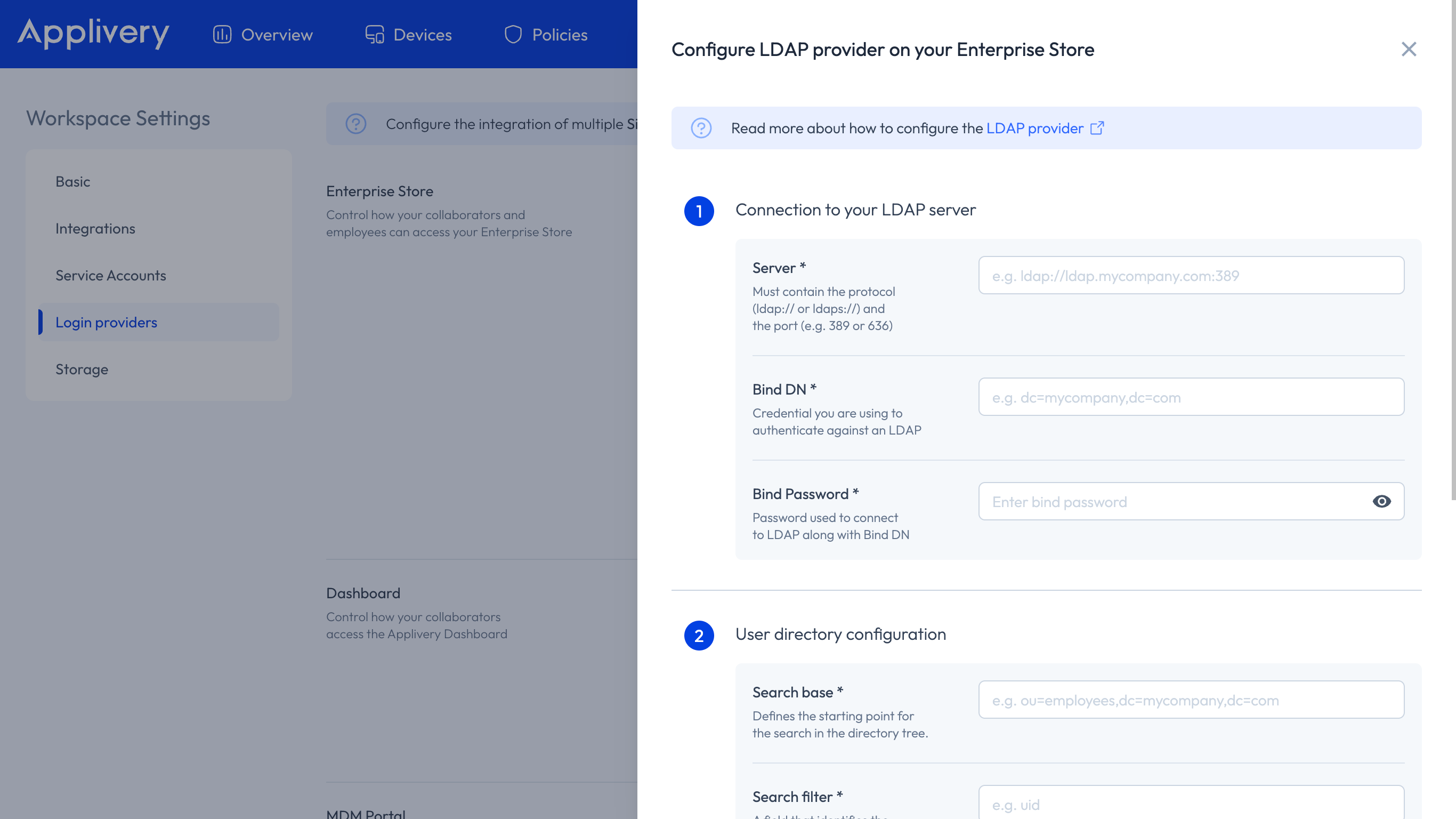
These fields control how Applivery connects to and authenticates against your LDAP server:
| Field | Description | Example |
|---|---|---|
| Server | The LDAP server URL, including protocol and port. | ldaps://ldap.example.com:636 |
| Bind DN | Distinguished name of the service account used to connect to the directory. | cn=applivery-svc,ou=services,dc=example,dc=com |
| Bind password | Password for the Bind DN service account. | — |
The Bind DN account only needs read access to the directory. Do not use an account with write permissions.
These fields control how Applivery searches for users within your LDAP directory:
| Field | Description | Example |
|---|---|---|
| Search base | The distinguished name of the directory node where user searches begin. | ou=people,dc=example,dc=com |
| Search filter | The LDAP attribute used as the login identifier. | uid (OpenLDAP) or sAMAccountName (Active Directory) |
| Email field | The LDAP attribute containing the user's email address. | mail |
Click Save to activate the LDAP integration.
User Group synchronization
Applivery automatically imports your LDAP Organizational Units (OUs) as User Groups. These groups are available across both App Distribution and Device Management for access control purposes.
How it works
Groups are synchronized every time a user logs in — there is no background sync between logins.
Imported LDAP groups are prefixed with
ldap:to distinguish them from groups created manually in Applivery (e.g.ldap:engineering,ldap:qa-team).All LDAP groups for a user are fully replaced on each login. If you add or remove a user from a group in your LDAP directory, the change will be reflected in Applivery the next time that user logs in.
Using LDAP groups in App Distribution
LDAP groups can be used as distribution group filters on private Publications, restricting access to specific App Builds to specific teams or departments — with no manual user management needed in Applivery.
To learn more about private Publications and distribution group filters, see How to Distribute Your Apps.
Using LDAP groups in Device Management
LDAP groups can also be referenced in Device Management to segment Device Audiences and apply different Policies or configurations to different User Groups. For example, you can apply stricter Policies to one organizational unit and a more permissive configuration to another, all driven by the groups imported from your existing directory.