Keeping your Apple Devices up to date is crucial for security, performance, and access to the latest features. With Applivery, you can take control of how and when updates are delivered to your organization’s iPhones, iPads, and Macs, ensuring that updates don’t disrupt workflows and that Devices remain compliant with your Policies.
Whether you want to automate updates, delay them for compatibility testing, or enforce a minimum OS version across your fleet, Applivery gives you the flexibility and control you need.
Understanding Apple update types & modes
Apple provides multiple update mechanisms to ensure its Devices—across iOS, iPadOS, and macOS—remain secure, performant, and feature-rich. The way updates are managed can vary depending on the platform, and some update modes are exclusive to macOS.
When planning your update strategy, it’s essential to distinguish between how updates are delivered (update modes) and what kind of updates are being applied (update types).
Update types
Apple software updates can be categorized into three main types:
Major OS updates: Released annually, these updates bring new features, significant interface changes, and broad system improvements. Examples include iOS 17 or macOS Sonoma.
Minor OS updates: These are released more frequently and focus on incremental refinements, such as performance improvements, bug fixes, and smaller usability enhancements.
Background security & Configuration updates: These updates are designed to enhance system security without requiring full OS upgrades. They include:
XProtectPlistConfigData: Malware definition updates for Apple’s built-in antivirus.
MRTConfigData: Updates for the Malware Removal Tool.
XProtectPayloads: Enhancements to threat detection payloads used by XProtect.
Common update modes across all Apple Devices
Apple provides several modes of updates that apply across iOS, iPadOS, and macOS Devices. These can be managed in two main ways: through policy configurations or by sending update commands directly to the Devices.
Policy-level updates
These configurations allow administrators to define how and when updates are applied:
Security updates: Critical patches released independently to address vulnerabilities.
Rapid Security Responses (RSR): Urgent security fixes that are delivered quickly and, in some cases, without needing a reboot.
In addition, you can configure advanced update behaviors like Force Delayed Software Updates and Enforced Software Update Delay, offering even more control over when and how updates are made available to end users.
Once in the Applivery Dashboard, go to any of your Policies (1). From the left-hand menu, click on + Add configuration, and choose Restrictions (2).
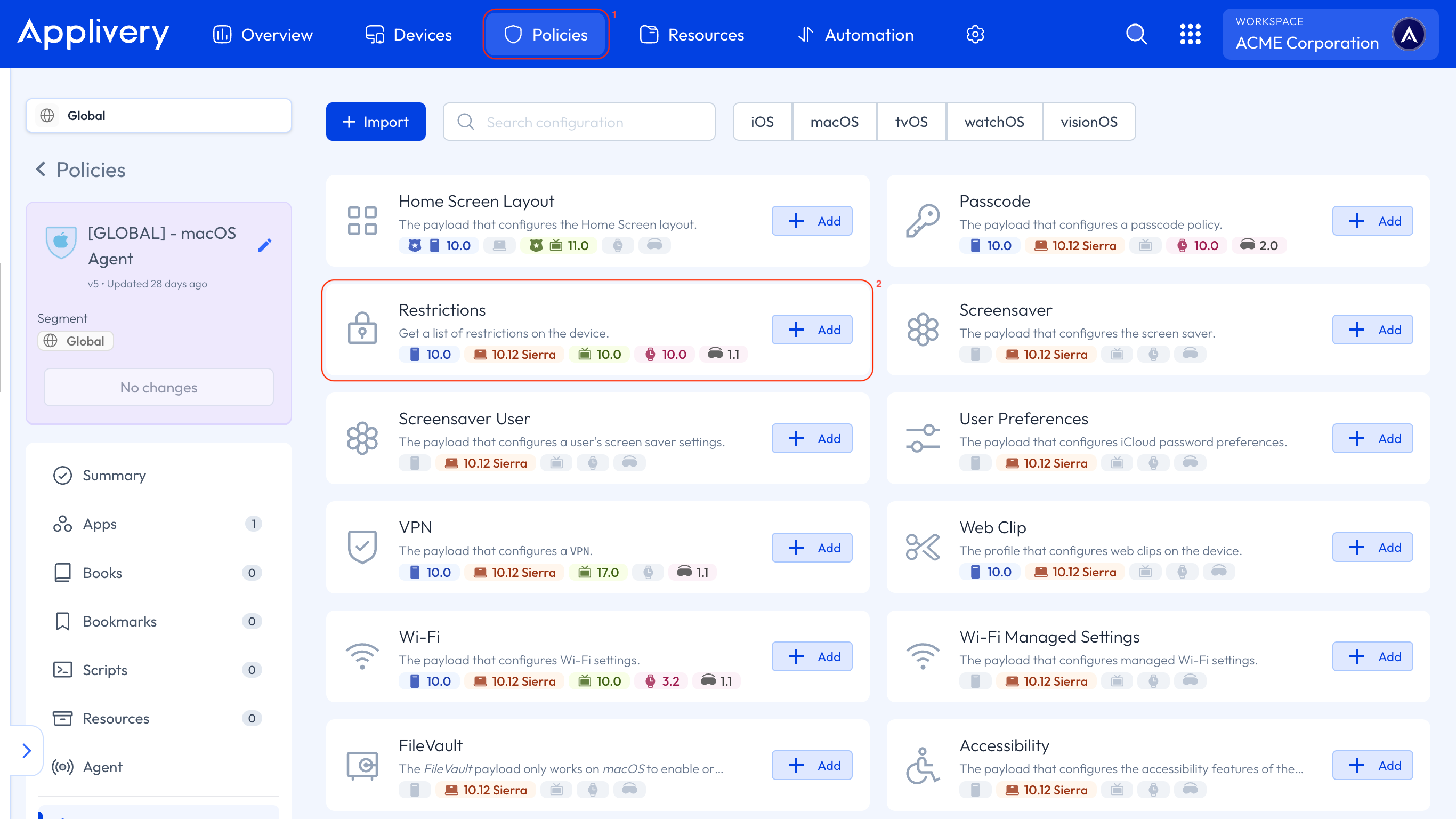
Once added, navigate to the Updates tab to configure the required settings within your Policy.
Additionally, under the General tab within Restrictions, you’ll find options to define how OS updates are deferred:
Enforced Software Update Major OS Deferred Install Delay: Set a delay (in days) before major OS updates can be installed.
Force Delayed Major Software Updates: Enforce the use of the delay for major OS updates.
Enforced Software Update Minor OS Deferred Install Delay: Set a delay (in days) before minor OS updates can be installed.
Command-based updates
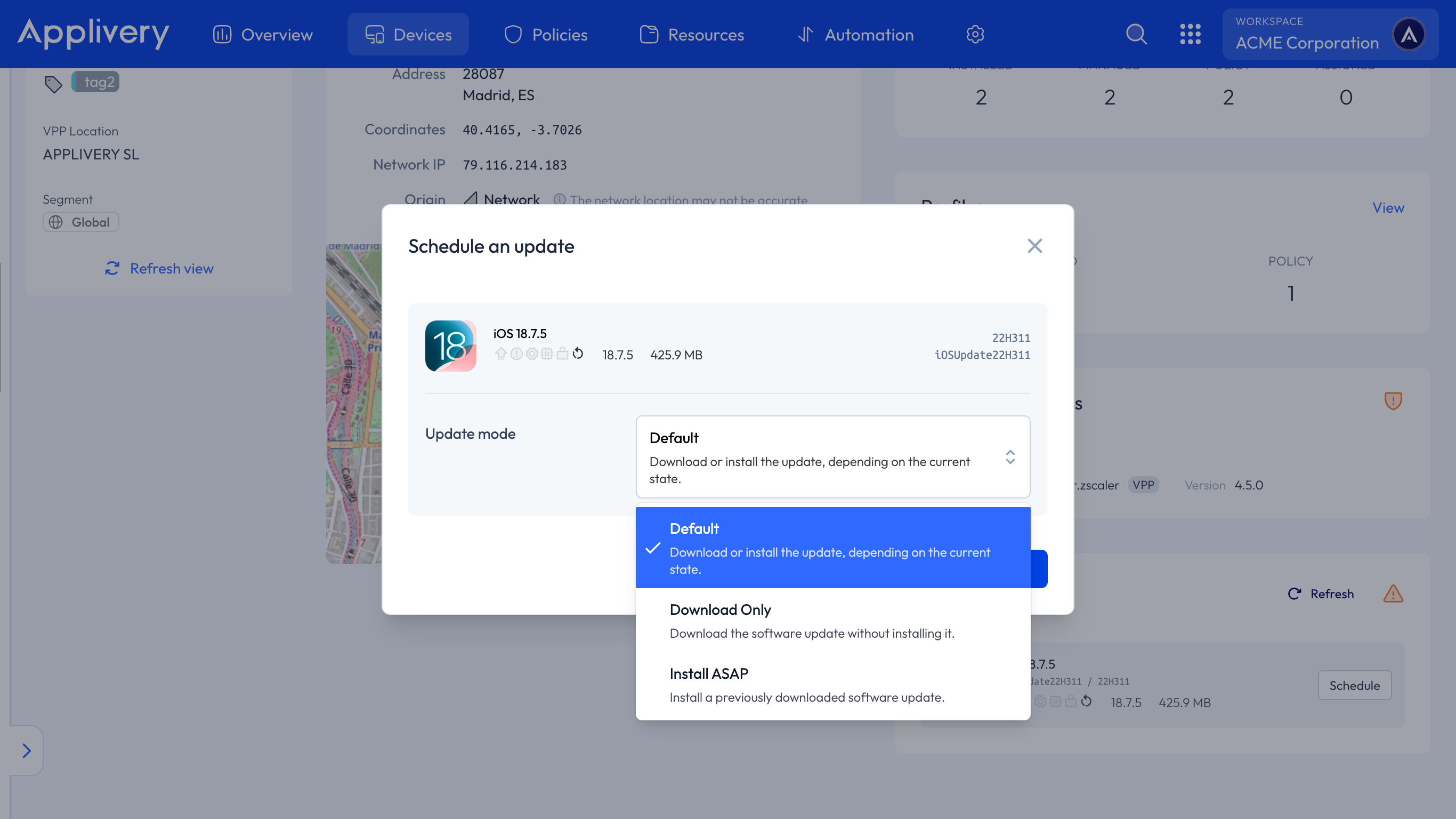
Applivery also allows sending update commands to Apple Devices, giving IT teams more immediate control. The software update command modes are:
Default: Automatically downloads or installs the available update based on the Device’s current state and system preferences.
Download Only: Downloads the update package without initiating installation. Useful for preparing Devices in advance.
Install ASAP: Installs a previously downloaded update as soon as possible, even overriding user deferral settings.
macOS-specific update modes
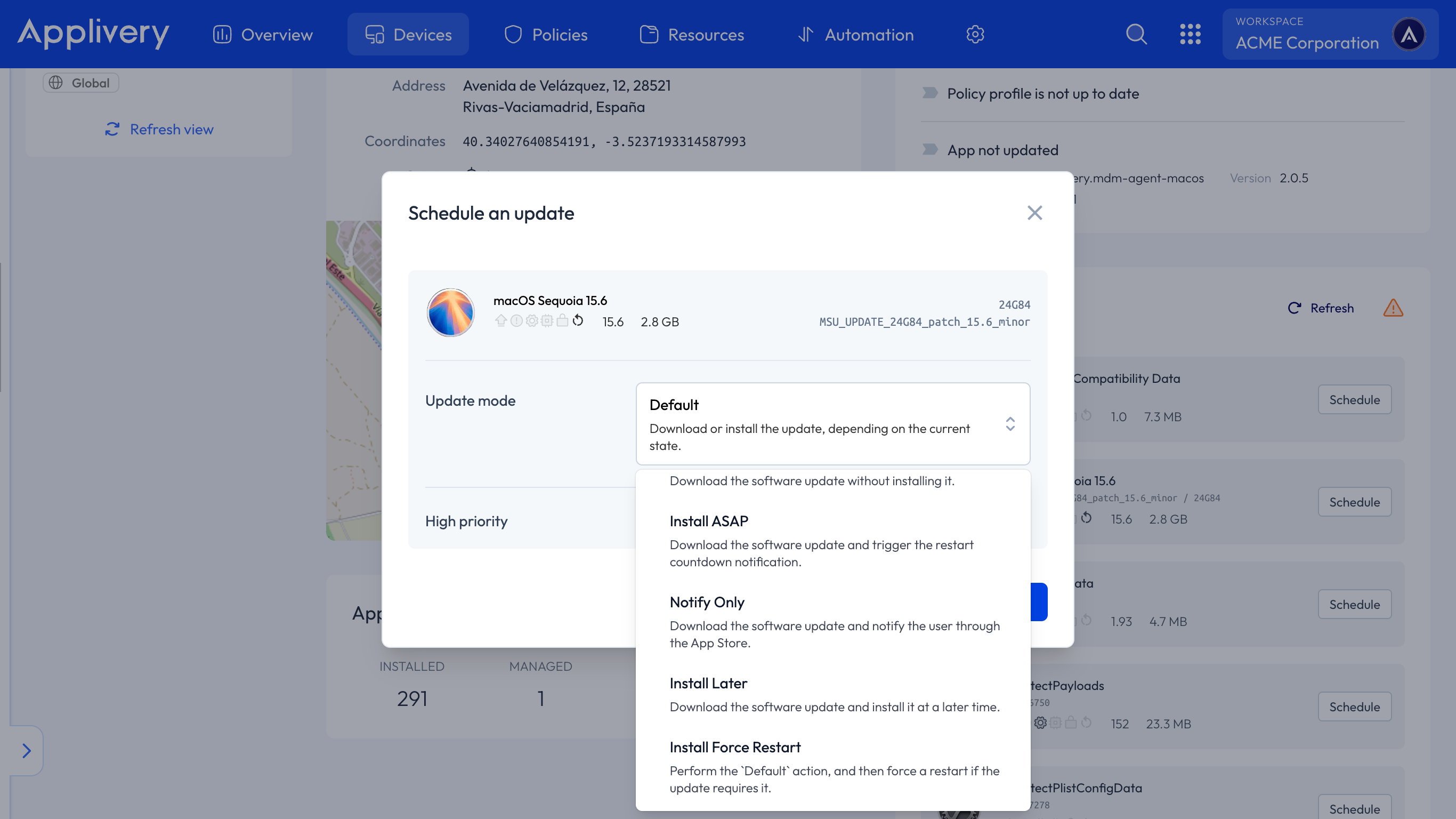
In addition to the common update modes, macOS supports a few software command update modes that are unique to the desktop environment:
Notify Only: Downloads the software update in the background and notifies the user via the App Store. The user can then choose when to install it.
Install Later: Downloads the update and schedules the installation for a later time, typically during an idle period or outside of working hours.
Install with Force Restart: Performs the default update action (download and install), and then forces a system restart if required to complete the update. This ensures the update is applied without waiting for user intervention.
Scheduling software updates
With Applivery, you can schedule all types of operating system updates — whether they are major, minor, or background and configuration — and apply them either individually to specific Devices or in bulk across your entire fleet.
Schedule an update individually
To schedule a software update for a specific Device, head over to the Applivery Dashboard and navigate to any of your Devices.
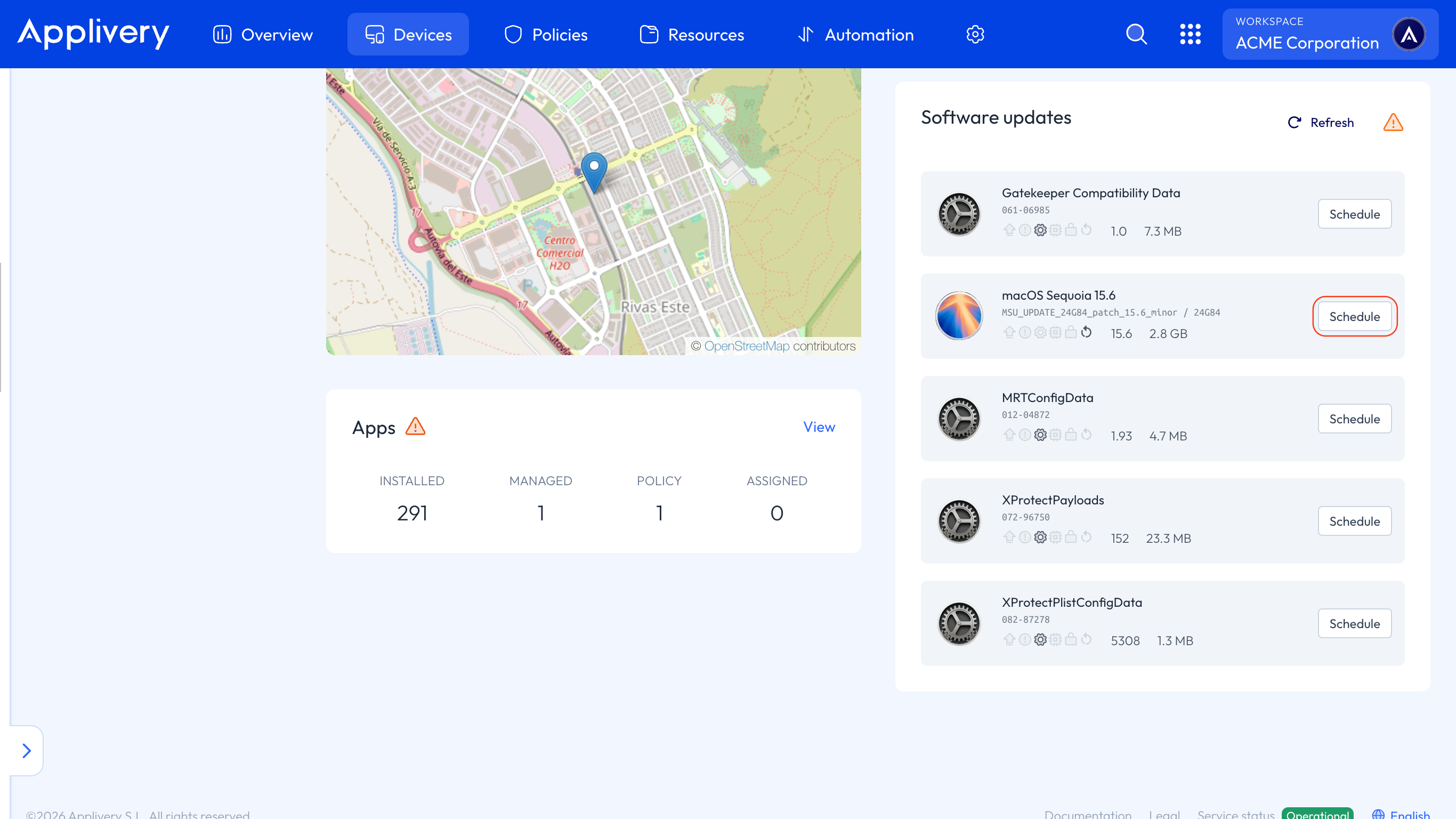
On the Overview tab, located in the bottom-right corner, you’ll find all relevant information about software updates. If the Device has a pending update, it will be displayed here.
Simply click the Schedule button next to the available update. A modal will appear where you can configure the update details—such as the installation type and, for macOS Devices, the priority level—before confirming the schedule.
Schedule updates in bulk
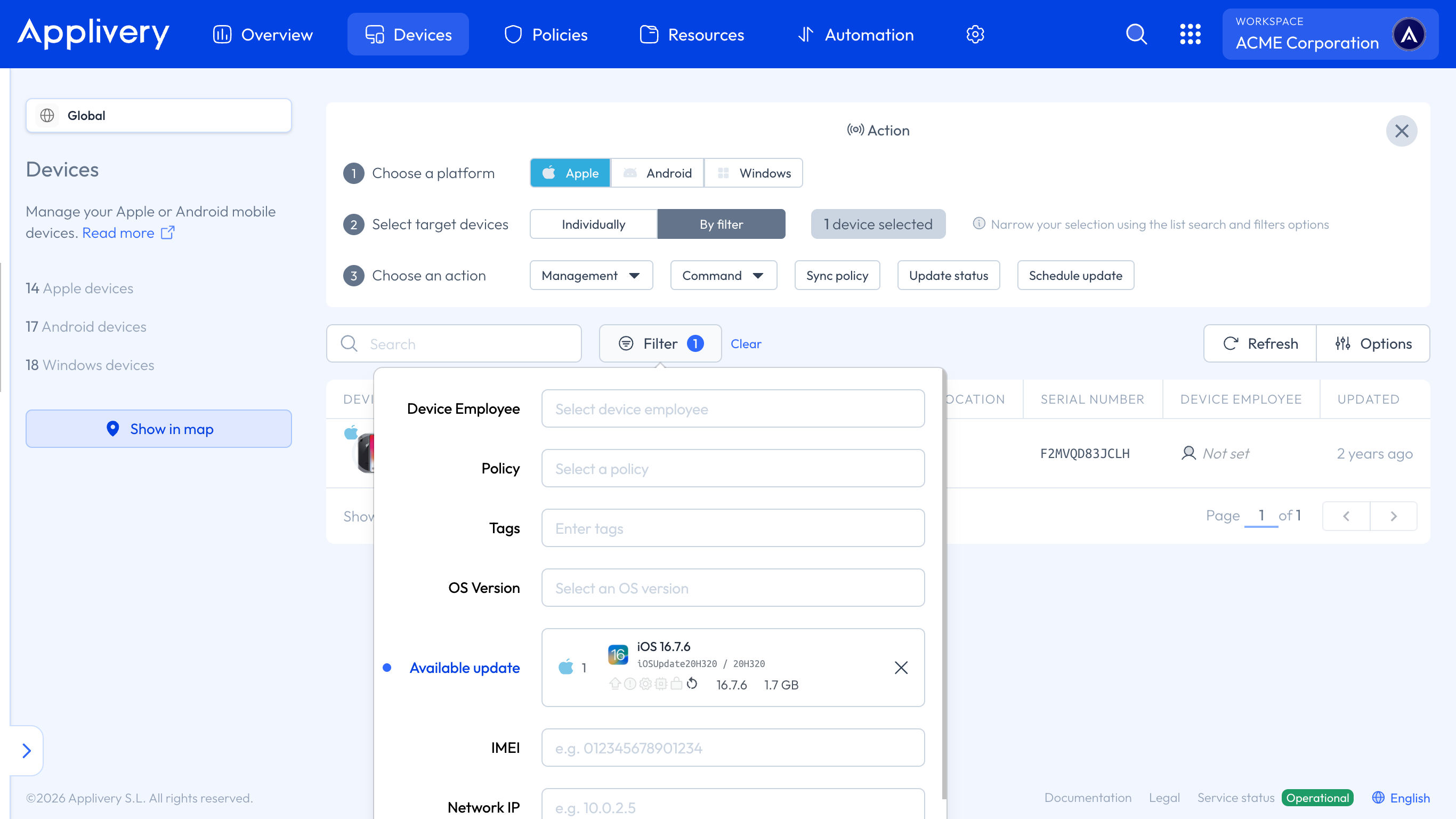
To schedule updates for multiple Devices at once, start by going to the Devices section. Use the Action button to open the bulk action menu.
From there, select the Apple platform, choose your target Devices, filter the list by Available updates, and click Schedule update to define the update settings—just like you would for an individual device.