
Kiosk Mode is one of the most commonly used features for deploying dedicated Android Devices. It allows IT administrators to lock down a Device to a single application or a curated set of Apps, preventing users from accessing anything outside of what the organization has defined — no home screen, no App drawer, no system navigation unless explicitly allowed.
Applivery provides three distinct kiosk modes for Android, each designed for different use cases and levels of customization.
Kiosk mode is only available on Fully Managed Devices. See Android management options for more information on enrollment types.
Available Kiosk Modes
| Mode | Apps allowed | Description |
|---|---|---|
| Single App | One App | Locks the Device entirely to a single application. The most restrictive mode. |
| Basic Launcher | Multiple Apps | Multi-app kiosk using Android's native Device Policy Controller. |
| Advanced Launcher | Multiple Apps | Multi-app kiosk with Applivery's custom launcher, offering extended visual and functional configuration. |
Single App kiosk mode
Single App kiosk mode locks the Device to one specific application. Users cannot exit the App, access the home screen, or reach any other part of the Device unless the administrator explicitly allows it. This is the go-to mode for point-of-sale terminals, self-service kiosks, digital signage, data collection Devices, and any other single-purpose deployment.
Single App kiosk mode is configured at the Policy level in Applivery.
Go to any of your Policies (1) or create a new one. From the left-hand menu, click Kiosk, and select the Single App (2) option.
Choose the App to lock the Device from the dropdown (3). If no Apps are listed, go to the Apps section of the Policy and add at least one Force-Installed App first.
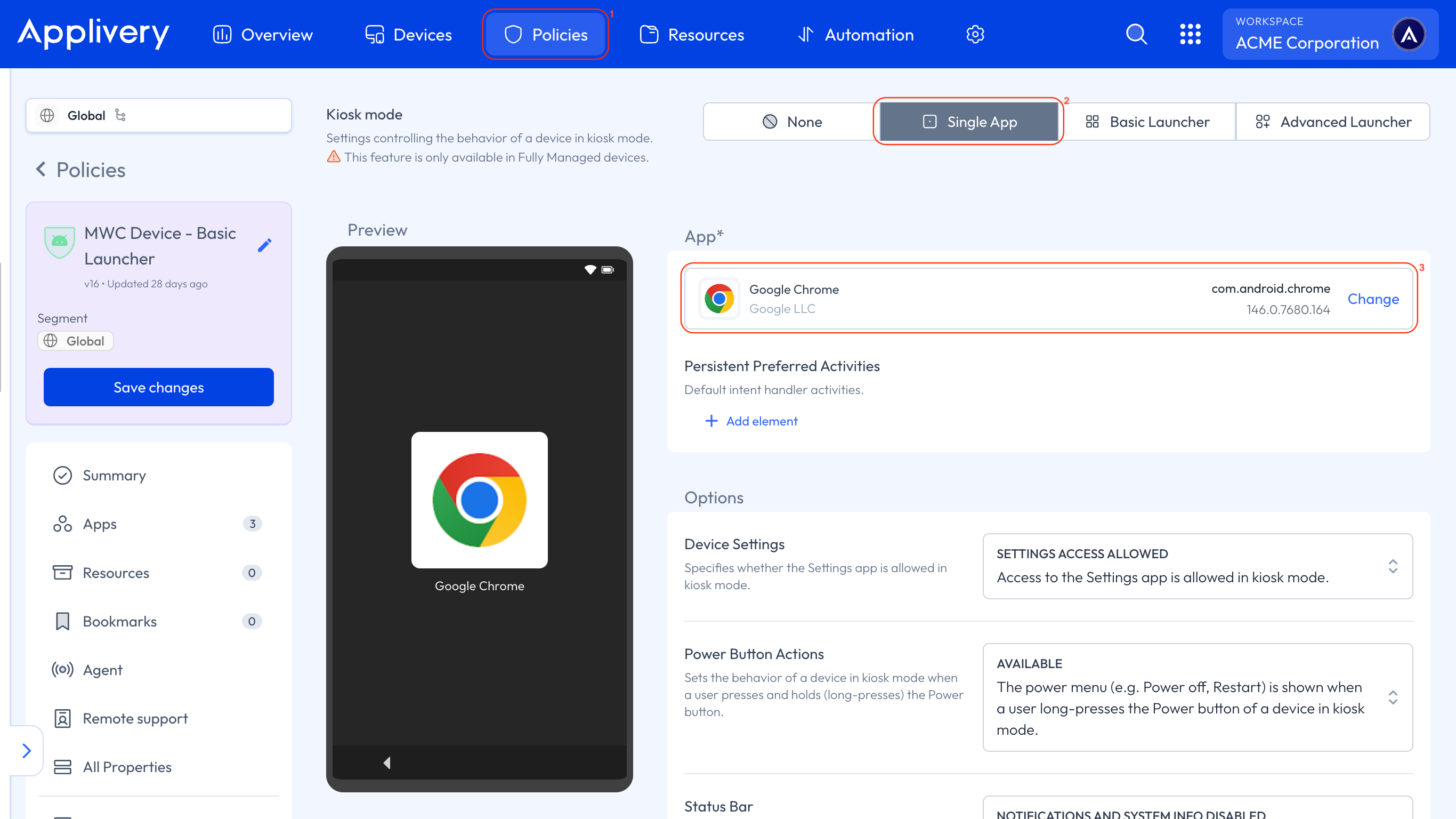
Configure the lockdown behavior options (described below).
| Option | Description |
|---|---|
| Device Settings | Whether the Settings app is accessible while in kiosk mode. |
| Power button actions | Controls the behavior when the user long-presses the Power button. |
| Status bar | Specifies whether system info and notifications are disabled in kiosk mode. |
| System error warnings | Whether system error dialogs for crashed or unresponsive Apps are blocked. When blocked, the system force-stops the App as if the user selected "Close app". |
| System navigation | Specifies which navigation features are enabled (e.g., Home button, Overview/Recents button). |
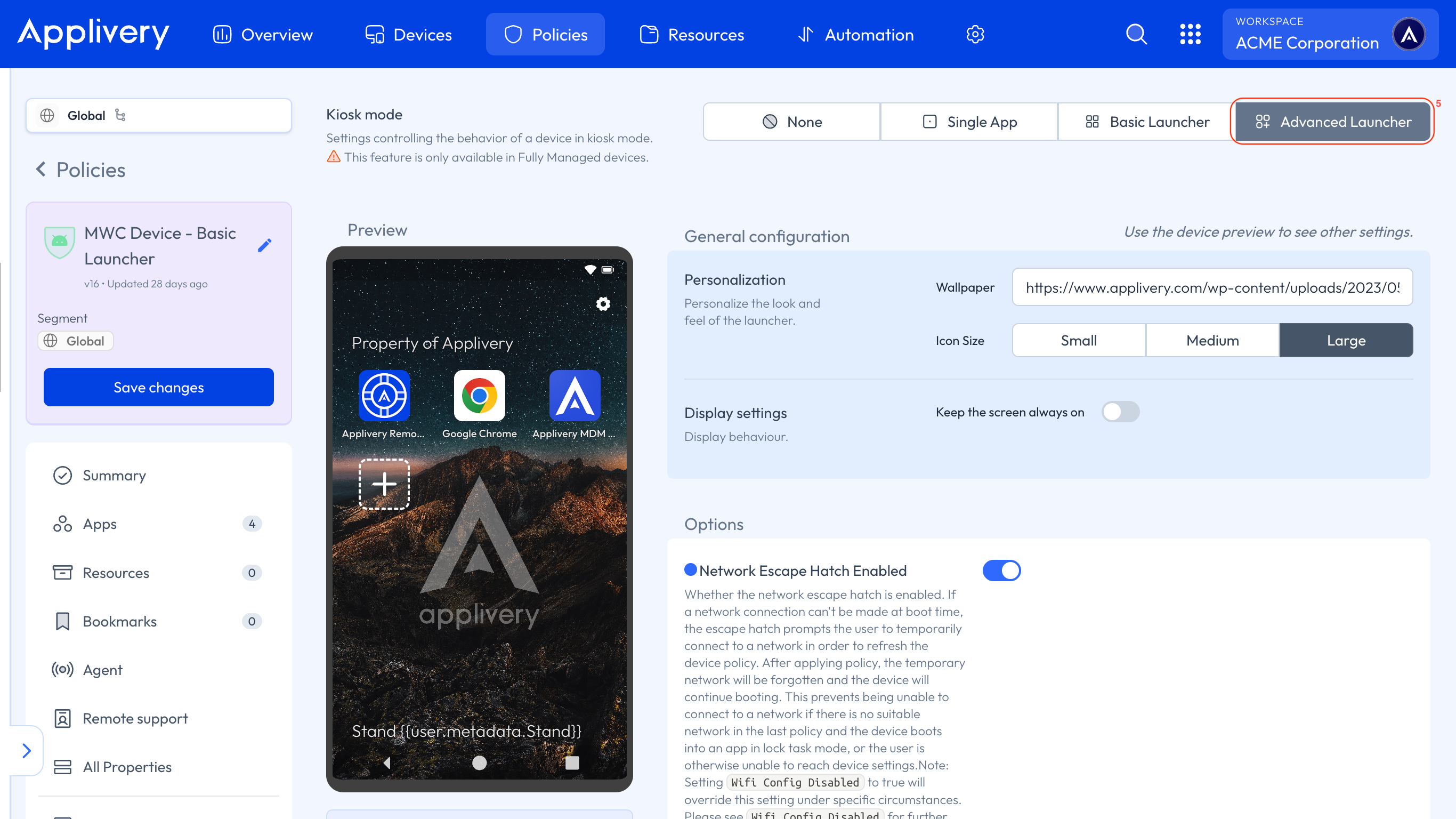
| Network escape hatch | If enabled, and a network connection cannot be established at boot, the user is prompted to temporarily connect to a network to refresh the Device policy. The temporary connection is forgotten once the Policy is refreshed. |
We strongly recommend enabling the Network Escape Hatch in all kiosk modes. Without it, a Device that fails to connect to the network at boot — for example, because the last known network is no longer available — may become stuck and unable to receive Policy updates, especially when booting directly into a locked App.
To correctly lock down a custom application in Single App kiosk mode, the App's AndroidManifest.xml must declare the correct intent filters on the activity that should run in kiosk mode.
Add the following intent-filter to the target activity:
<intent-filter>
    <action android:name="android.intent.action.VIEW" />
    <action android:name="android.intent.action.MAIN" />

    <category android:name="android.intent.category.HOME" />
    <category android:name="android.intent.category.DEFAULT" />
</intent-filter>
Declaring android.intent.category.HOME in your App's main activity intent filter may prevent certain kiosk settings — such as system navigation restrictions or status bar control — from being applied correctly on some Devices. Test thoroughly on your target hardware before deploying.
Basic Launcher (Multi-App kiosk mode)
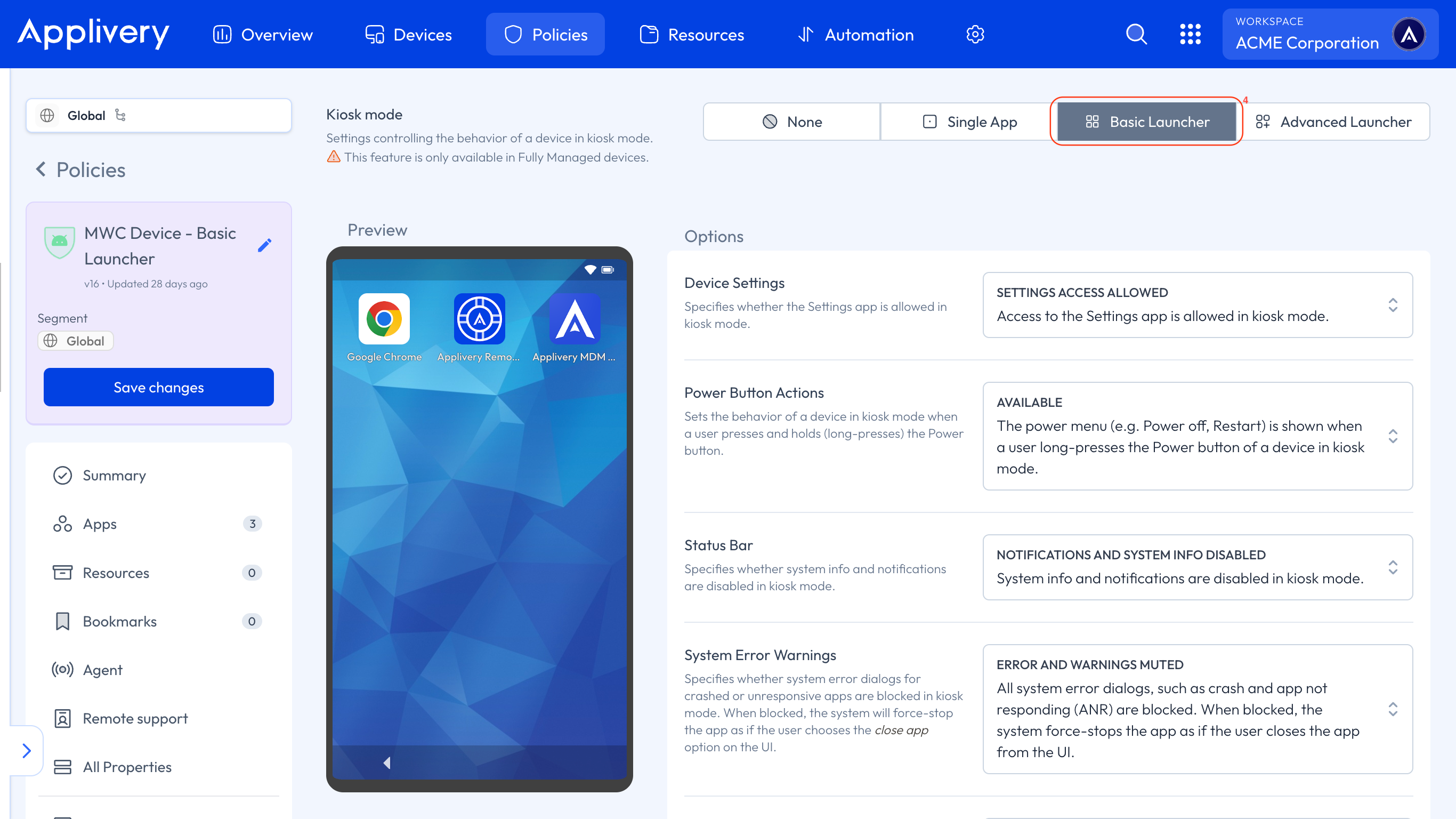
The Basic Launcher allows administrators to define a list of allowed applications displayed in a locked home screen UI. It is built on Android's native Device Policy Controller (DPC) and provides a solid foundation for multi-app kiosk deployments without requiring additional licensing.
Inside the Policy, go to the Apps section. Click + Add App and add each application you want to make available in the kiosk launcher.
Key rules for App visibility in the Basic Launcher:
Only Apps set to Force Installed will appear in the launcher interface.
All System Apps are hidden by default — if you need a System App visible (e.g., Phone, Camera, Chrome), you must add it explicitly.
From the left-hand menu, click Kiosk and select the Basic Launcher (4) option. Configure the lockdown behavior options (same options as Single App mode — see the table above).
Advanced Launcher (Multi-App kiosk mode)
The Advanced Launcher is Applivery's custom-built kiosk launcher that extends Android's native DPC capabilities with additional visual customization, access controls, and display management options. It is the recommended choice for deployments where a polished, branded, or highly controlled user experience is required.
To enable it, go to the Kiosk section and switch to the Advanced Launcher (5) tab.
Visual and display configuration
The Advanced Launcher provides full control over the visual presentation of the kiosk interface:
Wallpaper: Set a custom background image for the kiosk launcher.
Icon size: Adjust the size of App icons displayed in the launcher.
App layout: Organize the arrangement of Apps on the screen.
Folders: Group Apps into folders for a cleaner layout.
Screen always on: Keep the display permanently active, preventing it from sleeping. Useful for digital signage or always-on terminals.
Startup app: By tapping on a specific App in the Advanced Launcher configuration, you can mark it as the startup app. This causes the App to launch automatically the first time it is installed on the Device — particularly useful for applications that require an initial setup or onboarding flow to run before anything else.
Settings App access control
The Advanced Launcher gives granular control over how — or whether — users can access the Device Settings:
Restrict access entirely: Prevent the Settings App from opening.
Configure the landing view: Choose which Settings screen opens when the user taps Settings, rather than showing the full Settings menu.
Password-protect Settings: Require a password to access the Settings App, ensuring that only authorized users (such as technicians or store managers) can make system-level changes on the Device.
Header and footer customization
The launcher interface supports a customizable header and footer bar, allowing organizations to display contextual information directly on the kiosk screen:
Custom text: Add a title, instruction, or message in the header or footer.
Text size: Adjust the size of the displayed text.
Dynamic variables: Include Device-specific information automatically using dynamic variables such as:
Device display name.
User email address.
Other managed configuration variables.
This is particularly useful for shared Devices deployed across multiple locations, where displaying the Device name or assigned user helps with identification and support.
Display settings
The Advanced Launcher also exposes Device display settings that can be configured and locked through the Policy:
| Setting | Description |
|---|---|
| Screen brightness | Sets the screen brightness mode (automatic or fixed). |
| Screen timeout | Controls whether the user can configure the screen timeout duration. |
| Maximum time to lock | Specifies the maximum period of inactivity before the Device automatically locks. |
| Stay on while plugged in | Keeps the screen on at all times when the Device is connected to power. Ideal for fixed kiosks or charging stations. |
Choosing the right kiosk mode
| Deployment scenario | Recommended mode |
|---|---|
| Point-of-sale terminal with a single POS app | Single App |
| Self-service kiosk or information panel | Single App |
| Data collection device (one field app) | Single App |
| Shared device with multiple approved work Apps | Basic Launcher |
| Retail device with branded experience and corporate tools | Advanced Launcher |
| Digital signage with a screen-always-on requirement | Advanced Launcher |
| Shared device requiring per-location identification | Advanced Launcher (with header/footer dynamic variables) |
| Kiosk requiring technician-only Settings access | Advanced Launcher (with password-protected Settings) |