
Applivery MDM leverages the Android Management API (AMAPI) to provide robust remote Command capabilities for managing Android Devices. By relying on AMAPI’s extensive features, Applivery ensures seamless execution of remote actions, enabling IT administrators to maintain control and enforce security Policies effectively across their Device fleet.
This integration simplifies device management by allowing remote intervention without the need for physical access.
Lock
Available for Fully Managed Devices, this Command forces an Android Device to lock its screen immediately by simulating the expiration of the screen timeout. It’s useful for ensuring Device security in situations that require an instant lock.
Once in the Applivery Dashboard, navigate to any of your Devices and click the Action button (1).
From the dropdown menu, select Lock (2).
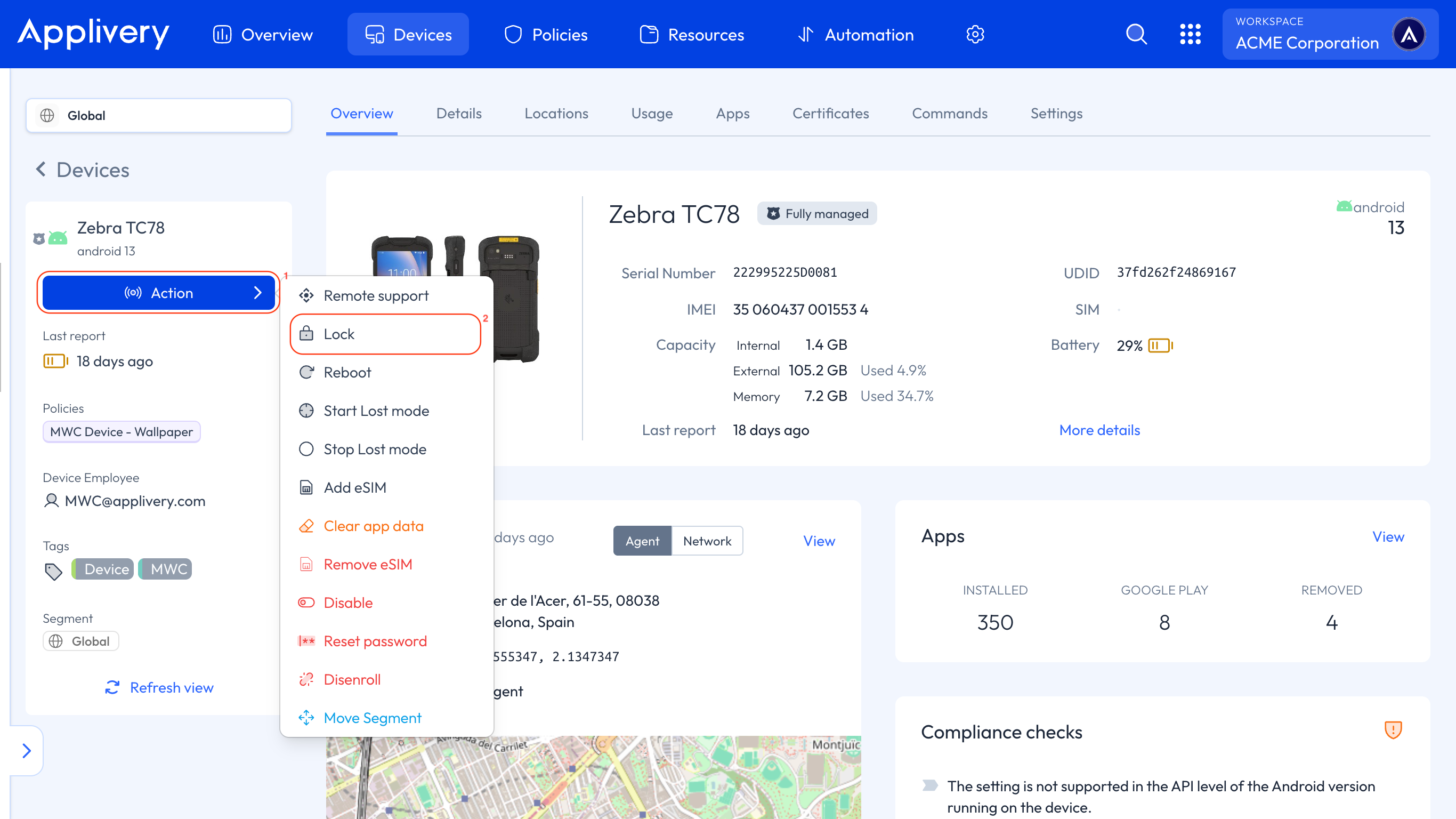
A modal window will appear asking you to enter the Duration in seconds. This sets how long the Command will remain active. It will expire if the Device doesn’t execute the Command within this time.
There is no maximum limit for the duration.
Reset password
Available for Fully Managed Devices.
Resetting the password is useful when a user has forgotten it, when the Device changes users, if there are suspicions of unauthorized access, or when new security Policies are applied. It is also recommended for lost or stolen Devices to prevent unauthorized access and protect sensitive information.
Once in the Applivery Dashboard, navigate to any of your Devices and click the Action button (1).
From the dropdown menu, select Reset password (2).
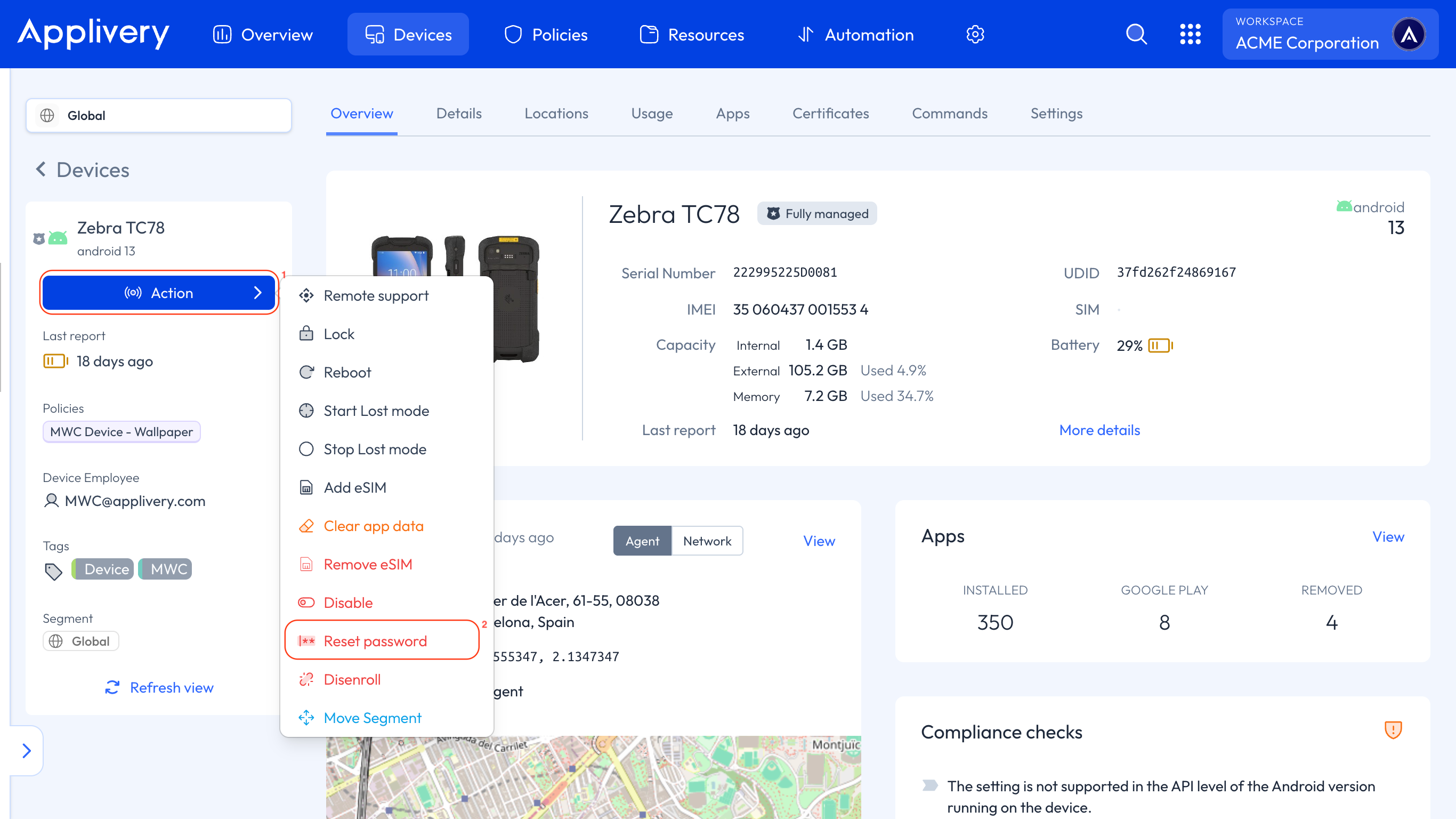
A modal window will prompt you to specify the Duration parameter in seconds. This defines how long the Command remains valid; if the Device does not execute the Command within this time, it will expire.
There is no maximum duration limit.
You can configure additional settings to enhance security and control following a password reset:
Don’t allow other admins to change the password again until the user has entered it: This ensures that no other admin can modify the password once it has been reset, forcing the user to enter the new password before any further changes are allowed.
Don’t ask for user credentials on Device boot: Allows the Device to boot without immediately prompting the user to enter the new password after a restart.
Lock the Device after password reset: Automatically locks the Device following the password reset, increasing security until the user enters the new password.
Set new password: Allows you to directly specify the new password to be applied to the Device. For Android 14 Devices, the new password must be at least 6 characters long if it is numeric; otherwise, the Command will fail with an
Invalid valueerror.
If you do not enable the Set new password option, the Command will, by default, disable the Device password.
Reboot
Available for Fully Managed Devices.
Sending a restart Command is useful in several key situations. It helps resolve performance issues by freeing up RAM, applies system updates that require a reboot to take effect, and fixes minor errors such as unresponsive Apps or driver conflicts. It’s also recommended when a Device has been running for extended periods without restarting, which can impact stability. Additionally, when new security settings or Policies are applied through Applivery, a restart may be necessary for these changes to take effect.
Once in the Applivery Dashboard, navigate to any of your Devices and click the Action button (1).
From the dropdown menu, select Reboot (2).
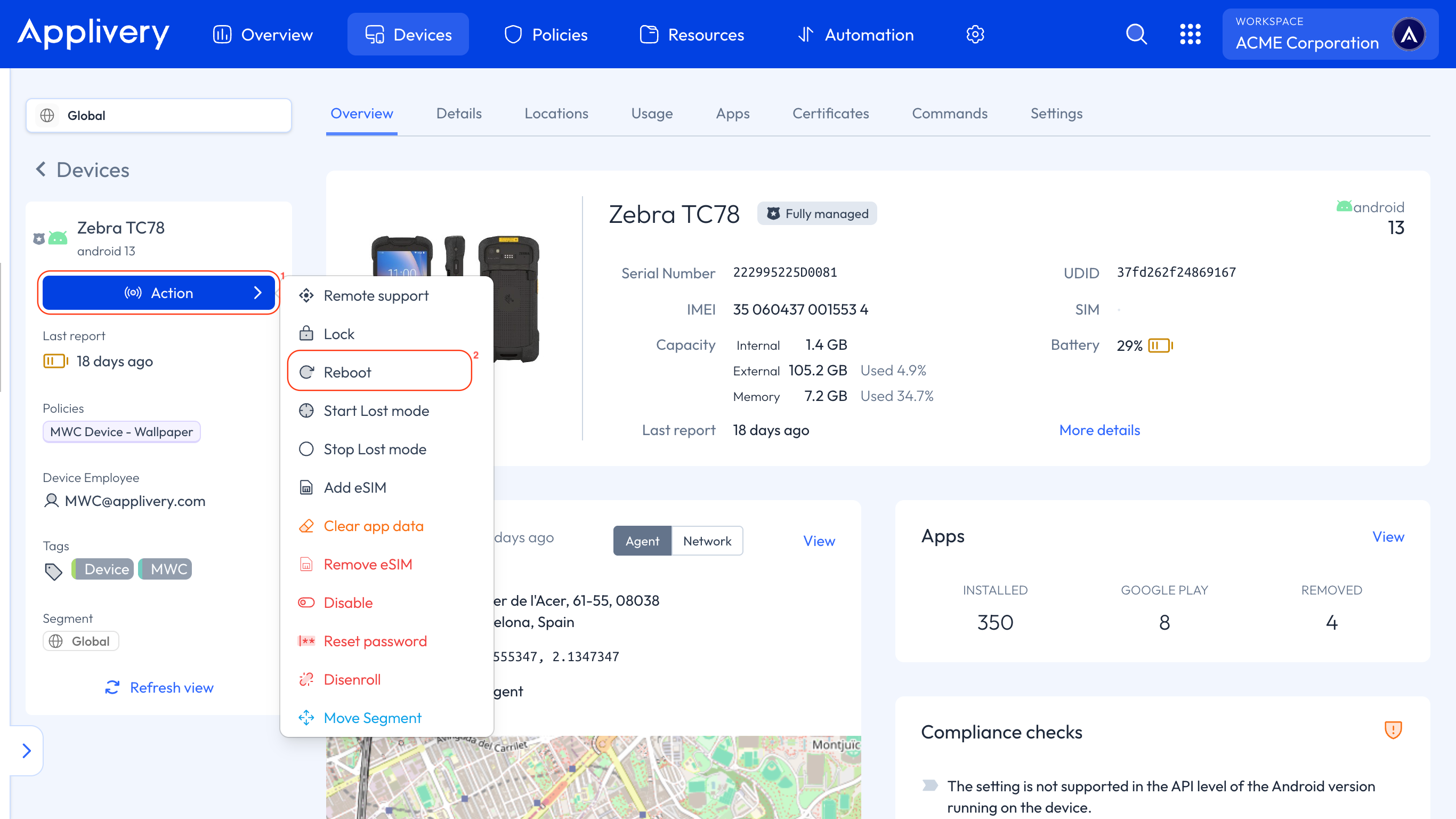
A modal window will prompt you to specify the Duration parameter in seconds. This defines how long the Command remains valid; if the Device does not execute the Command within this time, it will expire.
There is no maximum duration limit.
eSim
These Commands provide the ability to remotely add or remove eSIM profiles on compatible Android Devices (Android 15 and above), removing the reliance on physical SIM cards.
This simplifies Device setup and maintenance, allowing for faster deployment and better control over mobile network access, all managed remotely from a centralized Dashboard.
Once in the Applivery Dashboard, navigate to any of your Devices and click the Action button (1).
From the dropdown menu, select either Add eSim (2) or Remove eSim (3).
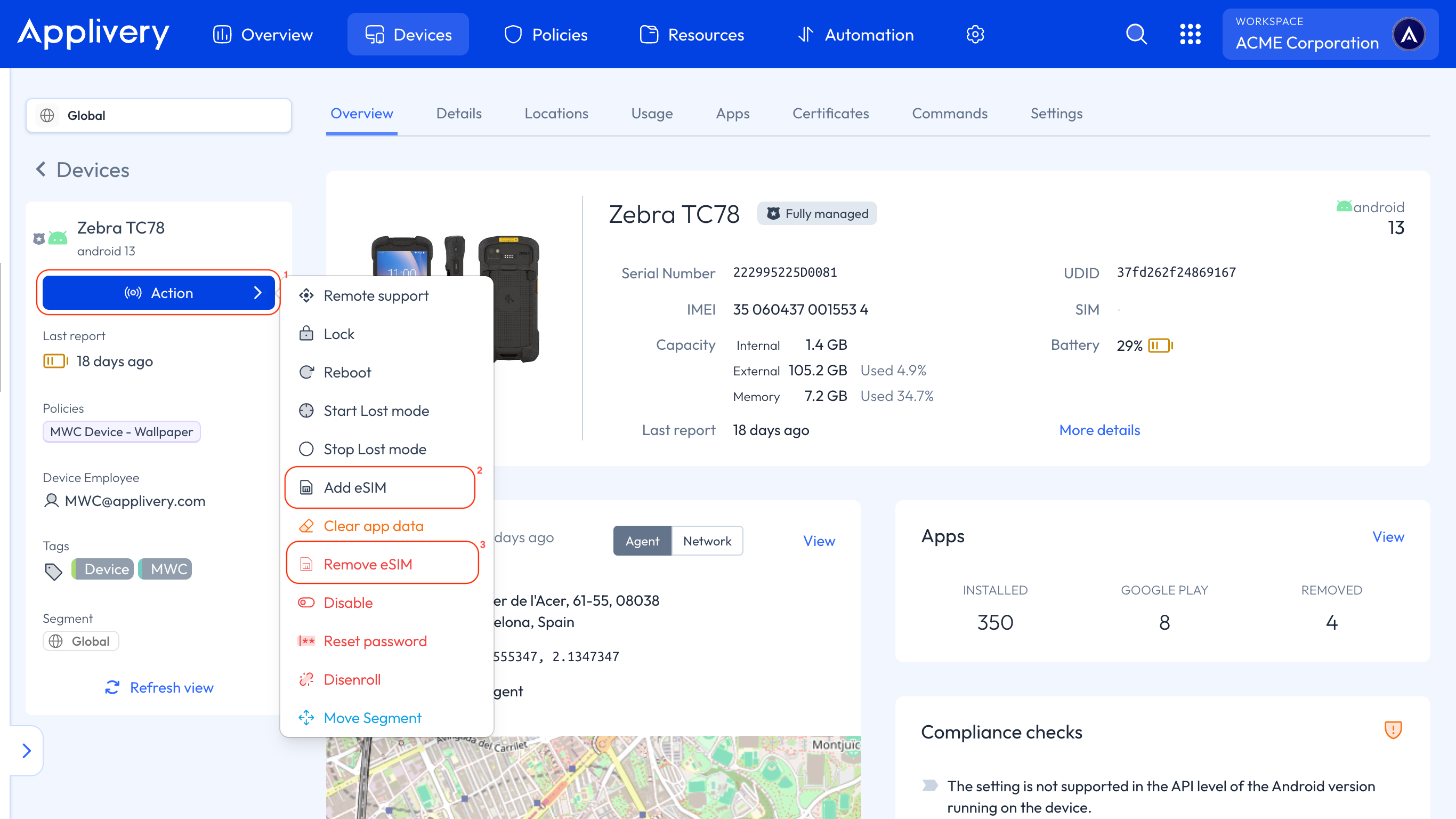
Add eSim
When you select the Add eSIM Command, a modal window will prompt you to specify additional configurations, such as the eSIM activation code and activation state, as well as the Duration parameter described in previous commands.
Remove eSim
When you select the Remove eSIM command, a modal window will prompt you to specify additional configurations, such as the ICCID of the eSIM to remove, as well as the Duration parameter described in previous commands.
All of these Commands above can also be executed from the Device’s Commands tab.
Disable
Available for all management modes, this command allows you to remotely disable an Android Device by locking it down and disabling all Apps and features.
While disabled, the Device becomes inaccessible for regular use, helping to prevent unauthorized access and enhance security in cases of loss, theft, or Policy enforcement. Additionally, it can be used to restrict device usage outside of scheduled working hours.
The Device can be re-enabled later to restore full functionality.
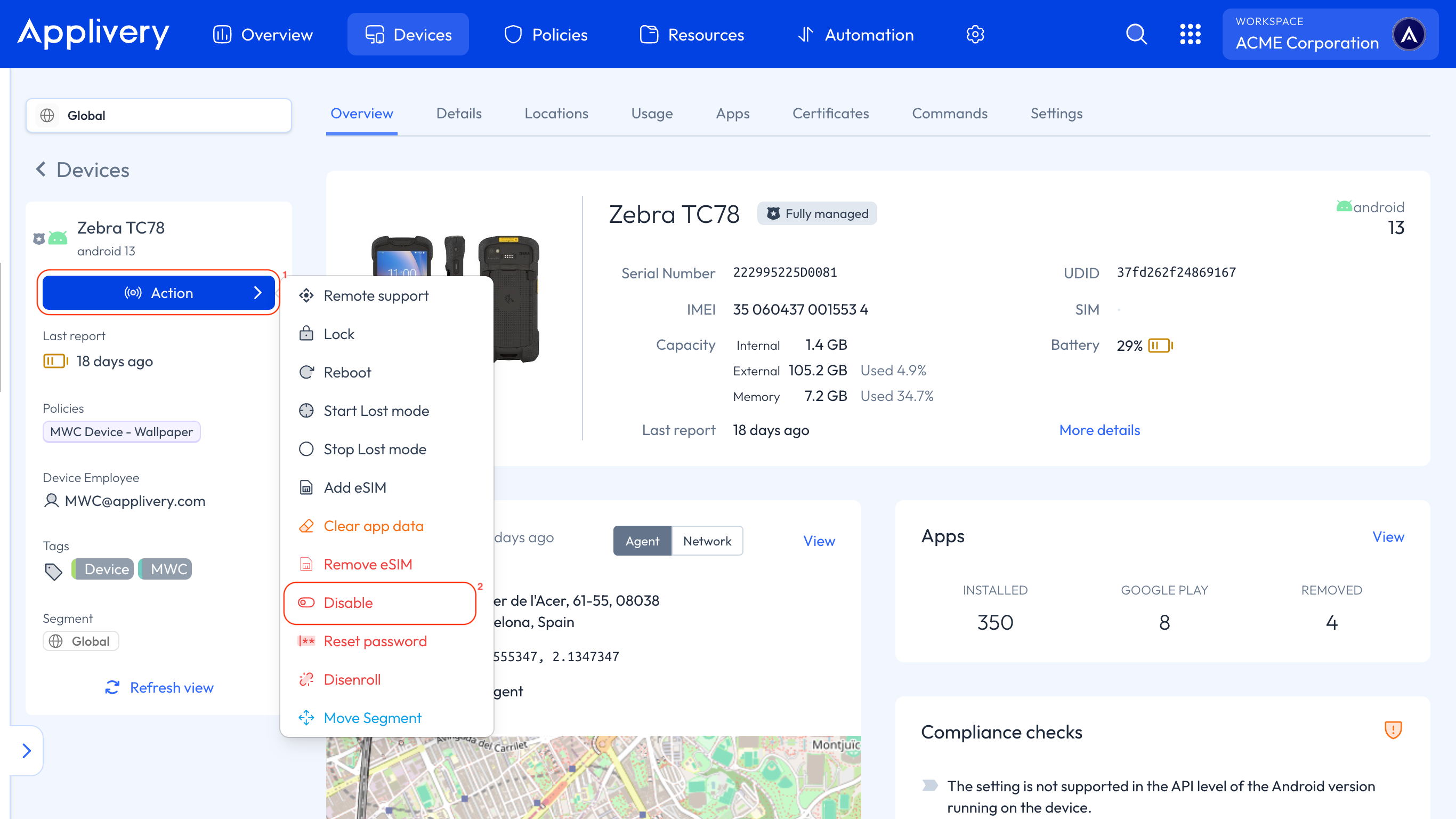
Once in the Applivery Dashboard, navigate to any of your Devices and click the Action button (1).
From the dropdown menu, select Disable (2).
Relinquish ownership
Available for COPE (Company-Owned, Personally Enabled) Devices, this command allows you to remotely remove the Work Profile and all corporate management Policies from a Device. It effectively returns the Device to a personal-use state while preserving any data, Apps, and settings associated with the user’s Personal Profile(s).
This action is particularly useful in scenarios such as offboarding employees, transferring ownership of a Device, or repurposing Devices for non-corporate use. It ensures that corporate data is securely wiped, without impacting the user’s personal content.
Once executed, the Device will no longer be managed by Applivery and will behave as a standard, unmanaged Android Device.
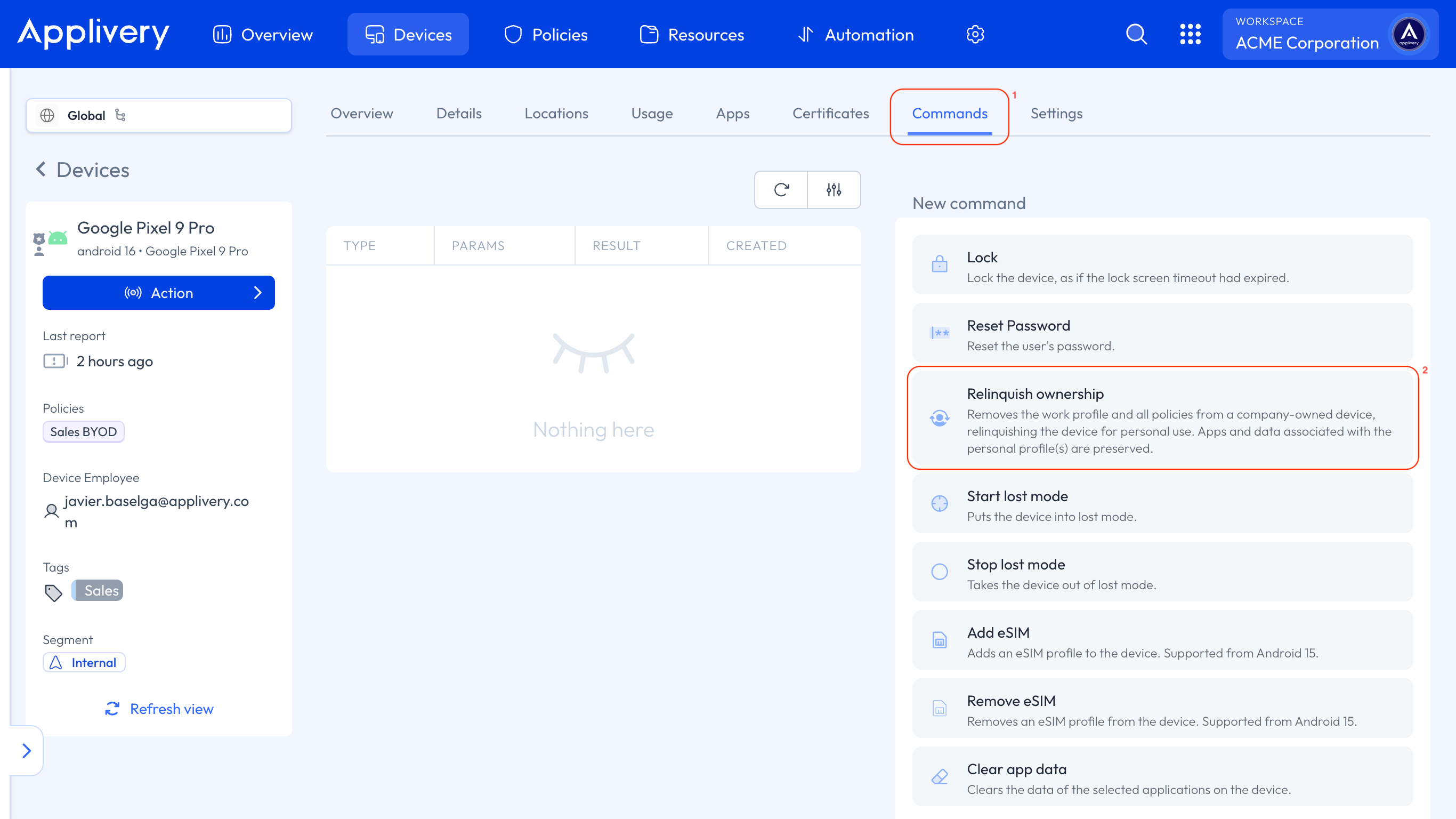
Go to the Commands (1) tab of any of your Android COPE Devices.
Select Relinquish ownership (2).
A modal window will prompt you to specify the Duration parameter in seconds. This defines how long the Command remains valid; if the Device does not execute the Command within this time, it will expire.
There is no maximum duration limit.
All of the Commands mentioned above can also be executed from the Danger zone section within the Settings tab, depending on the Device’s management mode.