
Apple Configurator is a tool created by Apple that allows administrators to add Devices to Apple Business and enroll them in an MDM solution such as Applivery. Devices enrolled this way are supervised and behave identically to Devices purchased directly through Apple Business — including mandatory MDM enrollment.
Enrolling Devices through Apple Configurator with supervision enabled requires a factory reset. All existing data on the Device will be wiped.
Apple Configurator is available in two versions:
Apple Configurator for Mac: A macOS app that enrolls iPhone, iPad, and Apple TV (Ethernet-only models) by connecting them via USB to a Mac. It adds Devices directly to Apple Business and prepares them with supervision and MDM enrollment in a single workflow.
Apple Configurator for iPhone: An iPhone app that wirelessly adds iPhone (iOS 16+), iPad (iPadOS 16.1+), Mac (macOS 12.0.1+, T2 or Apple Silicon), and Apple Vision Pro (visionOS 2.6+) to Apple Business by scanning a pairing image during Setup Assistant. It requires no cables or additional hardware.
In both cases, once a Device is added to Apple Business through Apple Configurator, there is a 30-day provisional period during which the user can release the Device from Apple Business, supervision, and MDM enrollment. After those 30 days, management becomes permanent.
Enroll an iPhone or iPad using Apple Configurator for Mac
This method is recommended for bulk enrollment of iPhone, iPad, and Apple TV Devices that are not registered in Apple Business. It requires a Mac and a USB cable for each Device.
Requirements
A Mac running Apple Configurator for Mac (download from the Mac App Store).
An Apple Business account with Administrator or Device Enrollment Manager role.
USB cable for each Device to enroll.
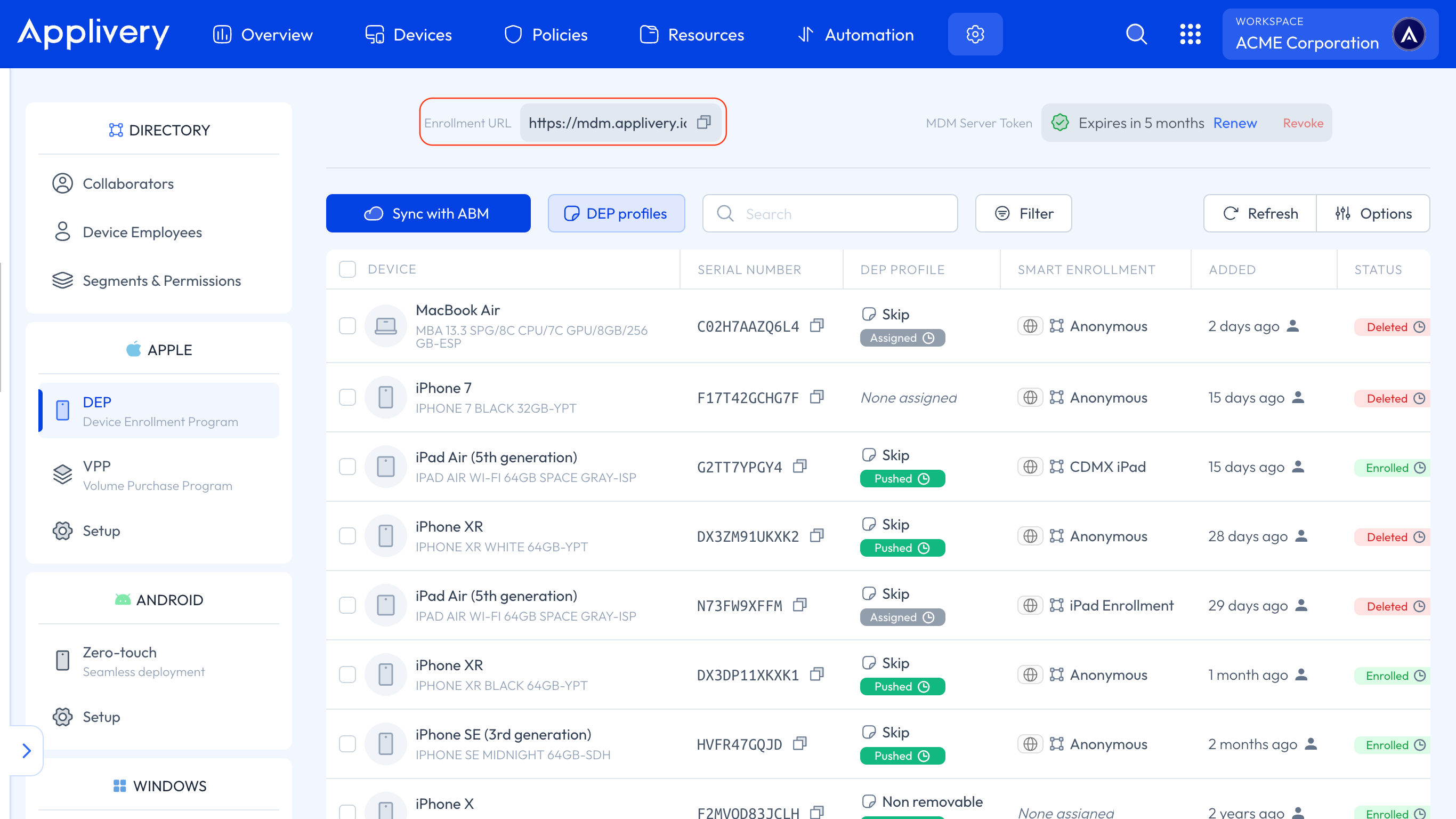
The Applivery Enrollment URL (found under the Settings section > Apple DEP).
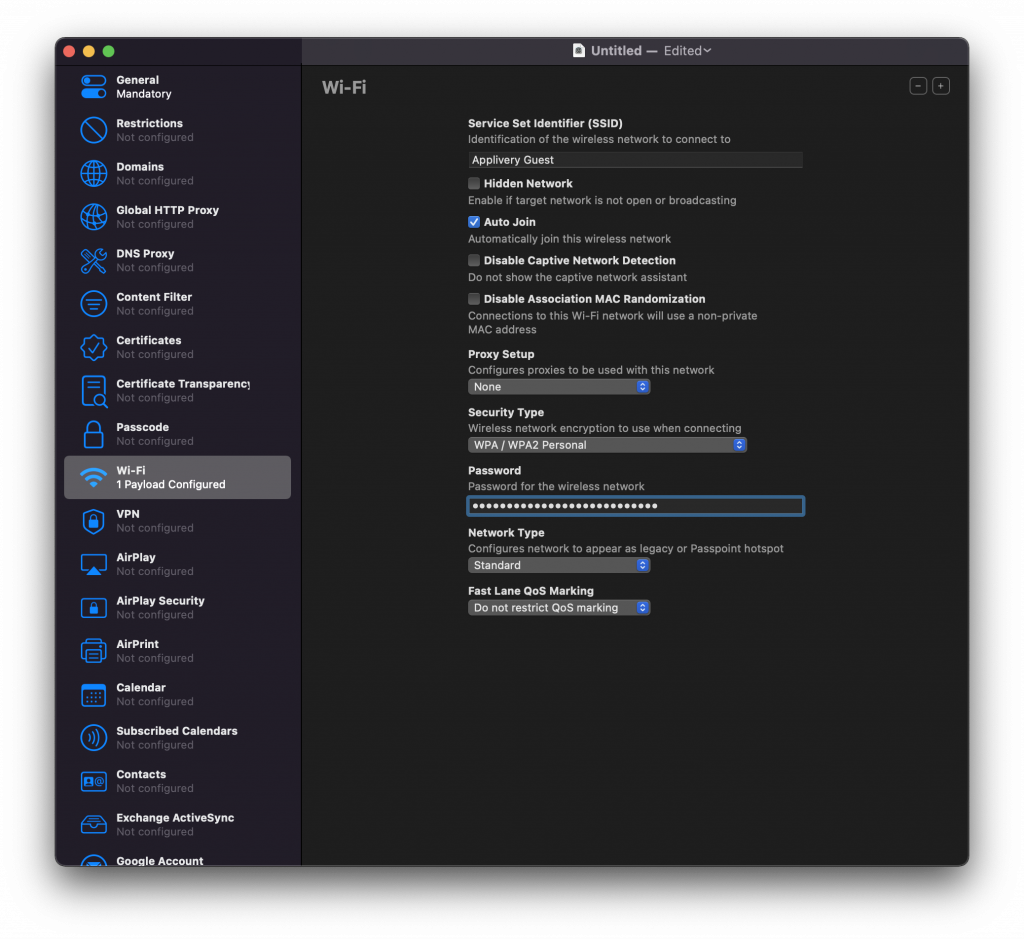
Before enrolling any Device, create a Wi-Fi configuration profile so enrolled Devices can connect to your network automatically:
In Apple Configurator for Mac, click File > New Profile.
Select Wi-Fi and click Configure.
Enter the SSID, password, and security type of your network.
Save the profile.
Plug the Device into the Mac via USB. If prompted on the Device, tap Trust.
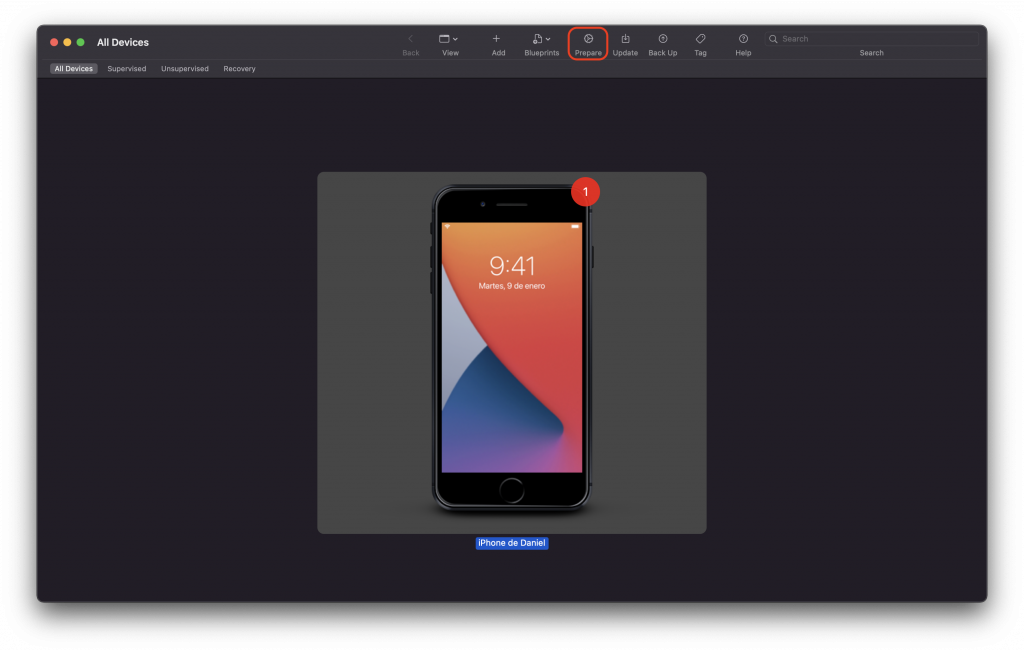
Once the Device appears in Apple Configurator, select it and click Prepare in the toolbar.
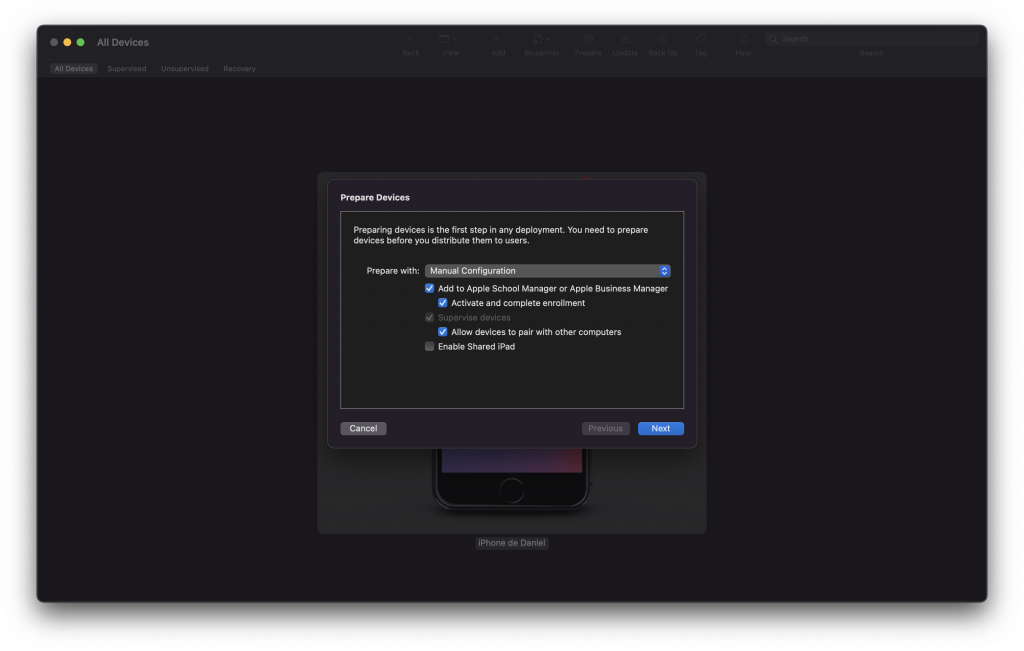
In the Prepare Assistant, select Manual Configuration and configure the following options:
Add to Apple Business: Enable this if you want the Device to be added to Apple Business and enrolled via DEP. This is the recommended option for supervised, managed deployments.
- Activate and complete enrollment: Leave this disabled if the Device requires user authentication to complete MDM enrollment — the Device will stop at Setup Assistant, and the user will finish the process. Enable it only if the Device already has an MDM record and you want to fully prepare it without user interaction.
Supervise Devices: Enable putting the Device in supervised mode, which unlocks the full set of MDM management capabilities.
- Allow Devices to pair with other computers: Discontinued feature from iOS 13.
Enable shared iPad: Whether the shared iPad will be enabled or not.
In some cases, you may receive the following unexpected error:
"Invalid Profile [MCProfileErrorDomain – 0x3E8 (1000)]".
In that case, just unselect the Activate and complete enrollment option and prepare your Device again.
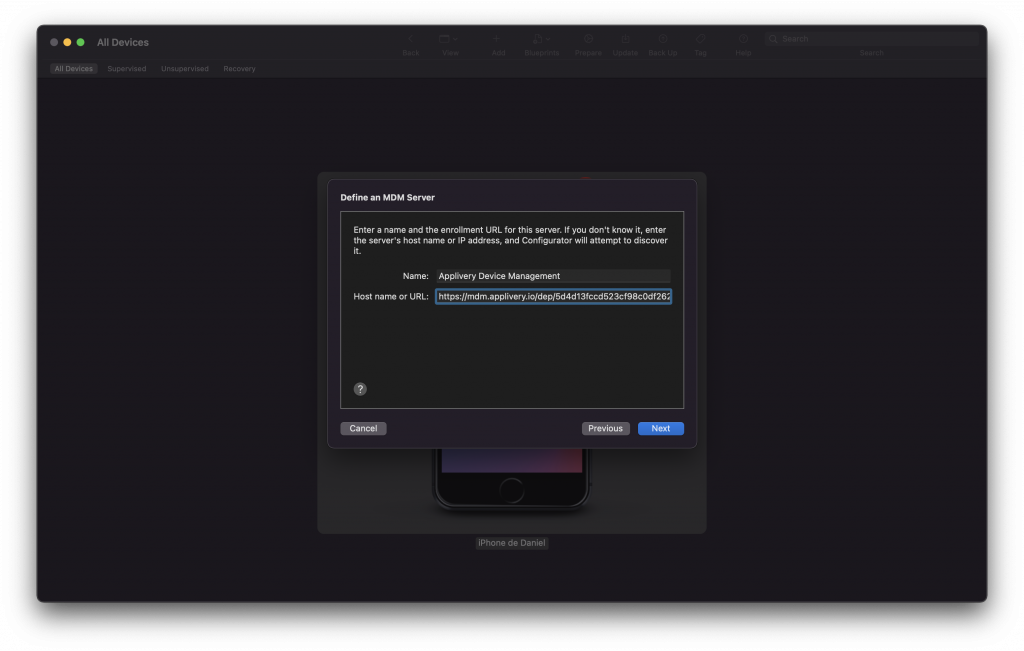
Select New Server… to add Applivery as your MDM server.
Enter a name (e.g., "Applivery Device Management") and paste your Enrollment URL from the Applivery Dashboard (under the Settings section > Apple DEP).
Click Next.
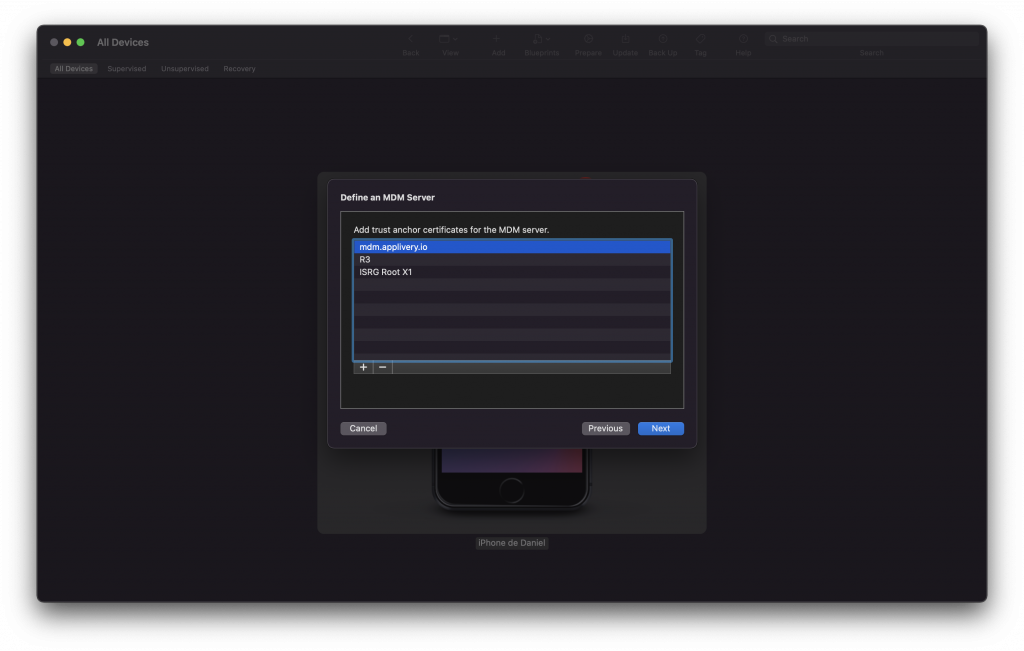
Trust anchor certificates are fetched automatically. If the process takes too long, click Next to skip and proceed. If you selected Add to Apple Business in Step 3, you will be prompted to sign in with your Apple Business Managed Apple Account.
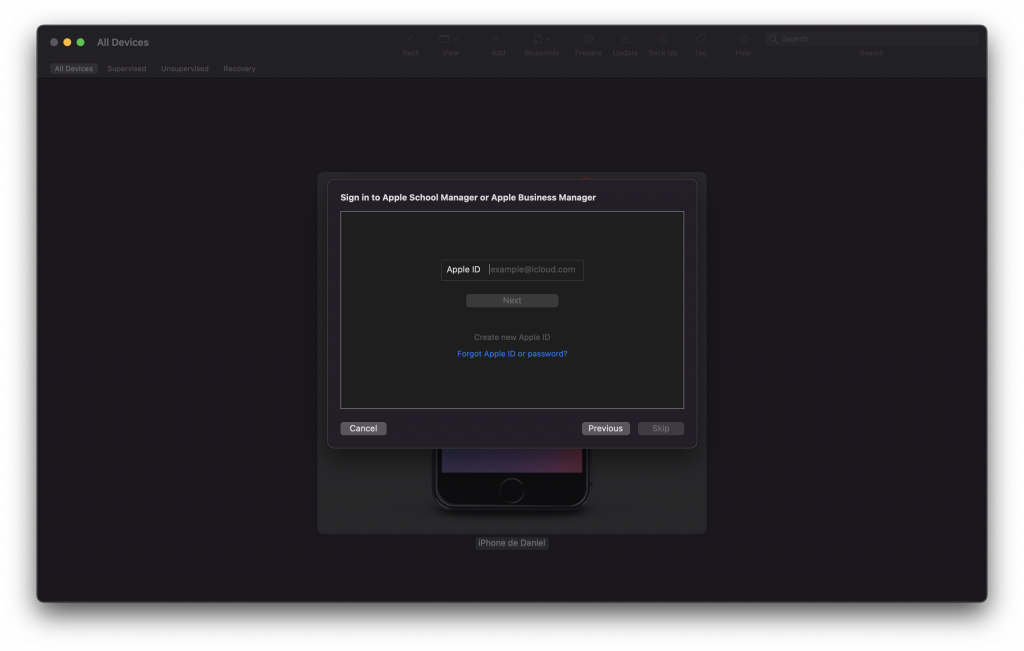
If you selected Add to Apple Business in Step 3, you will be prompted with a login screen. Log in with your Apple Business account and click Next.
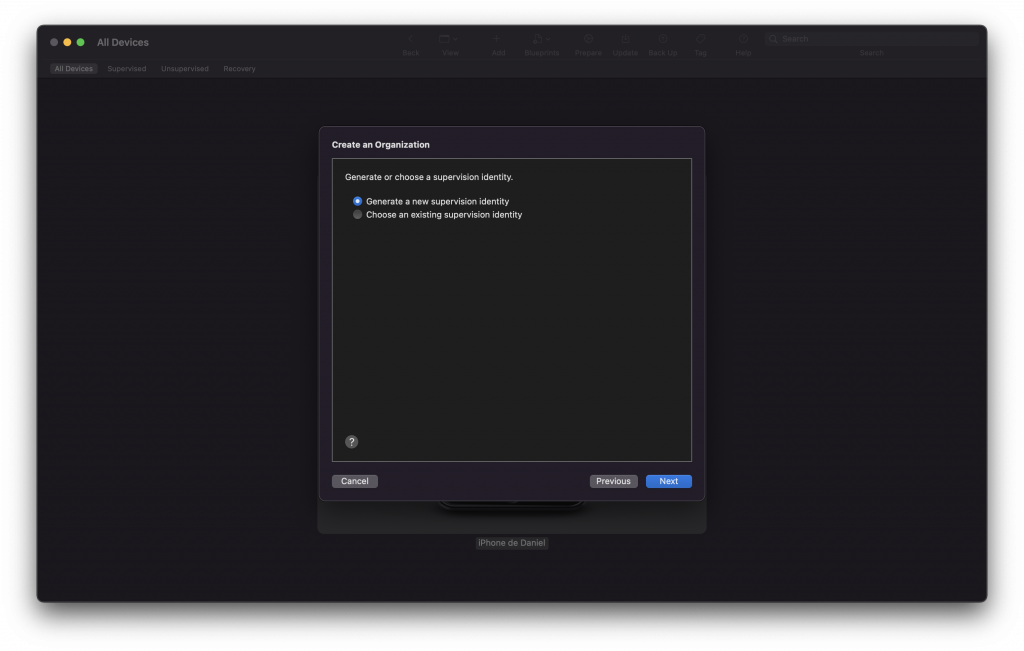
After signing in to Apple Business, enter your organization details or select an existing one. This links the supervision identity to your organization in Apple Configurator.
Select Generate a new supervision identity.
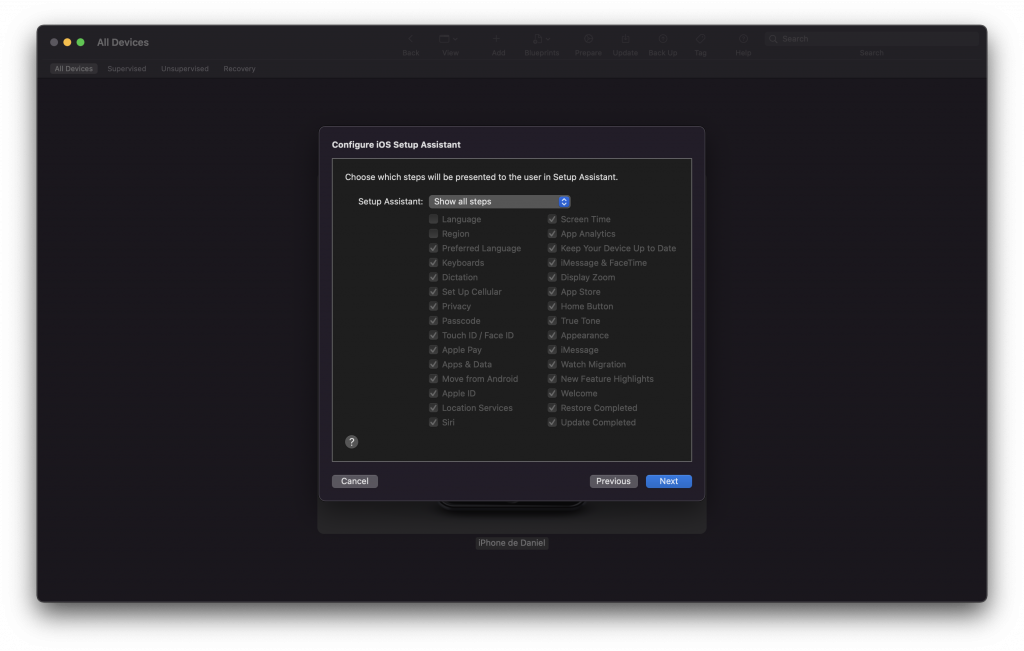
You can also configure which Setup Assistant steps to skip for the end user (language, Wi-Fi, Apple ID, etc.).
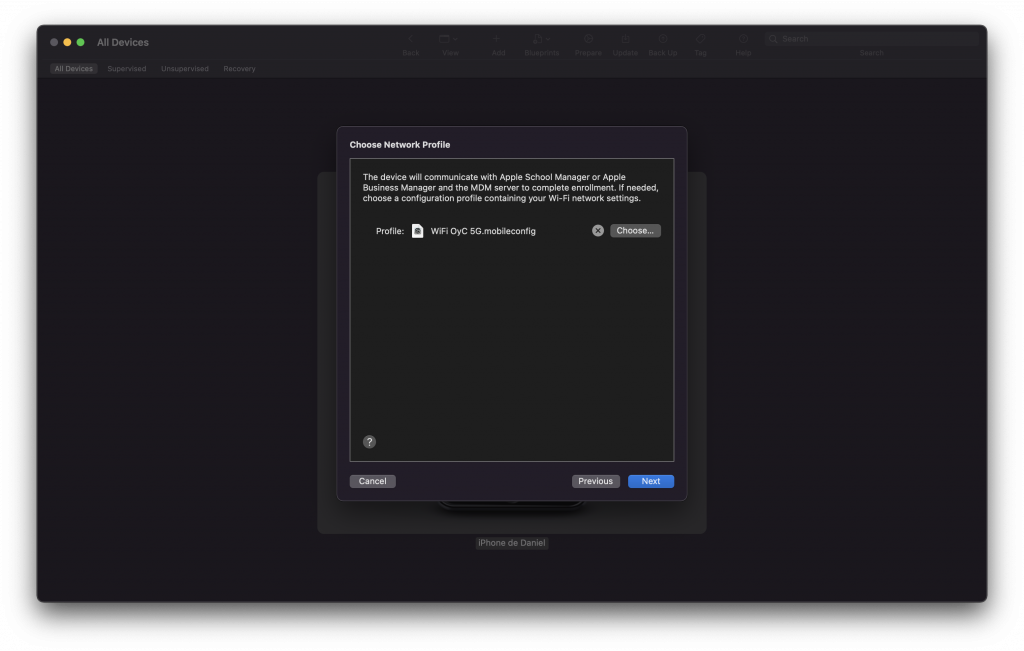
Select the Wi-Fi profile you created in Step 1 and click Next.
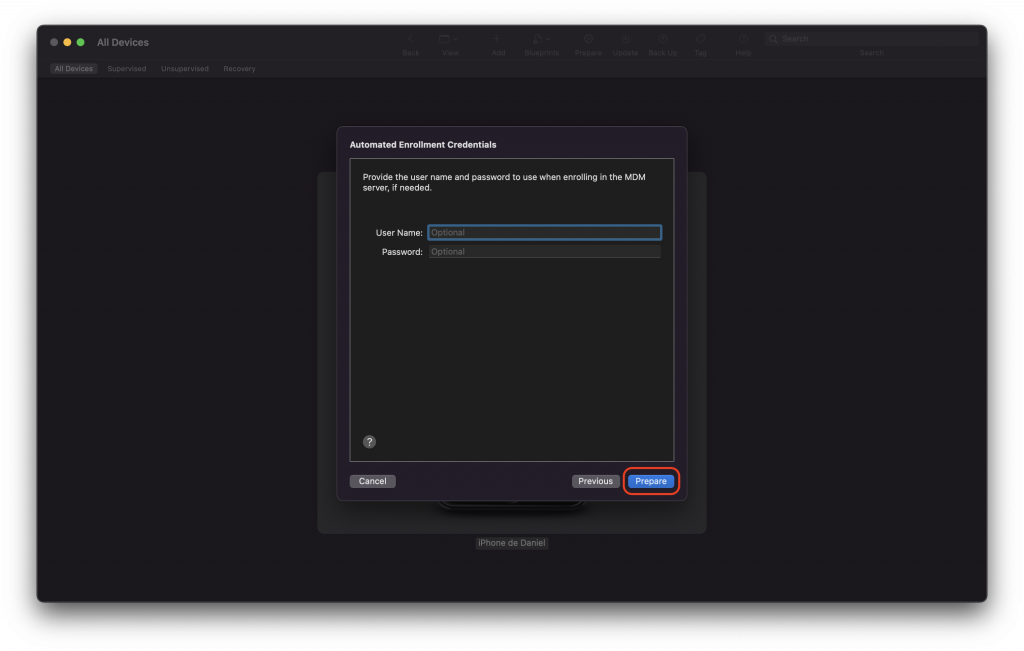
If you enabled Add to Apple Business, enter your Apple Business credentials when prompted. Then click Prepare. The process may take a few minutes, and the Device may restart several times — do not unplug it until Apple Configurator shows a confirmation and the Device is on the Welcome screen.
If you need to enroll multiple Devices with the same configuration, save your settings as a Blueprint in Apple Configurator. You can then apply it directly to new Devices without repeating all the steps.
Enroll an iPhone or iPad using Apple Configurator for iPhone
Apple Configurator for iPhone can also add iPhone (iOS 16+) and iPad (iPadOS 16.1+) directly to Apple Business — without needing a Mac or USB cable.
Requirements
An iPhone running iOS 16 or later with Apple Configurator for iPhone installed.
Apple Business account signed in to the App.
The target iPhone or iPad must be at the Choose a Wi-Fi Network step of Setup Assistant (new or factory reset).
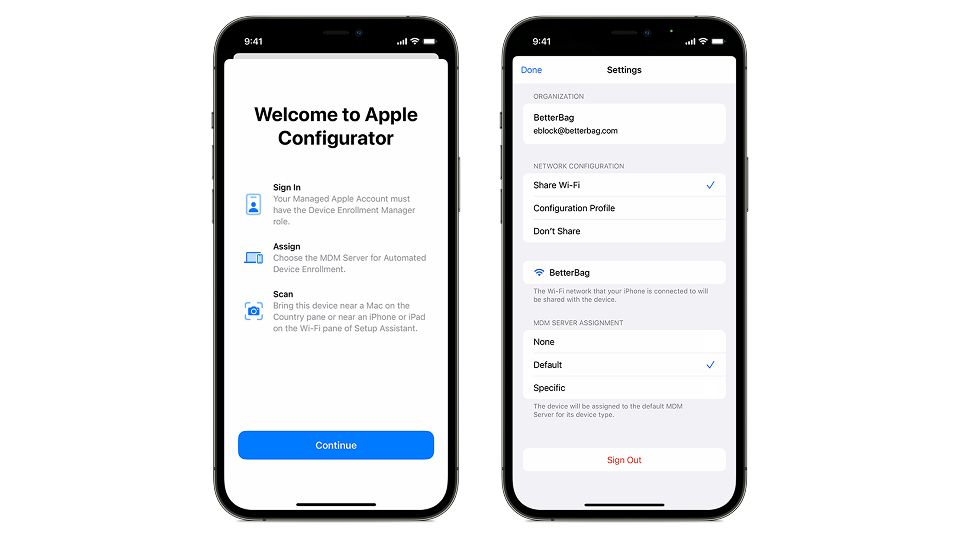
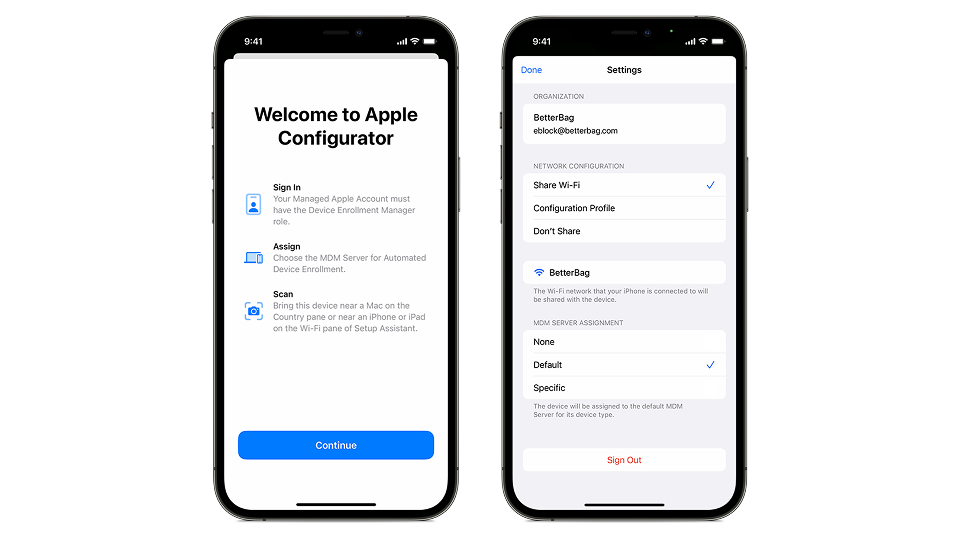
Open the Apple Configurator app on your iPhone.
Accept the terms and conditions.
Sign in with your Managed Apple Account from Apple Business. Two-factor authentication may be required.
In Settings, configure how the Mac will connect to the internet:
Share Wi-Fi (default): The Mac uses the same Wi-Fi credentials as the iPhone.
Configuration Profile: Use a pre-created Wi-Fi or 802.1X profile stored in the Files app.
Ethernet: Connect the Mac to the internet via Ethernet before proceeding.
Configure the device management service assignment — you can assign Devices automatically to the default or a specific MDM service in Apple Business, or leave it unassigned to assign manually later.
Start up the iPhone or iPad you want to enroll. Go through Setup Assistant and stop at the Choose a Wi-Fi Network screen.
If you go past this screen, you will need to restart the Device.
Bring your iPhone (with Apple Configurator open) close to the target device. Two pairing options are available:
Scan the image: Use Apple Configurator to scan the pairing image shown in Setup Assistant on the target device.
Manual pairing: Tap Pair Manually in Apple Configurator on the target device, then tap Manual Pairing in the App and enter the 6-digit code.
The Device's serial number and information are uploaded to Apple Business.
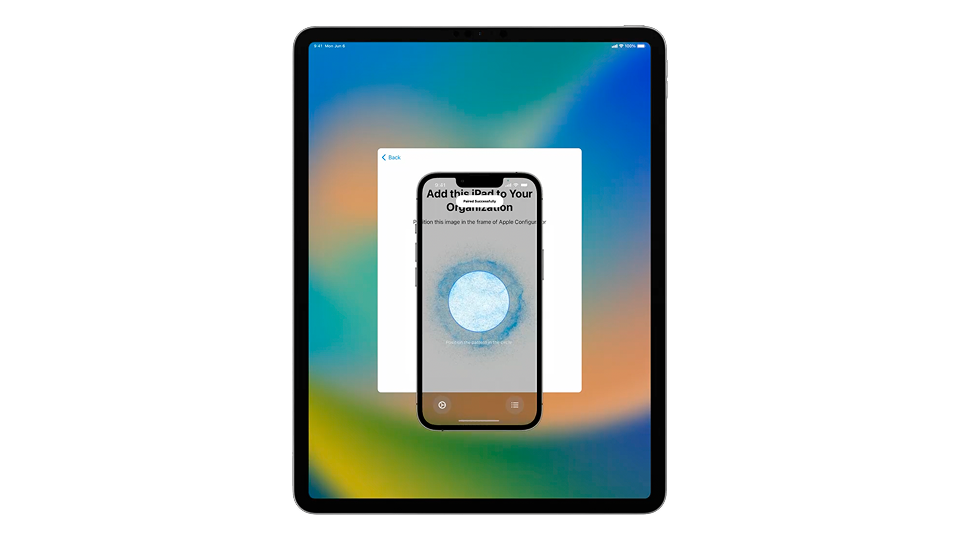
Wait for the process to complete, then tap Erase and Shut Down. The Device is now registered in Apple Business.
If not automatically assigned, go to Apple Business and manually assign the Device to Applivery as its MDM service.
Power on the Device and proceed through Setup Assistant. It will automatically enroll in Applivery following the standard DEP enrollment process.
Enroll a Mac using Apple Configurator for iPhone
This method allows you to add a Mac with Apple Silicon or T2 chip to Apple Business using only an iPhone — no Mac or USB cable needed. Once added to Apple Business, the Mac can be enrolled in Applivery through DEP.
Requirements
An iPhone running iOS 16 or later with Apple Configurator for iPhone installed.
An Apple Business account with Administrator or Device Enrollment Manager role signed in to the App.
A Mac with Apple Silicon or T2 Security Chip running macOS 12.0.1 or later.
The Mac must be at the Select Your Country or Region step of Setup Assistant (new or factory reset).
Open the Apple Configurator app on your iPhone.
Accept the terms and conditions.
Sign in with your Managed Apple Account from Apple Business. Two-factor authentication may be required.
In Settings, configure how the Mac will connect to the internet:
Share Wi-Fi (default): The Mac uses the same Wi-Fi credentials as the iPhone.
Configuration Profile: Use a pre-created Wi-Fi or 802.1X profile stored in the Files app.
Ethernet: Connect the Mac to the internet via Ethernet before proceeding.
Configure the device management service assignment — you can assign Devices automatically to the default or a specific MDM service in Apple Business, or leave it unassigned to assign manually later.
If the Mac is brand new, start it up, select the language, click Continue, and stop at the Select Your Country or Region screen.
If the Mac has already been set up, you must first erase it:
Go to Apple menu > System Settings > General > Transfer or Reset.
Click Erase All Content and Settings and follow the instructions.
Once the Mac restarts and reaches Setup Assistant, stop at Select Your Country or Region.
Erasing a Mac permanently deletes all data. Make sure you have a current backup before proceeding.
Bring your iPhone with Apple Configurator close to the Mac. You have two pairing options:
Scan the image: Use the Apple Configurator app camera to scan the pairing image shown on the Mac's Setup Assistant screen.
Manual pairing: Click Pair Manually on the Mac, then tap Manual Pairing in Apple Configurator and enter the 6-digit code shown on screen.
Once paired, the Mac's serial number and device information are uploaded to Apple Business automatically.
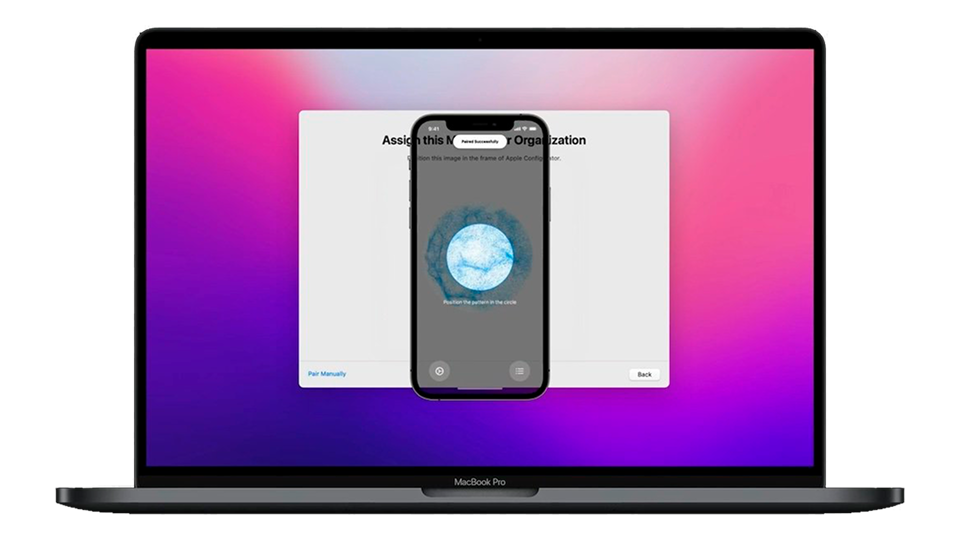
Wait for the process to complete. When finished, tap Shut Down on the iPhone (the Mac will power off). The Mac is now registered in Apple Business.
If you did not configure automatic MDM assignment in Step 1, go to your Apple Business portal, find the Device under the Apple Configurator group in Devices, and manually assign it to Applivery as its MDM service.
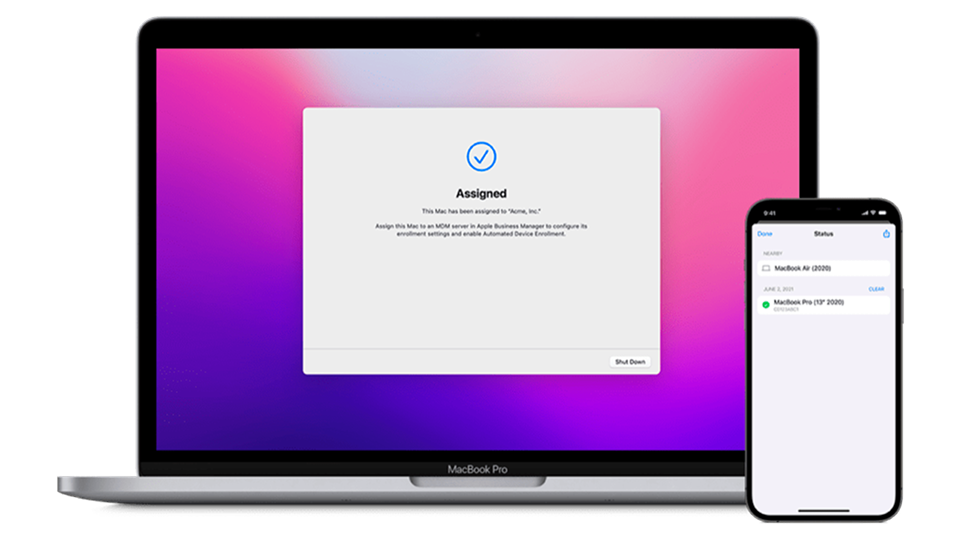
With the Mac now registered in Apple Business and assigned to Applivery, follow the standard DEP enrollment process to complete the enrollment. When the Mac is powered on and goes through Setup Assistant, it will automatically enroll in Applivery.