
Application management is a core pillar of any Windows Mobile Device Management (MDM) strategy. In corporate environments, ensuring that Devices run only approved, properly configured, and up-to-date software is essential to maintain security, productivity, and compliance with internal Policies.
Applivery provides a comprehensive set of tools to centrally manage applications on Windows Devices at scale, enabling IT teams to deploy, update, and control software without requiring user interaction. Through native MDM Policies and, when needed, the Applivery Windows Agent, administrators can address both standard deployment scenarios and advanced use cases that require deeper control.
Install type options
Force installed: The App will be force installed.
Available: The App will be available to be installed on-demand, either from the dashboard or using the Self-Service App on Windows Devices.
App management
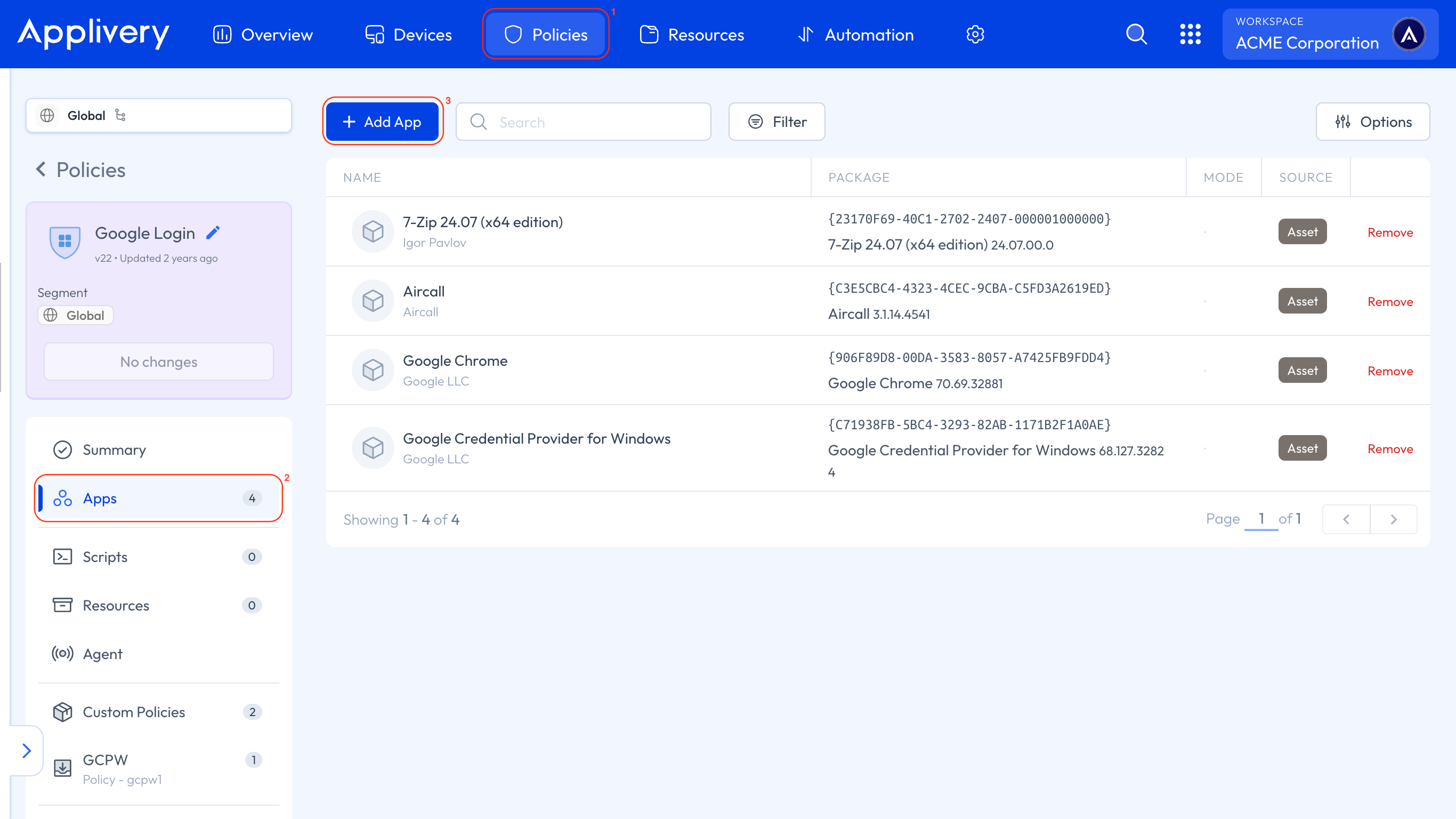
Once in the Applivery Dashboard, go to any of your Policies (1). From the left side menu, go to Apps (2) and click the + Add App button (3).
A modal window will appear, allowing you to select the application source.
Microsoft Store: This source allows you to deploy applications directly from the Microsoft Store. It is the recommended option for modern applications that support MDM management, as it ensures native integration with Windows, improved security, and automatic updates.
Applivery: This source refers to applications distributed directly through Applivery (App Distribution or App Catalog).
Resource: This source enables the deployment of applications packaged in
.msi,.msix, and.appxformats that have been previously uploaded to the Resources section in Applivery, or that can be uploaded directly using the Upload new resource button. This option is ideal for internal corporate applications, third-party software, or custom installers that are not available in the Microsoft Store.
Applivery App Management
In this section, you will find two different options for managing applications through Applivery.
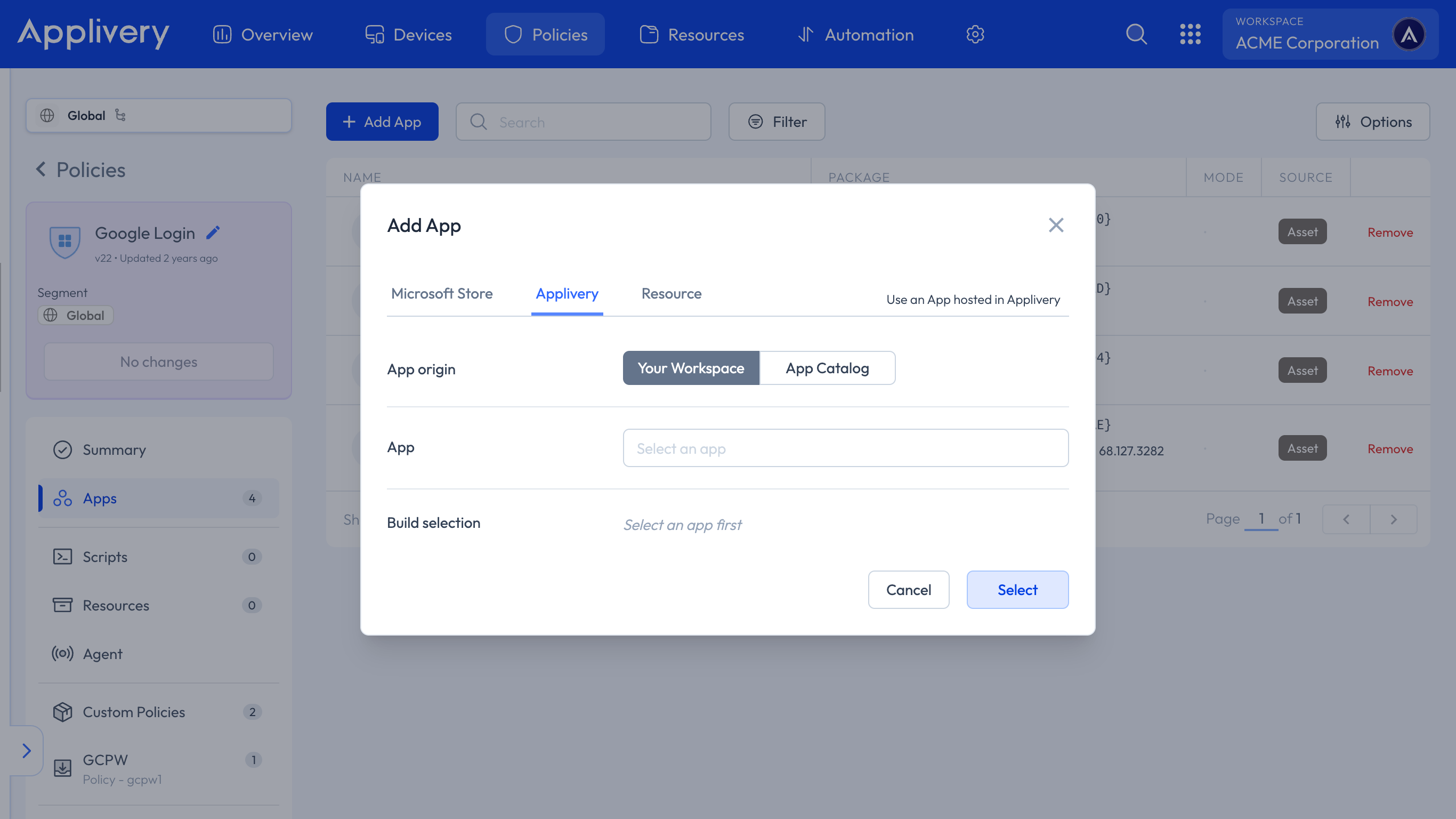
On one hand, you can select Your Workspace; applications that have been previously uploaded to your Workspace through App Distribution. These applications are managed and deployed directly using Applivery, allowing administrators to control installation, updates, and availability across the Device fleet.
On the other hand, you can choose App Catalog. This option is directly linked to applications managed by the Applivery Agent. The App Catalog enables end users to install approved applications on demand through the self-service experience, while IT maintains full control over which applications are available. This approach reduces administrative overhead, improves flexibility, and empowers users without compromising security or compliance.