Microsoft Consumer Experiences is a feature built into Windows that delivers app recommendations, notifications, and offers to users, often including automatic installation of suggested Apps from the Microsoft Store. While designed to enhance user experience by providing personalized content, it can lead to unwanted Apps appearing on corporate Devices, causing distractions and potential security concerns.
Disabling Microsoft Consumer Experiences allows IT administrators to prevent these auto-installations and tailored suggestions, ensuring a cleaner, more controlled environment on Windows Devices. This feature limits the use of diagnostic data for personalized experiences, reducing data sent to Microsoft for these purposes and helping organizations enforce stricter privacy and security Policies.
By turning off these consumer features, organizations can better manage corporate Devices, avoid unapproved software installations, and maintain a more focused IT environment.
Disabling Microsoft Consumer Experiences
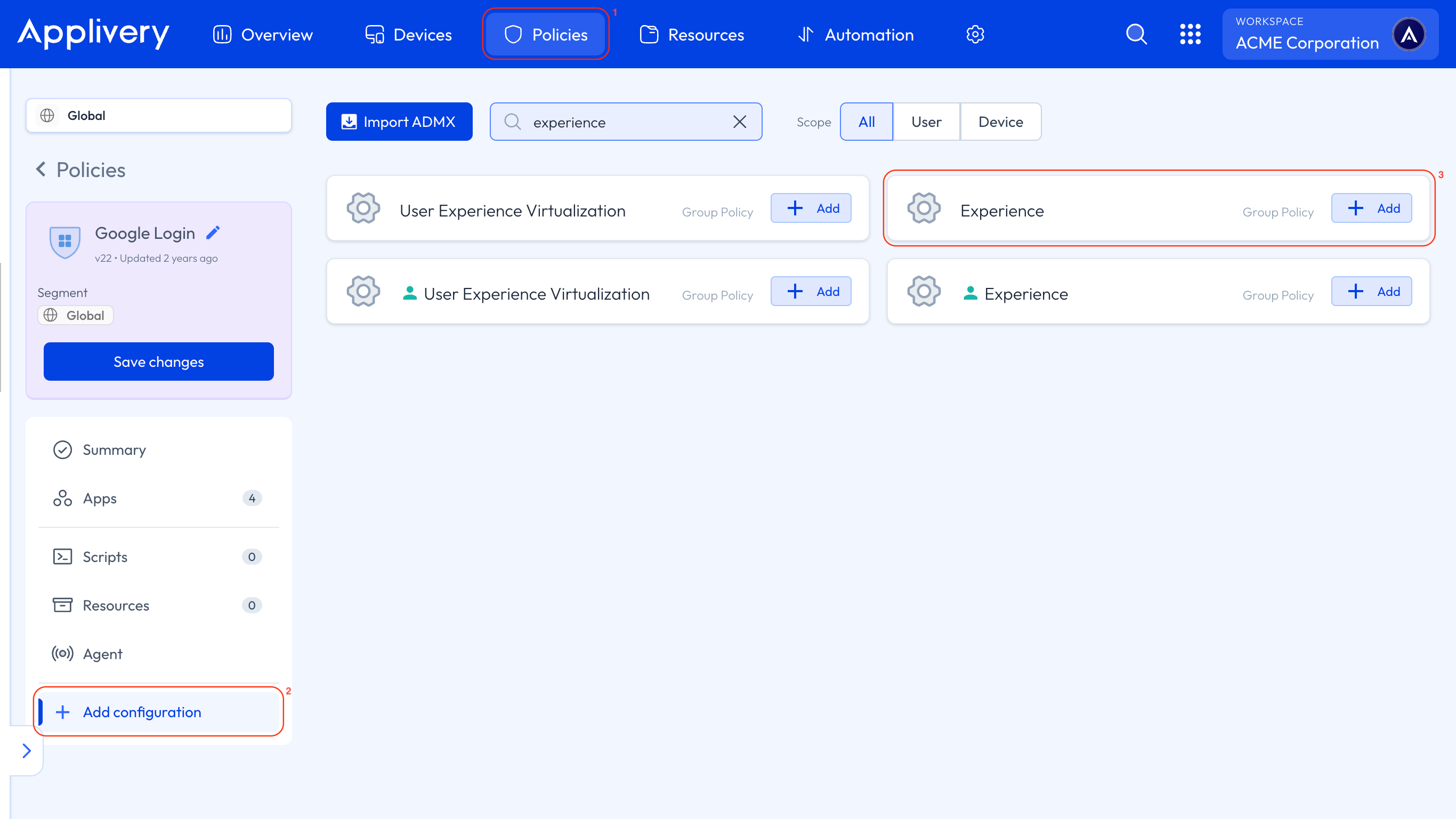
Once in the Applivery Dashboard, head to Policies (1). Choose the Policy where you want to add this configuration.
Next, in the left-hand menu, select + Add configuration (2), and search for Experience (3).
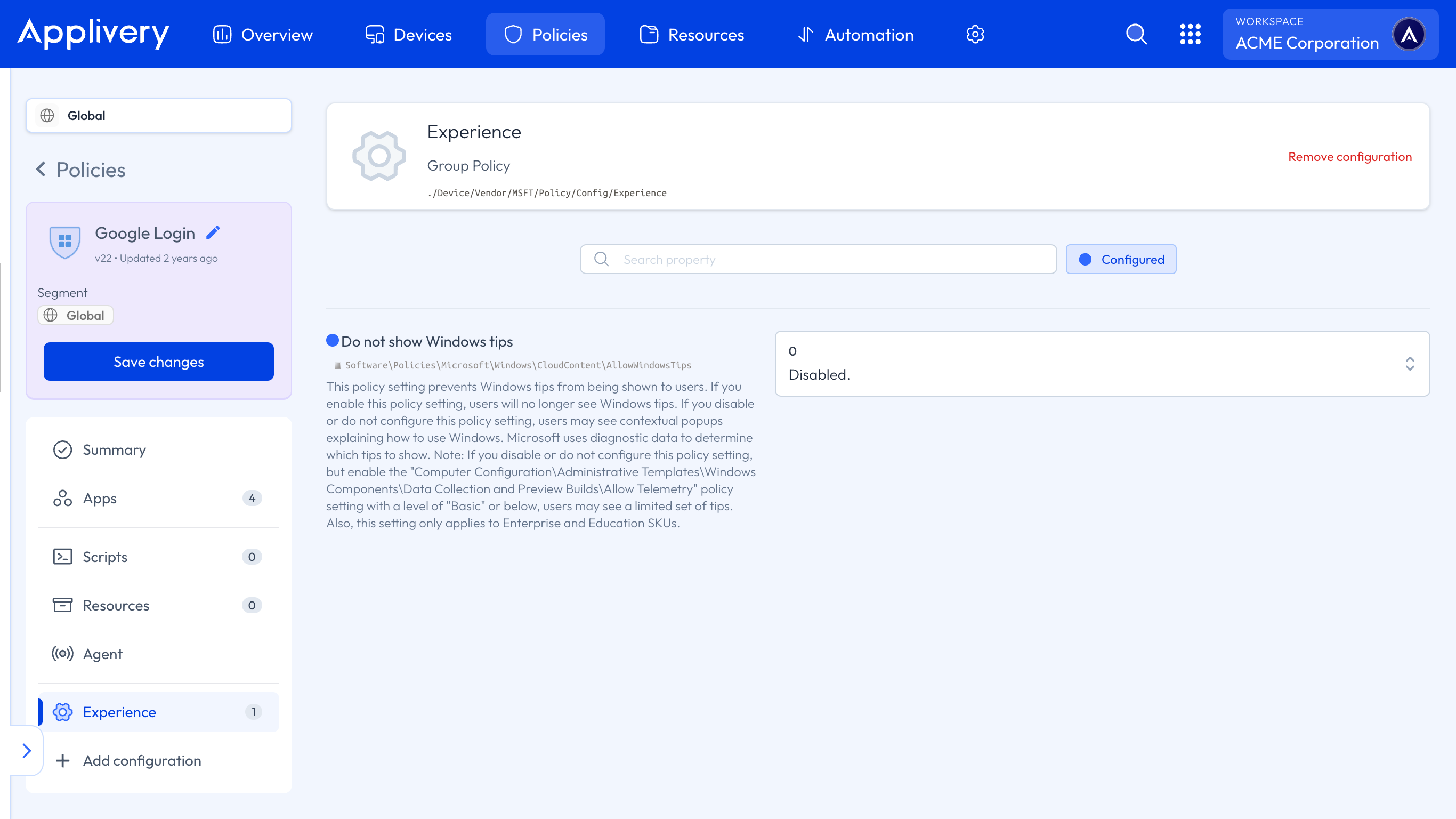
Locate the Do not show Windows tips setting and set its value to 0. This will disable Windows tips for all users.