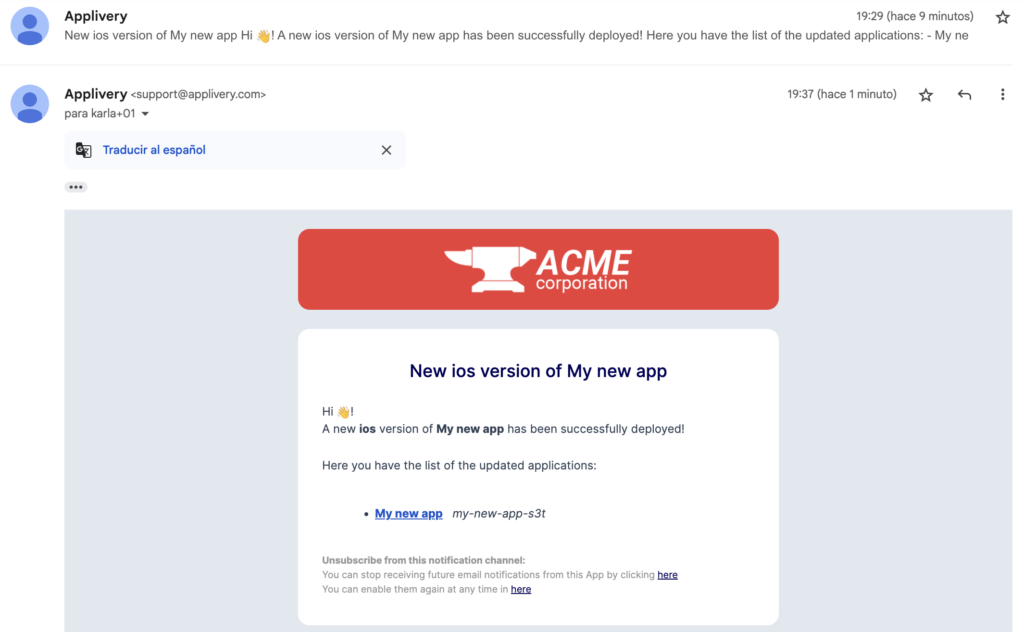
It can be challenging when it comes to uploading new Builds to your Apps and configuring which User Groups or audiences will receive notifications about the new Build.
In Applivery, there are four notification settings levels: User-level, App-level, Build-level, and Publication-level.
User-level settings
User-level settings take precedence over all others.
Once in the Applivery Dashboard, go to your account configuration 1 from the top dropdown menu, then open Notifications 2 in the left-hand menu and choose which notifications you’d like to receive and manage them by App (using the Manage by app button) if needed.
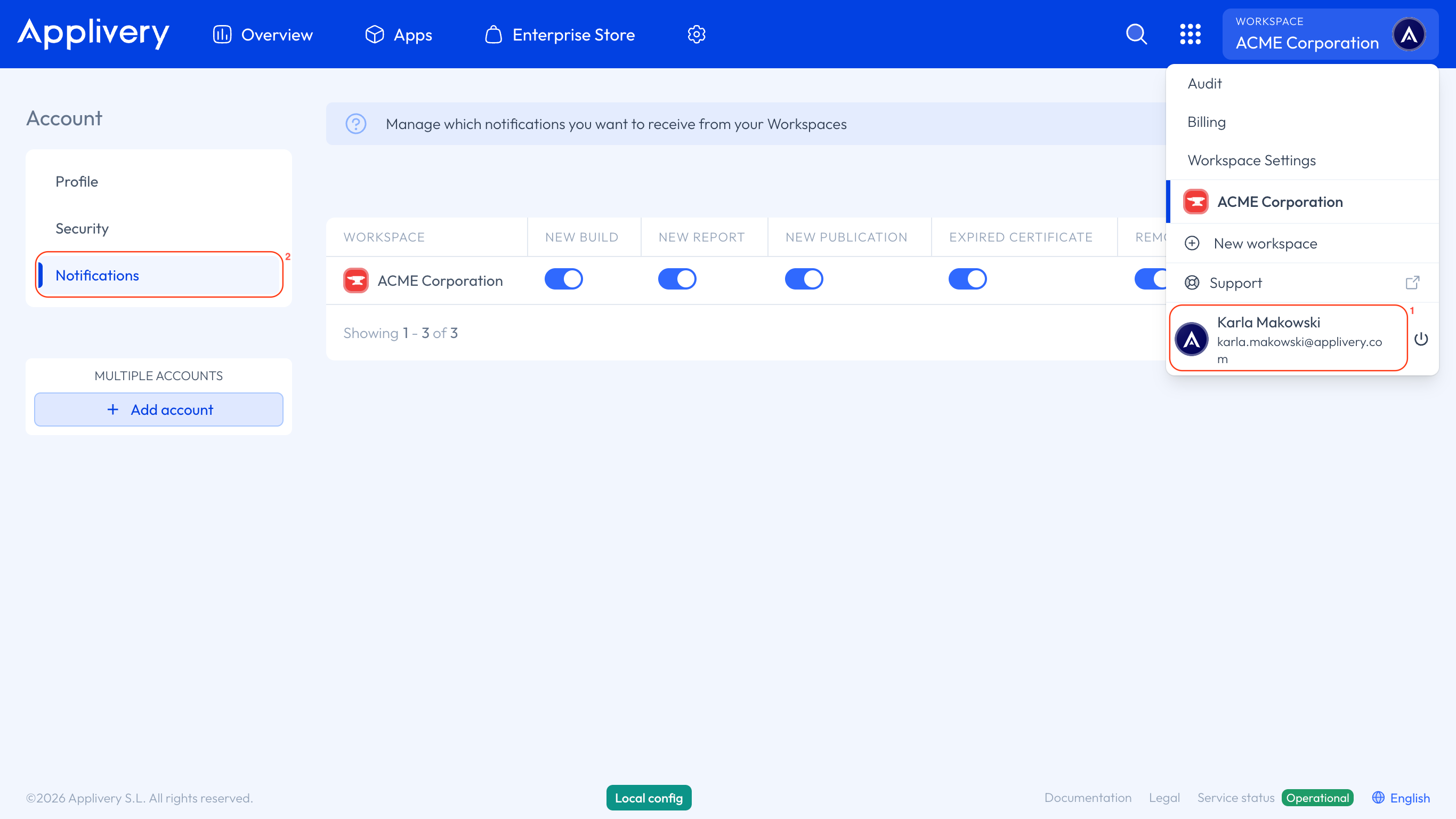
Only Workspace Collaborators can configure these notifications, as Employees do not have access to the Dashboard. You can learn more about Applivery user types here.
App-level settings
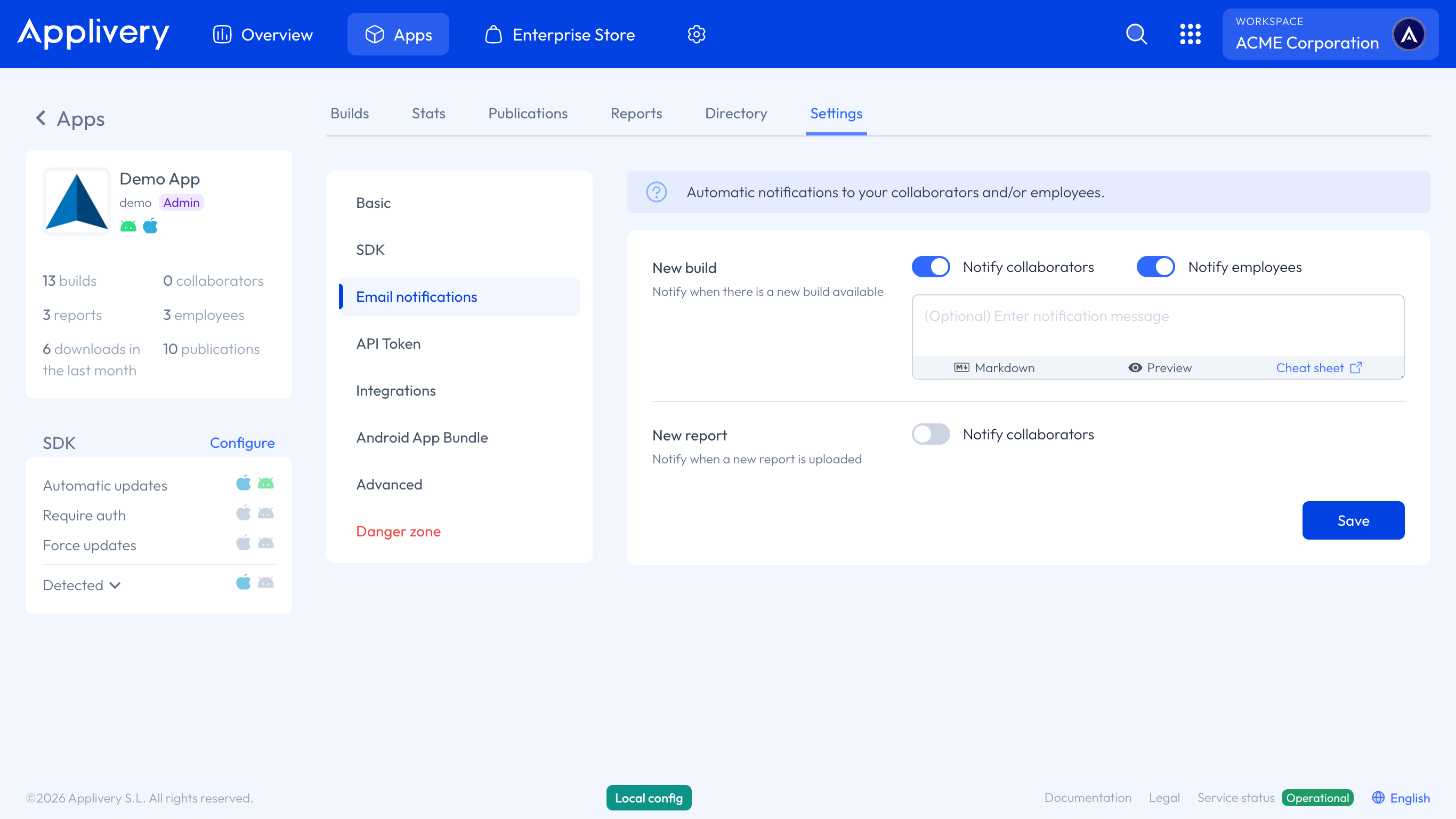
App-level settings have the next highest priority and can be configured by navigating to the App’s Settings > Email notifications section.
This configuration serves as the default for notifying Collaborators/employees when a Build is uploaded to that App.
Build-level settings
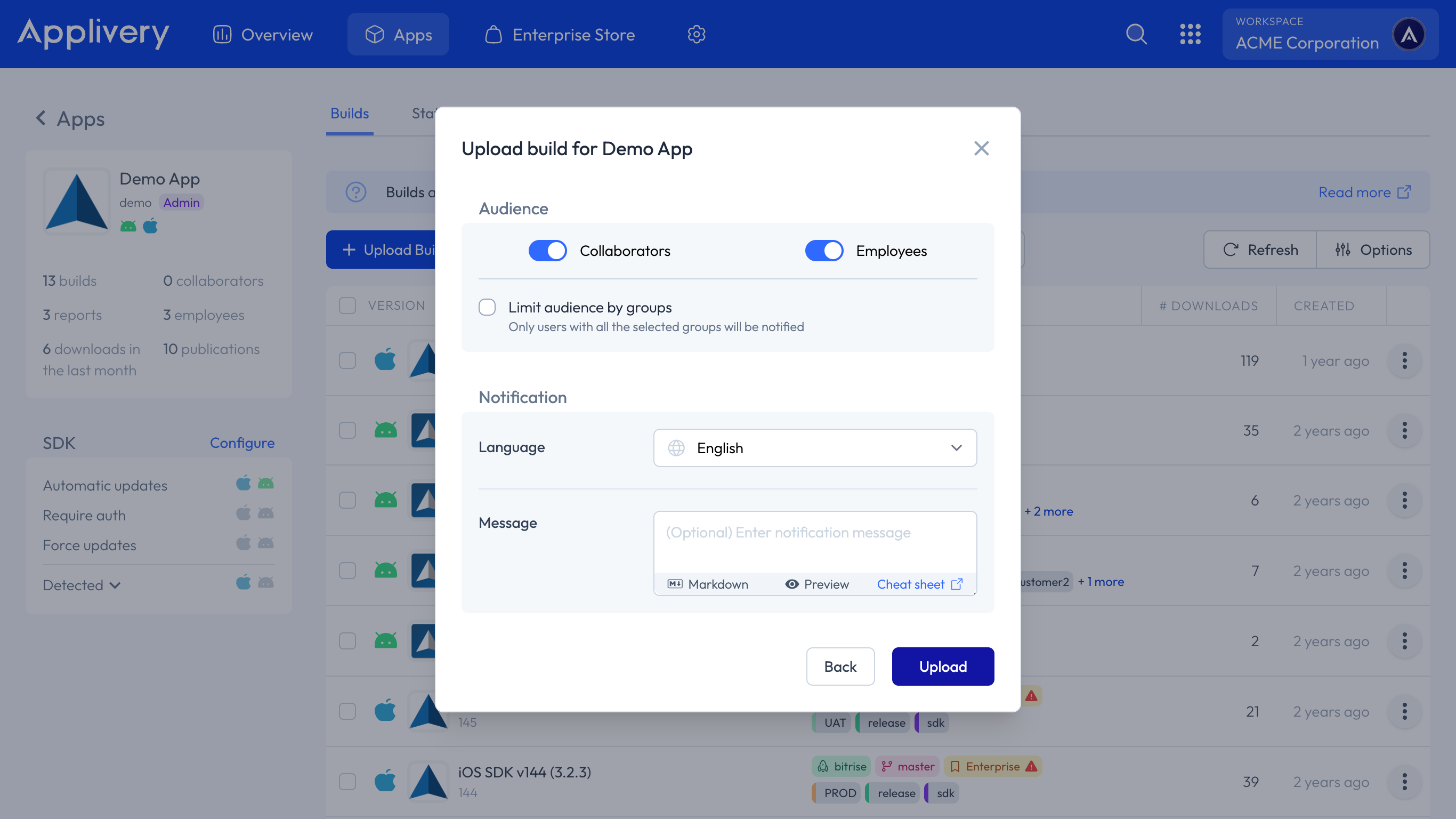
Simply click the + Upload Build button, and after selecting the file to upload, choose the option to Modify notification settings for this Build.
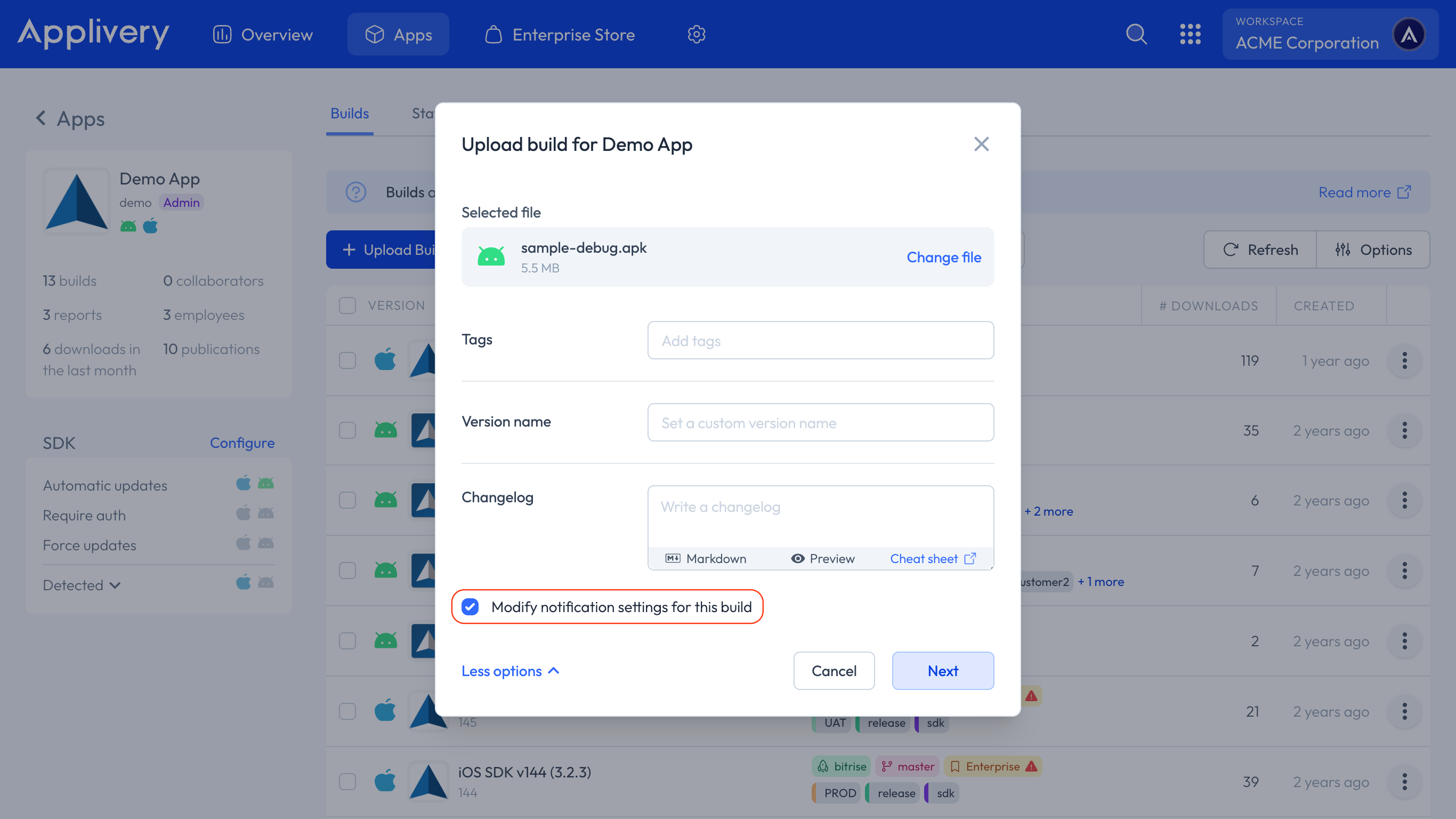
Click the Next button to configure the notification settings for this specific Build.
Publication-level settings
Publication-level settings have the lowest priority, so the previously described settings will take precedence.
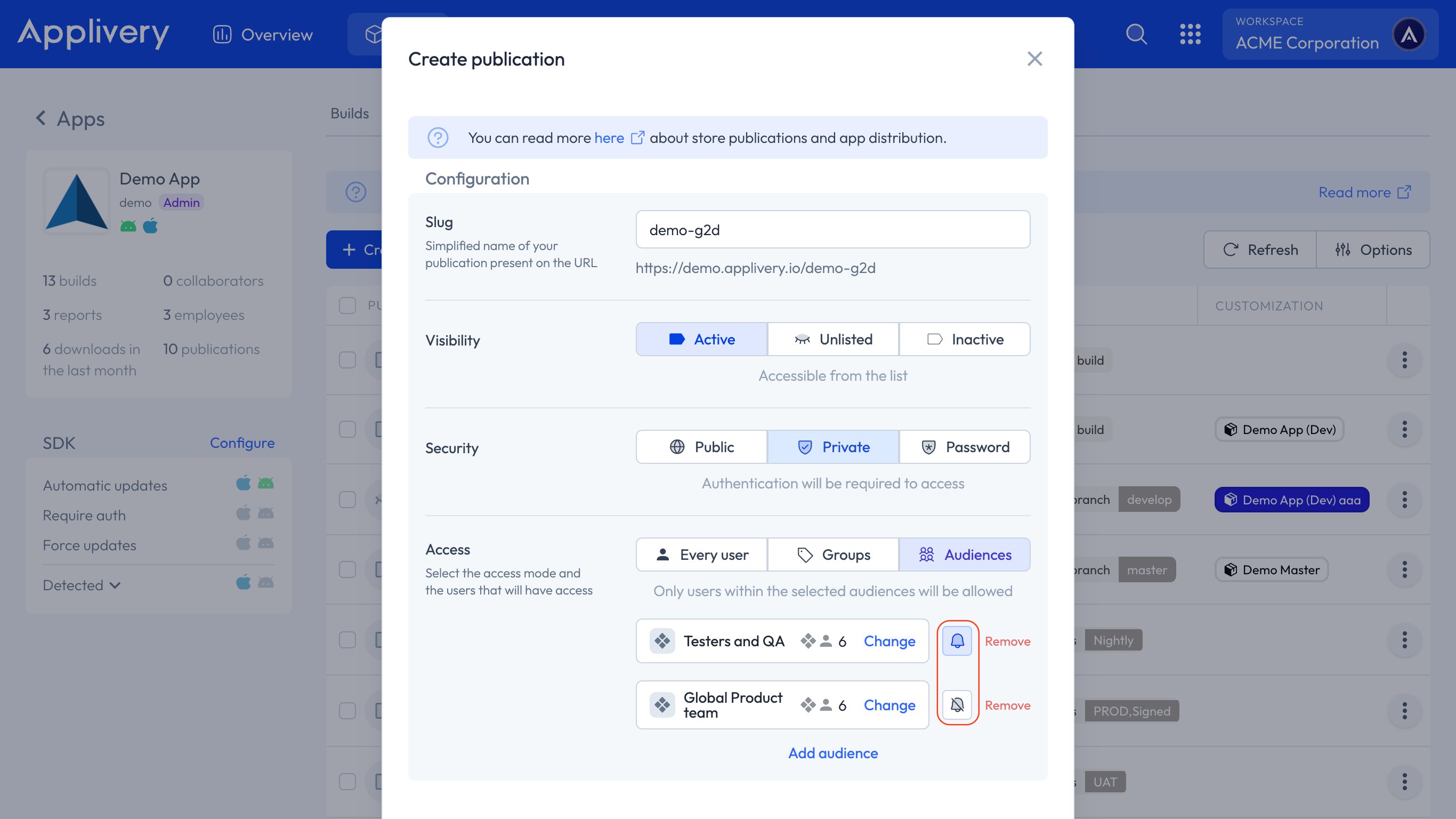
In summary, once we go through the App-level priority, then move to the Build-level, and finally reach the Publication-level, we will check within the Publication level which groups/audiences should—or should not—be notified.
To learn more about group and audience management, you can check out the following resources:
Important considerations regarding Audience notifications
When configuring notifications for your audience in Applivery, it’s essential to keep several key considerations in mind.
Imagine you have an App with two different audiences: Audience 1 and Audience 2. You want to send notifications about new Builds but need to configure which audience will receive them.
Your App has enabled notifications (App-level).
The App has one Publication targeting all Builds, shared with both audiences:
Audience 1 – notifications ON.
Audience 2 – notifications OFF.
Who will receive notifications if you upload a new Build with notifications enabled?
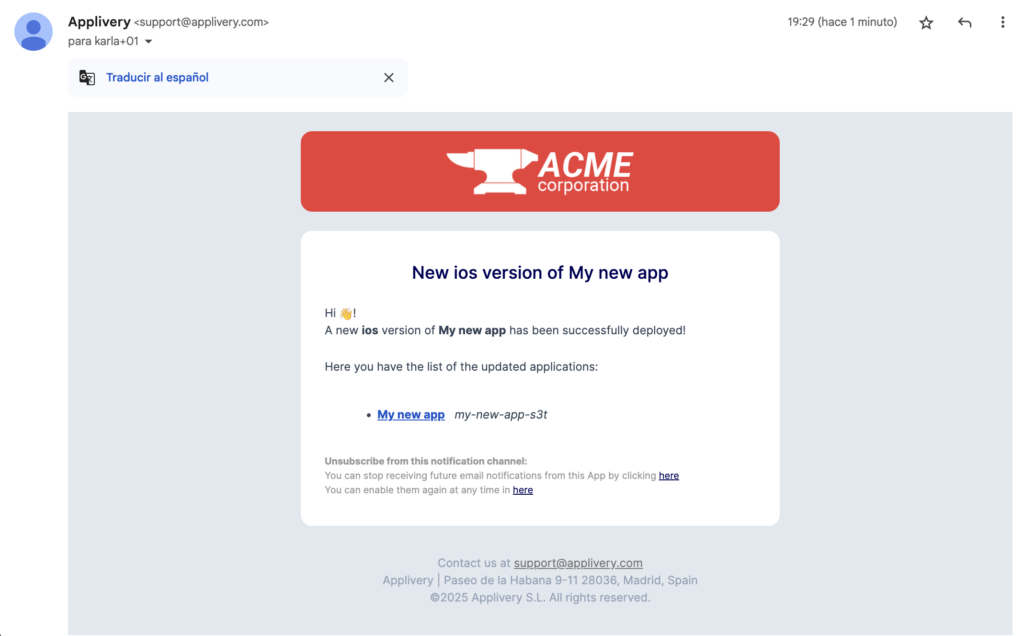
If you upload a Build with notifications enabled, Audience 1 will receive notifications, as notifications are enabled at the App, Publication, and Build levels. However, Audience 2 will not receive any notifications.
Who will receive notifications if you upload a new Build with notifications disabled?
If you upload a Build with notifications disabled at the Build level, it will override the App-level setting (which is enabled), and neither Audience 1 nor Audience 2 will receive notifications. This holds true even if notifications are enabled for Audience 1 at the Publication level, as the Build-level setting takes precedence.
Who will receive notifications if you upload a new Build with notifications disabled at the App level but enabled at the Build level?
In this case, Audience 1 will still receive the notification, as the Build configuration takes precedence over the App-level settings.