
The issues described here are specific to iOS. Android installation problems are typically caused by the "Unknown sources" setting — see Unknown sources in Android for guidance.
Quick diagnosis: what are you seeing?
| Symptom | Most likely cause |
|---|---|
| Progress bar appears but doesn't move | Network connectivity issue |
| App install stuck on "Waiting…" | Network connectivity issue |
| App icon turns dark grey and is not tappable | Certificate or provisioning profile problem |
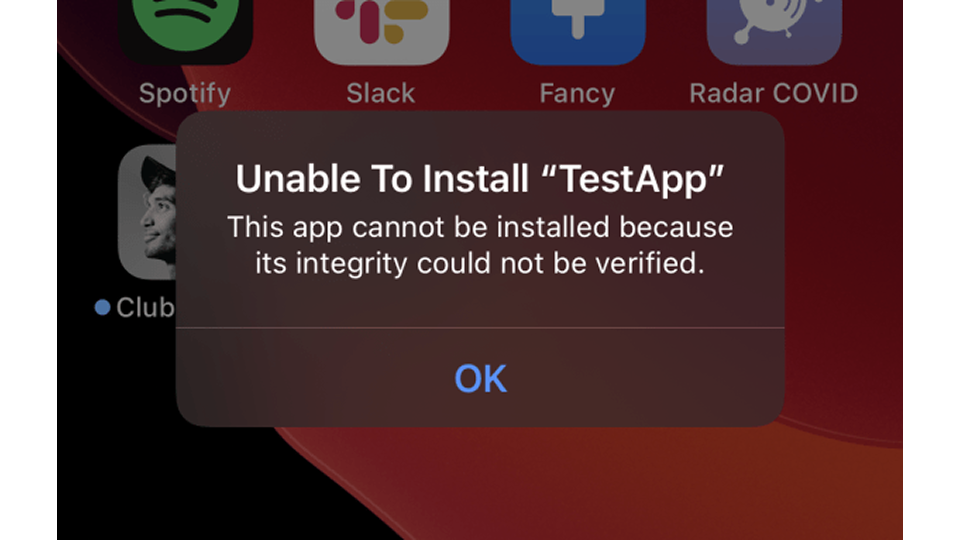
| Alert: "Unable To Install — integrity could not be verified" | Code signature failure |
Progress bar appears but doesn't move
Cause: The Device cannot reach Applivery's download servers. This is almost always a network issue.
Resolution:
Make sure the Device has a stable internet connection — switch between Wi-Fi and mobile data to rule out a connection-specific problem.
Cancel the download and try again.
If the issue persists, try on a different network.
App install stuck on "Waiting…"
Cause: iOS queued the installation but cannot proceed — most commonly a network timeout during the download, or an overloaded device state.
Resolution:
Make sure the Device has a stable internet connection and try again.
If the problem persists, power the Device off completely, wait at least 5 minutes, power it back on, and retry.
If it still gets stuck, use the iOS installation debugger to capture more details about where the process is failing.
App icon turns dark grey and is not tappable
This symptom means iOS started the installation but stopped before completing it. The cause is always related to the App's signing configuration. Work through the following checks:
Missing device UDID (Ad-hoc distribution only)
If the App was signed with an Ad-hoc certificate, the Device's UDID must be listed in the provisioning profile. If it isn't, iOS will silently fail to install.
Resolution:
In the Applivery dashboard, open the Build details and note the Device's UDID.
Add the UDID to your provisioning profile in the Apple Developer Portal.
Download the updated provisioning profile, re-sign the App, and upload the new Build to Applivery.
Expired provisioning profile
Provisioning profiles have a maximum validity of one year. An expired profile will prevent installation even if the signing certificate is still valid.
Resolution:
Renew the provisioning profile in the Apple Developer Portal.
Rebuild the App with the updated profile and upload the new Build to Applivery.
Expired signing certificate
Both Ad-hoc and Enterprise signing certificates expire. An expired certificate invalidates all Builds signed with it, even if the provisioning profile is still valid.
Resolution:
Renew or create a new signing certificate in the Apple Developer Portal.
Update your Xcode signing configuration, rebuild the App, and upload the new Build to Applivery.
Other signing issues
If none of the above applies, there may be a mismatch between the certificate, profile, and bundle identifier.
Resolution:
Verify that the bundle identifier in your Xcode project matches the one in the provisioning profile exactly.
Check that the certificate used to sign the Build is the one associated with the provisioning profile.
Use the iOS installation debugger to capture the specific error.
Alert: "Unable To Install — integrity could not be verified"
Full message: Unable To Install "App Name": This App cannot be installed because its integrity could not be verified.
Cause: Apple checked the App's code signature after download and found it invalid. This typically means the provisioning profile embedded in the App does not match the signing certificate, or the profile has expired.
Resolution:
Check the provisioning profile associated with the Build — ensure it is not expired and matches the signing certificate used.
Rebuild the App with a valid profile and certificate combination and upload the new Build to Applivery.
If the problem persists, use the iOS installation debugger to capture the exact failure point.