
Audiences are a feature in Applivery that lets you control access to Publications in a scalable, dynamic way. Rather than managing access user by user, Audiences let you define a set of users based on conditions — the groups they belong to, their email addresses, or both — and assign that set to one or more Publications in a single step.
Because Audiences are condition-based, their membership updates automatically as users are added to your Workspace or App. This makes them especially powerful when combined with SSO and SCIM provisioning, where user directory changes flow through automatically without any manual audience management.
In short, an Audience defines who can see, access, and download Builds from a given Publication.
Being part of an Audience does not define a user's role as a Collaborator or Employee. Audiences cannot contain roles (Admin, Editor, Viewer, etc.). Roles must be assigned individually at the Workspace or App level. See Managing users for more information.
Key concepts
Audience scope defines where an audience can be managed and where it will be available for assignment:
Workspace-scoped audiences are available across the entire Workspace. You can optionally restrict which Apps are allowed to use them.
App-scoped audiences are only available within a specific App.
User search scope determines where Applivery looks when resolving which users belong to an audience:
Workspace: Searches across all users in the Workspace.
App: Searches only within the users of a specific App.
When creating a Workspace-scoped audience, the user search scope is always set to Workspace. When creating an App-scoped audience, you can choose to search within the App or expand the search to the full Workspace.
Creating an Audience
Audiences can be created from two places:
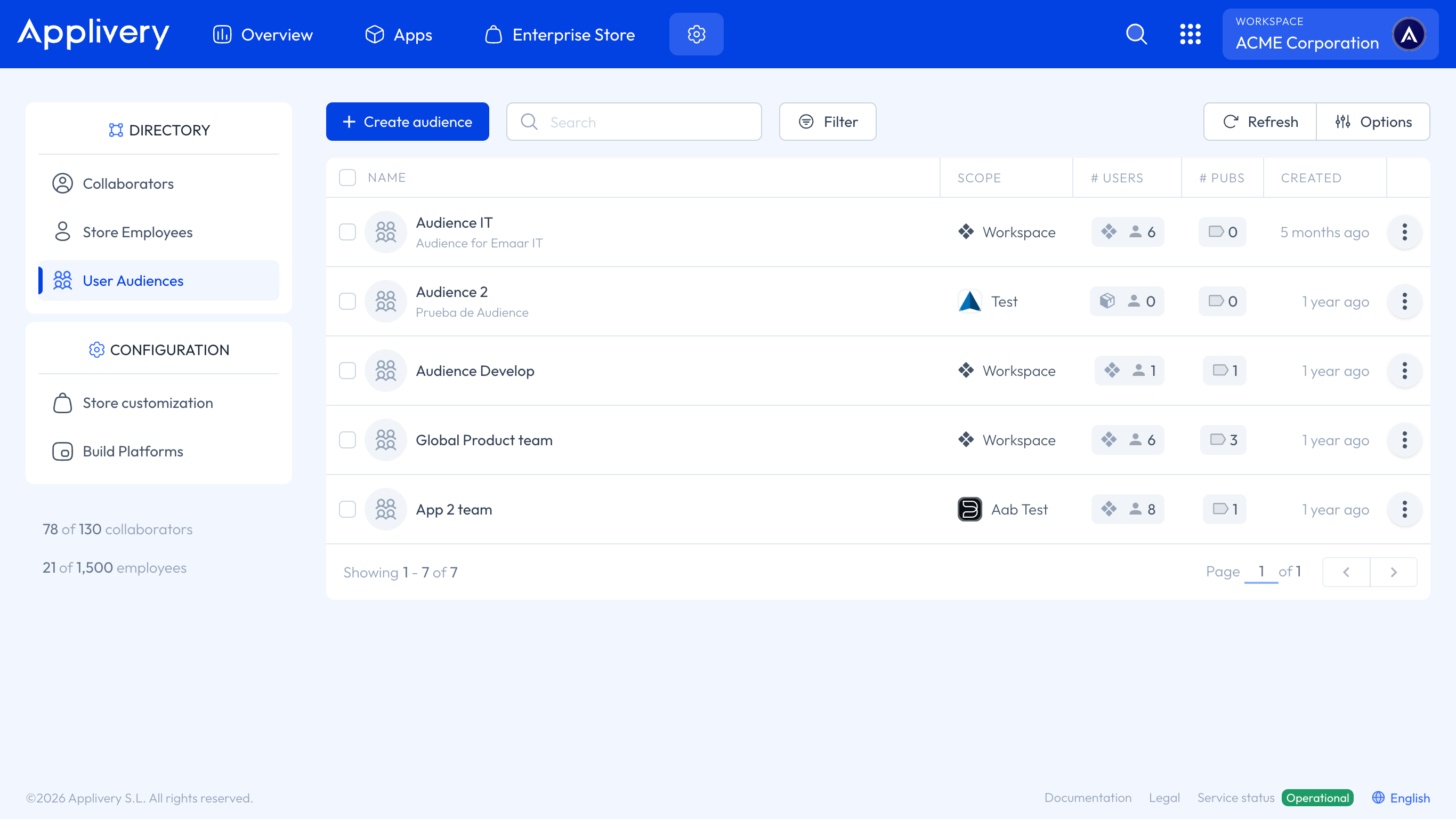
Workspace level: Go to the Settings section, and from the left-hand menu, select User Audiences.
App level: go to App > Audiences.
Click + Create audience and fill in the following sections:
| Field | Description |
|---|---|
| Name | A clear, descriptive name for the audience. |
| Description | Optional. Useful for documenting the purpose of the audience. |
| Audience scope | Choose Workspace or App. If Workspace, you can additionally restrict which Apps this audience will be available in. |
| Field | Description |
|---|---|
| User search scope | Choose Workspace or App to define where Applivery looks for matching users. |
| Groups | Add one or more User Groups using AND / OR logic to define the conditions for membership. Membership updates automatically as group membership changes. |
| Emails | Add individual users by email address. Works for both existing users and new ones. When adding a user who doesn't yet belong to the Workspace or app, use the invite button that appears to send them an invitation in one click. |
As you configure conditions, a live preview of matching users appears at the bottom of the screen, so you can verify the audience resolves as expected before saving.
Click Save when done.
Exploring users within an Audience
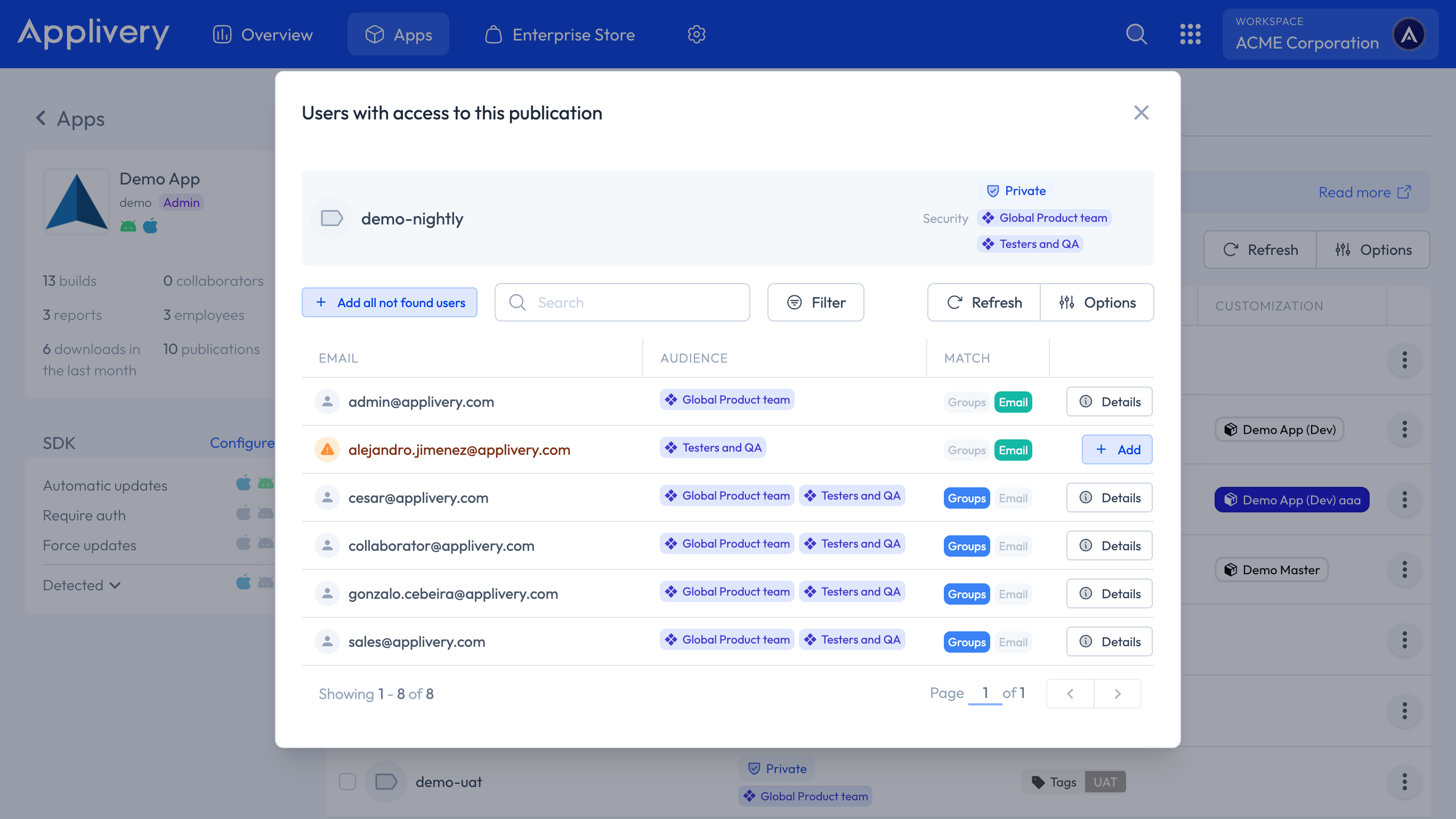
To see which users currently match a given audience, open the Publication list, click the three vertical dots menu next to the Publication, and select View users. This displays a list of all users who satisfy the audience's conditions at that moment.
You can also access this information directly from the audience list view:
Click the Users field on any audience row to see the users it targets.
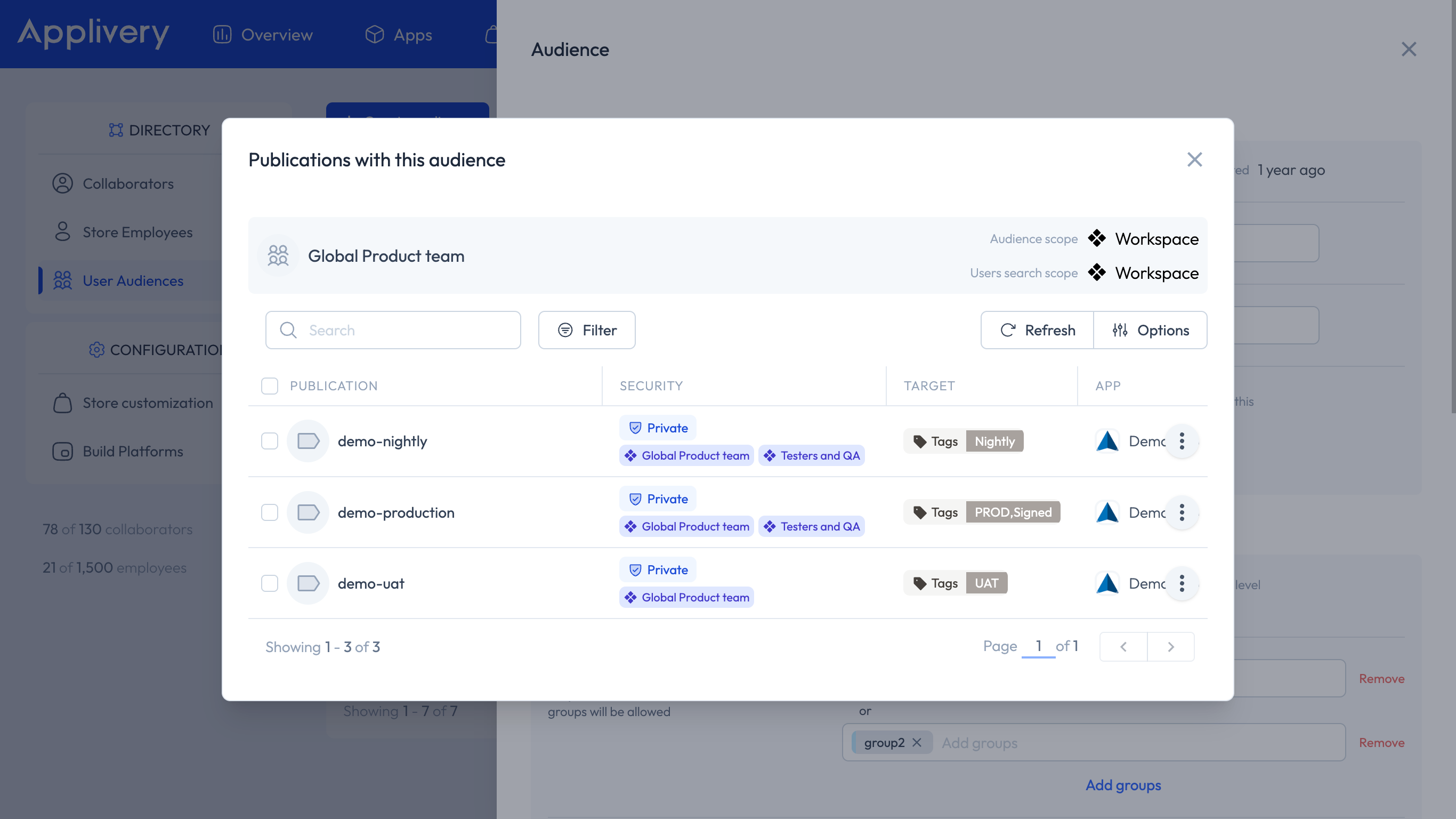
Click the Pubs field to see which Publications are using that audience.
Assigning Audiences to Publications
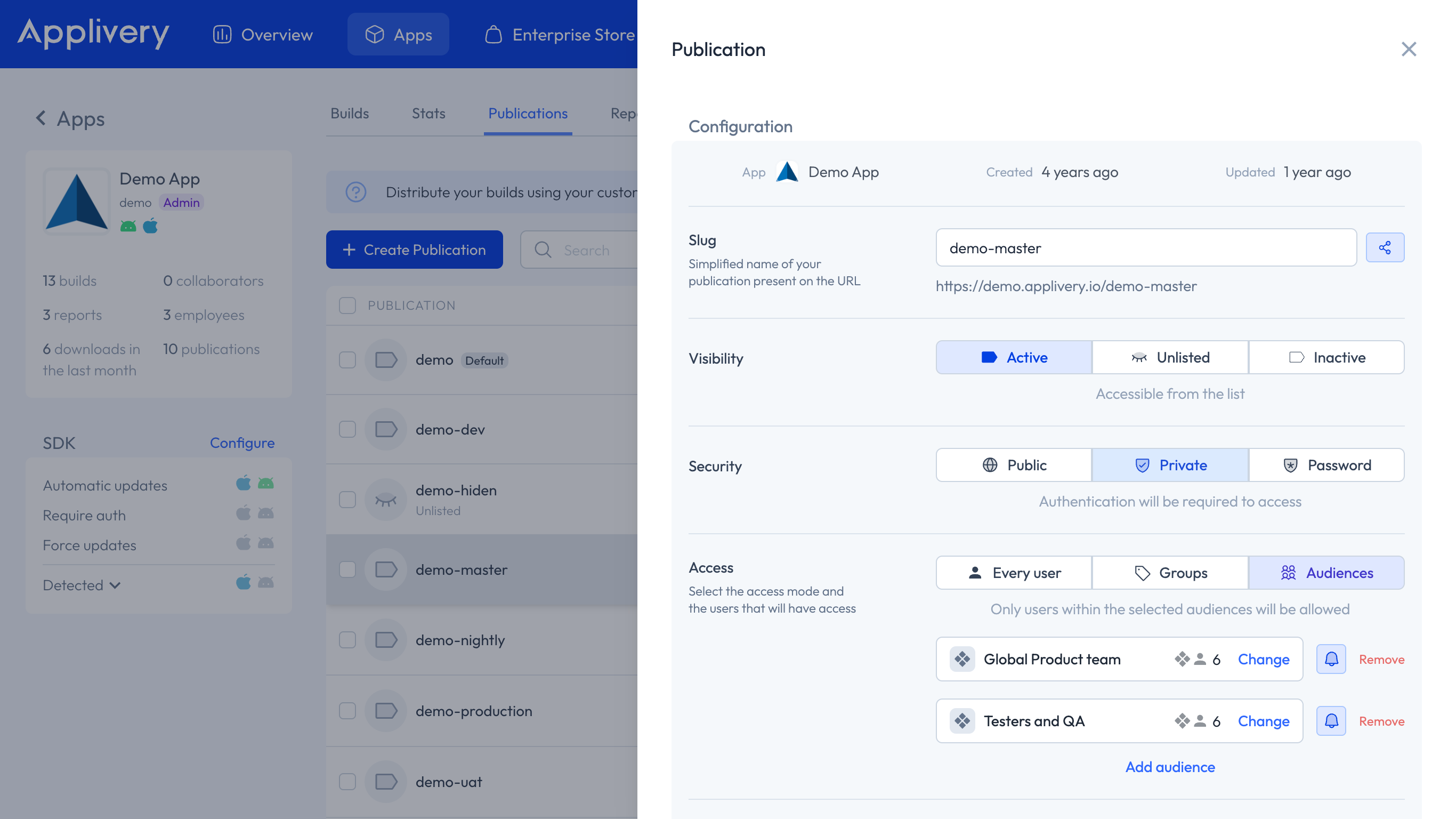
Audiences are used to control access to Private Publications. To assign one:
Create or edit a Publication.
Set the Security to Private.
Under the Access section, select Audiences.
Add one or more audiences to the Publication.
Users who belong to any of the assigned audiences will be able to see and download Builds from that Publication. Users outside the audience will not have access.
Viewing Publications associated with an Audience
To see which Publications a given audience is currently assigned to, open the audience detail page and click the Publications count shown at the top of the screen. This gives you a full list of all Publications that reference that audience.
Build notifications
When creating or editing an audience, you can control whether its members receive email notifications when new Builds are published. Use the bell icon (🔔) next to the audience name to toggle notifications on or off per audience.
Two important caveats to keep in mind:
User-level preferences take priority. If an individual user has disabled notifications in their personal settings, the audience-level setting will not override that.
App-level notification settings also apply. You can disable notifications entirely for Collaborators or Employees at the App level by going to App > Settings > Notifications. This overrides audience-level notification settings.
Best Practices
Use groups as the primary targeting mechanism. Group-based conditions update automatically, keeping your audiences accurate without manual intervention — especially valuable with SSO and SCIM integrations.
Use email-based targeting for exceptions. Add individuals by email when you need to grant access to someone outside of your standard groups, such as an external stakeholder or a one-off reviewer.
Prefer Workspace-scoped audiences for reuse. If the same set of users needs access across multiple Apps or Publications, a Workspace-scoped audience avoids duplication and keeps management centralised.
Use App-scoped audiences for isolation. When an audience is specific to a single App and should not be reused elsewhere, App scope keeps things tidy and prevents accidental assignment to unrelated Publications.
Verify membership before saving. Use the live user preview at the bottom of the audience editor to confirm conditions resolve correctly before publishing the audience.