
This is a premium feature that may not be available on your current plan. Check availability on the Applivery pricing page.
SAML 2.0 (Security Assertion Markup Language) is the industry standard for web-based Single Sign-On. It allows your Identity Provider (IdP) — such as Okta, Azure AD, or Ping Identity — to handle authentication, while Applivery trusts the result and grants access without ever handling your users' passwords.
Once configured, users who visit a protected Applivery portal are redirected to your IdP's login page. After authenticating there, the IdP sends a signed SAML assertion back to Applivery confirming the user's identity and group memberships. Applivery validates the assertion and lets the user in — no separate Applivery password needed.
SAML SSO can be configured independently for each of the three Applivery portals:
Dashboard — access for Collaborators (developers, admins, viewers) managing Apps and Policies.
App Store (Enterprise Store) — access for store employees downloading internal app Builds.
MDM Portal — access for device users authenticating during enrollment or portal access.
Supported Identity Providers
Applivery supports any SAML 2.0 compliant Identity Provider. Step-by-step setup guides are available for the most common ones:
If your IdP is not listed above, you can still configure SAML SSO as long as it supports SAML 2.0. The general flow — exchanging SP metadata from Applivery, configuring the IdP, uploading the IdP's Federation Metadata XML back into Applivery — is the same for all providers.
Authentication flow
When a user accesses a SAML-protected Applivery portal, the flow works as follows:
The user visits your App Store domain, Dashboard, or MDM Portal and clicks Login. Applivery redirects them to your Identity Provider's login page, where they authenticate using their corporate credentials. Once authenticated, the IdP sends a signed SAML Response to Applivery's callback endpoint. Applivery validates the signature, extracts the user's identity and group information from the assertion, and grants access — showing only the Apps and resources the user is authorized to see.
Attribute mapping
Applivery reads user identity from specific attributes in the SAML assertion. The exact attribute name varies depending on the Identity Provider. You can override the defaults in the SAML configuration screen under Attribute Mapping — leave a field blank to use the default value for the detected IdP.
The email address is the primary user identifier. Applivery looks for it in the following locations, in order:
| IdP | Attribute |
|---|---|
| Standard (default) | nameID |
| Azure AD | EmailAddress (http://schemas.xmlsoap.org/ws/2005/05/identity/claims/emailaddress) |
| Auth0 | http://schemas.auth0.com/email |
First name
| IdP | Attribute |
|---|---|
| Standard (default) | http://schemas.xmlsoap.org/ws/2005/05/identity/claims/givenname |
| Azure AD | http://schemas.microsoft.com/identity/claims/displayname |
| Auth0 | http://schemas.auth0.com/given_name |
Last name
| IdP | Attribute |
|---|---|
| Standard (default) | http://schemas.xmlsoap.org/ws/2005/05/identity/claims/surname |
| Azure AD | http://schemas.microsoft.com/identity/claims/displayname |
| Auth0 | http://schemas.auth0.com/family_name |
User Groups
Groups from your IdP are used for access control in Applivery — controlling which users see which Publications, and assigning Dashboard roles. Applivery reads groups from:
| IdP | Attribute |
|---|---|
| Standard (default) | http://schemas.xmlsoap.org/claims/Group |
| Azure AD | http://schemas.microsoft.com/ws/2008/06/identity/claims/groups |
| Okta | http://schemas.microsoft.com/ws/2008/06/identity/claims/groups (configured via Group Attribute Statement) |
Group mapping
Some Identity Providers — notably Azure AD — don't send group display names in SAML assertions. Instead, they send opaque identifiers (Object IDs in Azure's case). Applivery's group mapping feature lets you translate these IDs to human-readable group names.
You can configure key/value mappings in your SAML configuration in the Applivery Dashboard, under Group Mapping. Applivery will also automatically discover new group values as users authenticate and add them to the list — you can then assign names to them without needing to pre-configure every group upfront.
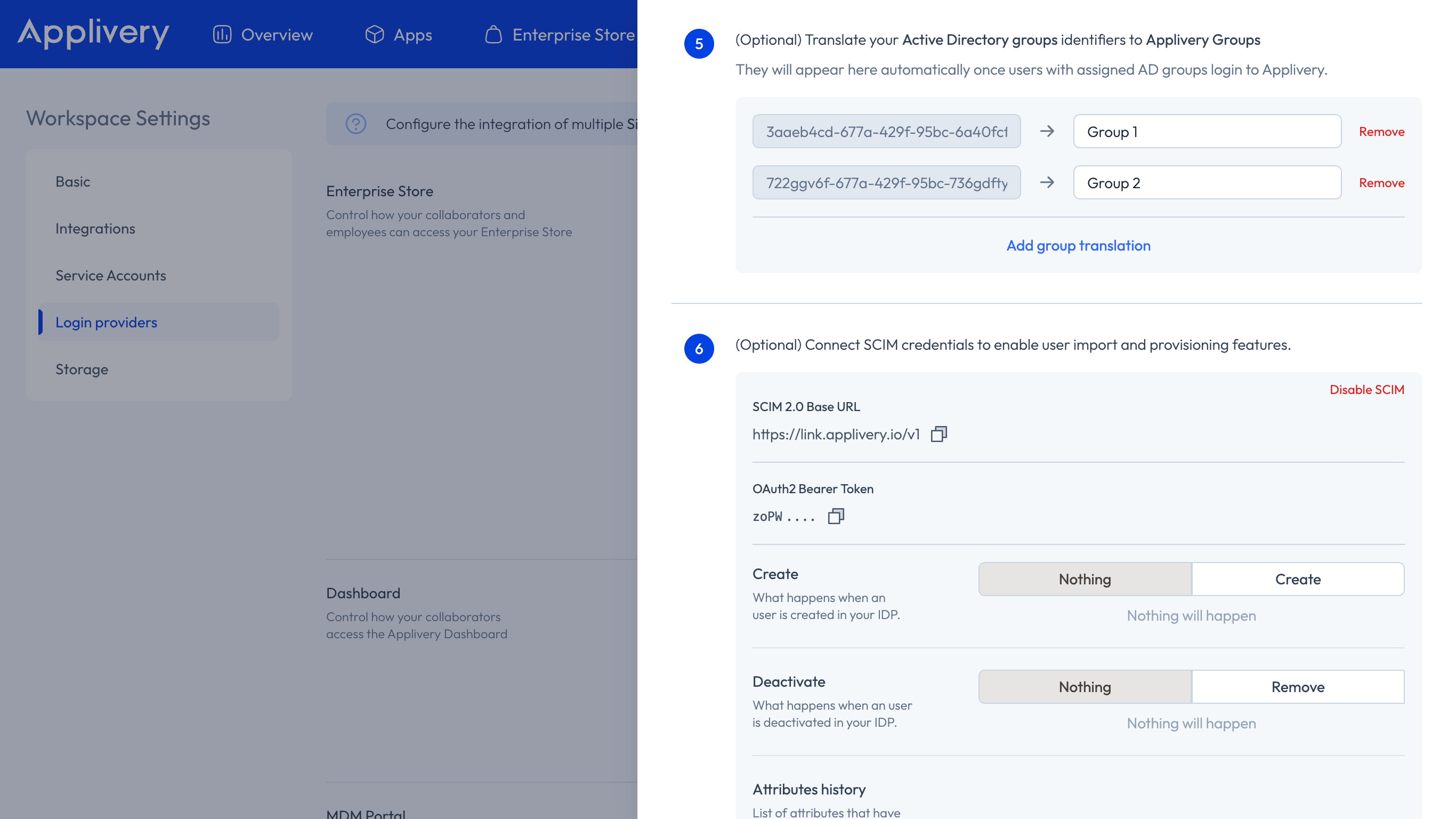
For a detailed walkthrough specific to Azure AD, see Single Sign-On with Azure AD — Security Group mapping.
Role mapping from SSO
When SAML is configured for the Dashboard, Applivery can automatically assign a Collaborator role to new users based on the groups sent in their SAML assertion.
This applies only on first login — if the user already exists in Applivery, their existing role is not changed.
The role is determined by which of the following reserved group names the user belongs to in their IdP:
| Group name | Applivery role assigned |
|---|---|
applivery-admin |
Admin |
applivery-editor |
Developer / Editor |
applivery-viewer |
Viewer |
applivery-unassigned |
Unassigned |
If a user belongs to more than one of these groups, the highest-privilege role takes precedence. If the user doesn't belong to any of these groups, they are created without a role assignment and an admin will need to assign one manually.
Role mapping also works in combination with Group Mapping. If your IdP sends Object IDs instead of display names, you can map the Object IDs to the reserved group names (applivery-admin, etc.) in the Group Mapping settings, and role assignment will work correctly.
Role mapping only applies to App Distribution. Device Management permissions are governed exclusively by Segment permissions.