Managing the Local Administrators group is essential for maintaining security and operational control over Windows Devices. Granting administrative access only to trusted users or service accounts helps prevent unauthorized changes, limits the attack surface, and ensures compliance with organizational Policies.
With Applivery, you can centrally manage the Local Administrators group on all enrolled Windows Devices by applying a Policy configuration. This allows IT administrators to add or remove specific users or groups from the local administrators group across the entire device fleet—automatically and consistently.
The group policy we’ll use can manage various local groups; however, this article will focus specifically on managing the Local Administrators group.
Local Users and Groups
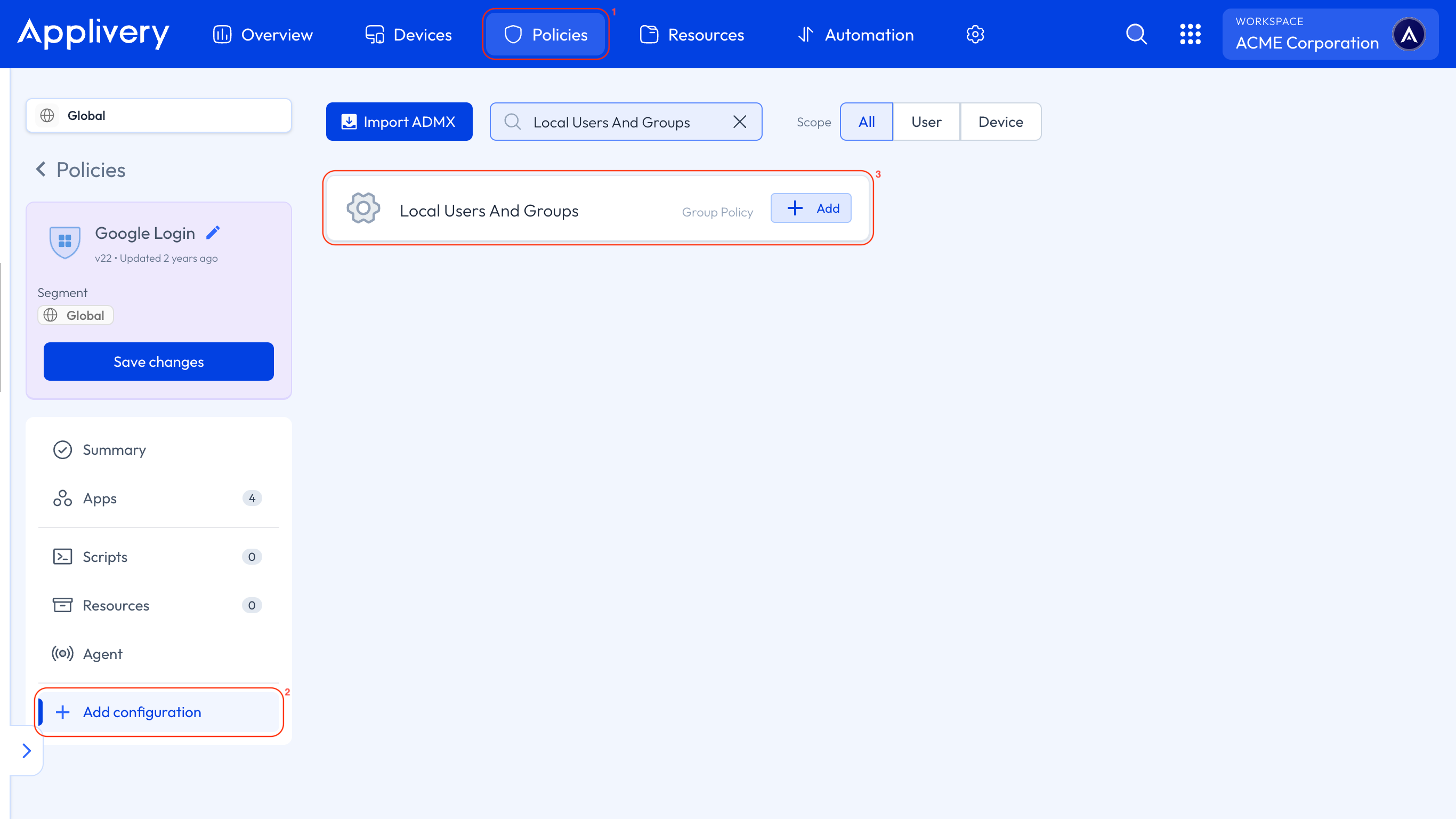
Once in the Applivery Dashboard, head to Policies (1). Choose the Policy where you want to create an admin user.
Next, in the left-hand menu, select + Add configuration (2), and search for Local Users And Groups (3).
We will use the following template:
<GroupConfiguration>
  <accessgroup desc = "">
    <group action = ""/>
    <add member = ""/>
    <remove member = ""/>
  </accessgroup>
</GroupConfiguration>
Here's a breakdown of the XML elements:
<GroupConfiguration>: Encloses the entire group management configuration.<accessgroup desc="">: Defines the local group you want to manage (e.g., Administrators).<group action=""/>: Specifies how the group membership should be managed:U = Update: Modifies the group by adding or removing only the specified members. Existing members not mentioned will remain unchanged.
R = Replace: Clears all current members and replaces them with the ones defined. Use only
<add member=""/>with this action.
<add member=""/>: Adds a user or group to the specified access group.<remove member=""/>: Removes a user or group from the specified access group.
This configuration does not create new users or groups; it only manages those that already exist on the Device.
Administrator group management example
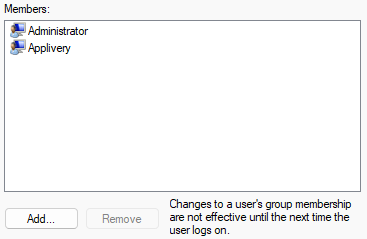
In this example, our goal is to replace all current members of the local Administrators group with only the users explicitly defined in the XML configuration.
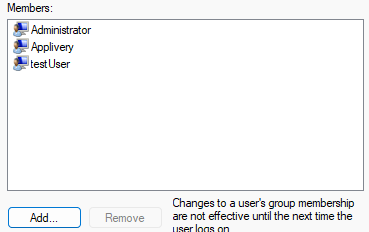
Current group state:
The existing Administrators group contains three users.
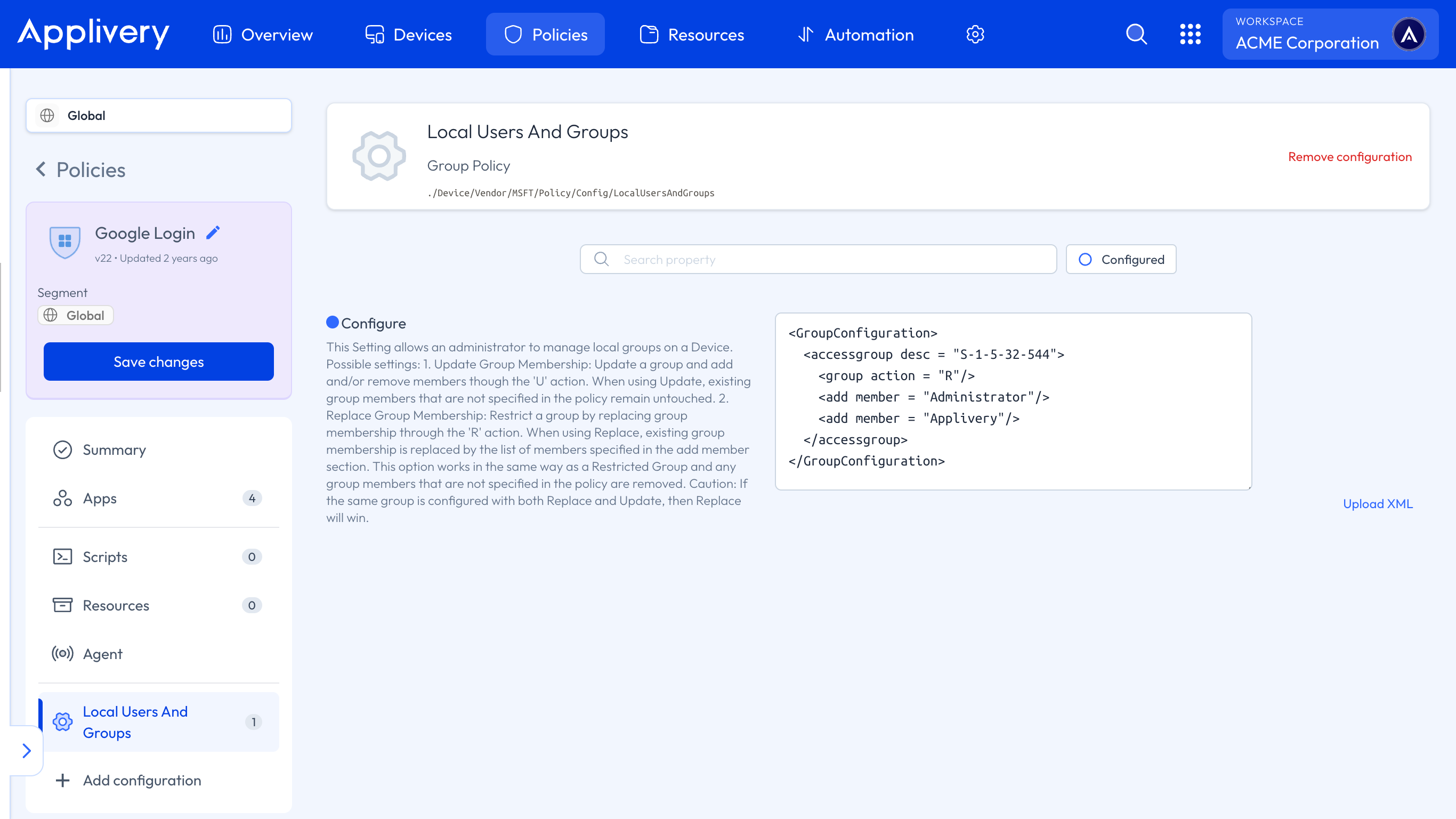
Target group:
We define the group we want to manage—in this case, the Administrators group. This can be identified in two ways:
By name: Use Administrators if all your Devices share the same OS language.
By SID: Use the well-known SID S-1-5-32-544 to avoid localization issues, since the group name varies depending on the operating system’s language.
Group action – Replace:
We use the R (Replace) action in the
<group>node. This will remove all current members of the group and replace them with those defined in the XML.Define members:
Use
<add member=""/>to specify the users or groups you want to include.In this case, we want only Administrator and Applivery to remain in the group.
Outcome:
Once deployed, the Administrators group will contain only the users defined in the XML. All others will be removed.
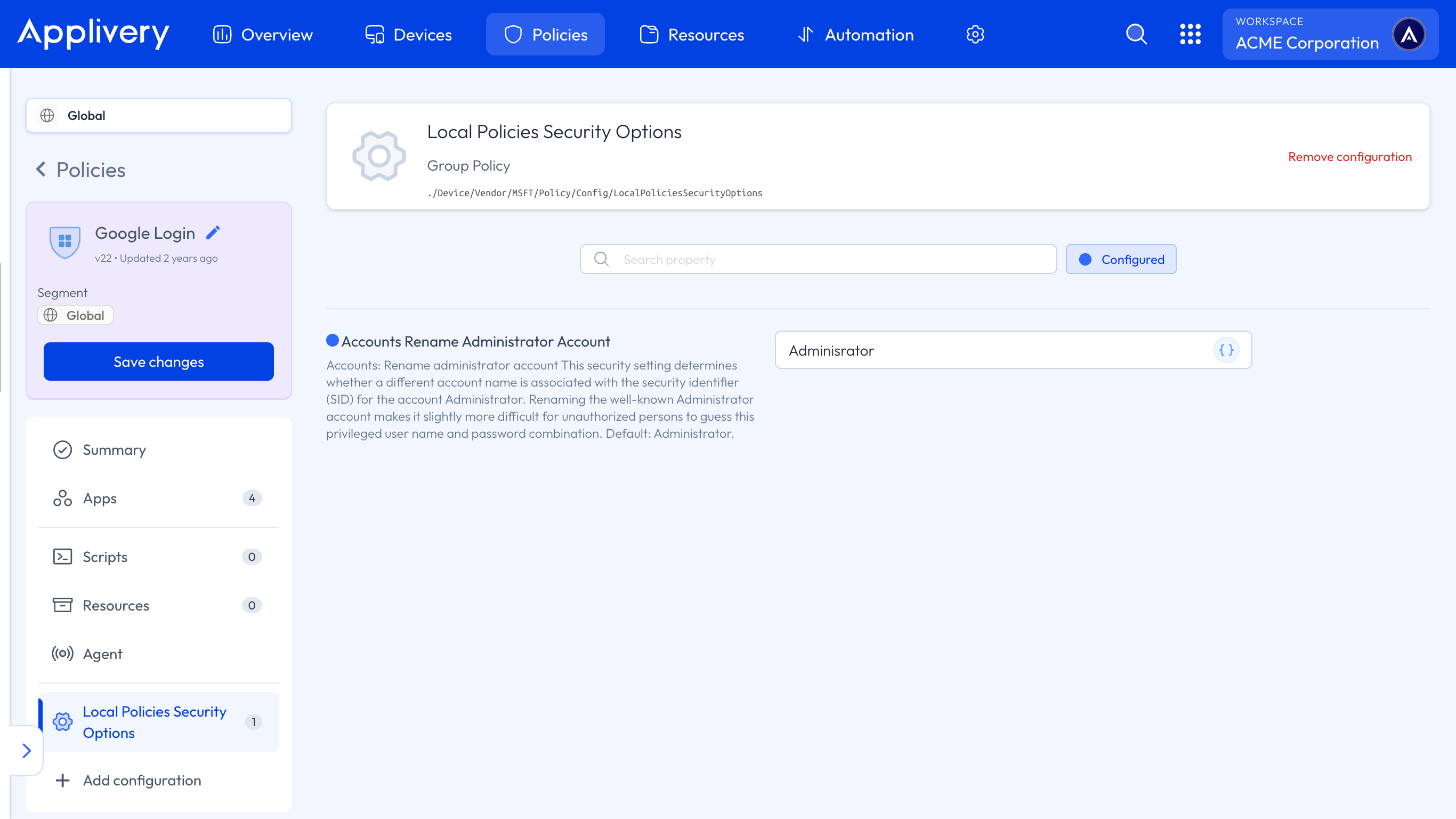
If you’re managing the built-in Administrator account, remember that its name also varies based on the OS language. To avoid inconsistencies, you can rename it across all Devices using the Accounts Rename Administrator Account setting under the Local Policies Security Options group policy.