Favicon

You are here: Home > Device Management > Android > Policies > Restrict Wi-Fi Access

Restrict Wi-Fi Access on Android Devices

Secure your Android devices! Learn how to configure Wi-Fi policies in Applivery to allow or block specific Wi-Fi networks. Step-by-step guide.

5 min read

TL;DR

Learn how to restrict or allow Wi-Fi network access on Android devices using Applivery's Wi-Fi policy feature.

In certain corporate environments, it may be necessary to restrict access to specific Wi-Fi networks—whether to enhance security, prevent interference from unauthorized networks, or ensure that devices connect to the correct one. Below is a simple step-by-step guide on how to allow or block access to a particular Wi-Fi network from managed devices.

Configuring a Wi-Fi policy

Once in the Applivery Dashboard, navigate to Device Management > Policies (1).

1
Navigate to Policies

Go to Device Management and then click on Policies in the Applivery Dashboard.

Select the Android policy where you want to restrict access to specific Wi-Fi networks. Then, from the left-hand menu, click on the Network (2) section. In the Device Connectivity Management (3) configuration, choose the option that best suits your needs under Wifi Ssid Policy (4):

1
Select the Android Policy

Choose the specific Android policy you wish to modify.

2
Access Network Settings

From the left-hand menu, click on the Network section.

3
Choose Wi-Fi SSID Policy

In the Device Connectivity Management configuration, select either Allowlist or Denylist under Wifi Ssid Policy.

  • Allowlist: Only the specified Wi-Fi networks will be allowed.
  • Denylist: The specified Wi-Fi networks will be blocked.
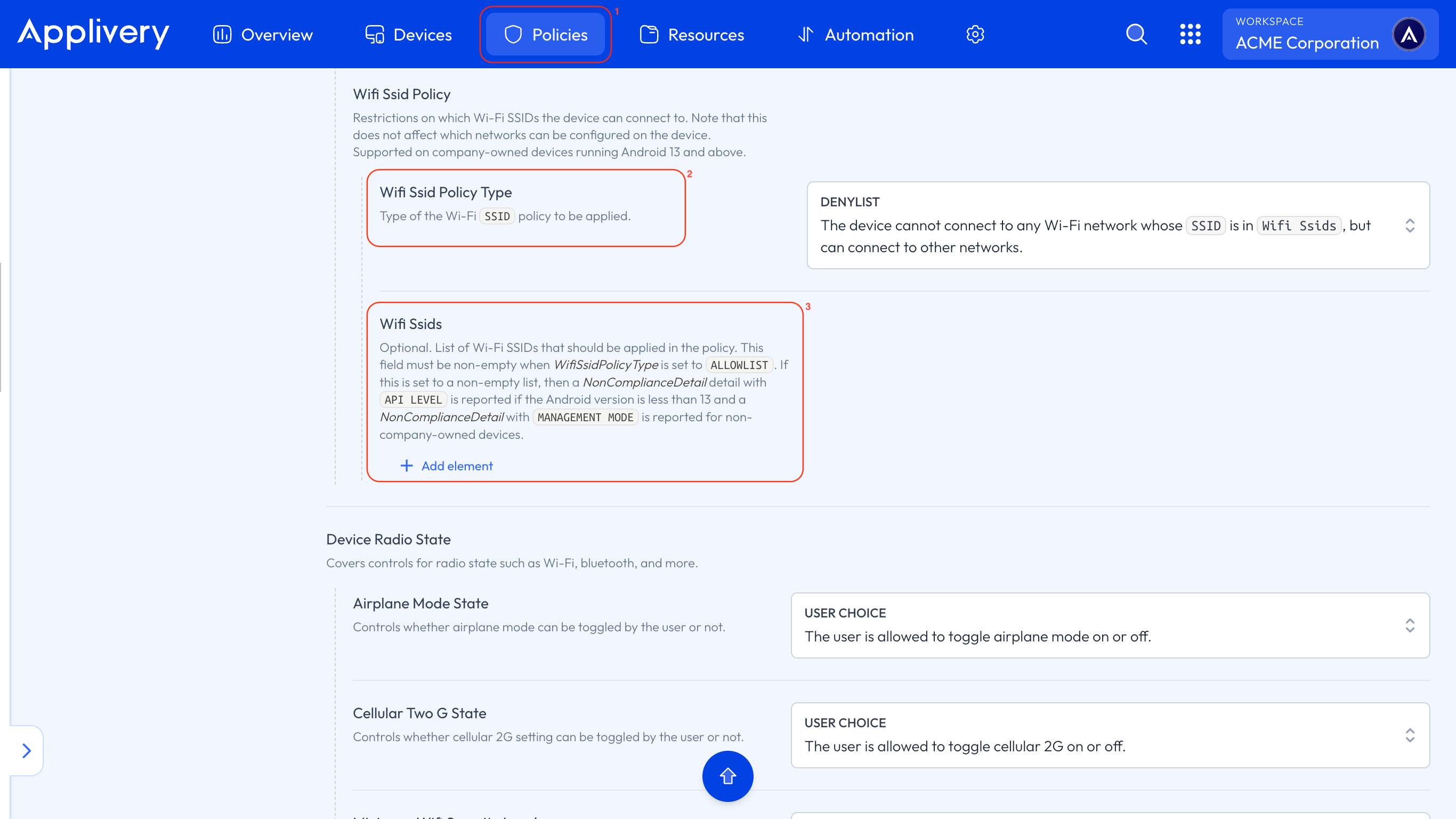
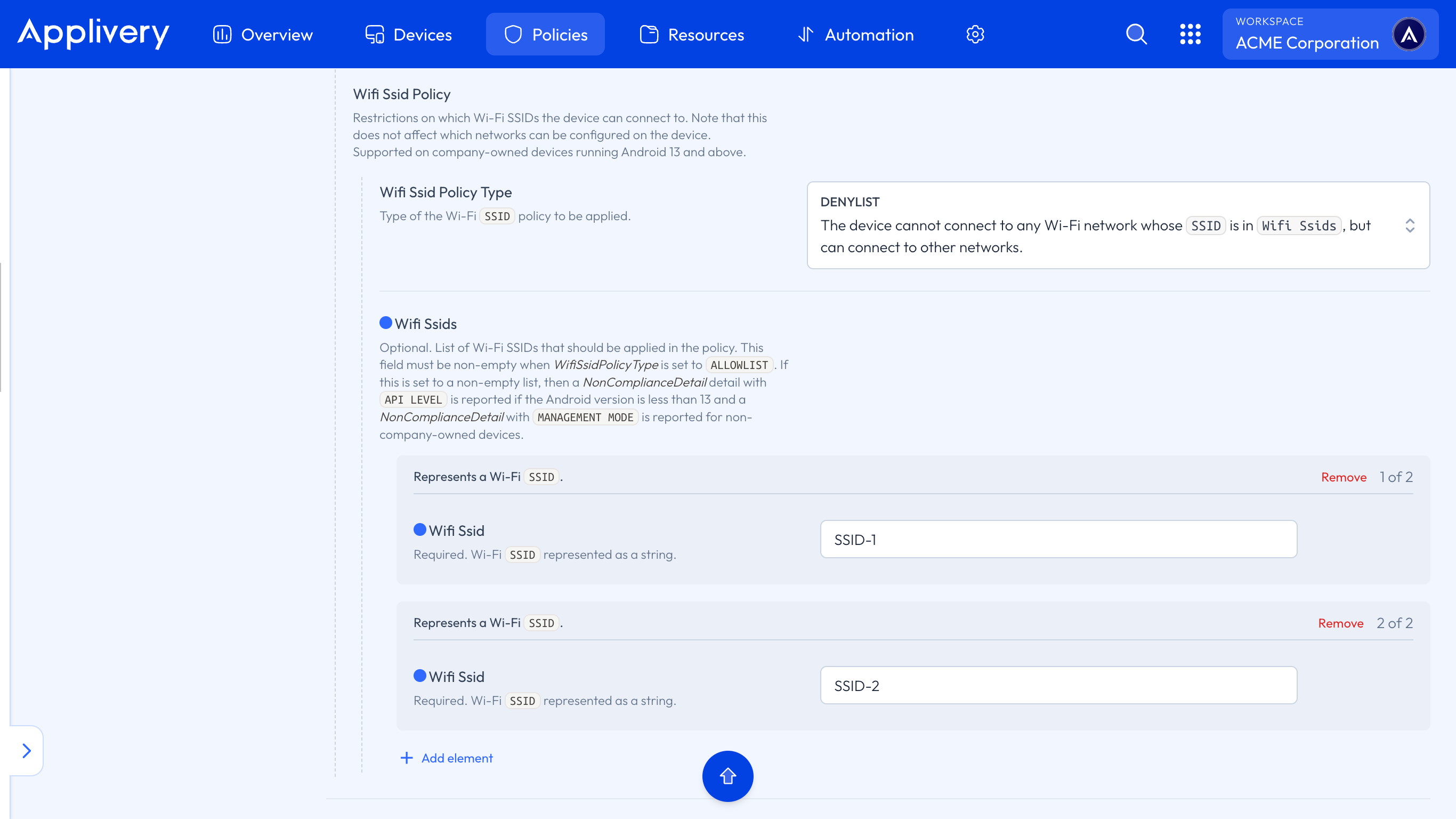
To specify the Wi-Fi network you want to allow or block, click + Add element (5) under the Wi-Fi SSIDs section.

1
Add Wi-Fi SSIDs

Click the + Add element button under the Wi-Fi SSIDs section to add the networks you want to allow or block.

wifi-policy

A form will appear where you can enter the SSID of the specific network. You can add as many SSIDs as needed. Once you’re done, simply save your changes by clicking Save changes (6) in the policy view.

1
Enter SSID and Save

Enter the SSID of the Wi-Fi network in the form that appears. Add as many SSIDs as needed, then click Save changes to apply the policy.

wifi-policy-save

Restricting access to specific Wi-Fi networks is a simple yet effective way to control device connectivity within your organization. Implementing these rules helps maintain a more secure, stable, and policy-aligned network environment.

Tip

Regularly review and update your Wi-Fi policies to ensure they remain effective and aligned with your organization's security needs.

Key Takeaways

  • Restricting Wi-Fi access enhances network security.
  • Applivery allows configuring allowlists and denylists for Wi-Fi networks.
  • Regularly review and update Wi-Fi policies.
  • SSID is used to identify Wi-Fi networks.
  • Proper Wi-Fi policy configuration ensures device connectivity to authorized networks.