
Before starting, let’s describe all types of Apps that you can find in the Apple ecosystem:
Apple App Store Apps
Applivery administrators can remotely push Apps from the Apple App Store to manage Apple Devices. It requires that the App is available in the App Store and the user must sign in with his/her Apple ID account to accept the installation.
For Supervised Devices, Apps can be silently installed in the background without the user's acceptance.
4 main types of Apps can be deployed to Apple Devices:
Free Apps: Publicly available on the App Store and free for download.
Licensed Apps: Publicly available on the App Store but not free; they require purchase.
Custom Apps: Created by companies for internal use or private distribution. These Apps must be uploaded to the Apple Store as Custom Apps and managed through Apple Business.
Apps that are not yet available on the App Store (primarily for macOS Devices).
There are three installation types available for applications.:
Force installed: The App will be force-installed.
Required for setup: The App will be automatically installed and cannot be removed by the user. It will prevent setup from completion until installation is complete.
Available: The App will be available to be installed on-demand, either from the dashboard or using the Self-Service App on macOS Devices.
Additionally, you will be able to create a configuration dictionary for the App.
Apps purchased via Apple Volume Purchase Program (VPP)
Additionally, Apple provides the Apple Volume Purchase Program to purchase App and book licenses, and install company-private Apps to managed Apple Devices running iOS and macOS. You can read more about the Apple VPP here.
In-house distribution (.ipa files)
Enterprise Apps: These Apps are signed with an Apple Enterprise Developer certificate designed for internal use and in-house distribution. Typically, they are distributed through alternative methods such as Applivery App Distribution or deployed to Devices via an MDM like Applivery Device Management for Apple Devices. It’s worth noting that Apple is phasing out this distribution method in favor of Custom Apps, which involves an application process.
AdHoc Apps: This less common type of App is usually created for testing purposes and internal distribution only. They are restricted to a defined set of Devices through the inclusion of their UDIDs in the provisioning profile.
How to install In-house Apps
The App will be installed on individual target Devices.
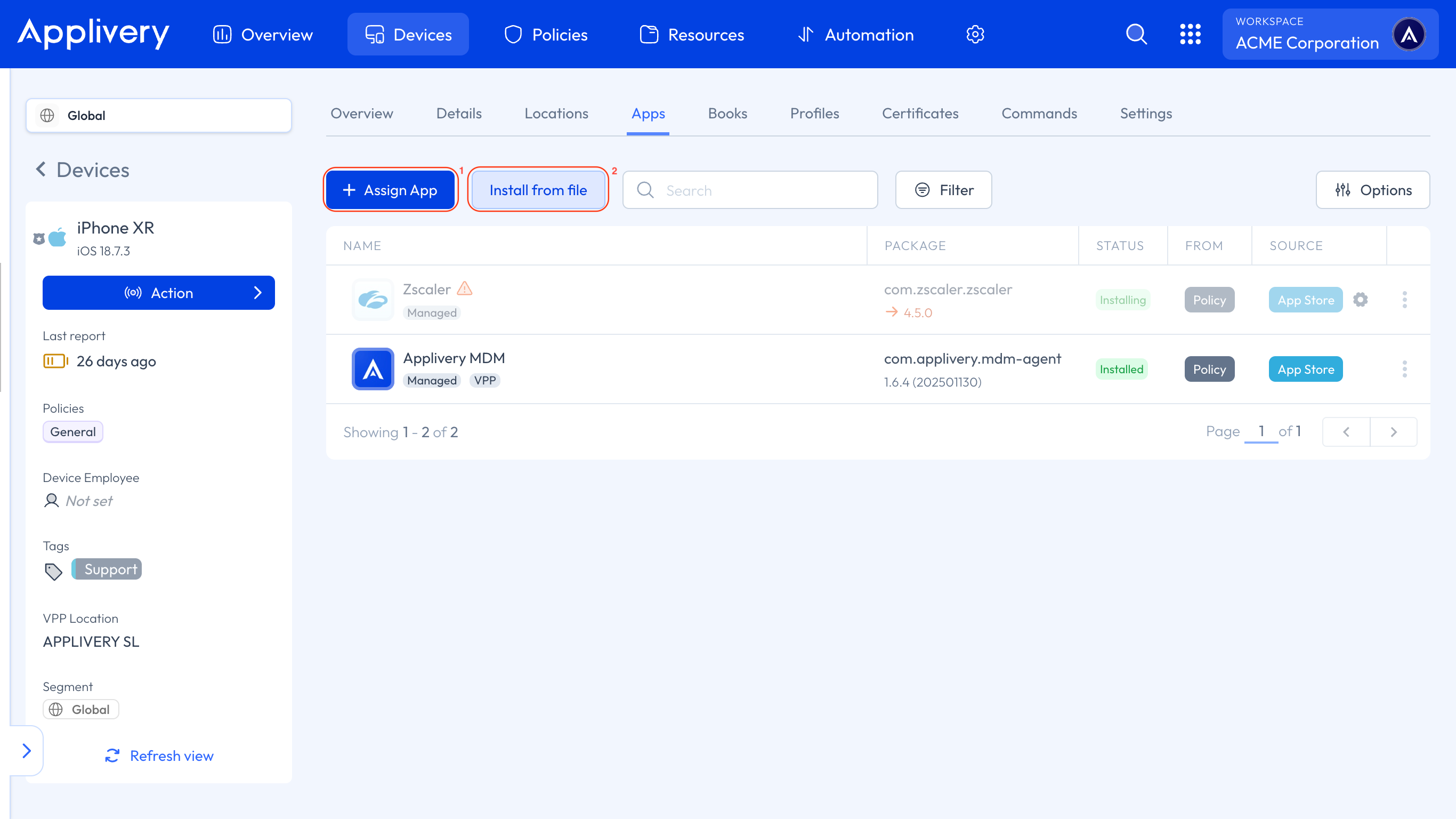
Assign an App Build by clicking the + Assign App button (1).
Install a
.ipafile: By clicking the Install from file button (2), you can either select a.ipafile previously uploaded to the Resources section or install it directly from your Device using the Upload new resource button.
If you are interested in learning how to install .pkg files on your macOS Devices, explore our detailed documentation for guidance.
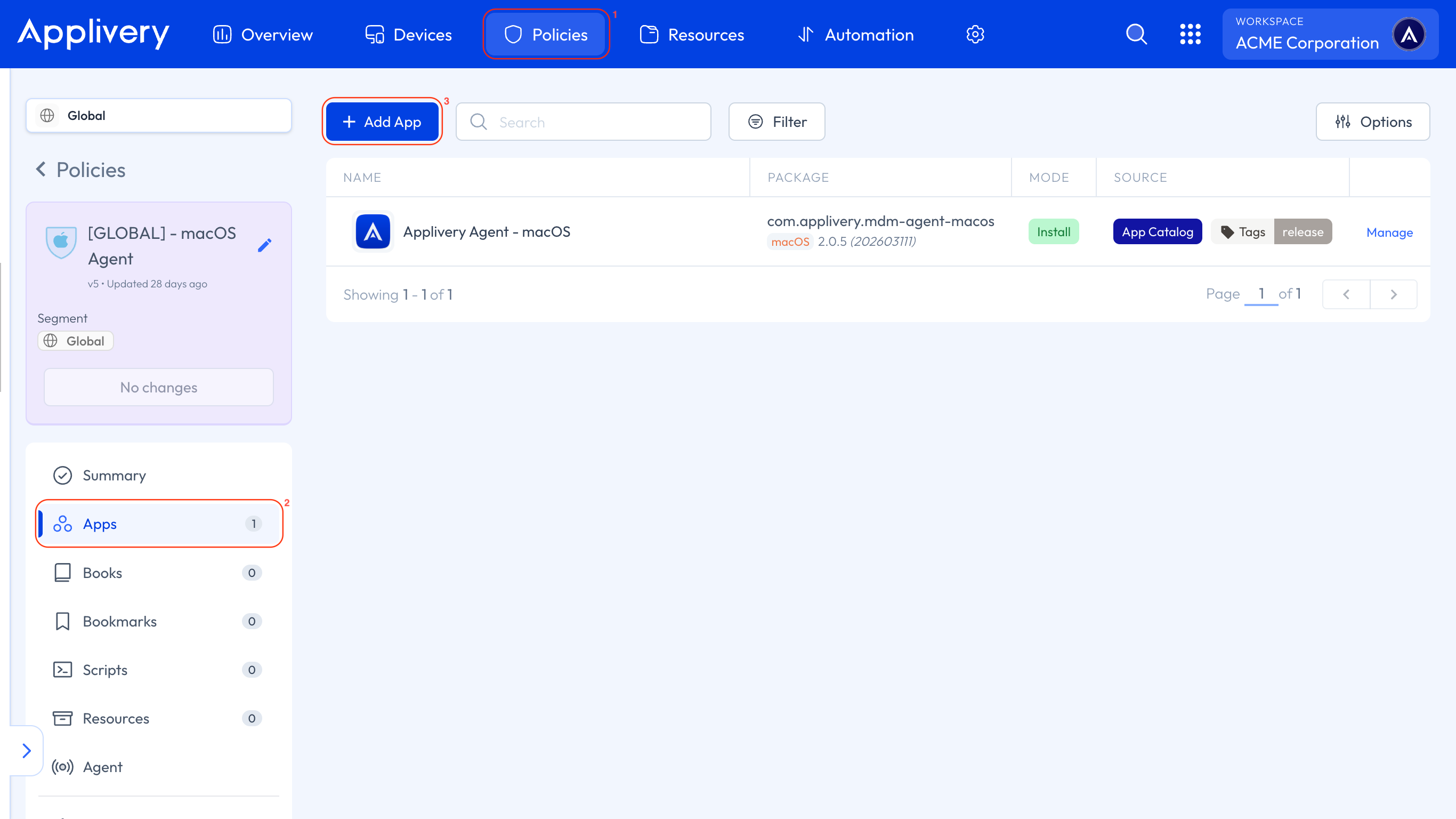
The App or Apps will be installed on all Devices associated with a specific Policy. Once in the Applivery Dashboard, go to any of your Policies (1). From the left side menu, go to Apps (2) and click the + Add App (3) button.
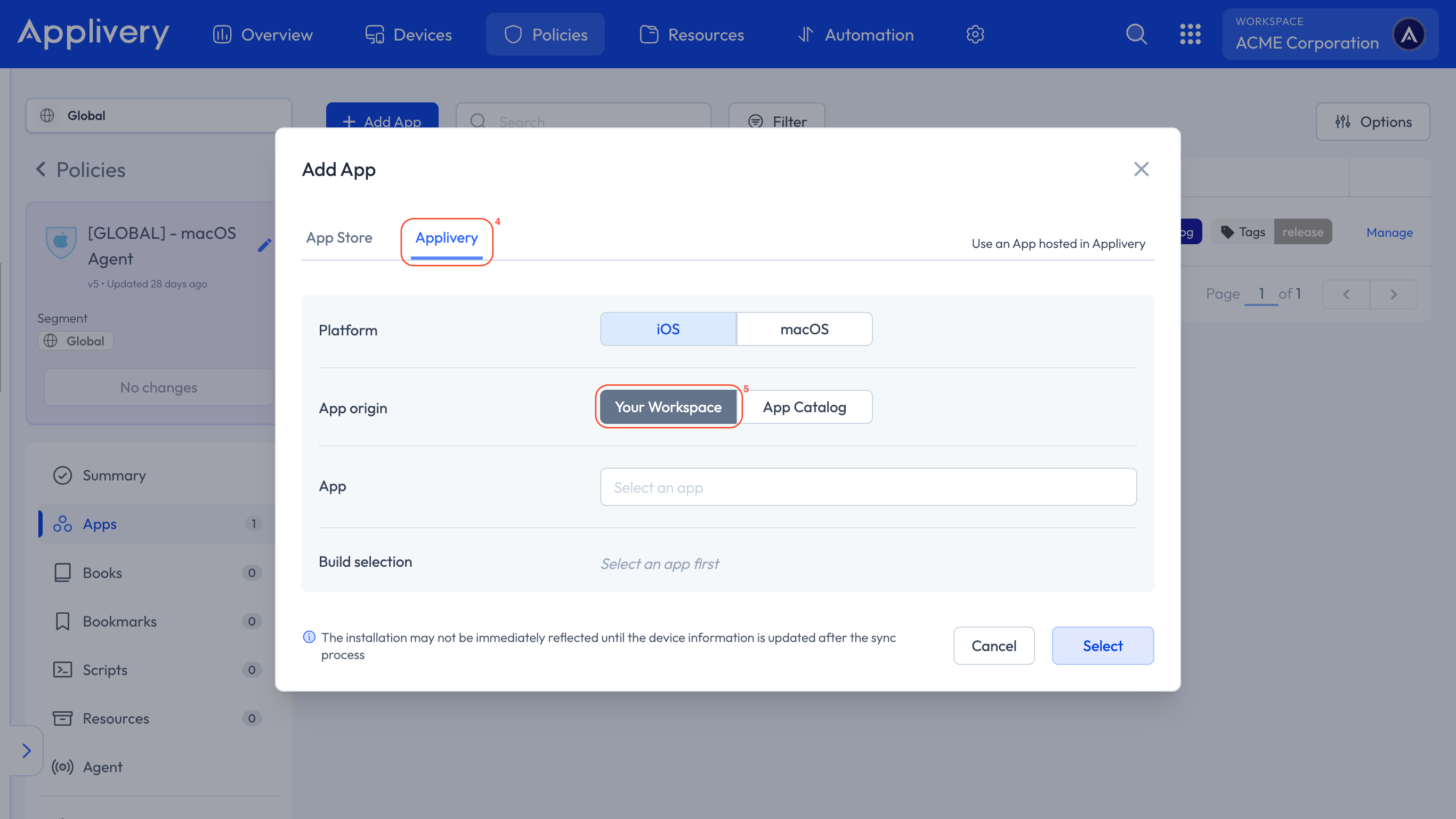
Locate the Applivery tab (4), then select Your Workspace (5) as the App origin.
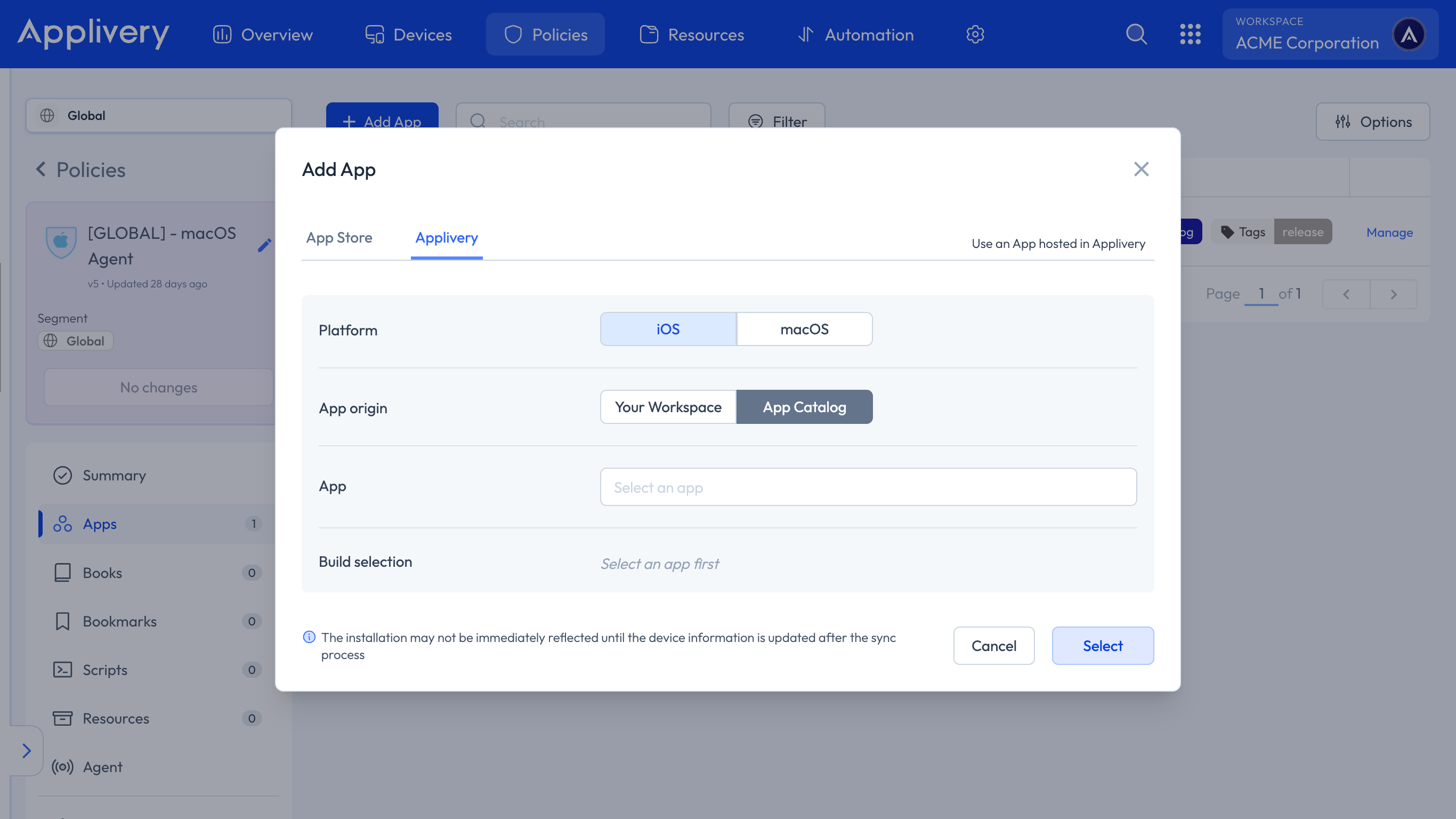
Designed for Apps not available on the Mac App Store, these can be added by selecting App Catalog as the App origin. For more details, refer to our in-depth documentation here.
Pre- and Post-install Scripts for In-house Apps
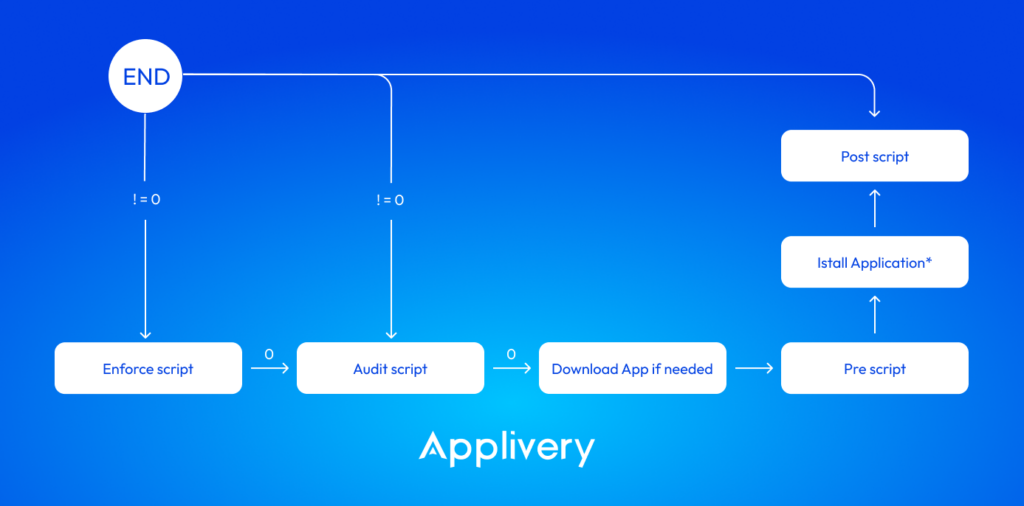
For macOS Devices, you can include pre- and post-installation scripts for specific In-house Apps (available in the Applivery tab, either from Your Workspace or the App Catalog).
These scripts can be loaded when adding the App, either at the Policy level or the Device level. However, they will not be visible in the Resources section and will only be accessible within the specific App associated with the script.
If the App has been assigned to a specific Device, navigate to the Device, go to the Apps section, locate the App, click on the vertical three-dot (⋮) button, and select Edit.
If the App was installed through a Policy, navigate to the Policy and select the Apps section from the left-hand menu. Locate the App, then click the Settings icon in the App’s Source section.
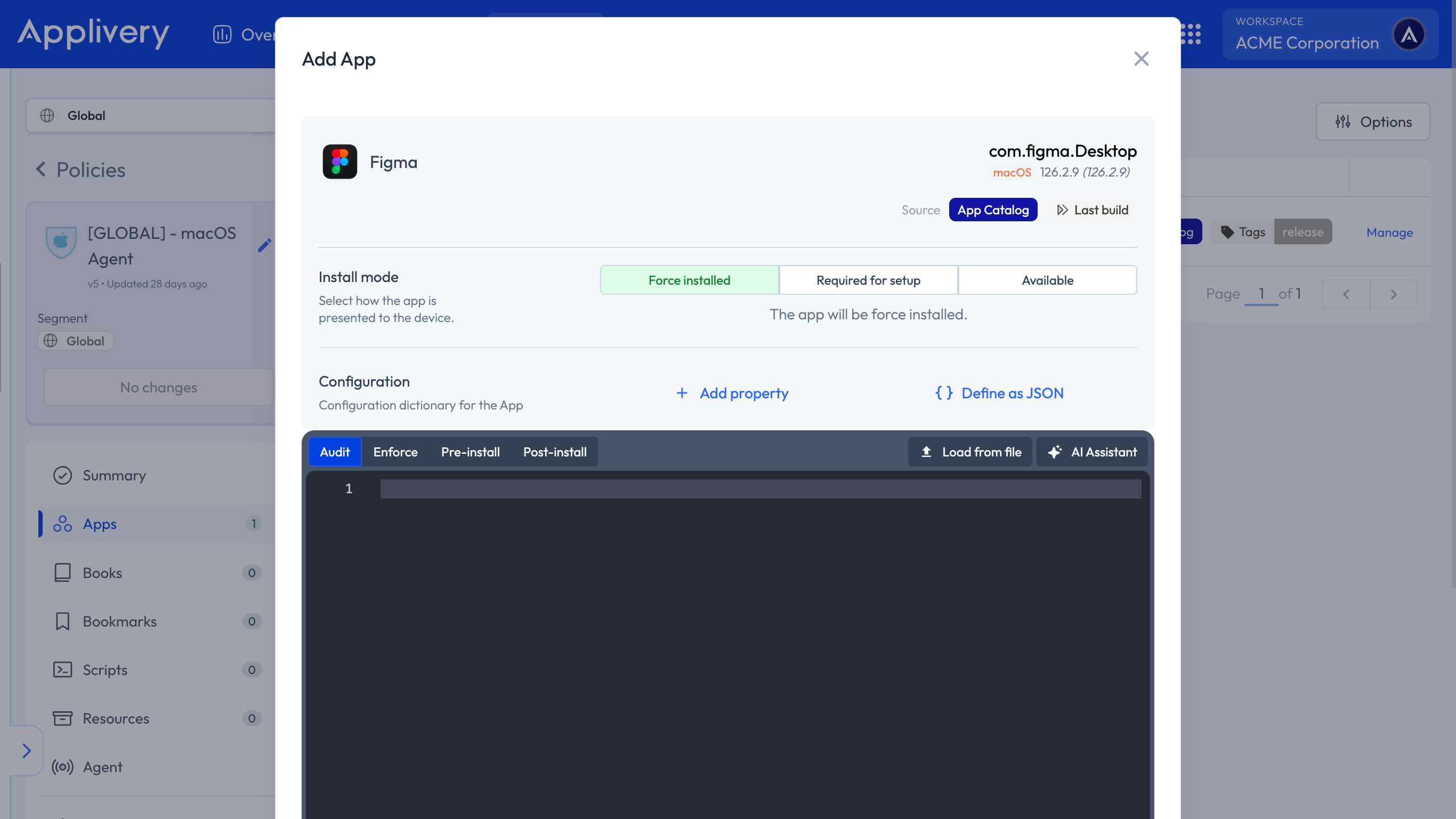
The following types of scripts can be added to an App:
Enforce script: Check if the App should be installed again.
Audit script: Check if the App can be installed.
Pre-script: Execute actions before the App installation.
Post-script: Execute actions post-App installation.
Apps management
Now that we have a clearer view of the different types of Apps, let’s take a look at the main App Management capabilities you will find in Applivery and some requirements that you must take into consideration depending on whether the target Devices are supervised or not:
| Feature | Supervised mode ON | Supervised mode OFF |
|---|---|---|
| Deploy Apps | ✅ | ✅ |
| Deploy paid Apps | ✅ | ✅ |
| Deploy Apps silently | ✅ | ❌ It requires an Apple ID login |
| Configure Apps remotely | ✅ | ✅ |
| Update Apps remotely | ✅ | ✅ |
| Uninstall Apps remotely | ✅ | ✅ |