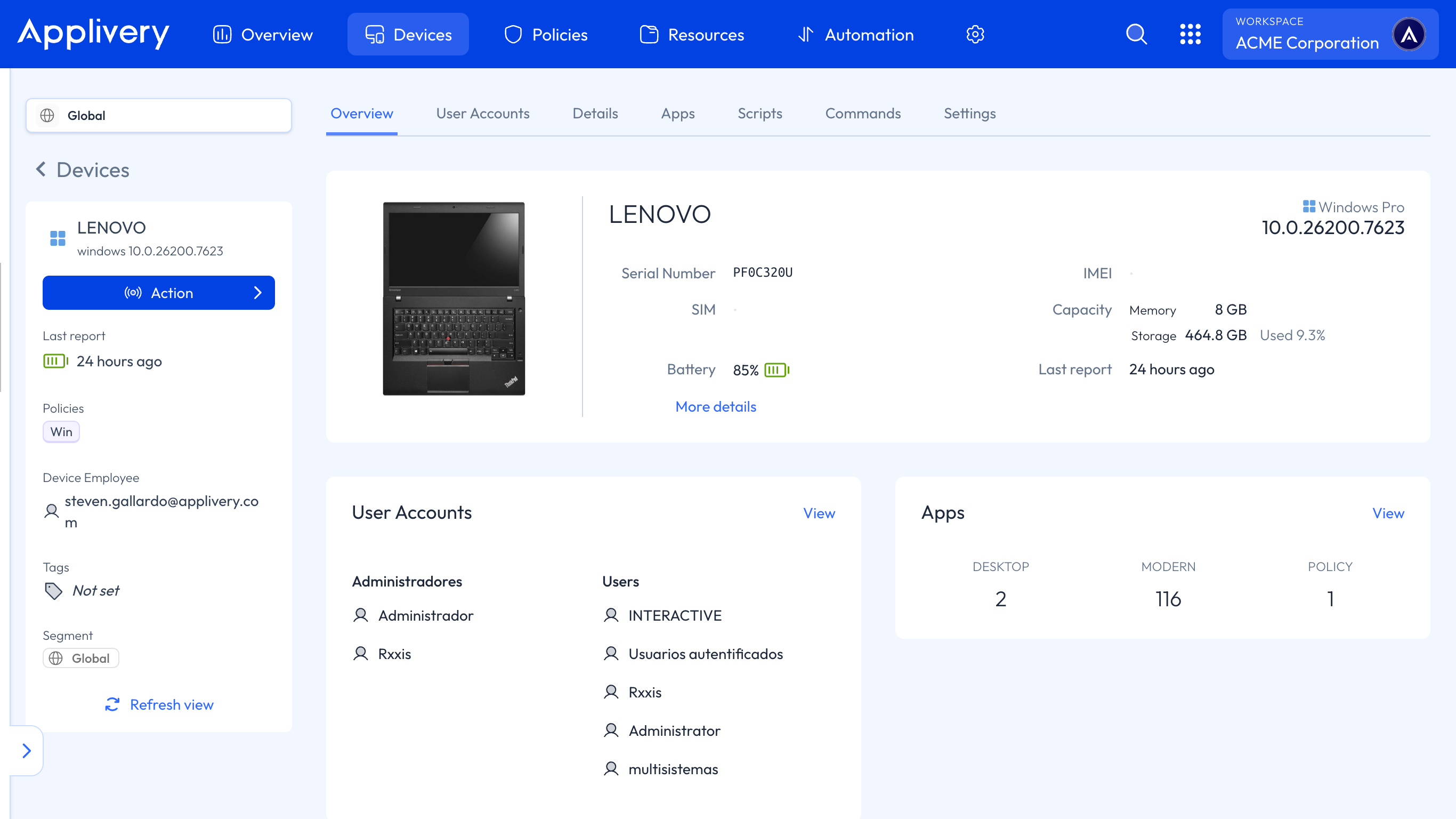
Once you have your Windows Enterprise configured, you can start enrolling your Windows Devices. Let’s take a look at it.
Before you start enrolling Windows Devices, it’s important to make sure the following requirements are met to enable full device management:
A Device running Windows 10 or 11 Pro/Enterprise.
Local administrator rights on the Device.
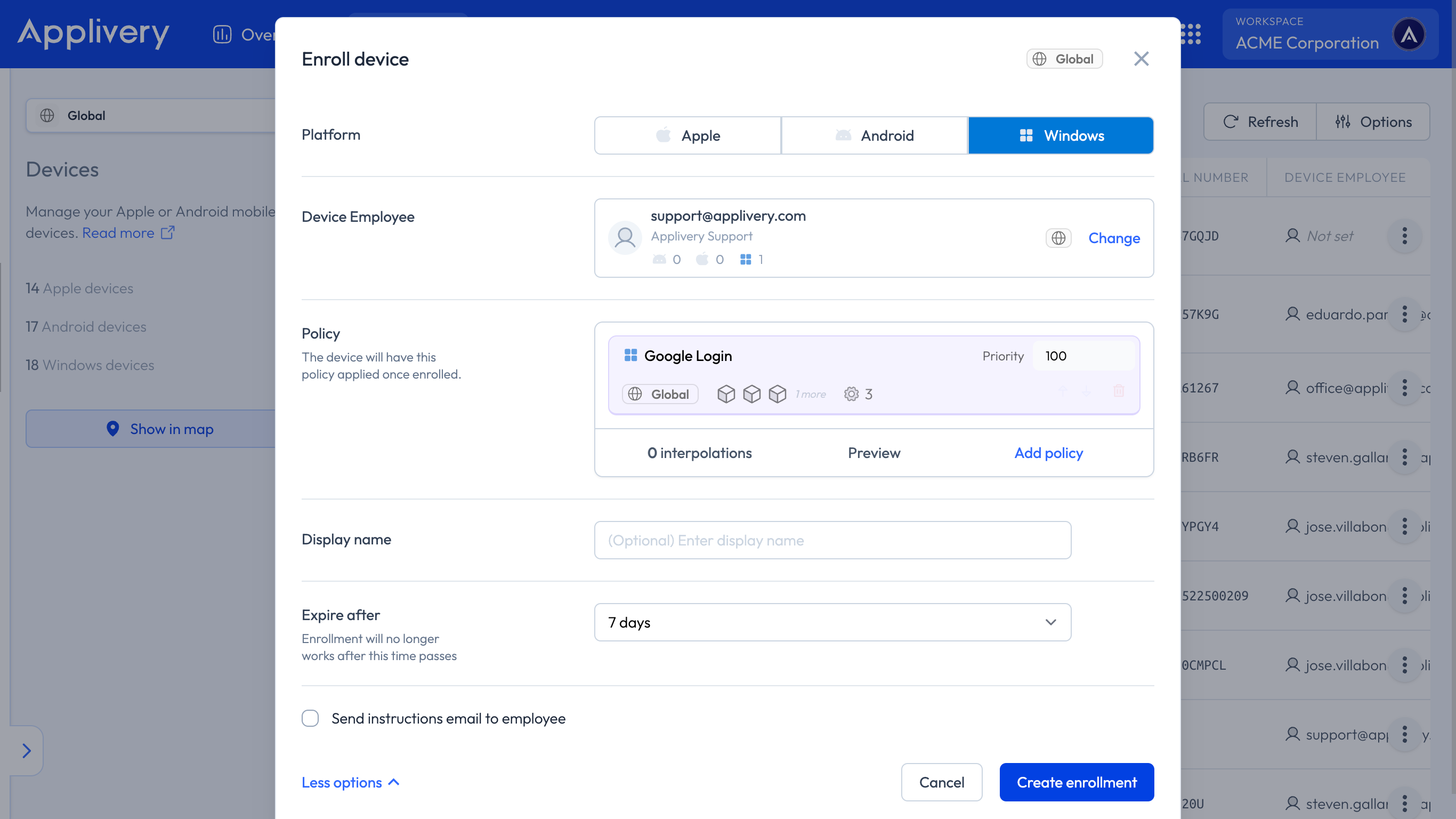
Once in the Applivery Dashboard, head to Devices, and click the + Enroll device button. Fill out the form as follows:
Platform: Choose Windows.
Employee: User who owns the Device. You can create a new employee by introducing the email address.
Policy: Choose the Policy to apply to the Device. You can do so under Device Management > Policies if you haven’t created it yet. Alternatively, you can create a new Policy here and configure it later.
Display name (optional): A friendly name to easily identify the Device among the others.
Expire after: The expiration time of the enrollment token that will be generated.
Send instructions email to employee (optional): Choose whether you want to send a notification to the user, including the enrollment instructions.
Once the enrollment is created, it will be added to the list of Devices. Click on it to display the enrollment details and instructions.
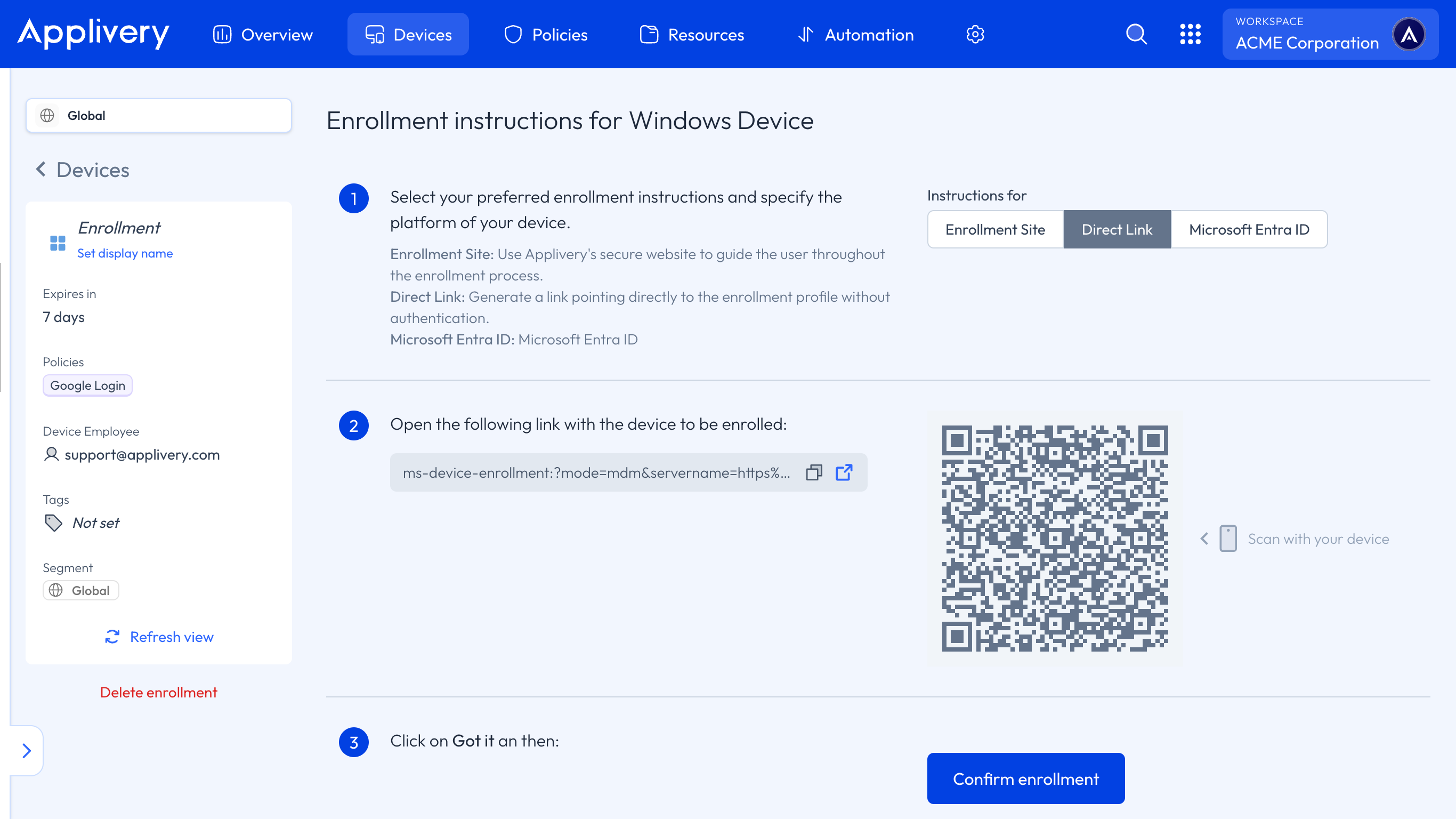
You can then decide whether you want to use the Enrollment Site or a Direct Link for the enrollment process.
The Enrollment Site is a secure Applivery portal that walks users through the enrollment process step by step.
Alternatively, the Direct Link provides a URL that takes users straight to the enrollment profile—no authentication required.
Once you’ve completed the steps described in each option, you’ll need to confirm that the information is correct and click Next.
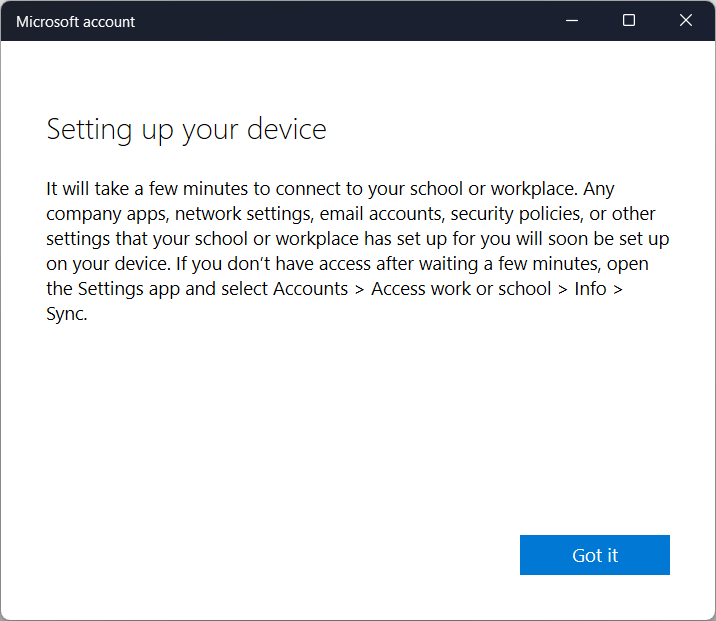
Follow the on-screen instructions to complete the enrollment process until you see the message Setting up your Device. Then, click Got it.
At that point, the Device will be enrolled in Applivery, and you’ll be able to view and manage its details from the dashboard.