
When managing Android Devices with Applivery, one of the most important aspects is ensuring they’re protected with a strong password. It’s not just about setting any passcode, but about enforcing minimum rules to guarantee a decent level of security across all Devices.
With Applivery, you can easily configure these requirements remotely, making sure that all Devices comply with your organization’s security Policies without hassle.
Configure Android Password Policies for enhanced security
Once in the Applivery Dashboard, navigate to Policies (1).
Select the Android Policy where you want to enforce password security.
Go to the Restrictions section in the left-hand menu and select the Password (2) tab.
In the Password Policies (3) settings, click the + Add element button.
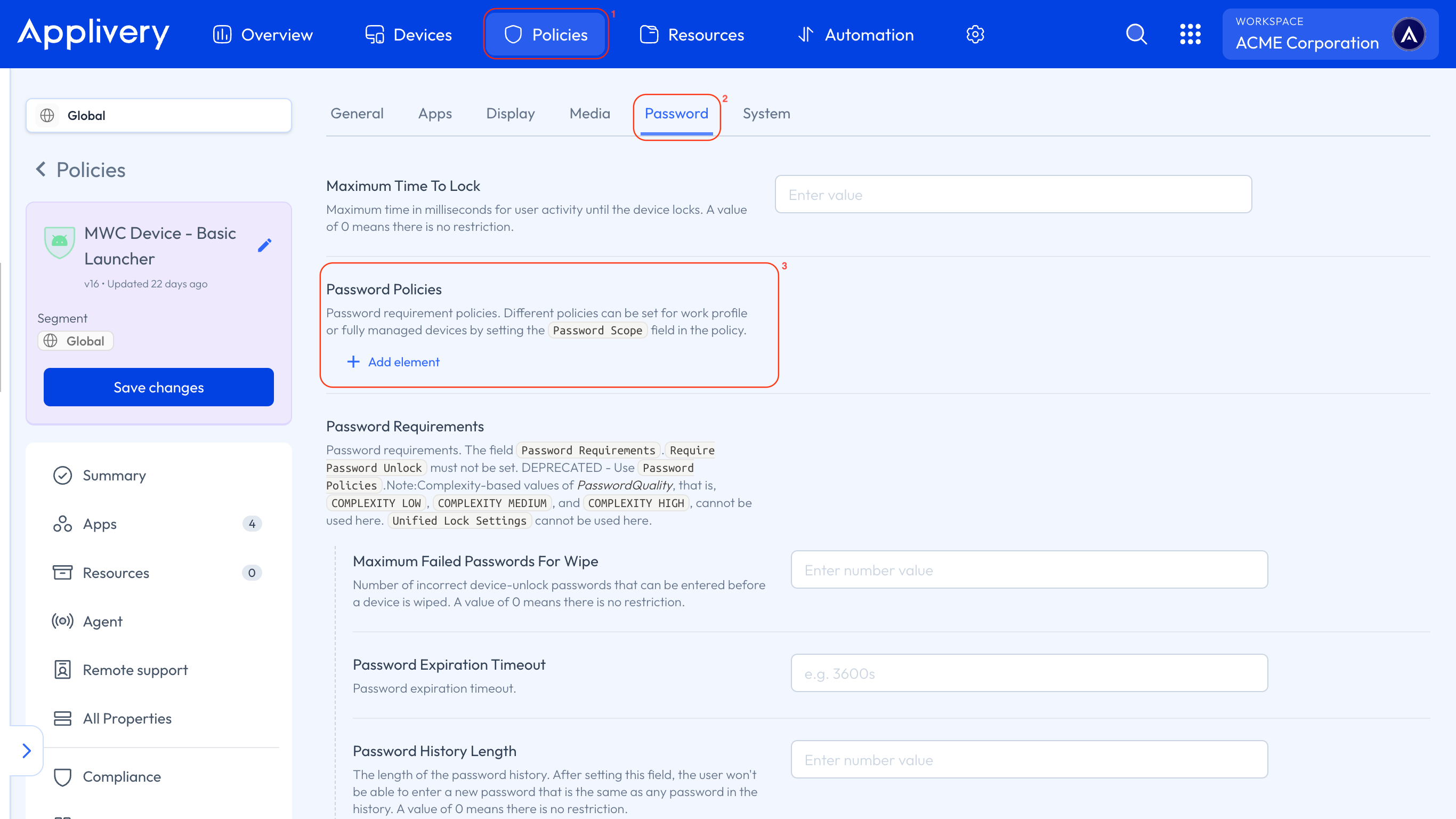
A form will appear with several options to enforce complexity requirements for configuring the mandatory password on the Device. Below, you’ll find an explanation of each of these fields:
Maximum Failed Passwords For Wipe: Specifies the number of incorrect password attempts allowed before the Device is completely wiped. Setting this to 0 means there’s no limit—users can attempt to unlock the Device unlimited times.
Password Expiration Timeout: Defines how long a password can be used before the user is required to change it. This helps enforce regular password updates and prevents long-term reuse.
Password History Length: Indicates how many previous passwords are remembered to prevent users from reusing them. If set to 5, users won’t be able to use any of their last five passwords.
Password Minimum Length: Sets the minimum number of characters required for the password. Applies when the password type is numeric, alphabetic, or complex.
Password Minimum Letters: Minimum number of letter characters required. Only applies if the password type is set to Complex.
Password Minimum Lower Case: Minimum number of lowercase letters required. Only applicable for Complex passwords.
Password Minimum Non-Letter: Minimum number of non-letter characters required, such as numbers or symbols. Applicable for Complex passwords.
Password Minimum Numeric: Minimum number of numeric digits required. Only used when the password is Complex.
Password Minimum Symbols: Minimum number of symbols required (e.g., @, #, %, etc.). Applicable for Complex passwords.
Password Minimum Upper Case: Minimum number of uppercase letters required. Only applicable when the password type is Complex.
Password Quality: Defines the type or complexity level of the password. Options include numeric, alphanumeric, or complex. The fields above will activate or deactivate depending on the selected quality level.
Password Scope: Determines which part of the Device the Policy applies to—such as the Work Profile, the entire device, or both.
Require Password Unlock: Specifies the duration after unlocking the Device with a secure method (e.g., PIN or pattern) before the user is required to use that method again instead of biometrics like fingerprint or facial recognition.
Unified Lock Settings: Controls whether the same lock settings apply to both the entire device and the Work Profile. If separate passwords are required and the user hasn’t configured one, the Device will be marked as non-compliant.
Properly configuring password Policies on Android Devices through Applivery is a simple and effective way to strengthen security. By adjusting these settings, you ensure that all Devices meet your organization’s minimum security standards, reduce potential risks, and maintain centralized control. A strong password remains one of the most important defenses against unauthorized access, so it’s worth taking a few minutes to set everything up correctly.