
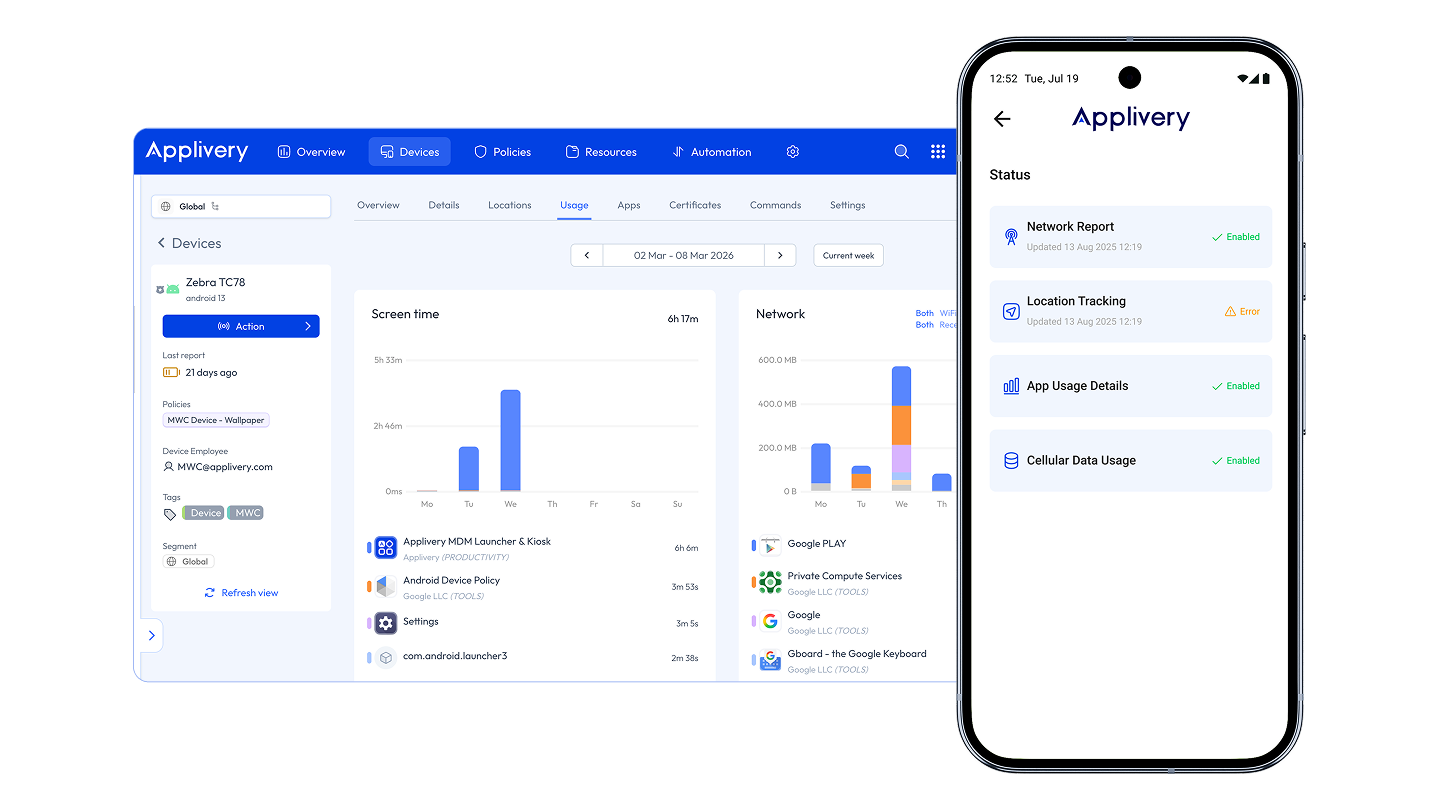
The Applivery Android MDM Agent is an Android application deployed on managed devices enrolled in the Applivery Dashboard. It serves two complementary purposes:
Background management: Collects and reports device telemetry (geolocation, app usage, network traffic, network signal) to the Applivery Dashboard, according to the policies configured by the organization's IT administrator.
Self-Service Portal: Provides the device user with a built-in interface to browse and install corporate applications, access organization bookmarks, and check the health of the management services running on their device.
The Agent is written in Kotlin and is deployed at the Policy level. It runs silently in the background while giving end users a convenient way to access resources their organization has made available to them.
Version 2.0.0 — What's New
Version 2.0.0 is a major update that introduces the Self-Service Portal — a completely new user-facing experience — alongside improvements to background management.
New for end users
Application catalog: Browse, search, install, update, and uninstall corporate applications directly from the device, without needing to access the Applivery Dashboard.
App detail pages: View full application information, including descriptions, screenshots, age ratings, version history, and device compatibility before installing.
Bookmarks: Quick access to URLs and web resources shared by the organization, organized by category.
Status Dashboard: See at a glance whether all management services are running correctly on the device.
Redesigned interface: The entire user interface has been modernized with a cleaner, faster design.
New for administrators
Feature-level control: Enable or disable individual Self-Service sections (Applications, Bookmarks, Status, Files, Notifications) per device or device group through managed configuration.
Default view: Configure which section opens first when the user launches the app.
Real-time install tracking: The Agent now detects when a user installs a Google Play Store application and reflects the status in real time.
Features
Geolocation Tracking
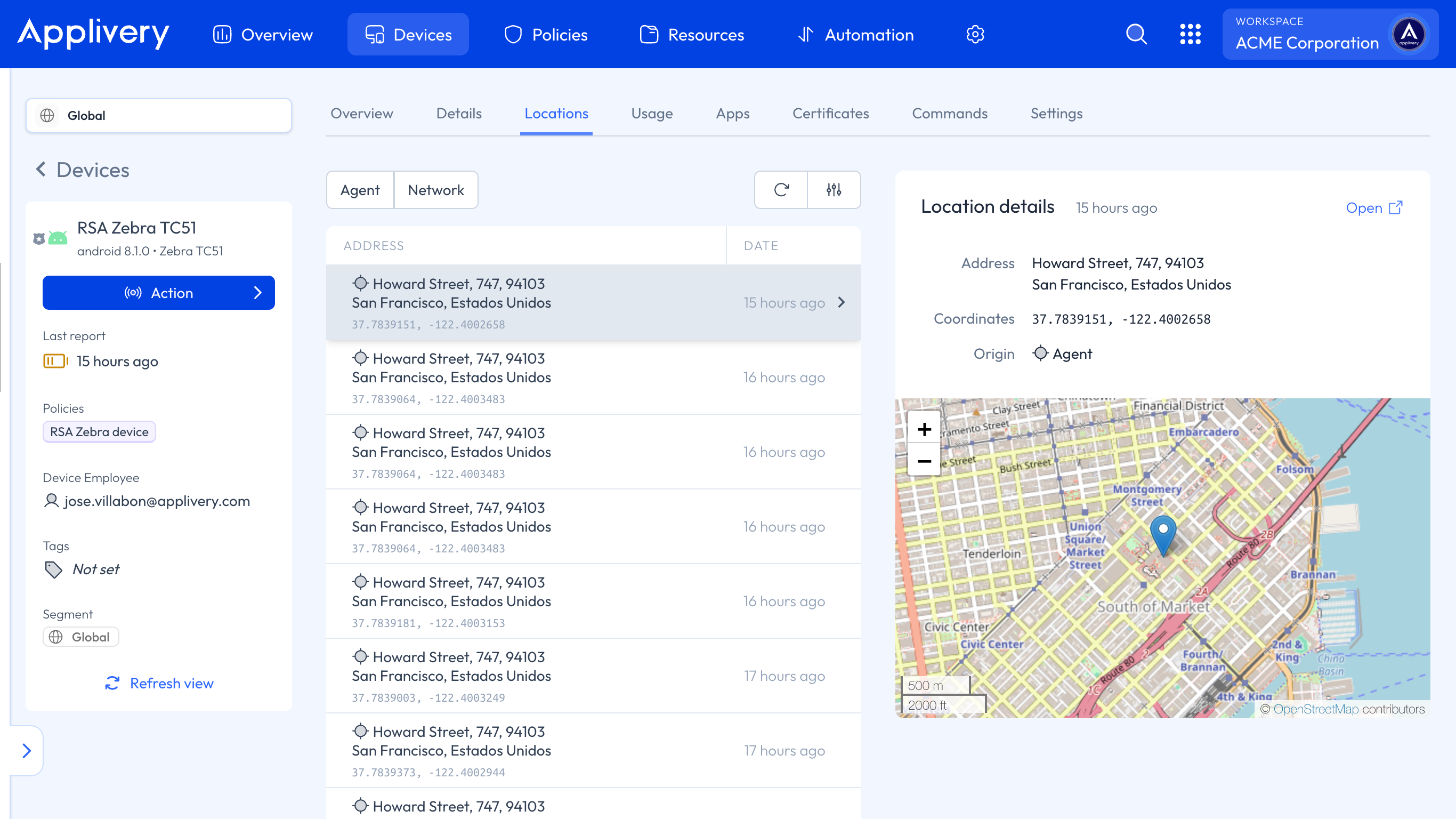
Reports the device's geographic location (latitude, longitude), including full street address when available. The entire list of reported locations is accessible from the Locations section when selecting a Device. Click any entry to see a map preview, or click Open to view it in Google Maps.
Geolocation reporting is available for fully managed devices and COPE (Company-Owned, Personally Enabled) devices. Devices with a work profile do not have access to this feature.
App Usage Reporting
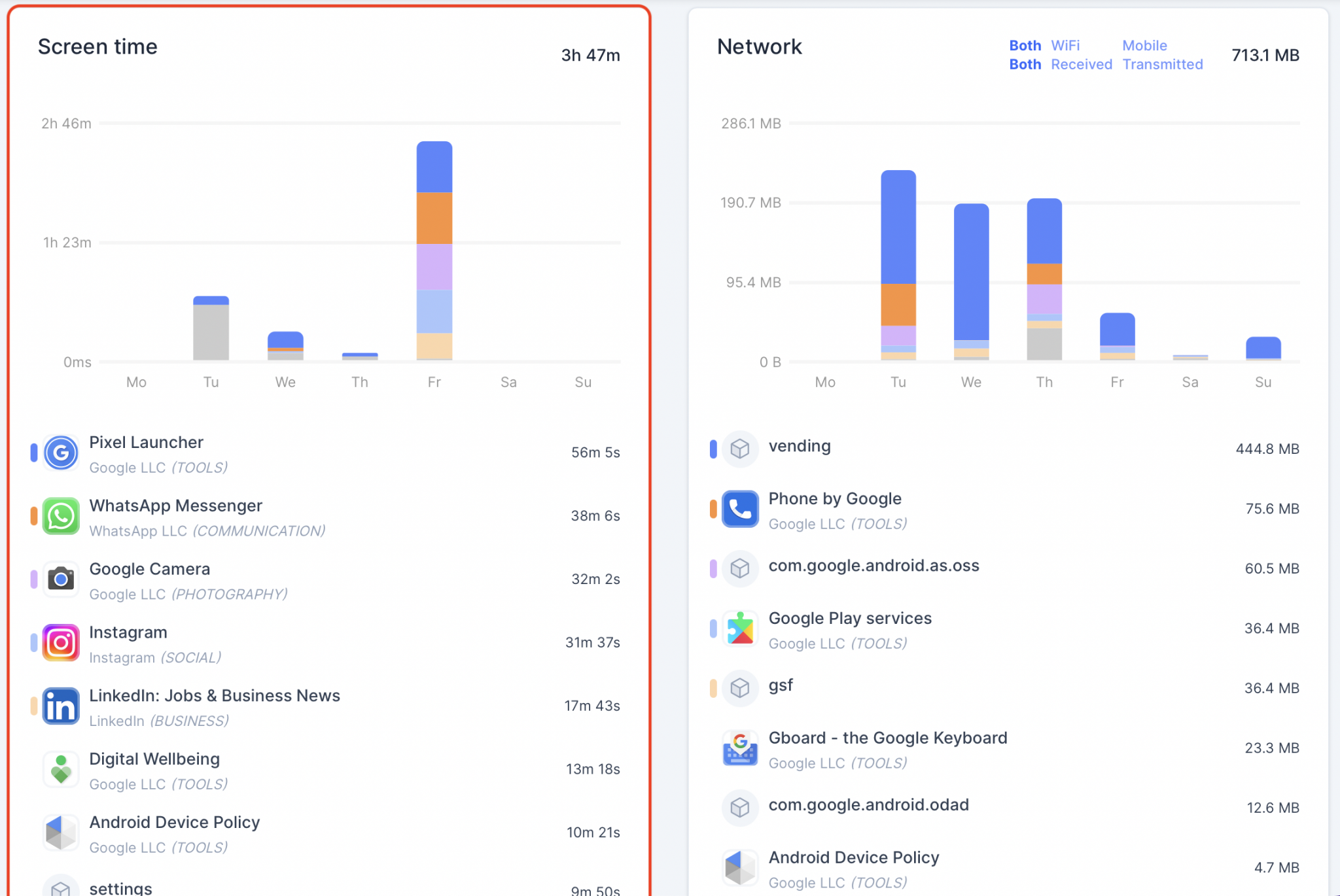
Reports app usage time by querying foreground activity data from Android APIs. Usage analytics are displayed on a weekly basis, aggregated by package name, with the app name and category shown when available. The top 5 applications are highlighted in different colors; remaining usage time is aggregated in gray.
To access usage analytics, navigate to the Usage section when selecting a Device, then use the week selector above the charts to navigate across periods.
On work profile and COPE devices, only work Apps are reported — personal Apps are not visible. On fully managed devices, all Apps are visible.
Network Traffic Reporting
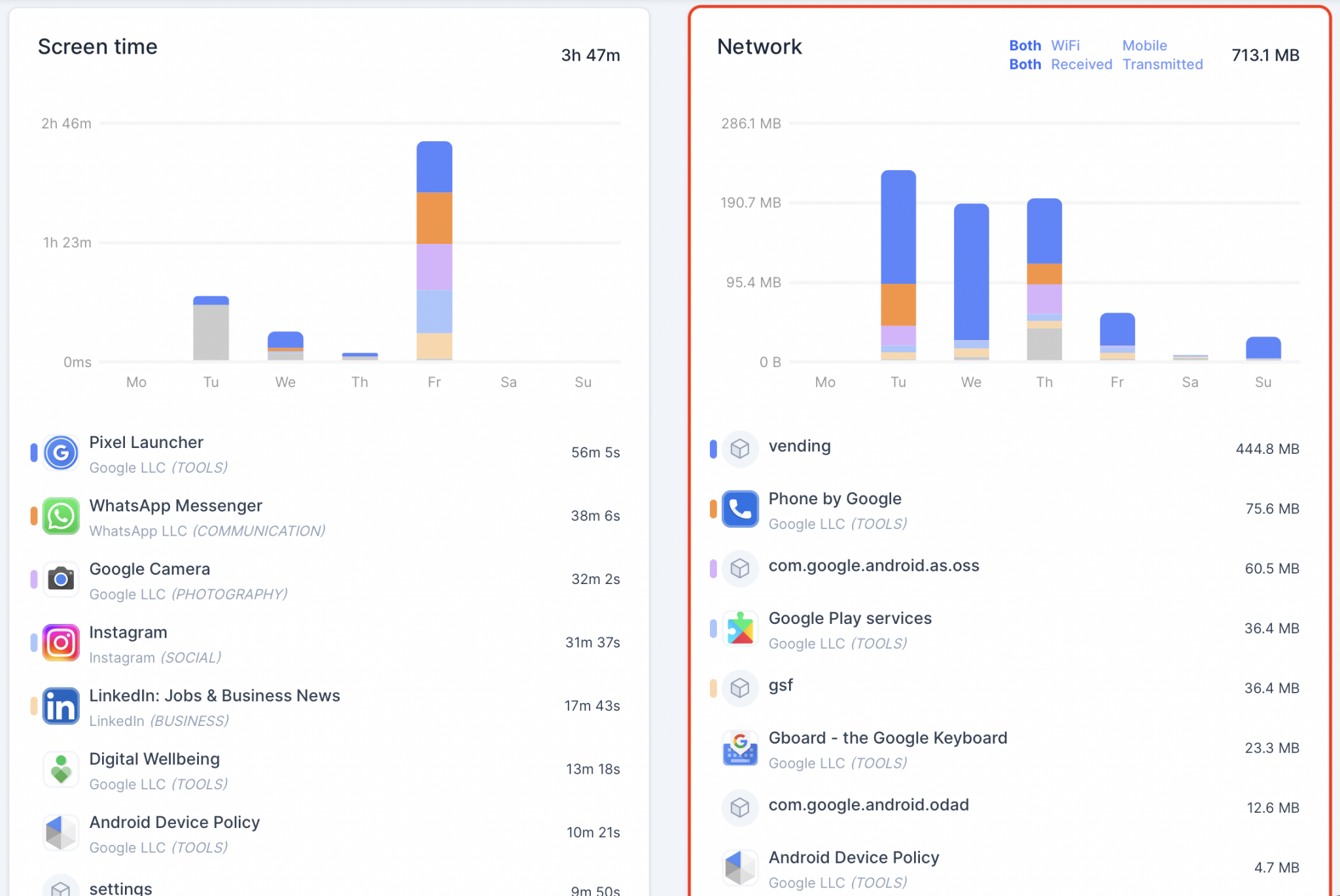
Reports per-app incoming and outgoing network traffic in MB, queried from Android's network usage APIs. Analytics are displayed weekly, aggregated by package name, with app name and category where available. The top 5 Apps are color-coded; the remainder is aggregated in gray.
To access network analytics, navigate to the Usage section when selecting a Device. Use the week selector to navigate across periods and the blue filters to isolate Wi-Fi or mobile traffic, or to distinguish between received and transmitted data.
Network Signal Reporting
Reports network signal strength and carrier information. This data is collected by the Network Report Agent and is viewable from the device's detail page in the Applivery Dashboard.
Features by Plan
Feature | Starter Plan | Advanced Plan |
|---|---|---|
Geolocation tracking | Sync: every 1h · Retention: 1 week | Sync: every 15 min · Retention: 1 month |
Network traffic | Sync: every 24h · Retention: 1 week | Sync: every 12h · Retention: 1 month |
App usage | Sync: every 24h · Retention: 1 week | Sync: every 12h · Retention: 1 month |
The Agent adheres to the sync frequencies above, but the system may prioritize other processes depending on network connection status, battery optimizations, or doze mode.
Android includes a battery optimization system that restricts background execution. Some device manufacturers customize Android and may remove this permission or its settings screen. In those cases, there is no need to worry — the agent will still function correctly, as the restriction does not apply and the app can run in the background seamlessly.
Data Security
Applivery takes data security seriously, especially for sensitive device data. The Android MDM Agent uses best-in-class encryption:
All tracking reports are encrypted at runtime using SHA-256.
Data in transit is protected using SSL TLS 1.3.
Data at rest on Applivery servers is encrypted using SHA-256.
Enabling the Agent at Policy Level
The Android MDM Agent is enabled at the Policy level. To configure it:
Once in the Applivery Dashboard, go to any of your Policies (1). From the left side menu, go to Agent (2) and enable it (3).
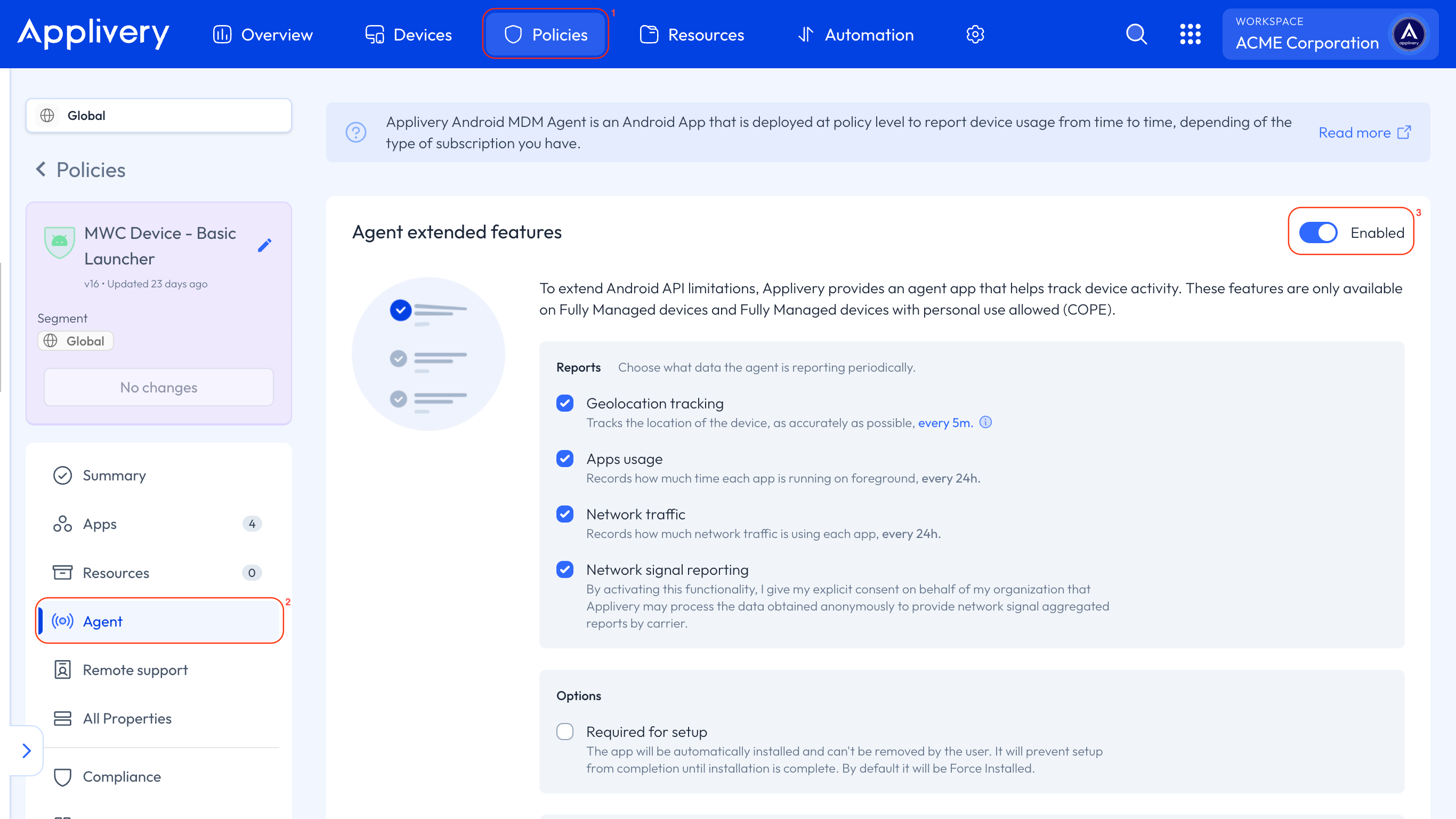
Required for Setup: The app is installed during the enrollment process, before the system starts up. Recommended for new devices.
Force Installed (default): The app is automatically installed on devices and cannot be removed by the user.
Click Save changes to deploy.
Once saved, the Agent will be deployed on all devices associated with that policy. However, it will not start reporting until it has been opened at least once and the required permissions have been accepted.
How to Programmatically Launch the Agent
The Applivery Android Agent must be opened at least once to request the necessary permissions and begin reporting. To launch it programmatically from an enrollment workflow or another app, invoke it using an Android Intent with the following action:
com.applivery.mdm_agent.action.LAUNCH
To ensure that the Agent is available at runtime, you may need first to query system information about it, such as calling:
val intent = Intent("com.applivery.mdm_agent.action.LAUNCH")
if (packageManager.queryIntentActivities(intent, 0).isNotEmpty()) {
    startActivity(intent)
}
Note that starting with Android 11, package visibility filters apply. To ensure the Agent is discoverable by queryIntentActivities, add the following to the calling app's manifest (replace com.example.app with your app's package name):
<manifest package="com.example.app">
    <queries>
        <intent>
            <action android:name="com.applivery.mdm_agent.action.LAUNCH" />
        </intent>
    </queries>
    ...
</manifest>
First Launch and Setup
When the Agent launches for the first time (or after updating to v2.0.0), it goes through an initial setup process.
Loading Screen
A splash screen appears with the message "Checking your device configuration... please wait". During this time, the Agent connects to the Applivery Dashboard to retrieve the device's managed configuration.
Permission Requests
Depending on which management features the administrator has enabled, the app may request one or more of the following permissions. Each permission is explained to the user before being requested.
Permission | When requested | Why |
|---|---|---|
Location | Location tracking or network signal reporting is enabled | Reports device location to the management console. |
Background location | Location tracking is enabled | Allows location reporting when the app is not in the foreground. |
Phone state | Network signal reporting is enabled | Reads network signal strength and carrier information. |
Usage statistics | App usage or data usage reporting is enabled | Collects which Apps are used and how much data they consume. |
Notifications | Always (Android 13+) | Shows progress notifications during app installations. |
Battery optimization exemption | Always | Allows background services to run reliably without being stopped by the system. |
Internet | Always (automatic, no user prompt) | Communicates with Applivery servers. |
If the user denies a permission, the app continues to the Self-Service Portal. Features that required the denied permission will appear with an error state in the Status section.
If the Agent cannot find a valid managed configuration (e.g., the device is not yet enrolled or is still syncing), it displays a message explaining that the device is not being managed by Applivery, along with a Retry now button.
Self-Service Portal
After setup, the user arrives at the Self-Service Portal — the main user-facing interface of the Agent.
Layout
The portal has three main elements:
Top bar: Shows the current section name. On the left, a menu icon opens the navigation drawer. Inside detail screens (such as an app detail page), the menu icon is replaced by a back arrow.
Content area: Displays the active section (Applications, Bookmarks, Status, etc.).
Navigation drawer — A side panel that slides in from the left. Lists all enabled sections and allows switching between them.
Which Sections Are Visible?
The sections shown in the navigation drawer depend on what the administrator has enabled via managed configuration. Only active sections appear in the menu. If no features are configured, the portal defaults to showing the Status section so the user always has visibility into the device's management health.
Applications
The Applications section is the core feature of the Self-Service Portal. It allows users to browse, install, update, and uninstall corporate applications assigned to their devices. The section is organized into three tabs.
Home Tab
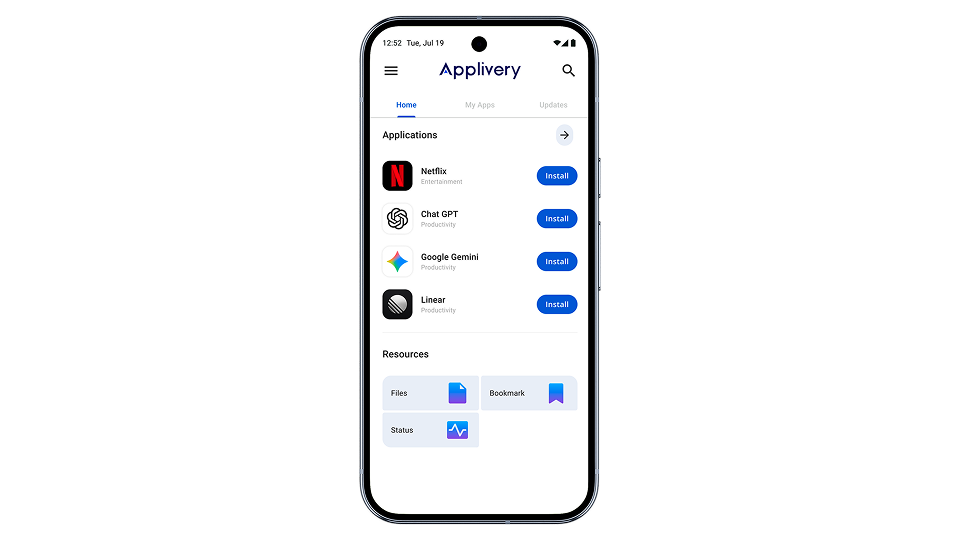
The Home tab is the landing view of the Applications section, providing a quick overview:
Applications preview: Shows up to four of the user's Apps, prioritizing those already installed. Each app displays its icon, name, category, and an action button (Open, Install, or Update). Tap View All to navigate to the My Apps tab.
Feature shortcuts: A grid of cards linking to other enabled Self-Service sections (Bookmarks, Status, etc.) for quick access without opening the navigation drawer.
Pull to refresh: Pull down on the screen to refresh the application list from the server.
My Apps Tab
Shows a complete list of all managed applications currently installed on the device, plus any currently being installed. Each app displays:
Icon, name, and category.
An action button: Open (installed and up to date), Update (newer version available), or an animated progress indicator (currently installing).
If no managed Apps are installed, the screen displays: "No applications installed."
Updates Tab
Shows only applications that have a newer version available. The header displays a count: "Updates pending (N)". Each app shows an Update button to start the update process. If all Apps are up to date, the screen displays: "No updates available."
App Detail Page
Tapping any application opens its full detail page, which includes:
Header: Large app icon, application name, and publisher name.
Compatibility warning: If the app requires a newer Android version than the device is running, a "Not compatible with this device" warning appears and the Install button is disabled.
Action buttons: Vary based on the app's current state:
App State
Available Actions
Not installed
Install
Not installed (incompatible)
Install (disabled)
Installed
Uninstall and Open
Update available
Uninstall and Update
Installing in progress
Animated loading indicator (no buttons)
Screenshots: A horizontally scrollable carousel. Tapping a screenshot opens it in a full-screen viewer with swipe navigation.
About this app: Application description, initially truncated to three lines. Tap to expand or open a dedicated full-screen reading view.
Information: Metadata including Author, Category, Compatibility, Age Rating (PEGI: 3+, 7+, 12+, 16+, or 18+), and Version number.
When returning to a previously viewed detail page, information loads instantly from a local cache while the app checks for updates in the background.
Search
The Applications section includes a search feature, accessible via the search icon in the top bar. It provides a real-time filtered list of Apps as the user types, matched against the application name (case-insensitive). Each result has an action button for quick install/open/update actions without visiting the detail page.
How App Installation Works
There are two types of applications, each installed differently:
Corporate applications (Custom Apps). Hosted directly on Applivery. When the user taps Install:
The app icon changes to an animated loading indicator.
A notification appears in the notification bar showing installation progress.
The application file is downloaded from the Applivery servers.
The system's package installer runs.
Once complete, the button changes to Open.
The entire process runs in the background — the user can continue browsing while installation takes place.
Google Play Store applications. When the user taps Install:
The device opens the app's page in the Google Play Store.
The user completes the installation through the Play Store.
When returning to the Applivery Agent, the app automatically detects the installation status and updates in real time — no manual refresh needed.
Uninstalling applications: Tap the Uninstall button on an app's detail page. A system confirmation prompt appears before the app is removed.
Bookmarks
The Bookmarks section displays URLs and web links that the organization has shared with the user — such as links to internal tools, documentation, or company portals.
Organization
Bookmarks are grouped into two categories:
Custom: Links configured specifically by the organization's administrator.
Applivery: Links provided by the Applivery Dashboard.
Filter buttons at the top of the screen allow viewing one category at a time. Tapping the same filter again removes it and shows all bookmarks.
Each bookmark displays an icon (if configured), name, description, and an Open button that opens the URL in the device's default browser.
Status
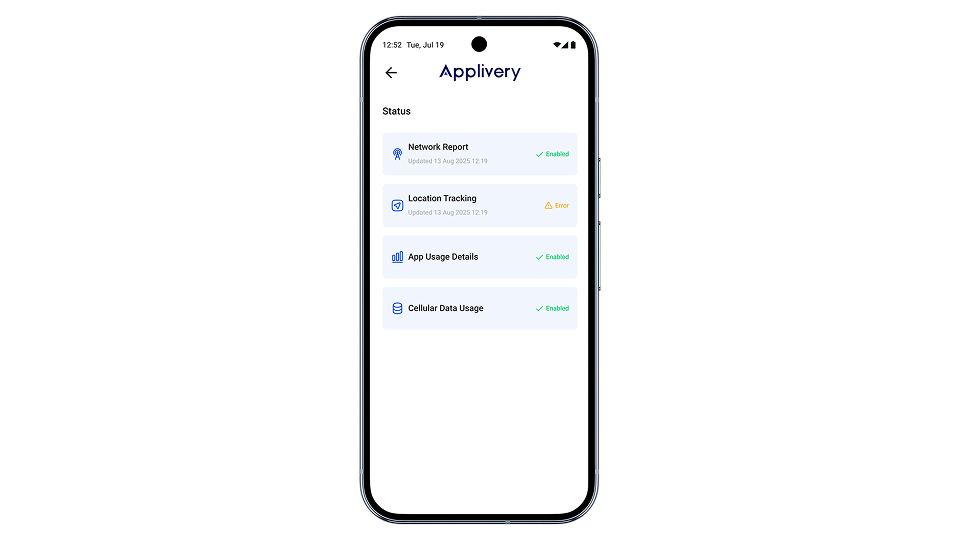
The Status section gives the user visibility into the management Agents (background services) running on their device. Each Agent is responsible for collecting and reporting a specific type of device information to the Applivery Dashboard.
Agents
Agent | What it does |
|---|---|
Location tracking | Reports the device's geographic location. |
App Usage Details | Reports on which Apps are used and for how long. |
Cellular Data Usage | Reports mobile data consumption. |
Network Report | Reports network signal strength and carrier info. |
Download Assets | Downloads certificates and files assigned to the device. |
Status Indicators
Each Agent is shown as a card with its icon, name, last successful run time, and a color-coded status:
Indicator | Color | Meaning |
|---|---|---|
Enabled | Green | Running normally and reporting on schedule |
Disabled | Gray | Turned off by the administrator for this device |
Error | Orange | A problem occurred (e.g., a required permission was denied) |
If an Agent is currently running, its subtitle shows "Running" instead of a timestamp. Status information updates in real time.
Navigation and Menu
Navigation Drawer
Open the navigation drawer by tapping the menu icon (☰) in the top-left corner. The drawer contains:
A close button (✕).
The Applivery logo.
All enabled sections with their icons: Applications, Files, Bookmarks, Status, Notifications.
Tapping any section switches to that view and closes the drawer.
Back Navigation
When inside a detail screen (app detail, search), the menu icon is replaced by a back arrow. Each main section maintains its own navigation history — returning to a section resumes where the user left off.
Default View
The administrator can configure which section opens by default when the app is launched. If no default is set, the first enabled section is shown.
Debug Mode
Rapidly tapping the Applivery logo in the navigation drawer multiple times opens a hidden debug screen intended for IT support, showing technical details about the device's configuration and Agent status.
Admin Configuration
Administrators control the Self-Service Portal's behavior through the managed configuration policy in the Applivery Dashboard, which is pushed to devices automatically.
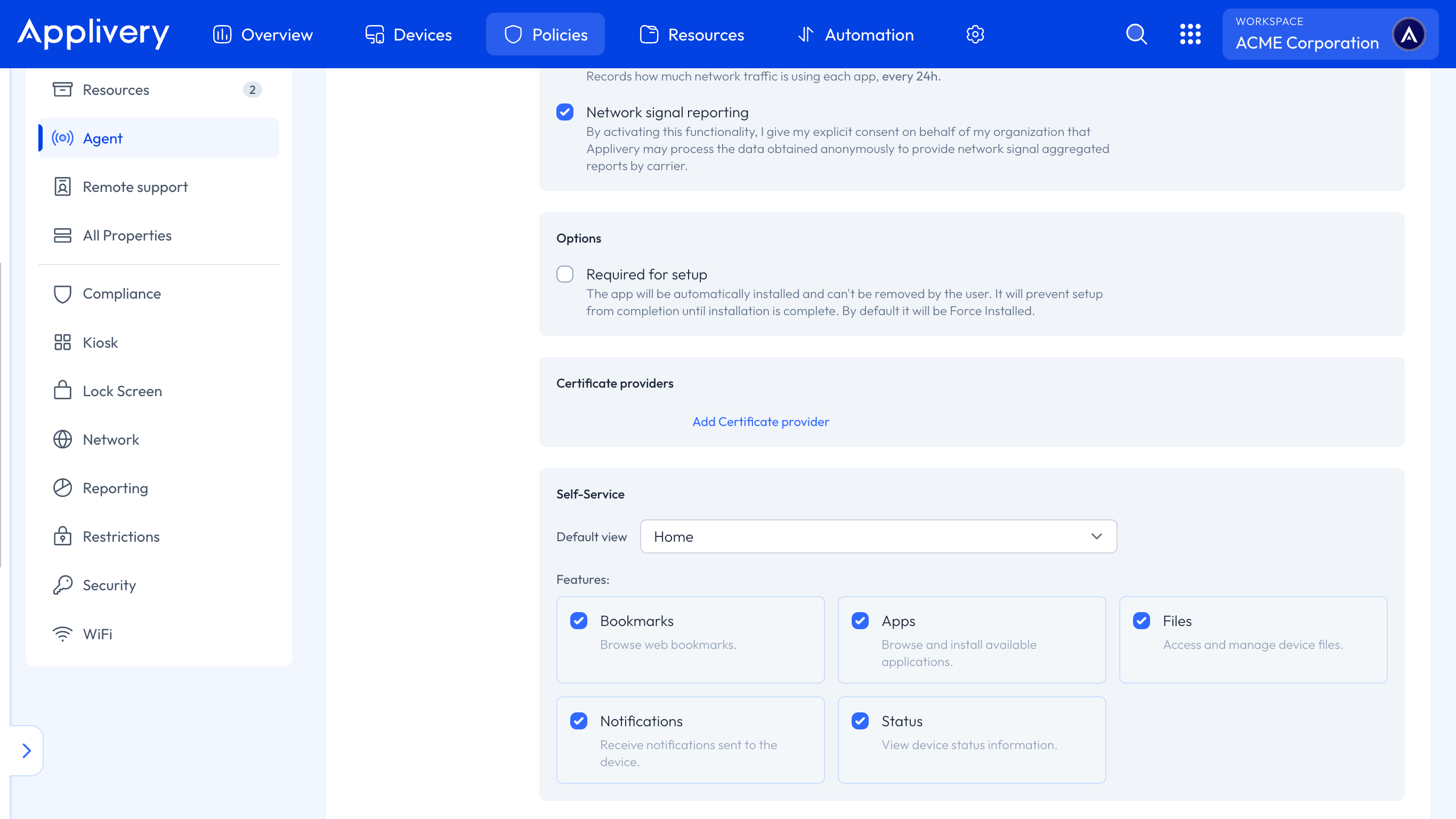
Feature Toggles
Each section of the Self-Service Portal can be independently enabled or disabled:
Feature key | Section |
|---|---|
| Application catalog with install/update/uninstall. |
| Organization bookmarks and web links. |
| Agent health monitoring Dashboard. |
| File management. |
| Push notification center. |
For each feature, the administrator can configure:
active: Whether the feature appears in the navigation menu (
trueorfalse).defaultView: Whether this feature is the first screen shown when the app opens (
trueorfalse). Only one feature should be set as the default view at a time.
Application Catalog
Applications shown in the Self-Service Portal are managed through the Applivery Dashboard App Management features. The Agent automatically syncs the assigned application list. Administrators control:
Which applications are visible to which devices or groups.
Whether an app is a corporate app (hosted on Applivery) or a Play Store app.
Whether the install type is Available (user-initiated) or Force Install (mandatory).
App metadata: name, description, icon, screenshots, category, age rating, version.
Bookmarks
Bookmarks are configured through the Applivery Dashboard Resources management. They support custom bookmarks (created by the administrator) and Applivery Dashboard bookmarks. Each bookmark has a title, description, URL, and an optional icon.
Resources Management
The Agent handles downloading and installing certificates and files assigned to the device. Certificates (such as SCEP-enrolled certificates) are automatically installed into the device's keystore. Other file types are downloaded and stored on the device.
Device Compatibility
The Applivery Android MDM Agent v2.0.0 supports:
Android 7.0 (Nougat / API 24) and higher.
Phones and tablets.
Fully managed devices and work profile devices.
The Self-Service Portal is designed for both portrait and landscape orientations, with optimized layouts for different screen sizes.
Version 2.0.0 is a one-way upgrade. Once a device is updated to v2.0.0, it cannot be downgraded to v1.x without losing local application and certificate data.